

- Observability plugins: Stream logs and metrics to external monitoring platforms for centralized analysis.
- Security plugins: Connect third-party guardrails providers to AI Studio. Admins enable a security plugin on the Plugins page, which allows individual guardrails to be created and configured on the Guardrails page.
Plugins are available on enterprise plans. Org admins, IT admins, and users
with AI Studio full access roles can add and manage plugins.
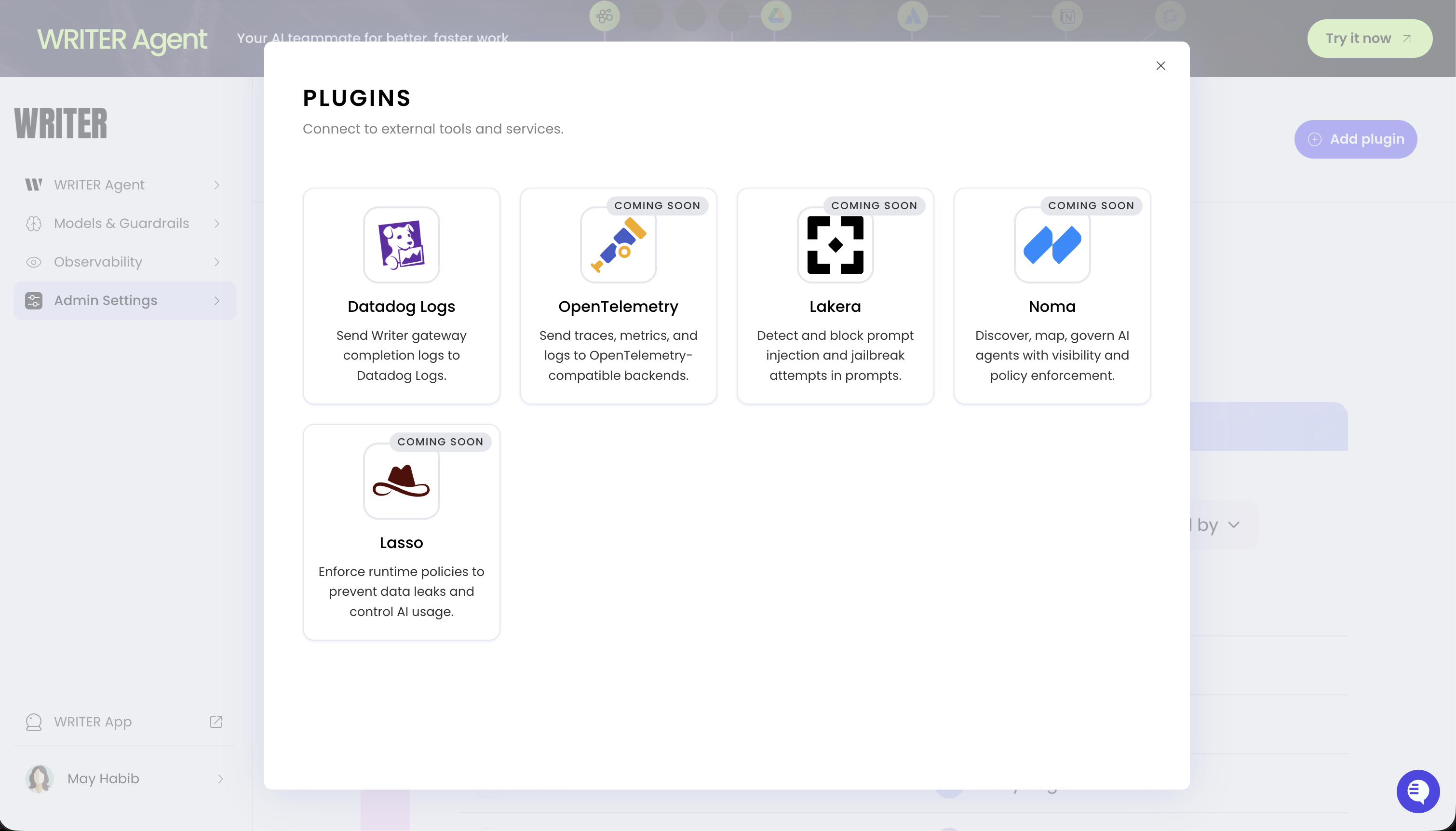
How plugins work
Plugins stream monitoring data from AI Studio directly into your existing observability and security tools, giving you centralized visibility across every agent, interaction, and cost in your deployment. With plugins configured, admins can:- Monitor agent activity in the same dashboards and alerting workflows used across the rest of the organization
- Audit agent behavior by streaming request-level metadata to external logging and compliance tools
- Enforce security policies by routing agent interactions through third-party guardrails providers
Available plugins
AI Studio supports the following plugins. Select an available plugin to view detailed configuration instructions.Set up a plugin
To configure a security or observability plugin:- Navigate to the Plugins page in AI Studio
- Select + Add plugin
- Select the security or observability plugin you want to configure
- Enter the required credentials (see the individual plugin docs for details)
- Configure any provider-specific settings (see the individual plugin docs for details)
Next steps
- Datadog Logs plugin: Configure log forwarding to Datadog
- Observability overview: Monitor events, errors, and performance across your deployment
- Agent observability: Track individual agent performance with session logs and metrics