

External models are available on enterprise plans. Org admins, IT admins, and
users with AI Studio full access roles can add and manage models. For billing,
see Understand external model billing.
Choose how to add models
Beyond Writer’s Palmyra models, you can add third-party models to your organization in two ways:- WRITER-managed models: Select from an array of third-party models that WRITER hosts and manages, such as models from Anthropic, DeepSeek, and Google. You don’t bring your own credentials—WRITER meters usage and bills you directly at the rates shown in the WRITER catalog. Enable the models you want from the WRITER catalog on the Models page.
- Bring your own model (BYOM) through bring your own key (BYOK): Connect models from a provider like AWS Bedrock or OpenRouter using your own provider credentials. Your provider bills usage directly, and WRITER adds a 10% pass-through fee, paid via credits.
WRITER-managed third-party models are available in WRITER
Agent only. They are not yet available through the
API or SDK. BYOM models connected with your own credentials are available
across WRITER Agent and the API.
Enable WRITER-managed models
Use the Models page catalog when you want WRITER to host and bill the model. Provider groups such as Anthropic, DeepSeek, and Google appear with per-model toggles, an Enable all / Disable all control, and an Always enable new models option.- Navigate to Models & Guardrails > Models in AI Studio
- Expand the provider group for the model you want
- Enable the individual model, or use Enable all for that provider
- Optionally select Always enable new models so future catalog models from that provider turn on automatically
How external models work
The Models page in AI Studio provides a unified governance layer for managing AI models across your organization. You can add models from external providers and control which teams have access to use them when building agents.
- Credential configuration: Administrators add provider credentials (API keys, access keys, or assume-role settings) to AI Studio
- Model selection: Administrators choose which models from the provider to enable
- Access control: Administrators assign model access to all teams or specific teams
- Agent building: Developers with access can select the model when building agents
- Request routing: When agents run, requests route through the configured provider credentials
Understand external model billing
External models use bring your own model (BYOM) billing. Your provider bills usage directly at its rate card, and WRITER adds a 10% pass-through fee on that usage, paid via credits. This differs from WRITER-managed models, which are metered entirely through WRITER. For rates and details, see External models (BYOM) on the pricing page. To track spend, see the Monitor costs section on each provider page, such as AWS Bedrock or OpenRouter.Available providers
AI Studio supports external models from the following providers. Select a provider to view detailed configuration instructions.AWS Bedrock models are currently supported in the following regions:
us-east-1, us-west-1, us-west-2, and eu-west-1. Additional regions may
be added in future releases.Add an external model
Add external models in AI Studio under Models & Guardrails > Models.Add a model in AI Studio
For reusability and easier rotation, create named credentials before adding a model. You can also enter credentials inline during the Add model flow (see Enter credentials directly).- Navigate to Models & Guardrails > Models in AI Studio
- Under Bring your own model, select + Add model
- Choose your provider (for example, Amazon Bedrock or OpenRouter), then select Next
- Select the model from the Model name dropdown
- Enter a unique Display name for the model
- Provide credentials using one of the following options (not both):
- Select an existing credential set from the Credentials name dropdown
- Enter a new Credential name and the provider-specific authentication fields
- Configure team access (all teams or specific teams)
- Select Save

Manage team access
Control which teams can use external models when building agents.Configure model availability
When adding a model, you can set access to:- All teams: The model is immediately available to everyone with builder access
- Specific teams: Restrict the model to selected teams
Update team access
To view or update which teams can access a model:- Navigate to Models & Guardrails > Models in AI Studio
- View the current team access in the Team Access column
- Select the menu icon and choose Edit to update team access
Credentials are configured at the model level, not the team level. Team access
controls who can use the model, but all authorized users share the same
underlying provider credentials. Team members with access can use the models
but cannot view the credentials.
Manage credentials
AI Studio stores provider credentials as named credential sets that you can reuse across multiple models. You can manage credentials from the dedicated LLM Credentials page or create them when adding a model.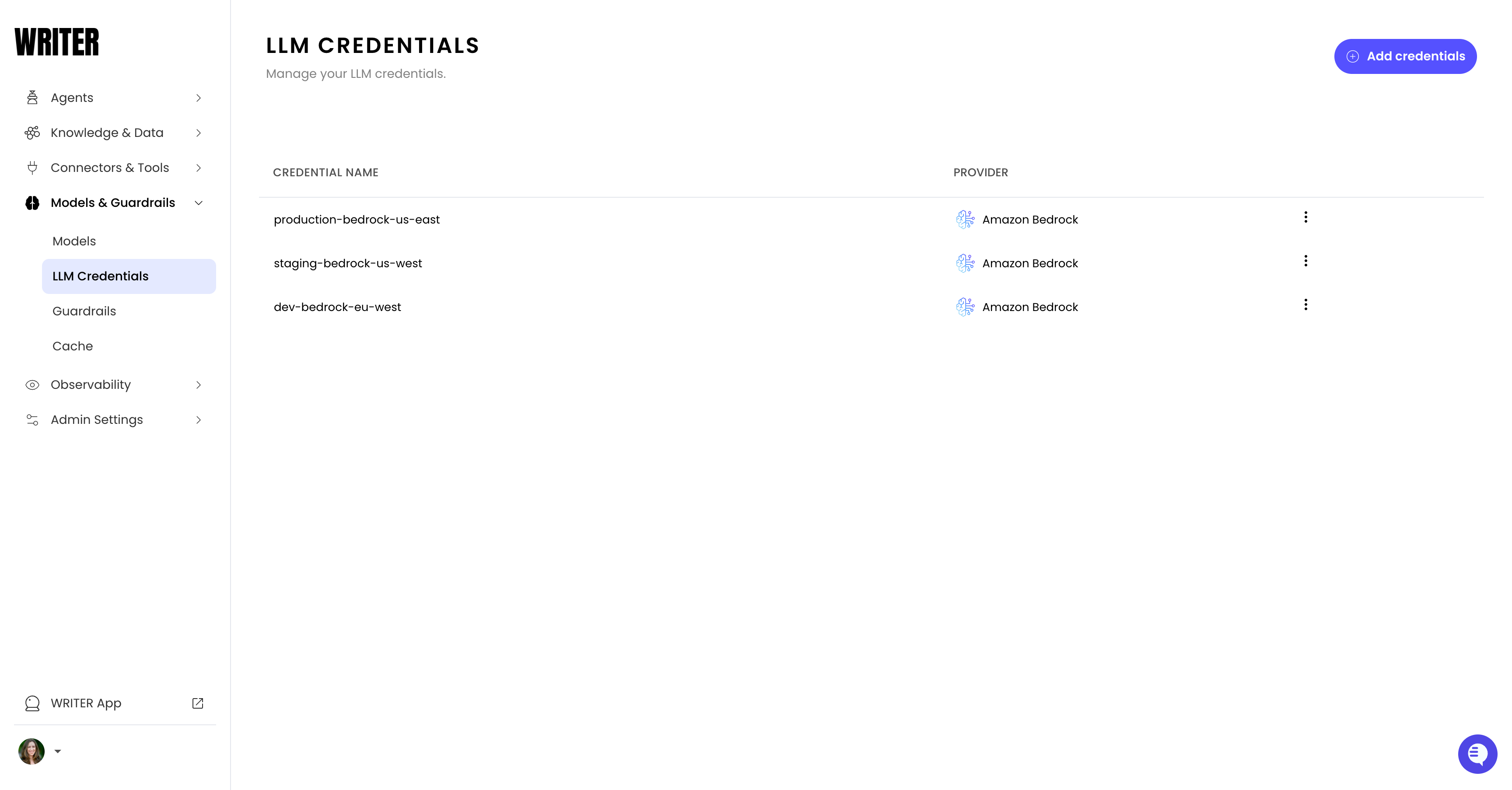
Create credentials from the LLM Credentials page
To create credentials before adding models:- Navigate to Models & Guardrails > LLM Credentials in AI Studio
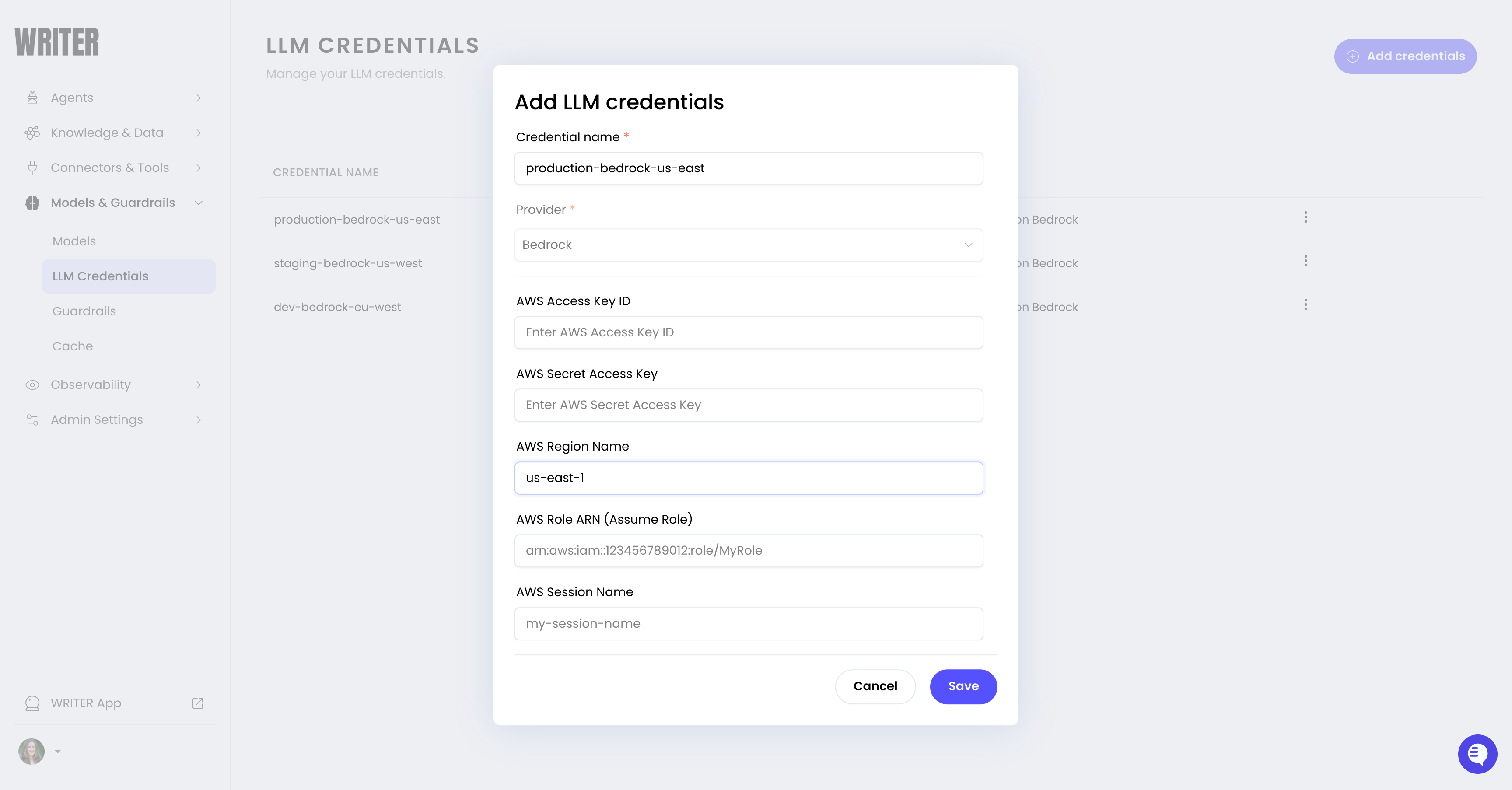
- Select Add credentials
- Enter a Credential name (for example,
dev-aws-credentialsorprod-openrouter) - Select the Provider (for example, Bedrock or OpenRouter)
- Enter the provider-specific authentication details
- Select Save
Enter credentials directly when adding a model
When adding a model, you can enter credentials directly in the Add Model form instead of selecting existing credentials. Credentials entered this way are stored with the model but are not saved as a named credential set for reuse with other models. To create reusable credentials that you can share across multiple models, use the LLM Credentials page instead.Reuse credentials across models
When adding additional models from the same provider:- Select your existing credentials from the Credentials name dropdown
- The stored authentication details are automatically applied
- You don’t need to re-enter access keys or other sensitive values
Update credentials
How you update expired or rotated credentials depends on how you originally configured them: Named credentials (created on the LLM Credentials page):- Navigate to Models & Guardrails > LLM Credentials in AI Studio
- Locate the credential in the list
- Select the menu icon and choose Edit credentials
- Update the authentication details and save
- Navigate to Models & Guardrails > Models in AI Studio
- Locate the model in the list
- Select the menu icon and choose Edit
- Update the credential values and save
Delete credentials
To delete a named credential:- Navigate to Models & Guardrails > LLM Credentials in AI Studio
- Locate the credential in the list
- Select the menu icon and choose Delete
Security best practices
Follow these practices when managing provider credentials:- Use dedicated service accounts rather than personal credentials
- Rotate credentials on a regular schedule (for example, every 90 days)
- Use descriptive credential names that indicate environment or purpose (for example,
prod-bedrock-us-east) - For AWS Bedrock, use AWS assume role for cross-account access; otherwise use a long-term Bedrock API key or access keys based on your organization’s security requirements
Edit a model
To update an external model’s configuration, including credentials and team access:- Navigate to Models & Guardrails > Models in AI Studio
- Locate the model in the list
- Select the menu icon and choose Edit
- Update the configuration and save
Delete a model
To remove an external model from AI Studio:- Navigate to Models & Guardrails > Models in AI Studio
- Locate the model in the list
- Select the menu icon and choose Delete
Troubleshoot model configuration
Form will not save
If the Add model form does not save:- Confirm all required fields for the selected provider and authentication method are complete
- Verify the Model name comes from the approved dropdown list
Duplicate model in WRITER Agent
If the model dropdown shows a confusing duplicate:- Check whether the same model is already enabled as a WRITER-managed catalog model
- Use a distinct Display name for the BYOM entry, or delete the extra BYOM model if you intended to use the WRITER-managed version
- Do not add a model as BYOM when it is already enabled in the WRITER catalog unless you intentionally want a separate BYOM connection
Use external models
Once you add an external model, it’s available to use the same way as Palmyra models.Agent Builder and no-code apps
In Agent Builder and no-code chat apps, external models appear in the Model dropdown alongside Palmyra models. Select any model your team has access to.API usage
External models use the same Writer API as Palmyra models. Use the List models endpoint to see all available models and their IDs, then pass the model ID to any endpoint that supports themodel parameter.
Next steps
- Configure AWS Bedrock: Set up AWS credentials and add Bedrock models
- Configure OpenRouter: Set up an OpenRouter API key and add OpenRouter models
- Choose a model: Compare Palmyra models with external provider models
- Palmyra models: Explore Writer’s Palmyra model capabilities