

NVIDIA NIM supports both cloud-hosted models via the NVIDIA API
Catalog and self-hosted deployments via
NVIDIA Inference
Microservices. See
Deployment options for details on each approach.
Prerequisites
Before adding NVIDIA NIM models to AI Studio, you need:- An NVIDIA Developer account with access to the API Catalog
- An NGC API key for authentication (see Generate an NGC API key)
- For self-hosted deployments: A running NIM instance with a reachable endpoint (see Configure self-hosted endpoints)
Generate an NGC API key
Generate an API key from the NGC console to authenticate with NVIDIA NIM.- Navigate to the NGC API Key page
- Select Generate API Key
- Enter a description for your key (for example,
AI Studio integration) - Under Key Permissions, ensure NGC Catalog access is included in the Services Included list
- Select Generate
- Copy the API key immediately
Deployment options
NVIDIA NIM offers two deployment approaches. Choose the one that matches your infrastructure requirements.Cloud-hosted (NVIDIA API Catalog)
Use NVIDIA’s cloud-hosted models through the API Catalog for quick setup. This approach:- Requires no infrastructure management
- Uses NVIDIA’s hosted API endpoint (
https://integrate.api.nvidia.com/v1) - Provides access to NVIDIA-hosted and partner models available through the API Catalog
- Bills usage through your NVIDIA account
Self-hosted (NVIDIA Inference Microservices)
Deploy NIM containers in your own infrastructure for greater control. This approach:- Runs models on your own GPU or cloud instances
- Requires a custom API Base URL pointing to your NIM deployment
- Provides greater control over where inference runs and how infrastructure is managed
- Supports air-gapped or private network deployments
For self-hosted deployments, AI Studio must be able to send outbound HTTPS
requests to your NIM endpoint. You may need to configure network rules or use
a public endpoint.
Add NVIDIA NIM models in AI Studio
After generating your API key, add NVIDIA NIM models to AI Studio.For self-hosted deployments, configure your NIM instance and note its API Base
URL before proceeding. See Configure self-hosted
endpoints for details.
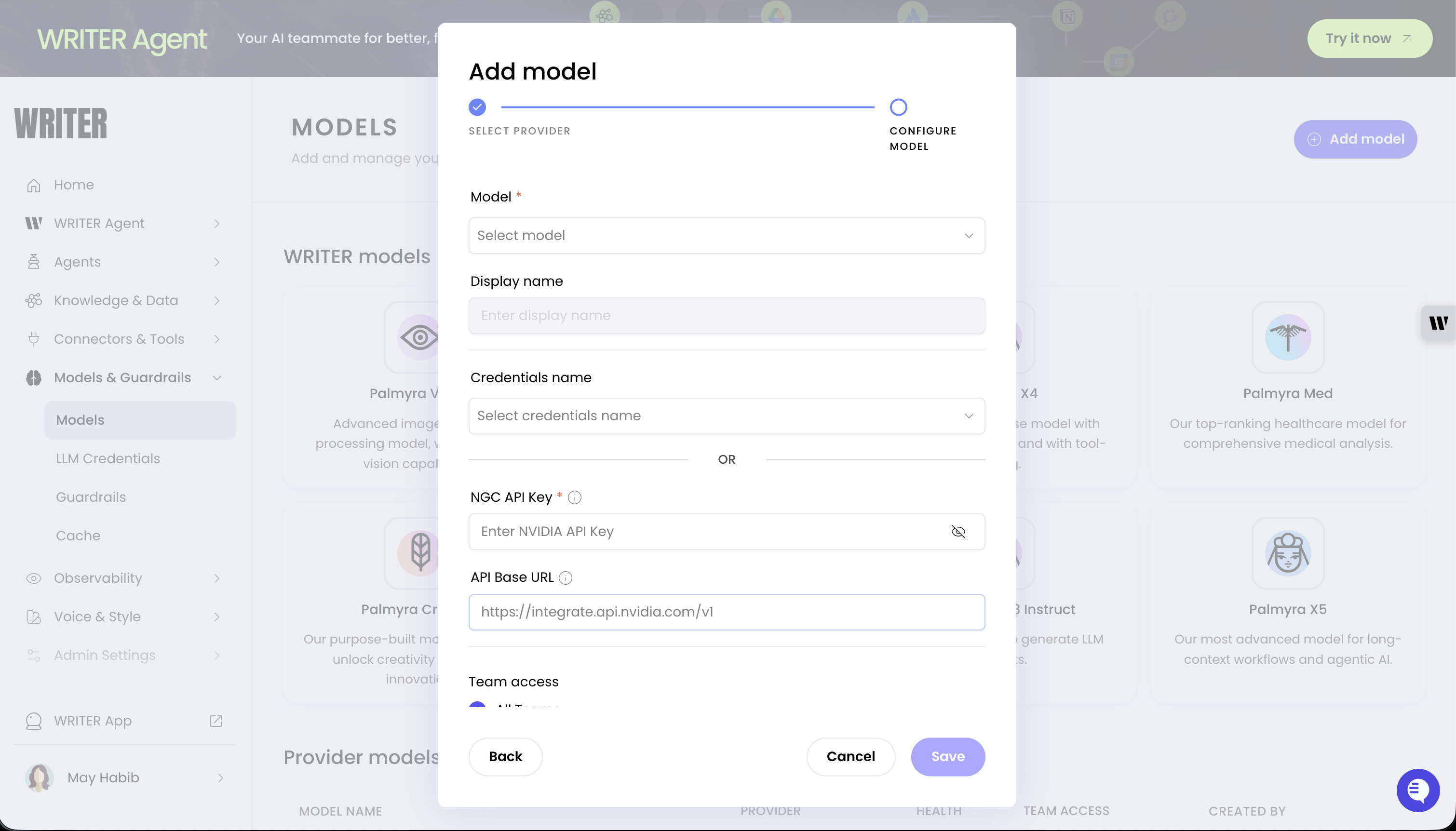
- Navigate to Models & Guardrails > Models in AI Studio
- Select + Add model
- Select NVIDIA NIM as the provider
- Enter your NGC API key
- Configure the endpoint:
- For cloud-hosted models: Leave the API Base URL empty to use the default NVIDIA endpoint
- For self-hosted models: Enter your custom API Base URL (for example,
https://your-nim-instance.example.com/v1)
- Select the models you want to add from the available list
- Configure team access:
- All teams: Anyone with builder access can use the model
- Specific teams: Restrict to selected teams
- Select Add model
Configure self-hosted endpoints
When using self-hosted NIM deployments, provide the base URL where your NIM instance is running. For detailed setup instructions, including hardware requirements and deployment options, see Get started with NVIDIA NIM for LLMs.API Base URL format
The API Base URL should point to your NIM deployment’s API endpoint:your-nim-host and port with your actual NIM instance address.
Verify your endpoint
Before adding to AI Studio, verify your NIM endpoint is accessible:Monitor costs
For cloud-hosted models, NVIDIA bills usage directly to your NVIDIA account based on the tokens processed. WRITER also charges a 10% pass-through fee on external model usage, paid via credits. AI Studio tracks usage and costs for external models, providing visibility into spending across all your models in one place. For self-hosted deployments, costs depend on your infrastructure (compute instances, resources).Troubleshoot NVIDIA NIM configuration
Invalid API key error
If you see an “Invalid API key” or “Authentication failed” error:- Verify the API key is copied correctly without extra spaces
- Check that the API key is still active in the NGC console
- Ensure you’re using an NGC API key, not a different NVIDIA credential type
Model not available error
If a model doesn’t appear or returns an error:- For cloud-hosted: Confirm the model is available in the NVIDIA API Catalog
- For self-hosted: Verify your NIM instance has the model deployed
- Check that your API key has access to the specific model
Connection failed error
If AI Studio cannot connect to your NIM endpoint:- Verify the API Base URL is correct and includes the protocol (
https://) - Check that your NIM instance is running and accessible
- Ensure network rules allow traffic from AI Studio’s infrastructure
- For self-hosted deployments, verify SSL certificates are valid
Next steps
- Add external models: Learn about managing external models in AI Studio
- Choose a model: Compare Palmyra models with external provider models
- NVIDIA NIM documentation: Explore NIM capabilities