

Prerequisites
Before adding Microsoft Azure models to AI Studio, you need:- An Azure subscription with access to Azure OpenAI or Foundry Models
- At least one deployed model on your Azure resource (see setup options below)
- The resource endpoint and API key for the deployment you plan to use
AI Studio currently supports the following Azure models, with more coming soon:
gpt-4.1gpt-4ogpt-5mistral-large-3
Choose a setup path
Choose one of the following setup paths depending on how you deploy models in Azure:- Azure OpenAI: Create an Azure OpenAI resource and deploy models through the Azure portal
- Foundry Models: Deploy models through the Foundry portal
Option 1: Azure OpenAI
Create a resource
Create an Azure OpenAI resource in the Azure portal before deploying models.- Sign in to the Azure portal
- Select Create a resource and search for Azure OpenAI
- Select Create
- On the Basics tab, provide the following:
- Select Next
- On the Network tab, select All networks, including the internet, can access this resource (required for AI Studio to reach the endpoint)
- Select Next to open the Tags tab. Add tags if your organization requires them
- Select Next to reach Review + submit
- Confirm your settings and select Create
Deploy a model
Before you can use a model in AI Studio, you need to deploy it on your Azure OpenAI resource.- Sign in to Microsoft Foundry
- Navigate to the Azure OpenAI resource you created earlier
- Select Deployments from the left pane
- Select + Deploy model > Deploy base model
- Select the model you want to deploy and select Confirm
- Set the Deployment name, which is the name you use in API calls and the value AI Studio maps to your model
- Select Deploy
- Wait until the Provisioning state changes to Succeeded
Option 2: Foundry Models
Create a Foundry project
Foundry Models are deployed within a Foundry project. Create one if you don’t already have a project.- Sign in to Microsoft Foundry. Ensure the New Foundry toggle is on
- Select + New project from the top navigation
- Enter a Project name
- Expand Advanced options to configure:
- Select Create
Deploy a model
- From the Foundry portal homepage, select Discover in the upper navigation, then Models in the left pane
- Select a model and review its details
- Select Deploy > Custom settings to configure the deployment (or Default settings for quick setup)
- For partner and community models, read the terms of use and select Agree and Proceed to subscribe through Azure Marketplace
- Set the Deployment name, which is used in API calls and the value AI Studio maps to your model
- Select Deploy
- Wait until the deployment status shows Succeeded
Retrieve the target URI and API key
After deploying a model through either setup path, navigate to the deployment to copy your credentials.- In the Foundry portal, navigate to the model you deployed
- Copy the Target URI and API Key from the deployment details to use in AI Studio
Add Microsoft Azure models in AI Studio
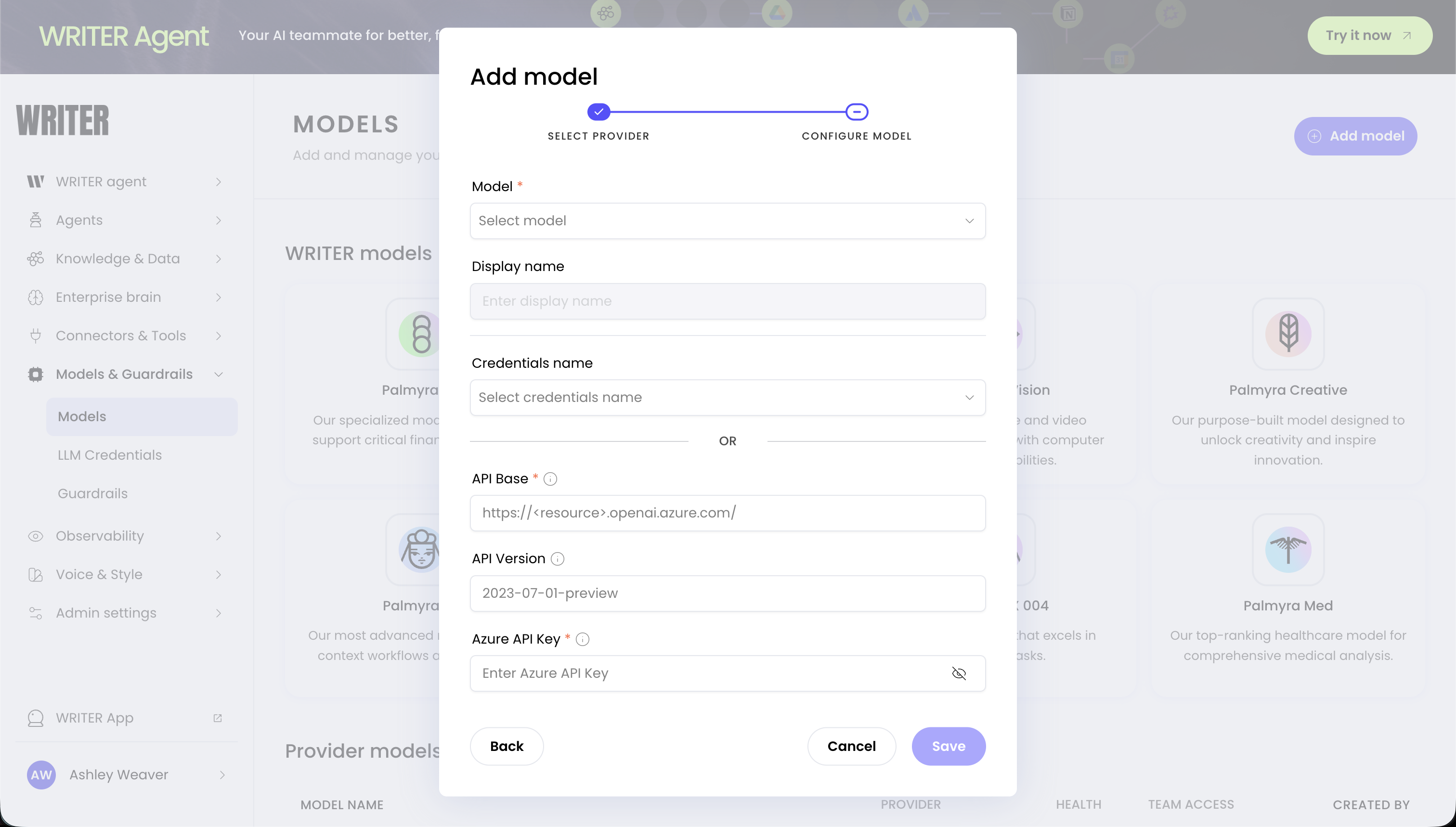
After deploying a model and copying your endpoint and key from either setup path:- Navigate to Models & Guardrails > Models in AI Studio
- Select + Add model
- Select Microsoft Azure as the provider
- Select your model from the Model dropdown
- Enter your credentials:
- API Base: The Target URI from your deployment (for example,
https://your-resource.openai.azure.com/) - API Version: The API version to use (for example,
2023-07-01-preview) - Azure API Key: The API key from your deployment
- API Base: The Target URI from your deployment (for example,
- Configure team access:
- All teams: Anyone with builder access can use the model
- Specific teams: Restrict to selected teams
- Select Save
Monitor costs
Azure bills usage directly to your Azure subscription based on tokens processed and deployment configuration. WRITER also charges a 10% pass-through fee on external model usage, paid via credits. AI Studio tracks usage and costs for external models, providing visibility into spending across all your models in one place.Troubleshoot Microsoft Azure configuration
Invalid credentials error
If you see an “Invalid credentials” or “Authentication failed” error:- Verify the API key is copied correctly without extra spaces
- Check that the key is still active in the Azure portal
- Ensure the key belongs to the same resource as the API Base URL
Model not available error
If a model doesn’t appear or returns an error:- Confirm the model deployment shows Succeeded in the Azure portal or Foundry portal
- Verify the deployment name matches the model selected in AI Studio
- Check that the API version is supported for your deployment
Connection failed error
If AI Studio cannot connect to your Azure resource:- Confirm the API Base URL uses
https://and matches the endpoint in your portal - Verify the resource network settings allow public access
- Check Azure service health for regional incidents
Next steps
- Add external models: Learn about managing external models in AI Studio
- Choose a model: Compare Palmyra models with external provider models
- Configure guardrails: Set up content safety and compliance policies for your AI agents
- Deploy Foundry Models (Microsoft Learn): Full Foundry Models deployment walkthrough