> ## Documentation Index
> Fetch the complete documentation index at: https://dev.writer.com/llms.txt
> Use this file to discover all available pages before exploring further.
# AWS Bedrock
> Add AI models from AWS Bedrock to use in AI Studio agents
This guide shows you how to configure AWS Bedrock as an external model provider in AI Studio. After setting up this provider, you can use foundation models from AWS Bedrock when building agents.
AI Studio currently supports Bedrock models in `us-east-1`, `us-west-1`, `us-west-2`, and `eu-west-1` regions only. See [Regional considerations](#regional-considerations) for details.
## Prerequisites
Before adding Bedrock models to AI Studio, you need:
* An [AWS account](https://aws.amazon.com/) with access to Amazon Bedrock
* Model access enabled for the Bedrock models you want to use (see [Enable model access](#enable-model-access-in-bedrock))
* IAM credentials with permission to invoke Bedrock models
AI Studio supports **text generation** and **embedding** models from Bedrock. Video, audio, and image generation models are not supported.
## Configure AWS credentials
AI Studio supports authentication for AWS Bedrock via access keys.
### Access keys
Access keys provide a straightforward way to authenticate with AWS. Create a dedicated IAM user for AI Studio rather than using personal credentials.
#### Create an IAM user
1. Sign in to the [AWS IAM Console](https://console.aws.amazon.com/iam/)
2. Navigate to **Users** in the left sidebar
3. Select **Create user**
4. Enter a username (for example, `writer-aistudio-bedrock`)
5. Select **Next**
6. Choose **Attach policies directly**
7. Search for and select `AmazonBedrockFullAccess`, or create a custom policy with more restrictive permissions (see [IAM policy requirements](#iam-policy-requirements))
8. Select **Next**, then **Create user**
#### Generate access keys
1. Select the user you created
2. Navigate to the **Security credentials** tab
3. Under **Access keys**, select **Create access key**
4. Choose **Third-party service** as the use case
5. Acknowledge the recommendation and select **Next**
6. Add an optional description tag (for example, `AI Studio Bedrock integration`)
7. Select **Create access key**
8. Copy the **Access key ID** and **Secret access key**
The secret access key is only shown once. Copy it immediately and store it securely. If you lose the secret key, you must create new access keys.
## Enable model access in Bedrock
Before using models in AI Studio, you must request access to them in the AWS Bedrock console.
1. Navigate to the [Amazon Bedrock console](https://console.aws.amazon.com/bedrock/)
2. Select your preferred region from the region dropdown (for example, **US West (Oregon)**)
3. Navigate to **Model access** in the left sidebar
4. Select **Manage model access**
5. Check the boxes for the models you want to enable
6. Select **Request model access**
7. Wait for the status to change from **In Progress** to **Access granted**
Some models require you to submit a use case and accept additional terms. Follow the prompts in the console to complete the access request.
For the most current list of available models and regional availability, see the [Amazon Bedrock model documentation](https://docs.aws.amazon.com/bedrock/latest/userguide/models-supported.html).
## Add Bedrock models in AI Studio
After configuring your AWS credentials and enabling model access:
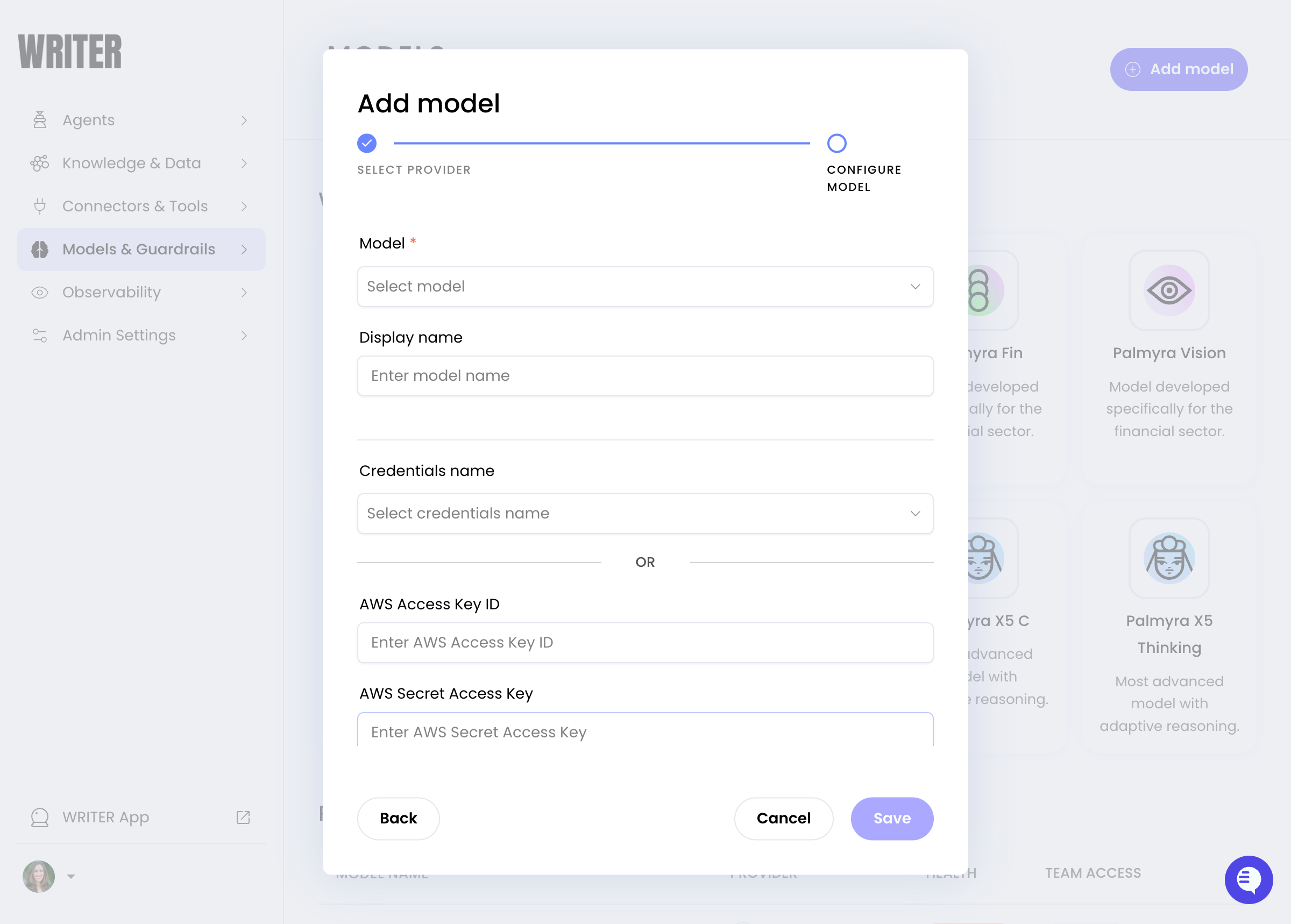
1. Navigate to **Models & Guardrails > Models** in [AI Studio](https://app.writer.com/aistudio)
2. Select **+ Add model**
3. Select **AWS Bedrock** as the provider
4. Enter your access key ID and secret access key
5. Select the AWS region where you enabled model access
6. Select the models you want to add from the available list
7. Configure team access:
* **All teams**: Anyone with builder access can use the model
* **Specific teams**: Restrict to selected teams
8. Select **Add model**
 ## Regional considerations
AI Studio supports Bedrock models in the following AWS regions:
* **US East** (`us-east-1`)
* **US West** (`us-west-1`)
* **US West 2** (`us-west-2`)
* **EU West** (`eu-west-1`)
Support for additional AWS regions is coming soon.
When configuring Bedrock in AI Studio:
* Select a supported region where you have model access enabled
* Ensure your IAM credentials have permissions in the same region you select
* Some Bedrock models are only available in specific regions—check the [Amazon Bedrock regional availability](https://docs.aws.amazon.com/bedrock/latest/userguide/bedrock-regions.html) documentation
Ensure the region you select in AI Studio matches the region where you enabled model access in AWS. Your IAM user or role must have permissions in that same region.
## Monitor costs
AWS bills Bedrock usage directly to your AWS account based on the tokens processed. AI Studio also tracks usage and costs for external models, providing visibility into spending across all your models in one place.
For information about monitoring model health and automatic recovery, see [Monitor model health](/home/external-models#monitor-model-health).
## Troubleshoot Bedrock configuration
### Invalid credentials error
If you see an "Invalid credentials" or "Authentication failed" error:
* Verify credentials are copied correctly without extra spaces
* Check that access keys are still active in the IAM console
* Ensure the IAM user/role has the required Bedrock permissions
### Model not available error
If a model doesn't appear or returns an error:
* Confirm you've requested and received access to the model in the Bedrock console
* Verify you selected the correct region in AI Studio
* Check that your IAM policy allows access to the specific model
### Access denied error
If you see permission errors when using a model:
* Review your IAM policy to ensure it includes `bedrock:InvokeModel` permission
* Check the policy's `Resource` field allows access to the model you're using
### Unhealthy model status
If a model shows as unhealthy in AI Studio:
* AI Studio automatically retries unhealthy models after a cooldown period
* For transient issues like temporary AWS outages, no action is needed
* For persistent issues, check the troubleshooting items above
## Next steps
* [Add external models](/home/external-models): Learn about managing external models in AI Studio
* [Choose a model](/home/models-overview): Compare Palmyra models with external provider models
* [Amazon Bedrock documentation](https://docs.aws.amazon.com/bedrock/): Explore Bedrock's full capabilities
## Regional considerations
AI Studio supports Bedrock models in the following AWS regions:
* **US East** (`us-east-1`)
* **US West** (`us-west-1`)
* **US West 2** (`us-west-2`)
* **EU West** (`eu-west-1`)
Support for additional AWS regions is coming soon.
When configuring Bedrock in AI Studio:
* Select a supported region where you have model access enabled
* Ensure your IAM credentials have permissions in the same region you select
* Some Bedrock models are only available in specific regions—check the [Amazon Bedrock regional availability](https://docs.aws.amazon.com/bedrock/latest/userguide/bedrock-regions.html) documentation
Ensure the region you select in AI Studio matches the region where you enabled model access in AWS. Your IAM user or role must have permissions in that same region.
## Monitor costs
AWS bills Bedrock usage directly to your AWS account based on the tokens processed. AI Studio also tracks usage and costs for external models, providing visibility into spending across all your models in one place.
For information about monitoring model health and automatic recovery, see [Monitor model health](/home/external-models#monitor-model-health).
## Troubleshoot Bedrock configuration
### Invalid credentials error
If you see an "Invalid credentials" or "Authentication failed" error:
* Verify credentials are copied correctly without extra spaces
* Check that access keys are still active in the IAM console
* Ensure the IAM user/role has the required Bedrock permissions
### Model not available error
If a model doesn't appear or returns an error:
* Confirm you've requested and received access to the model in the Bedrock console
* Verify you selected the correct region in AI Studio
* Check that your IAM policy allows access to the specific model
### Access denied error
If you see permission errors when using a model:
* Review your IAM policy to ensure it includes `bedrock:InvokeModel` permission
* Check the policy's `Resource` field allows access to the model you're using
### Unhealthy model status
If a model shows as unhealthy in AI Studio:
* AI Studio automatically retries unhealthy models after a cooldown period
* For transient issues like temporary AWS outages, no action is needed
* For persistent issues, check the troubleshooting items above
## Next steps
* [Add external models](/home/external-models): Learn about managing external models in AI Studio
* [Choose a model](/home/models-overview): Compare Palmyra models with external provider models
* [Amazon Bedrock documentation](https://docs.aws.amazon.com/bedrock/): Explore Bedrock's full capabilities