> ## Documentation Index
> Fetch the complete documentation index at: https://dev.writer.com/llms.txt
> Use this file to discover all available pages before exploring further.
# Text generation
Agents with the text generation capability can generate text based on specific inputs. These no-code agents are ideal for long- or short-form structured content, such as blog posts, FAQs, press releases, and newsletters.
 ## Building an agent with text generation
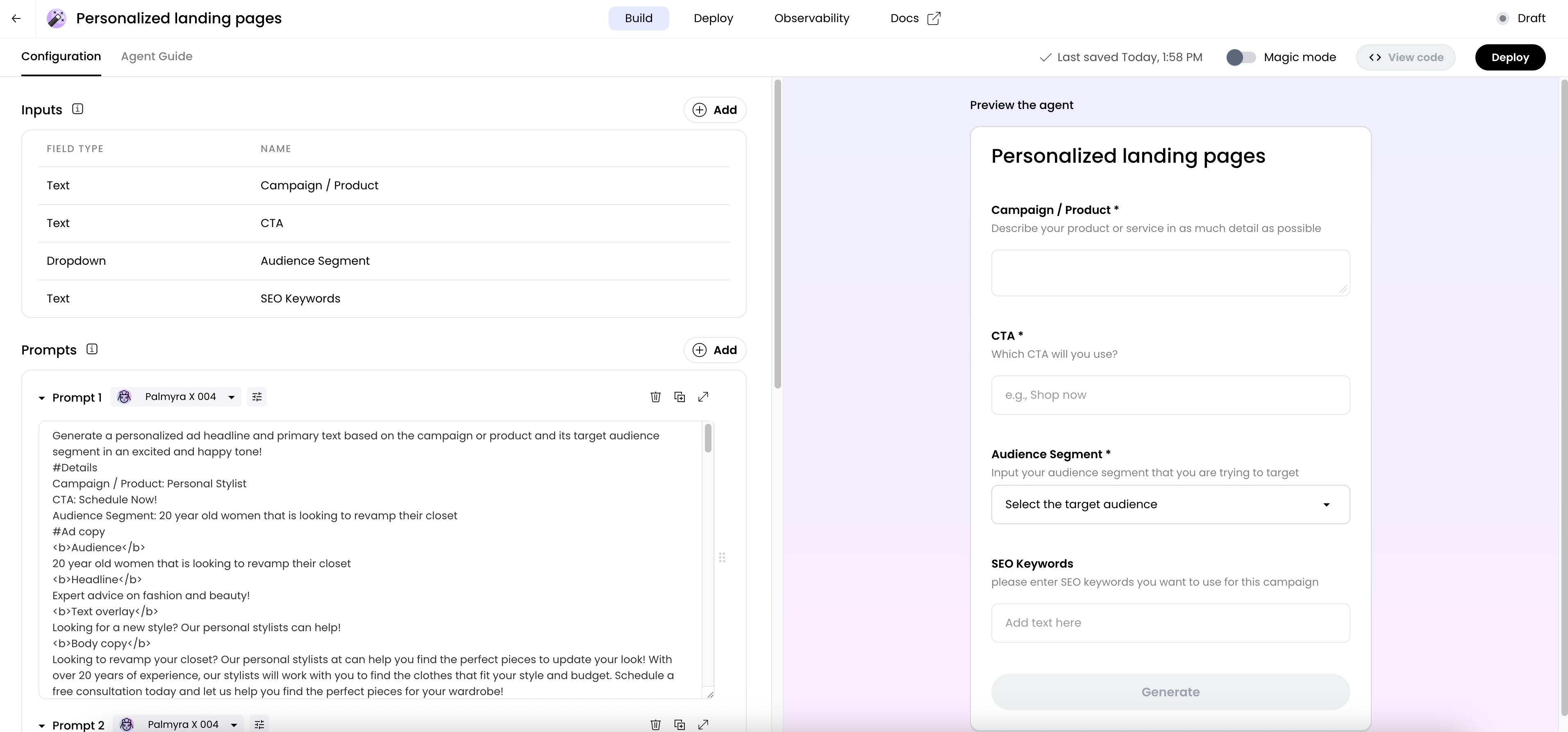
To build an agent with text generation capabilities, choose the **Text generation** option after clicking **Build an agent** in AI Studio.
## Building an agent with text generation
To build an agent with text generation capabilities, choose the **Text generation** option after clicking **Build an agent** in AI Studio.
 An agent with text generation capabilities consists of:
* [Adding inputs](/no-code/text-generation#inputs)
* [Writing prompts](/no-code/text-generation#prompts)
* [Formatting outputs](/no-code/text-generation#output-formatting)
* [Choosing a voice](/no-code/text-generation#voice)
## Inputs
An input is content information for your text generation. It generates the desired output—the content your text generation will produce.
For example, if you're building a blog post, the input would include the blog post topic, outline, keywords, reference materials, research sources, and existing knowledge about the topic.
### Types of inputs
There are four types of inputs:
1. Text input: A text input allows users to enter text directly into the text generation.
2. Dropdown: A dropdown input allows users to select one option from a list.
3. File upload: A file upload input allows users to upload a file, such as an image or PDF.
4. Image upload: An image upload input allows users to drag-and-drop or choose an image.
### Adding an input
Once you've decided what type of input you want to add, you'll need to:
Click **Add input** and select the type of input you want to add.
An agent with text generation capabilities consists of:
* [Adding inputs](/no-code/text-generation#inputs)
* [Writing prompts](/no-code/text-generation#prompts)
* [Formatting outputs](/no-code/text-generation#output-formatting)
* [Choosing a voice](/no-code/text-generation#voice)
## Inputs
An input is content information for your text generation. It generates the desired output—the content your text generation will produce.
For example, if you're building a blog post, the input would include the blog post topic, outline, keywords, reference materials, research sources, and existing knowledge about the topic.
### Types of inputs
There are four types of inputs:
1. Text input: A text input allows users to enter text directly into the text generation.
2. Dropdown: A dropdown input allows users to select one option from a list.
3. File upload: A file upload input allows users to upload a file, such as an image or PDF.
4. Image upload: An image upload input allows users to drag-and-drop or choose an image.
### Adding an input
Once you've decided what type of input you want to add, you'll need to:
Click **Add input** and select the type of input you want to add.
 Give your input a name that clearly communicates its purpose to users. This
will help them understand what information they need to provide.
Give your input a name that clearly communicates its purpose to users. This
will help them understand what information they need to provide.
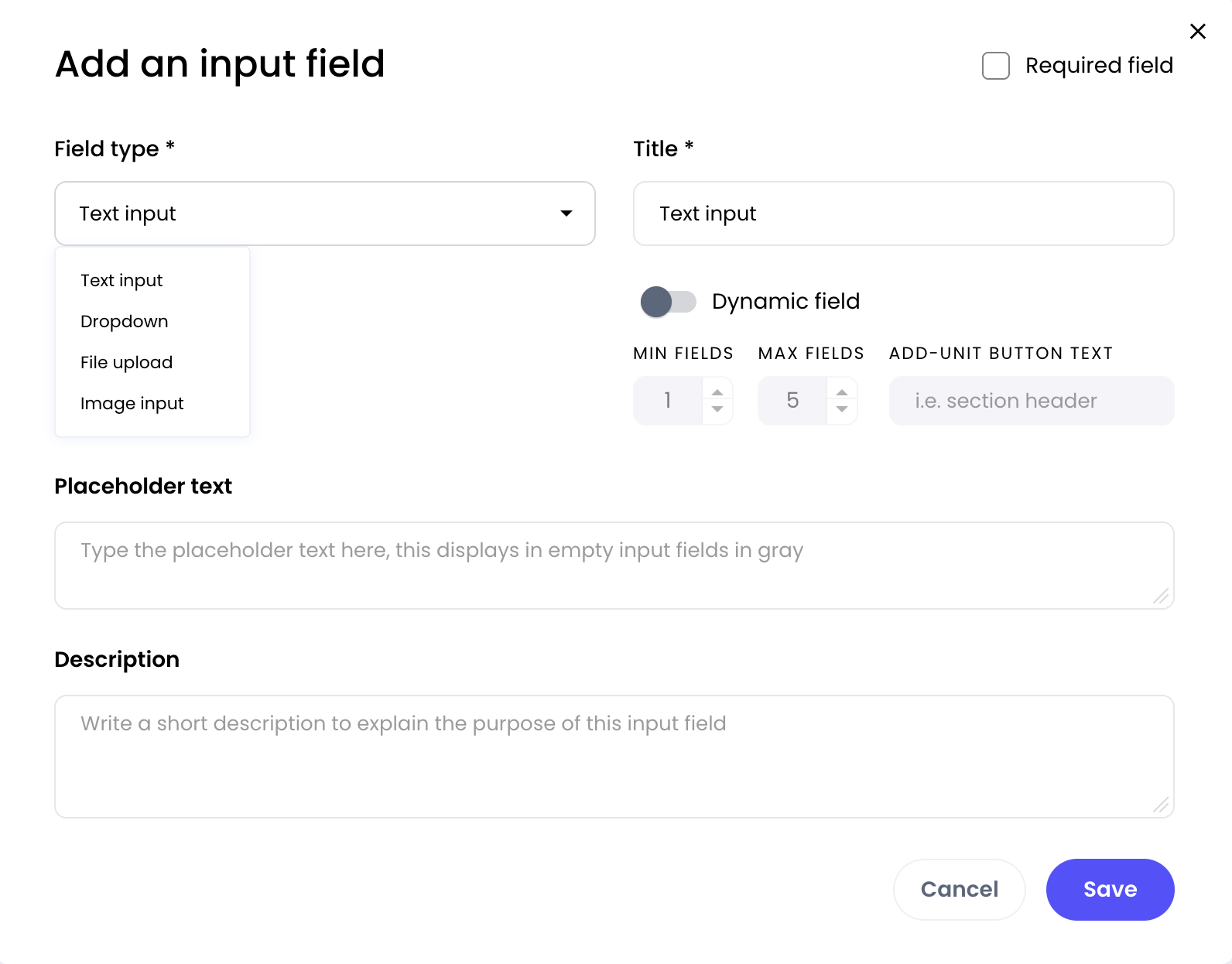 If it's required, users must enter information in that field in order to use
the text generation. If it's optional, they can skip it.
Provide placeholder text or descriptions to clarify what information is required. This ensures that users fully understand what they need to enter.
If you selected a file upload input, you can restrict the type of file users can upload. For example, if your agent expects a specific type of an .XLSX file, restrict other file types from being allowed. This will guide users to use the agent as intended.
## Prompts
A prompt is a message that you send to the model. It can be a single prompt consisting of a few lines, or a complex prompt consisting of multiple steps—each with its own prompt that relies on multiple inputs. You can even use prompting techniques such as chain-of-thought (CoT) prompting, where one prompt output becomes an input to the next prompt, and so on—creating a chain of thought.
Check out our [prompting guide](/home/prompting) for strategies on how to write effective prompts.
### Adding prompts
You can add multiple prompts to your text generation.
Click **Add prompt** and select the type of prompt you want to add.
If it's required, users must enter information in that field in order to use
the text generation. If it's optional, they can skip it.
Provide placeholder text or descriptions to clarify what information is required. This ensures that users fully understand what they need to enter.
If you selected a file upload input, you can restrict the type of file users can upload. For example, if your agent expects a specific type of an .XLSX file, restrict other file types from being allowed. This will guide users to use the agent as intended.
## Prompts
A prompt is a message that you send to the model. It can be a single prompt consisting of a few lines, or a complex prompt consisting of multiple steps—each with its own prompt that relies on multiple inputs. You can even use prompting techniques such as chain-of-thought (CoT) prompting, where one prompt output becomes an input to the next prompt, and so on—creating a chain of thought.
Check out our [prompting guide](/home/prompting) for strategies on how to write effective prompts.
### Adding prompts
You can add multiple prompts to your text generation.
Click **Add prompt** and select the type of prompt you want to add.
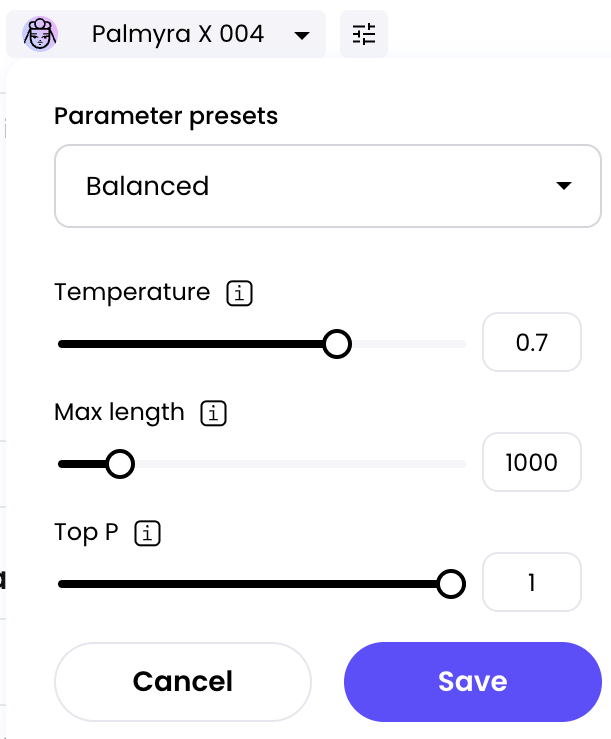
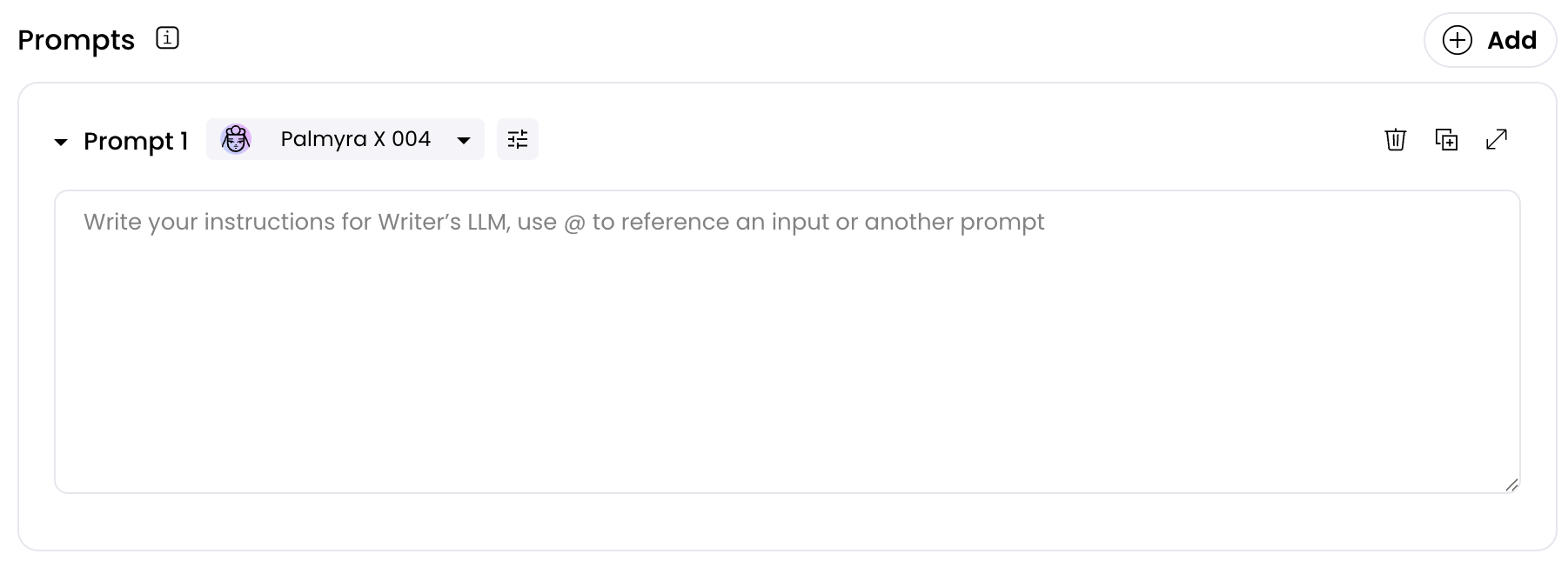 Select the [model](/home/models) you want to use for your prompt, as well as any parameters like temperature, top P, and max length.
 Write your prompt using the guidelines below and our [prompting guide](/home/prompting).
### How to use prompts effectively
You can ask the model to perform various tasks, but it's best to break down your prompts into smaller, more specific "asks." This is especially important for complex, multi-step text generation. Otherwise, you risk overwhelming the model by asking it to perform too many tasks at once.
For example, instead of asking it to create an entire blog post at once, you might write one prompt asking it to create a title, another to create an opening paragraph, and so on.
Follow these [strategies](/home/prompting) to write good prompts.
Write your prompt using the guidelines below and our [prompting guide](/home/prompting).
### How to use prompts effectively
You can ask the model to perform various tasks, but it's best to break down your prompts into smaller, more specific "asks." This is especially important for complex, multi-step text generation. Otherwise, you risk overwhelming the model by asking it to perform too many tasks at once.
For example, instead of asking it to create an entire blog post at once, you might write one prompt asking it to create a title, another to create an opening paragraph, and so on.
Follow these [strategies](/home/prompting) to write good prompts.
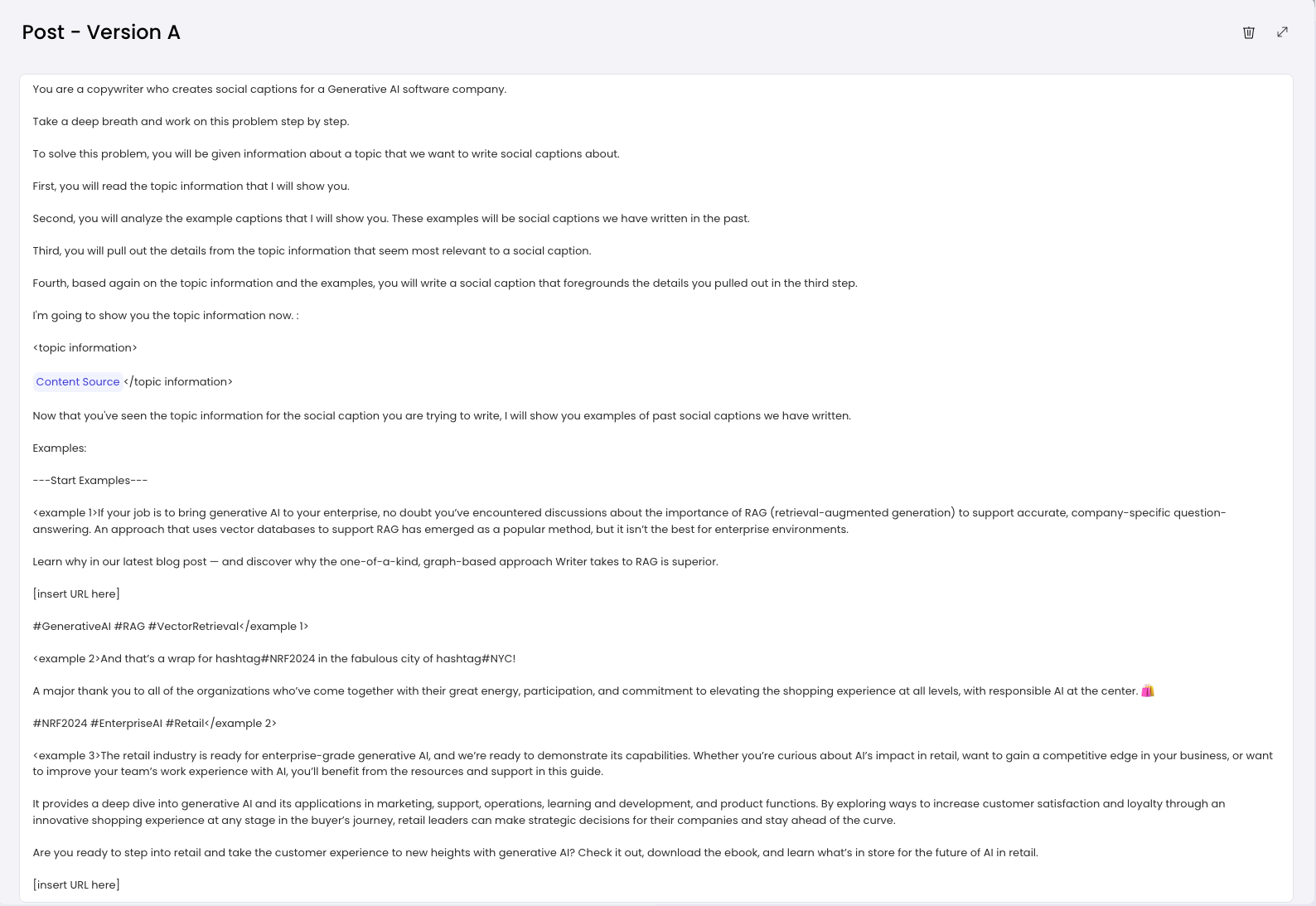 ### Renaming prompts
You can rename prompts from generic names like "Prompt 1" and "Prompt 2" to any custom name.
This will help you to:
1. Stay organized and keep track of your prompts
2. Know exactly what each prompt accomplishes
3. Write your prompts
4. Format your output
### Renaming prompts
You can rename prompts from generic names like "Prompt 1" and "Prompt 2" to any custom name.
This will help you to:
1. Stay organized and keep track of your prompts
2. Know exactly what each prompt accomplishes
3. Write your prompts
4. Format your output
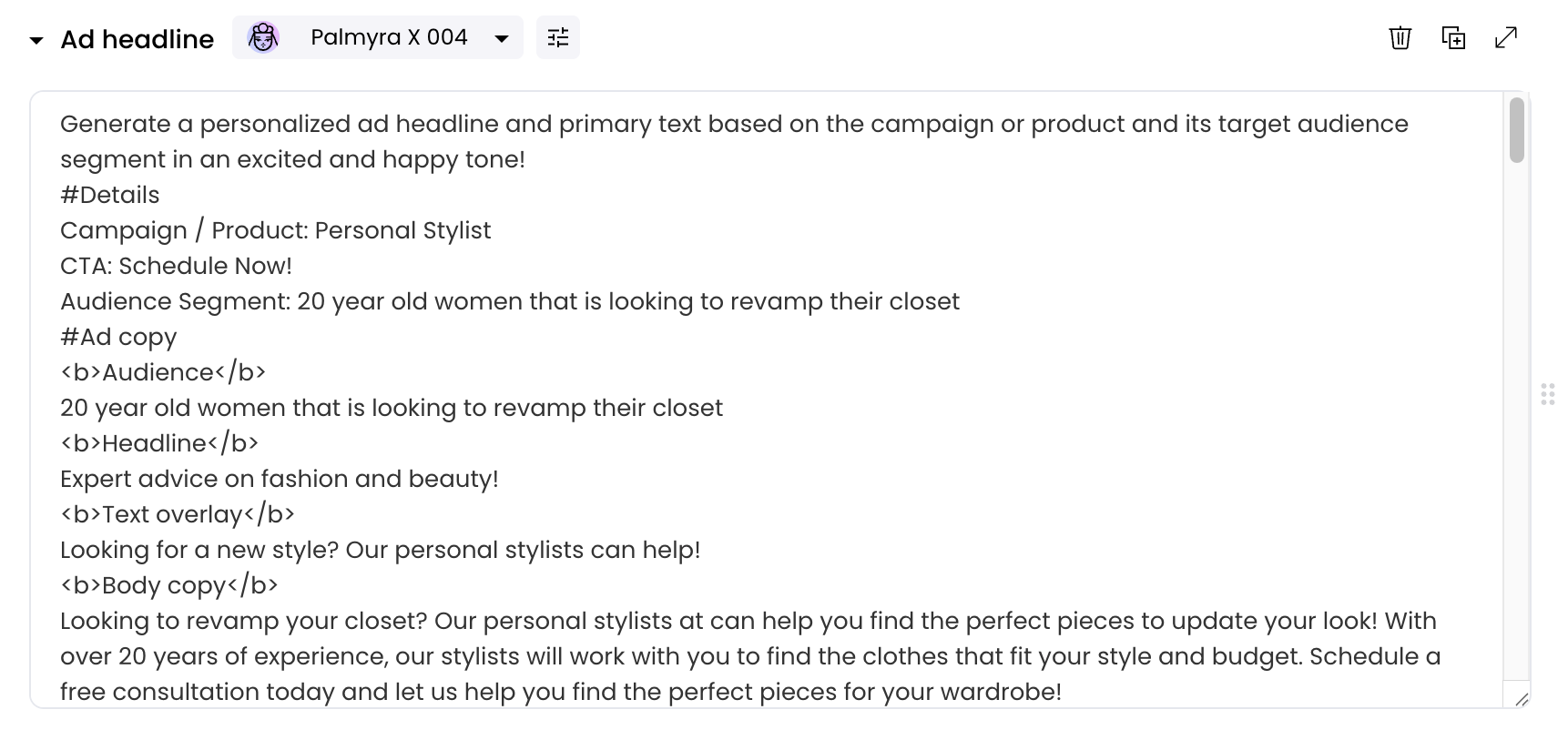 ### Referencing inputs
To reference your input, `@` it within the prompt.
For example, if you're writing a prompt to generate social posts based on a blog post, do the following:
1. **Input:** `Blog post`
2. **Prompt 1:** instructions for creating a social post
In your prompt, reference `@Blog post` so that Writer understands that the social post should be based on the blog input.
### Referencing inputs
To reference your input, `@` it within the prompt.
For example, if you're writing a prompt to generate social posts based on a blog post, do the following:
1. **Input:** `Blog post`
2. **Prompt 1:** instructions for creating a social post
In your prompt, reference `@Blog post` so that Writer understands that the social post should be based on the blog input.
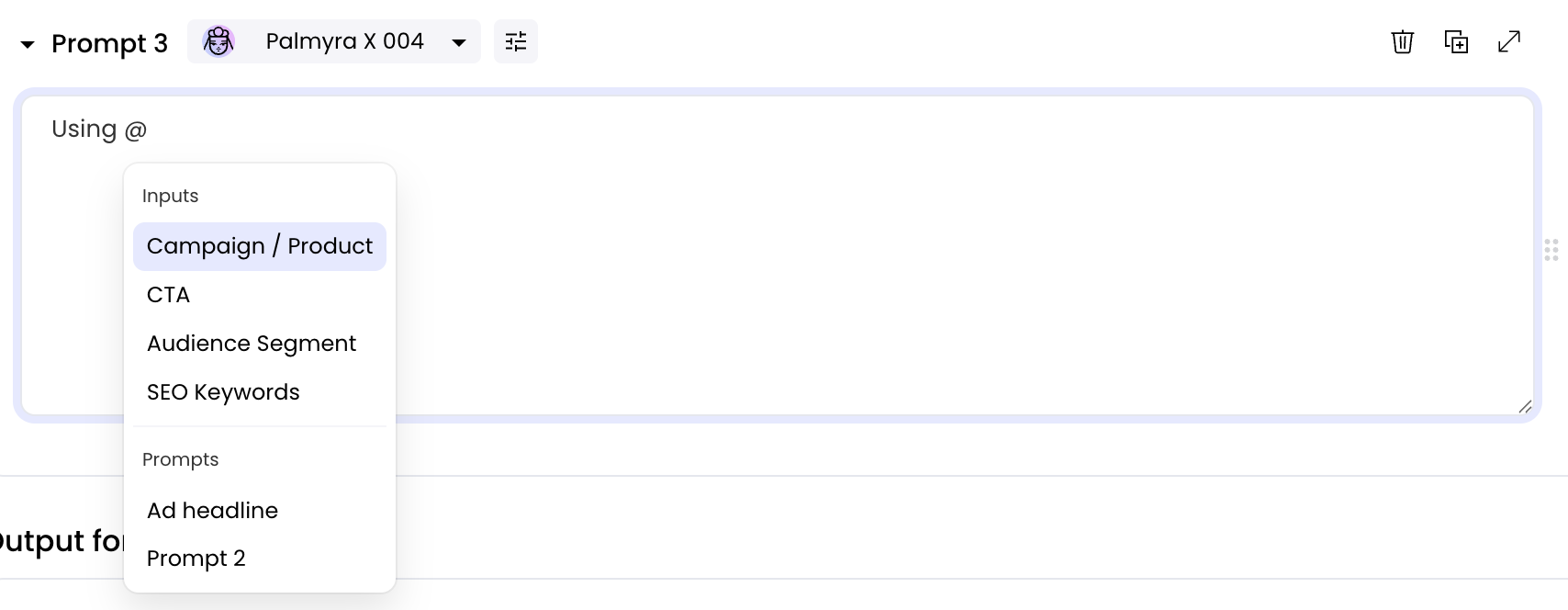 If you have more than one input, you can `@` each one within a single
prompt.
### Prompt chaining
You can reference other prompts within a prompt by using the `@` symbol, a feature known as prompt chaining.
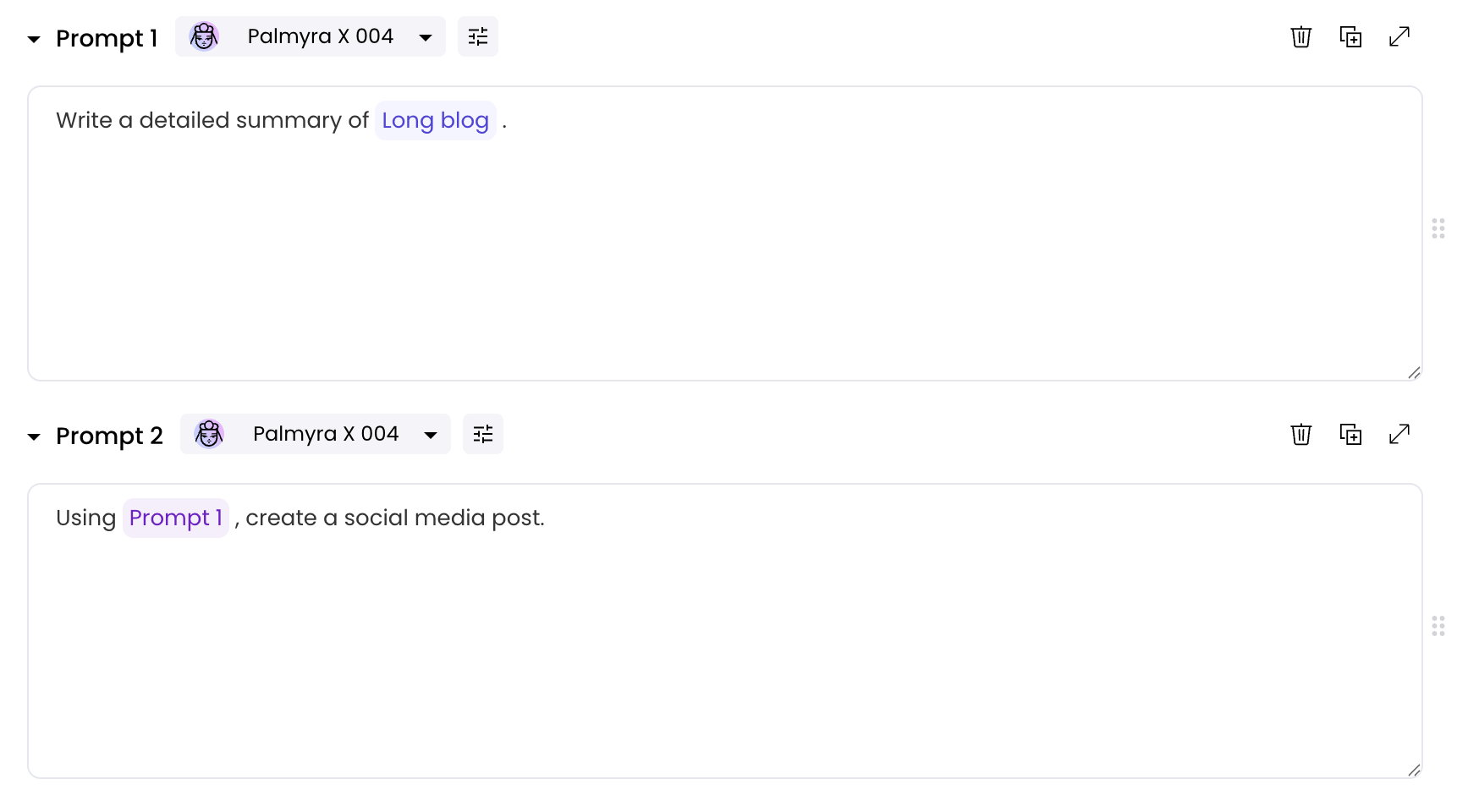
For example, if you have a long blog post, you might want to summarize it in your first prompt, and use that summary to generate a social media post in your second prompt:
`Long blog`
Instructions for generating a summary of the `@Long blog` post.
Instructions for generating a social media post based on `Prompt 1`.
In the second prompt, you'd reference `@Prompt 1` to indicate that you want the social media post to be based on the blog summary.
If you have more than one input, you can `@` each one within a single
prompt.
### Prompt chaining
You can reference other prompts within a prompt by using the `@` symbol, a feature known as prompt chaining.
For example, if you have a long blog post, you might want to summarize it in your first prompt, and use that summary to generate a social media post in your second prompt:
`Long blog`
Instructions for generating a summary of the `@Long blog` post.
Instructions for generating a social media post based on `Prompt 1`.
In the second prompt, you'd reference `@Prompt 1` to indicate that you want the social media post to be based on the blog summary.
 ## Output formatting
Next, format your output—the final assembled text generation. To do this, take all your prompt outputs (if you have more than one), format their style, add any static text such as a disclaimer, and combine them together.
You can use Markdown or HTML to specify how you'd like your output to be formatted.
For example, you can use the following formatting:
Use `
## Output formatting
Next, format your output—the final assembled text generation. To do this, take all your prompt outputs (if you have more than one), format their style, add any static text such as a disclaimer, and combine them together.
You can use Markdown or HTML to specify how you'd like your output to be formatted.
For example, you can use the following formatting:
Use ``, `
`, ``, `
`, and ``, `
` to denote heading
text.
Use `` and `` to denote bolded text.
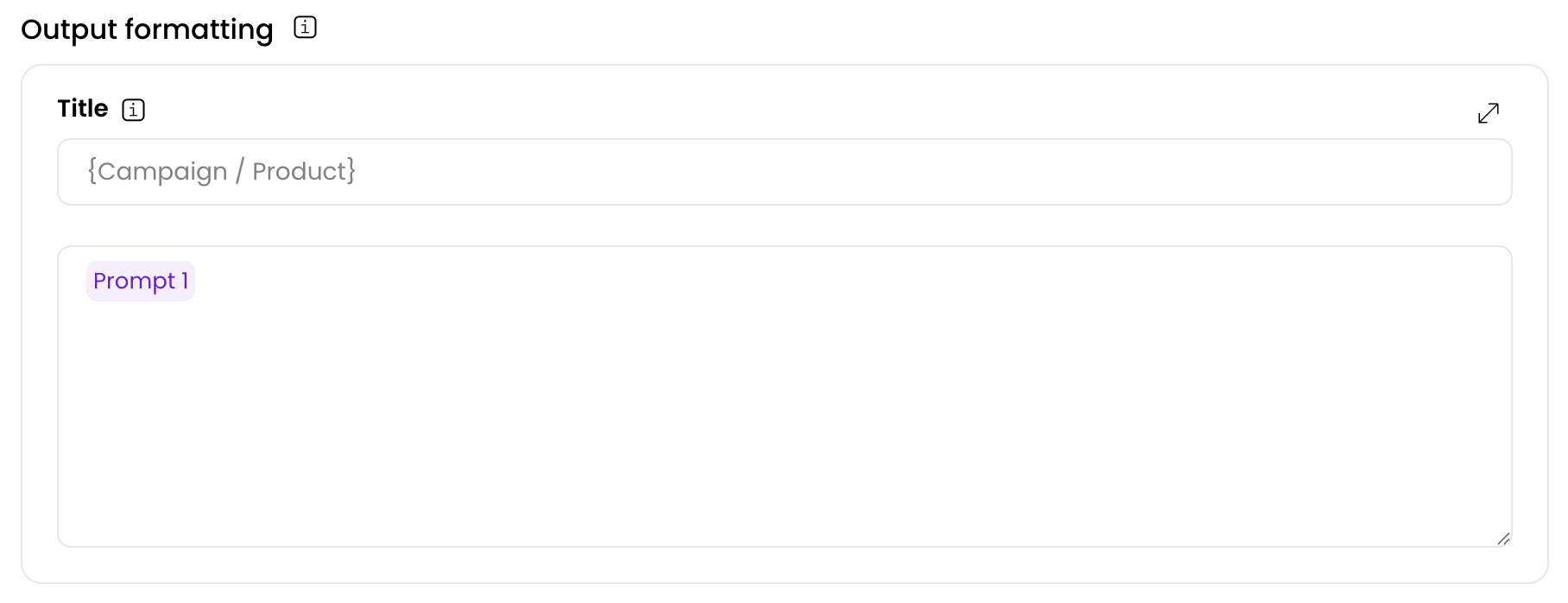 You don't have to include every prompt in your output formatting. For example, a prompt might be used only to summarize and then to create a LinkedIn post (based on the summary). If you don't want to include the summary in your output, you don't have to.
Because you don't need to reference every prompt in your final output, you can leave interim prompts in your text generation for A/B testing or to get feedback. Combined with the `Rerun` option, this is a great way to efficiently iterate on your text generation.
The simplest text generation will have only one prompt. A more complex text generation might have multiple section headers, each with its own prompt output.
Before adding even more prompts to your text generation, ask yourself:
1. Does the user want this content?
2. Do I need these inputs to generate this output?
## Voice
With voice calibration, you can create outputs that sound just like you, faster. Voice allows you to build your different voices in Writer, and see them in action across the platform in the content you generate. To learn more about voice calibration, see [how to calibrate voice](https://support.writer.com/article/250-how-to-calibrate-voice-for-your-content).
At this time, only English is supported in Writer voice profiles.
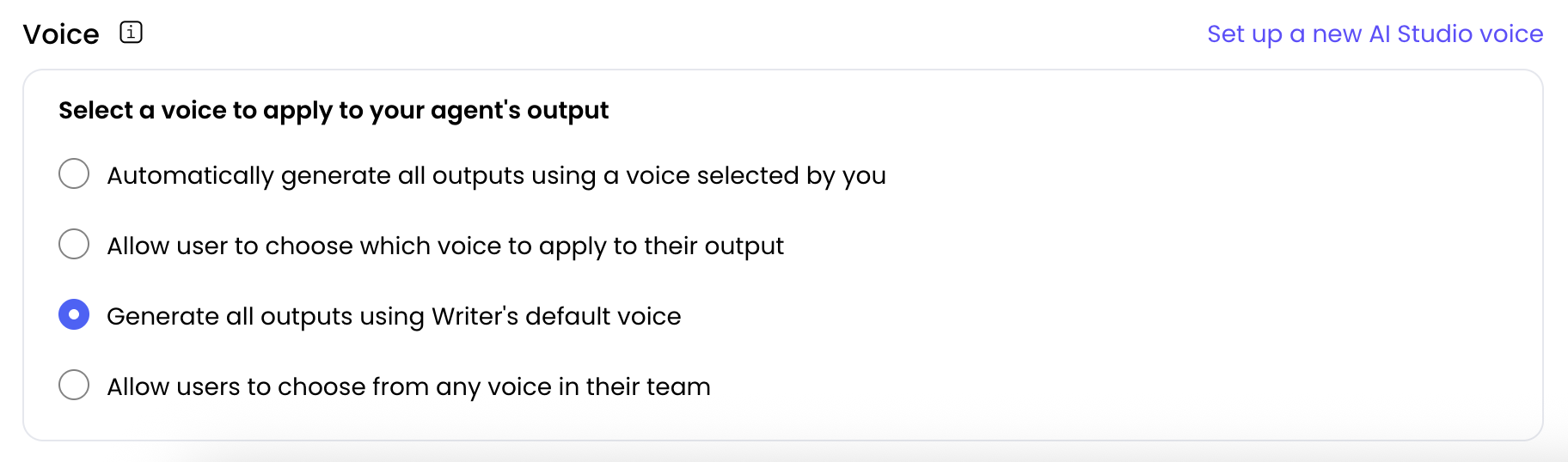
For an agent with text generation capabilities, you can choose to:
* Automatically generate all outputs using a voice selected by you
* Allow user to choose which voice to apply to their output
* Generate all outputs using Writer's default voice
* Allow users to choose from any voice in their team
You don't have to include every prompt in your output formatting. For example, a prompt might be used only to summarize and then to create a LinkedIn post (based on the summary). If you don't want to include the summary in your output, you don't have to.
Because you don't need to reference every prompt in your final output, you can leave interim prompts in your text generation for A/B testing or to get feedback. Combined with the `Rerun` option, this is a great way to efficiently iterate on your text generation.
The simplest text generation will have only one prompt. A more complex text generation might have multiple section headers, each with its own prompt output.
Before adding even more prompts to your text generation, ask yourself:
1. Does the user want this content?
2. Do I need these inputs to generate this output?
## Voice
With voice calibration, you can create outputs that sound just like you, faster. Voice allows you to build your different voices in Writer, and see them in action across the platform in the content you generate. To learn more about voice calibration, see [how to calibrate voice](https://support.writer.com/article/250-how-to-calibrate-voice-for-your-content).
At this time, only English is supported in Writer voice profiles.
For an agent with text generation capabilities, you can choose to:
* Automatically generate all outputs using a voice selected by you
* Allow user to choose which voice to apply to their output
* Generate all outputs using Writer's default voice
* Allow users to choose from any voice in their team