> ## Documentation Index
> Fetch the complete documentation index at: https://dev.writer.com/llms.txt
> Use this file to discover all available pages before exploring further.
# Deploy an agent
Full-access users can deploy any agent in their organization. Individual builders can deploy agents they create.
To deploy a no-code agent, first click on the **Deploy** tab at the top of the page. Depending on your organization's status, you'll have up to four deployment options:
* [**Playground**](#playground): Receive a URL to share with others to test the agent.
* [**Embed agent**](#embed-agent): Embed the agent on your own website or portal.
* [**Deploy to Slack**](#deploy-to-slack): Enable the agent for use within Slack.
* [**Deploy to Writer**](#deploy-to-writer): Enable the agent for use within Writer.
## Playground
Playground is the easiest way to share and test your agent. Just go to **Deploy** and turn on the Playground toggle. You can either copy the Playground URL to share with others, or open the agent in **Playground** in a new tab.
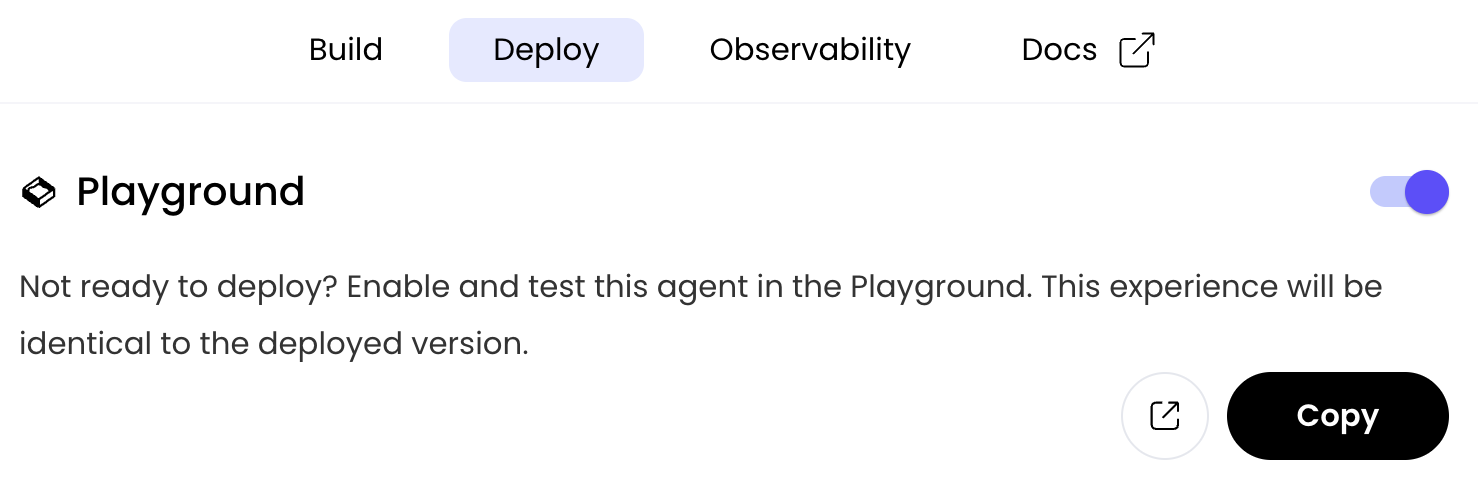 The **Open** button will take you directly to this agent through the Playground, while the **Copy link** option will generate a shareable link that you can send to any tester or end user to get feedback on your agent.
Links to the Playground view of an agent don't require authentication. This can be useful for providing external users access to test an agent (they won't be able to navigate elsewhere within your AI Studio).
## Embed agent
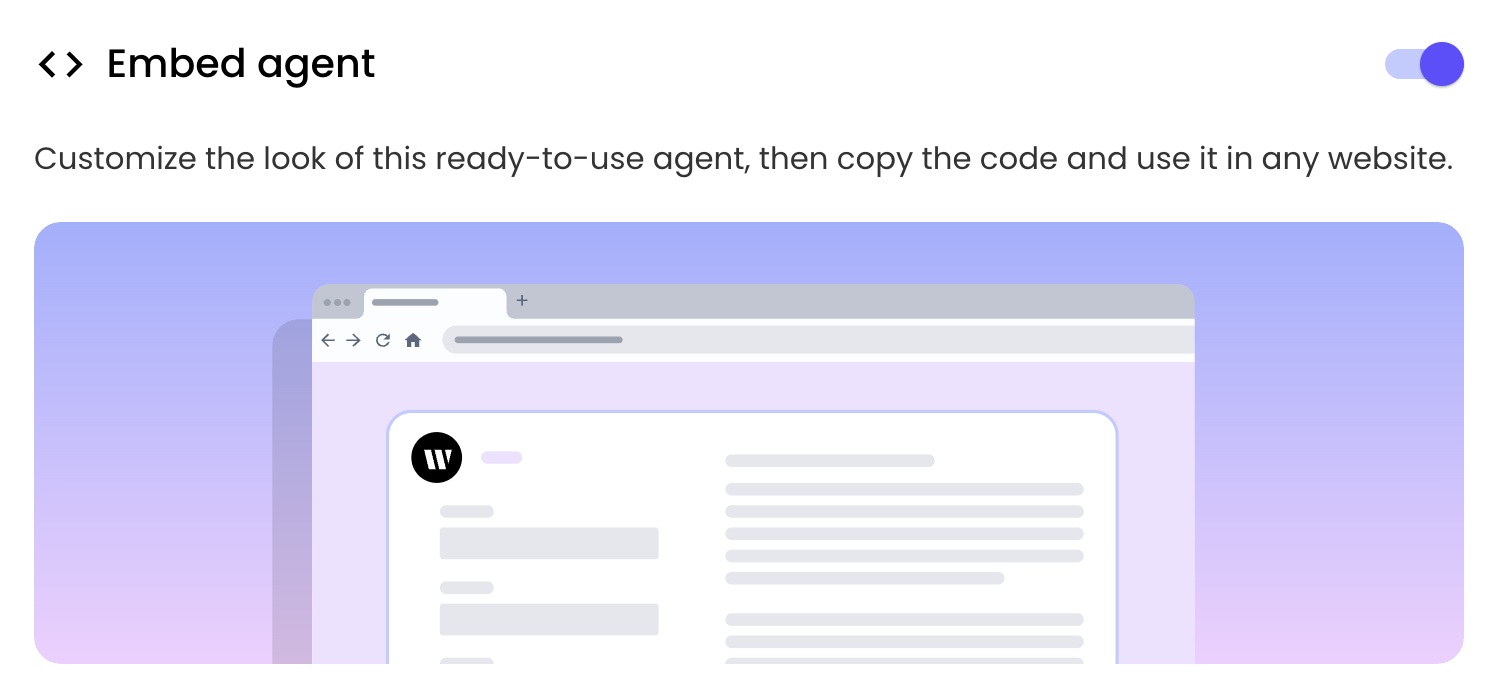
Embedding an agent allows you to embed the agent on your own website or portal.
First, go to the **Deploy** tab and toggle the **Embed Agent** option.
The **Open** button will take you directly to this agent through the Playground, while the **Copy link** option will generate a shareable link that you can send to any tester or end user to get feedback on your agent.
Links to the Playground view of an agent don't require authentication. This can be useful for providing external users access to test an agent (they won't be able to navigate elsewhere within your AI Studio).
## Embed agent
Embedding an agent allows you to embed the agent on your own website or portal.
First, go to the **Deploy** tab and toggle the **Embed Agent** option.
 Prevent unauthorized use of this agent by adding domains to the allowlist
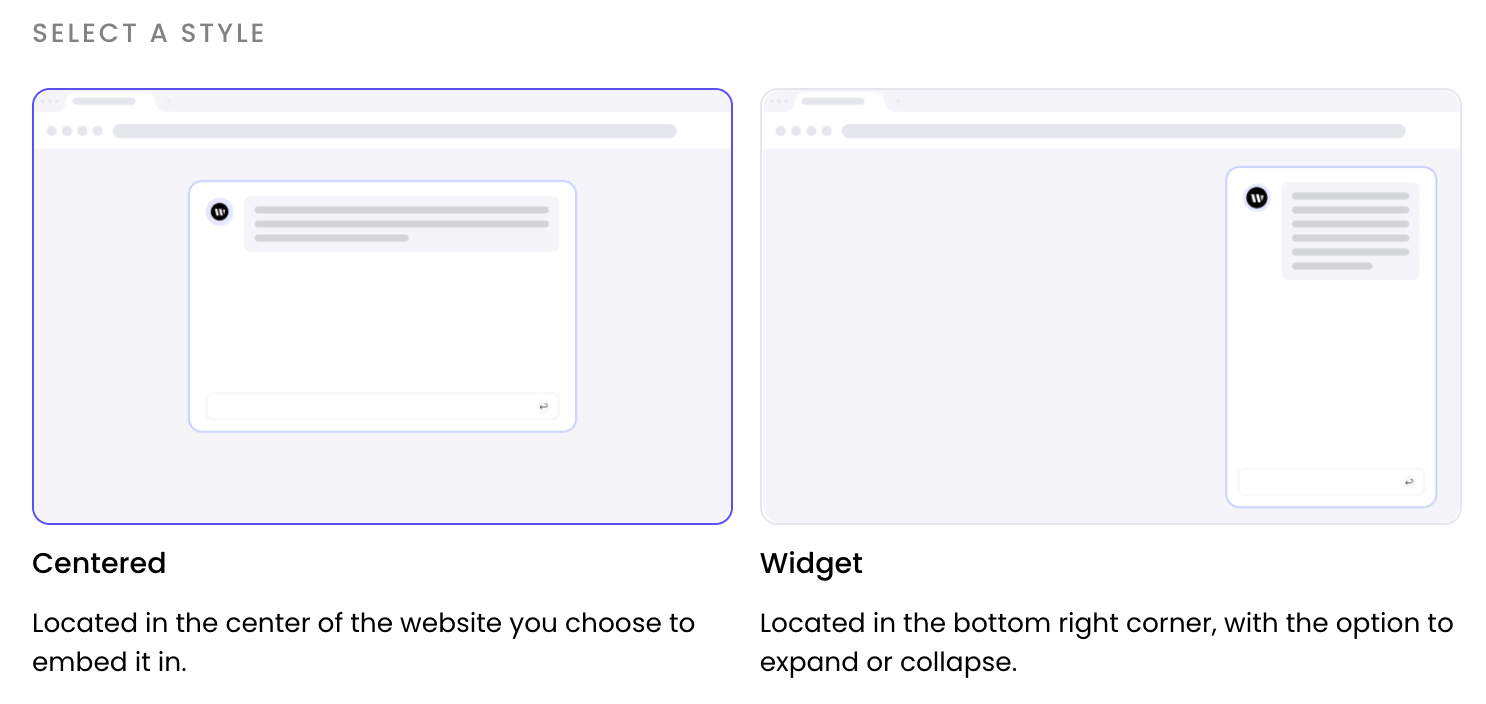
 After enabling embed, select your preferred style: centered or widget.
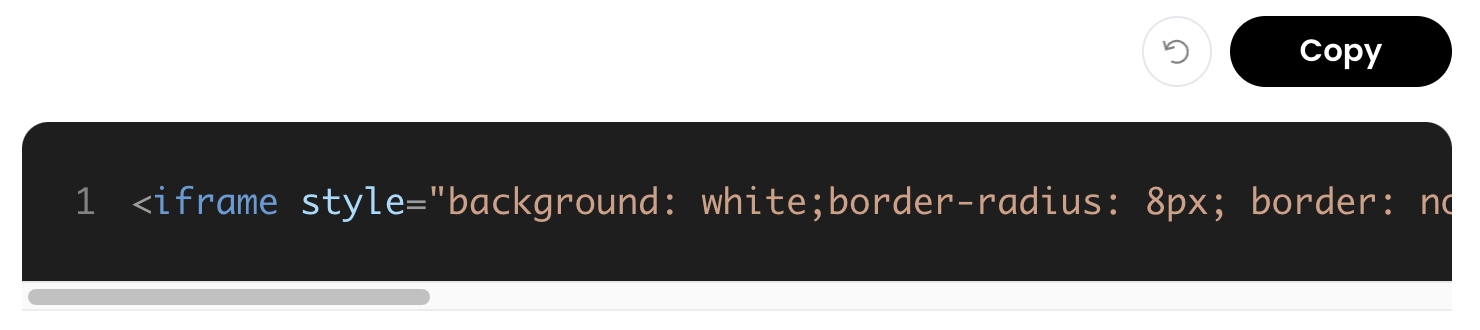
 You'll see a block of code that contains the snippet you need to include wherever you want, such as on your own website or portal. Copy the iFrame snippet and share it with your engineering team to embed this agent. You can disable the embed snippet at any time in AI Studio, and any changes you push will immediately update the embeds.
 ## Deploy to Slack
If your organization uses chat agents with General chat mode or Knowledge Graph mode with AI Studio graphs, you'll see a Deploy to Slack option. This allows you to enable the agent for use within Slack. Once deployed, the agent will be available in Slack, and you'll be able to access it directly from within your workspace.
Deployed agents in Slack will charge token usage. Please refer to our [pricing page](/home/pricing) for more details.
You'll have access to this deployment option if your organization uses agents with chat capabilities using General chat mode or Knowledge Graph mode.
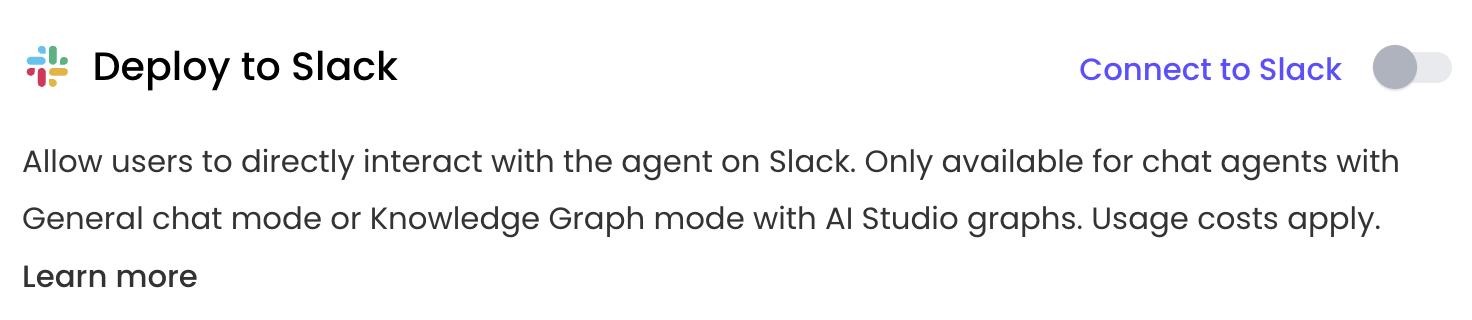
First, go to the **Deploy** tab and click the **Connect to Slack** link.
## Deploy to Slack
If your organization uses chat agents with General chat mode or Knowledge Graph mode with AI Studio graphs, you'll see a Deploy to Slack option. This allows you to enable the agent for use within Slack. Once deployed, the agent will be available in Slack, and you'll be able to access it directly from within your workspace.
Deployed agents in Slack will charge token usage. Please refer to our [pricing page](/home/pricing) for more details.
You'll have access to this deployment option if your organization uses agents with chat capabilities using General chat mode or Knowledge Graph mode.
First, go to the **Deploy** tab and click the **Connect to Slack** link.
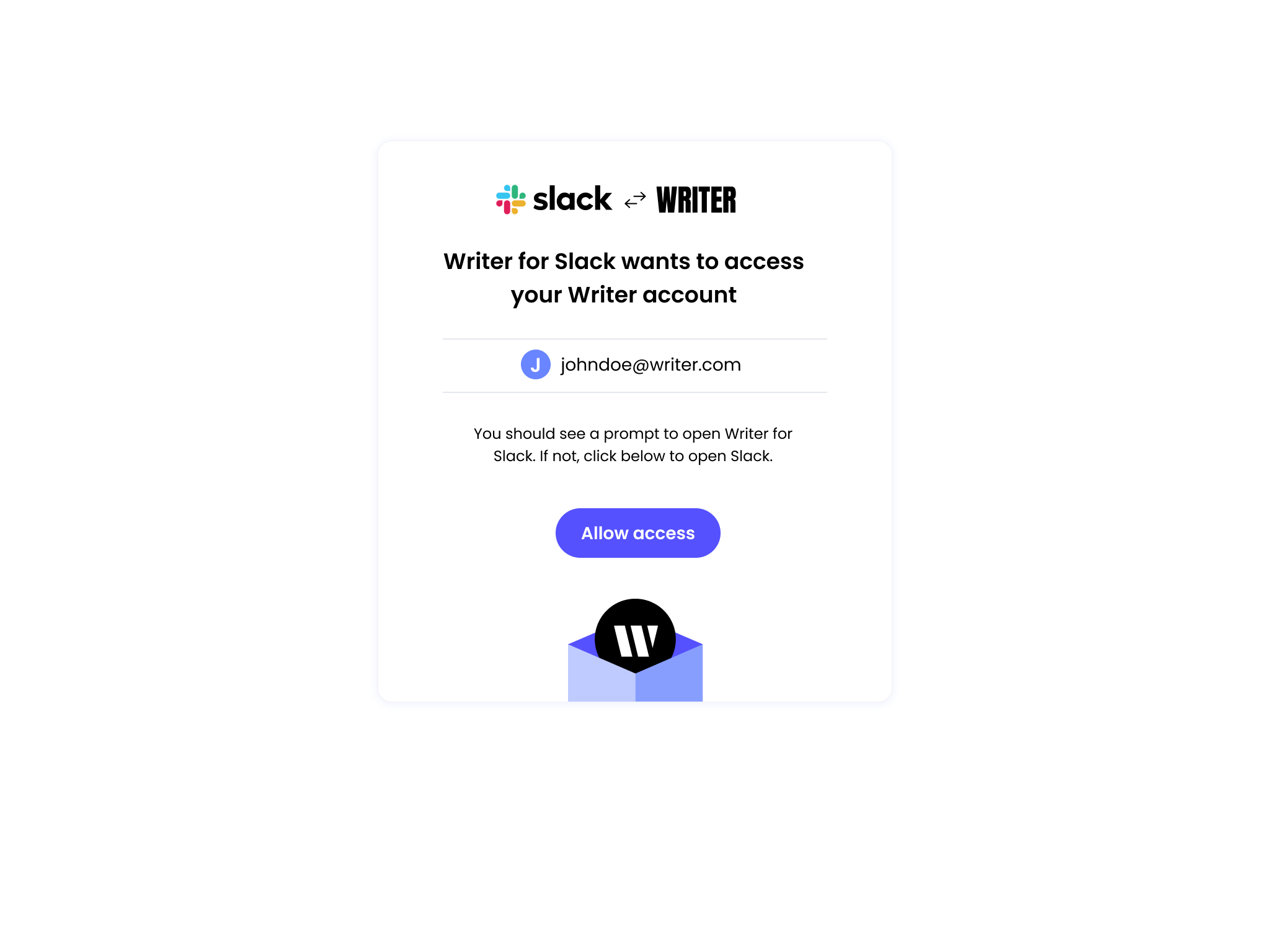
 Next, you'll need to go through the OAuth flow to allow Writer to access your Slack workspace.
 You can now toggle the **Deploy to Slack** option to enable the agent for use within Slack.
Once the agent is Slack-enabled, you can start interacting with it by clicking the Writer button in Slack and selecting "Connect to Writer."
You can now toggle the **Deploy to Slack** option to enable the agent for use within Slack.
Once the agent is Slack-enabled, you can start interacting with it by clicking the Writer button in Slack and selecting "Connect to Writer."
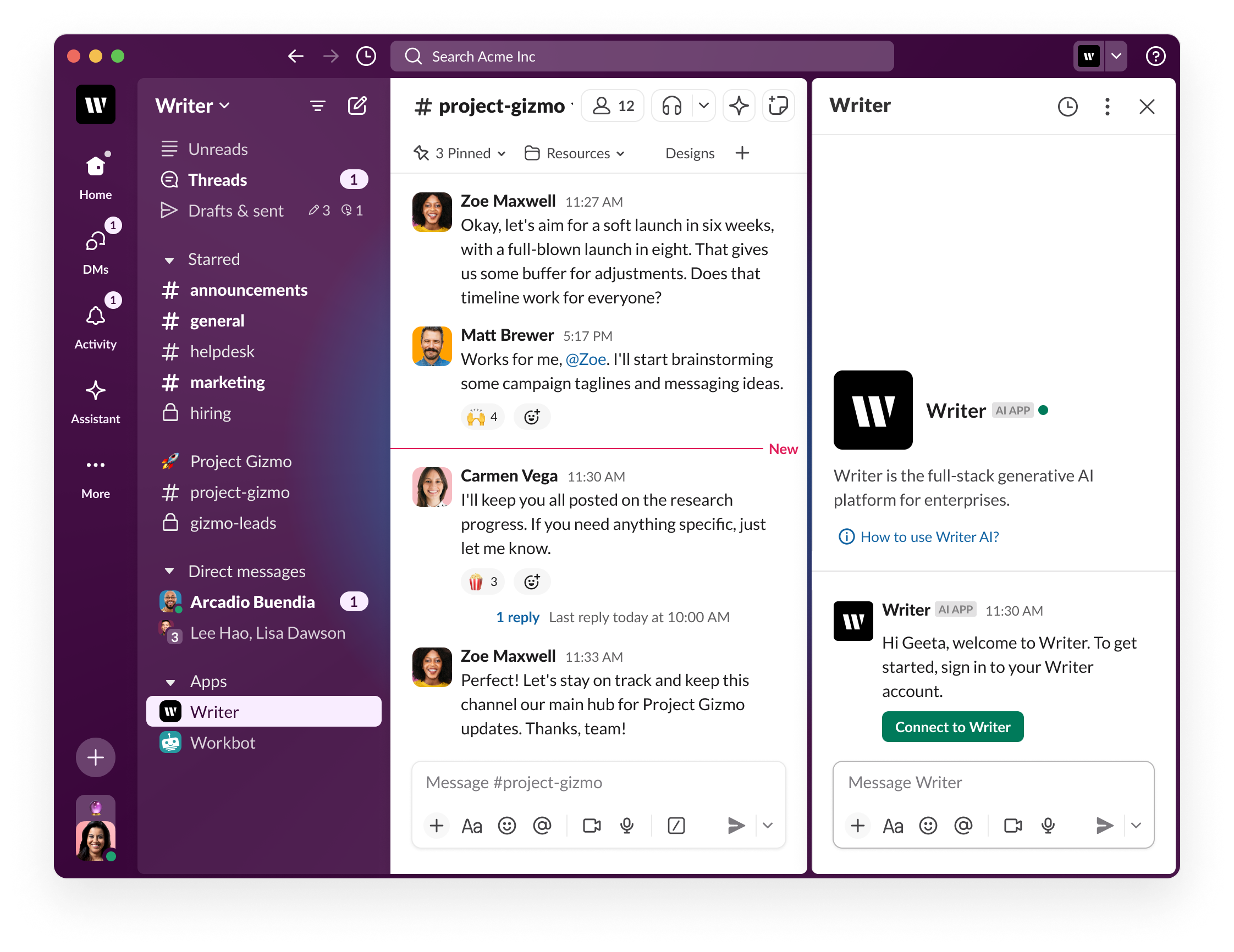 When you return to Slack, the agent will be available for use. You'll see that the Q\&A functionality is now integrated within Slack.
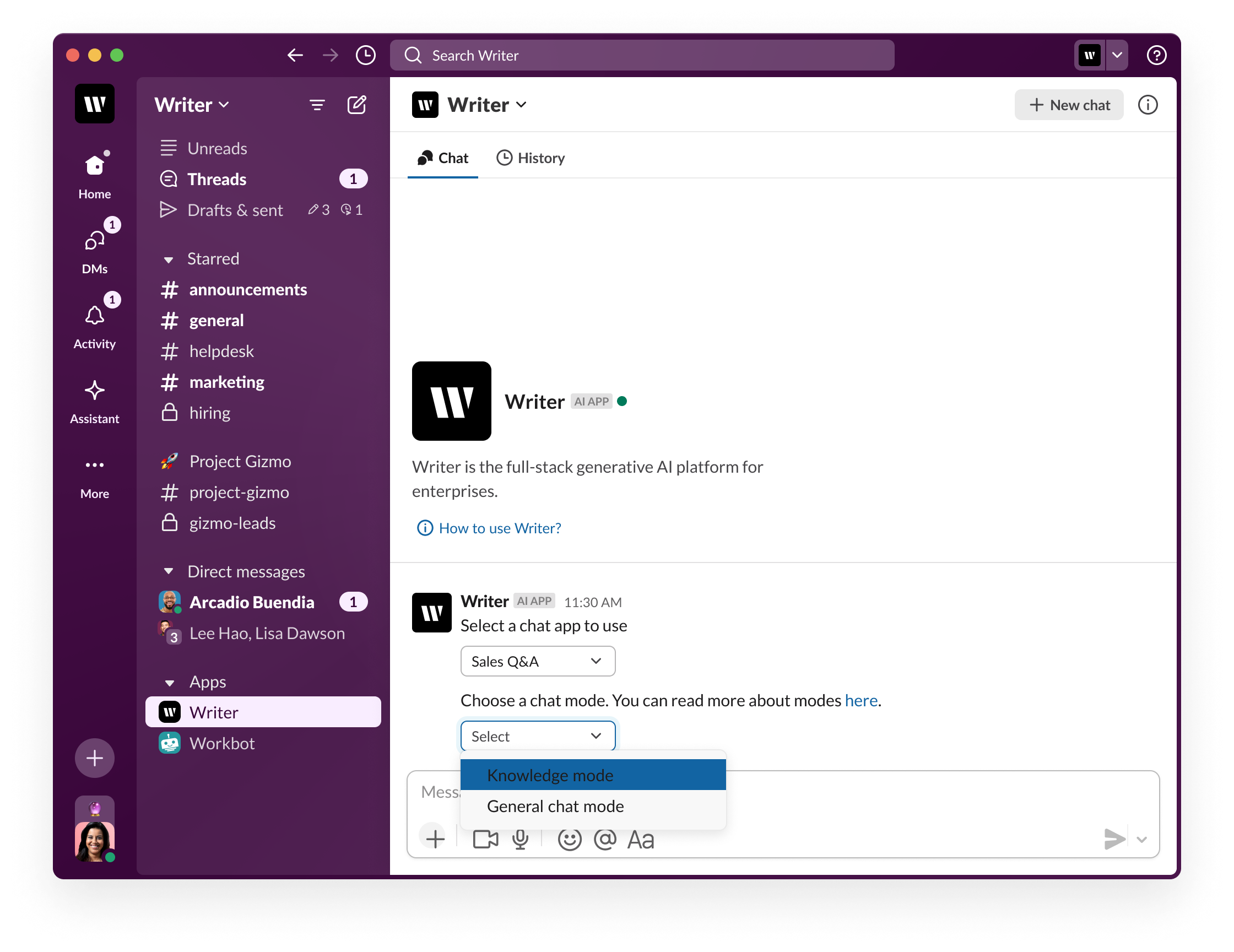 When using the agent in Slack, you'll have two interaction modes:
* **General mode:** If the agent uses General mode and doesn't include a Knowledge Graph mode, simply select it and start chatting.
* **Knowledge Graph mode:** If the agent includes a Knowledge Graph, select the interaction mode—either Knowledge Graph mode or General mode.
* In General mode, it'll function like a non-graph-enabled agent.
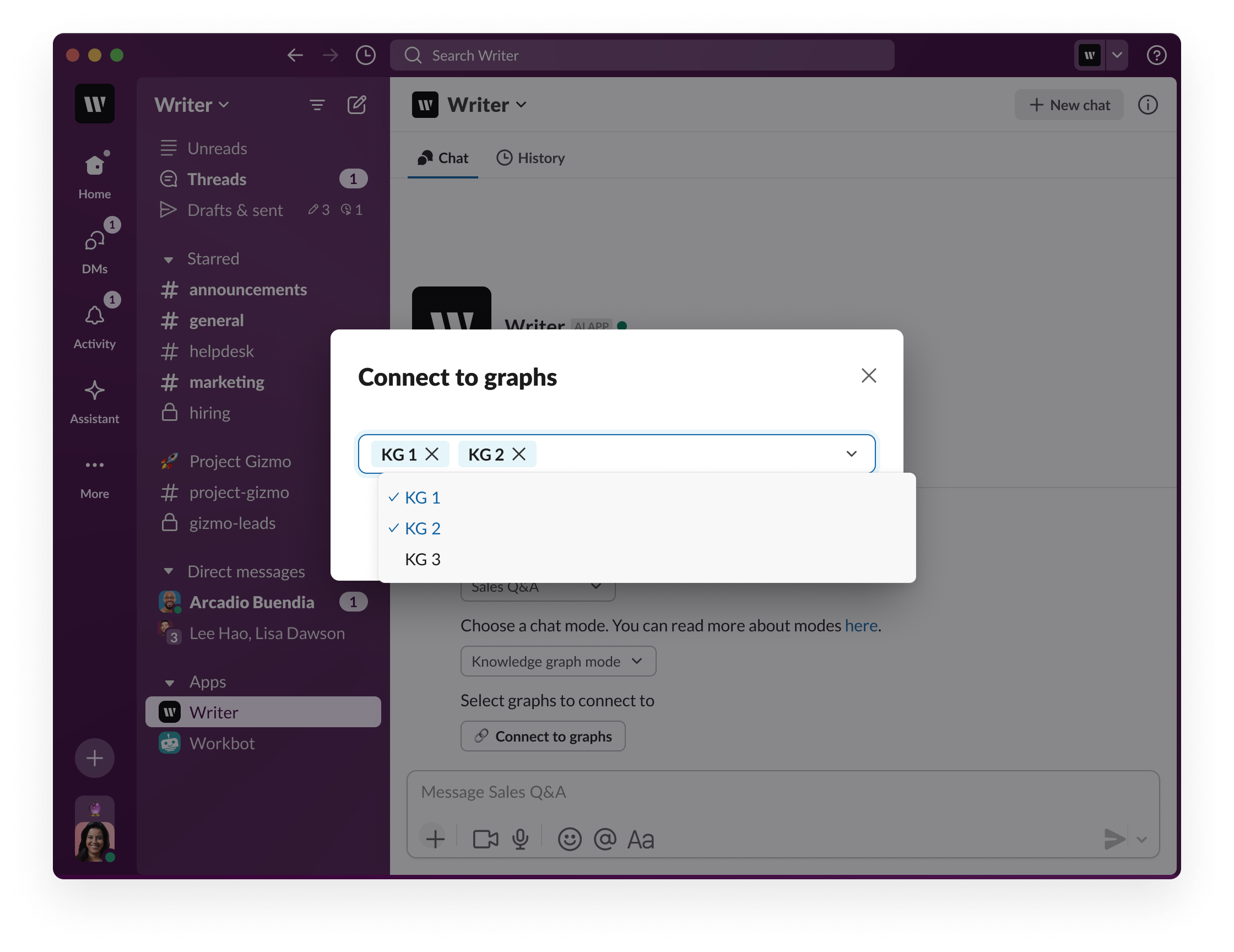
* In Knowledge Graph mode, you'll be prompted to connect the relevant graphs. Once connected, you can start chatting with the agent.
If the agent is built with specific data constraints (e.g., a sales Q\&A agent linked only to Salesforce data), you'll select the Knowledge Graph, and the setup will be complete without needing to choose different graphs. This deployment mode leverages the configurations set in the agent builder, ensuring the agent behaves as expected in Slack
When using the agent in Slack, you'll have two interaction modes:
* **General mode:** If the agent uses General mode and doesn't include a Knowledge Graph mode, simply select it and start chatting.
* **Knowledge Graph mode:** If the agent includes a Knowledge Graph, select the interaction mode—either Knowledge Graph mode or General mode.
* In General mode, it'll function like a non-graph-enabled agent.
* In Knowledge Graph mode, you'll be prompted to connect the relevant graphs. Once connected, you can start chatting with the agent.
If the agent is built with specific data constraints (e.g., a sales Q\&A agent linked only to Salesforce data), you'll select the Knowledge Graph, and the setup will be complete without needing to choose different graphs. This deployment mode leverages the configurations set in the agent builder, ensuring the agent behaves as expected in Slack
 ## Deploy to Writer
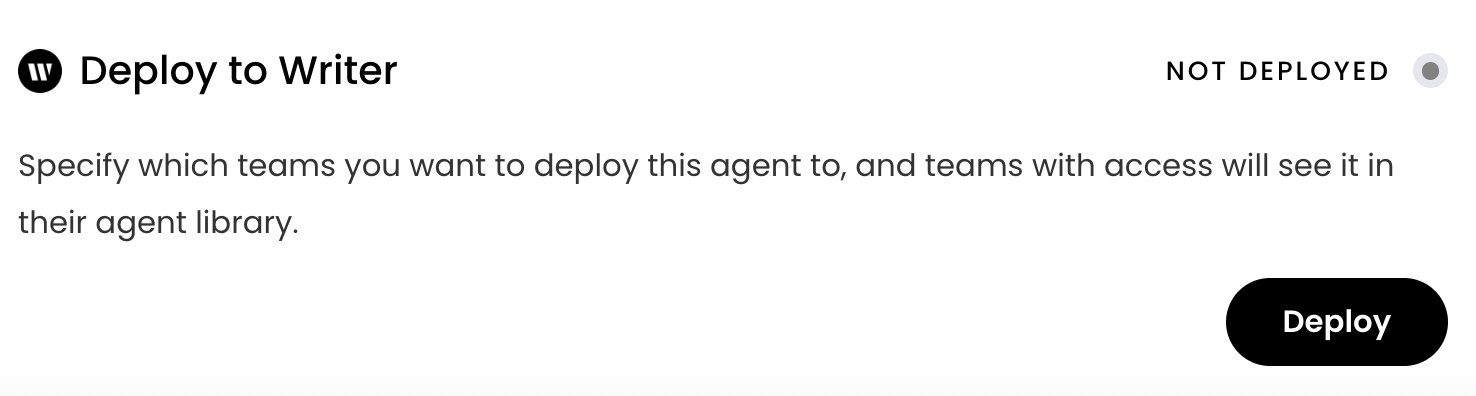
If your organization uses the Writer App in addition to AI Studio, you'll see a **Deploy to Writer** option. This allows you to select specific teams in Writer where you want to deploy the agent.
You'll have access to this option if you have access to the Writer App.
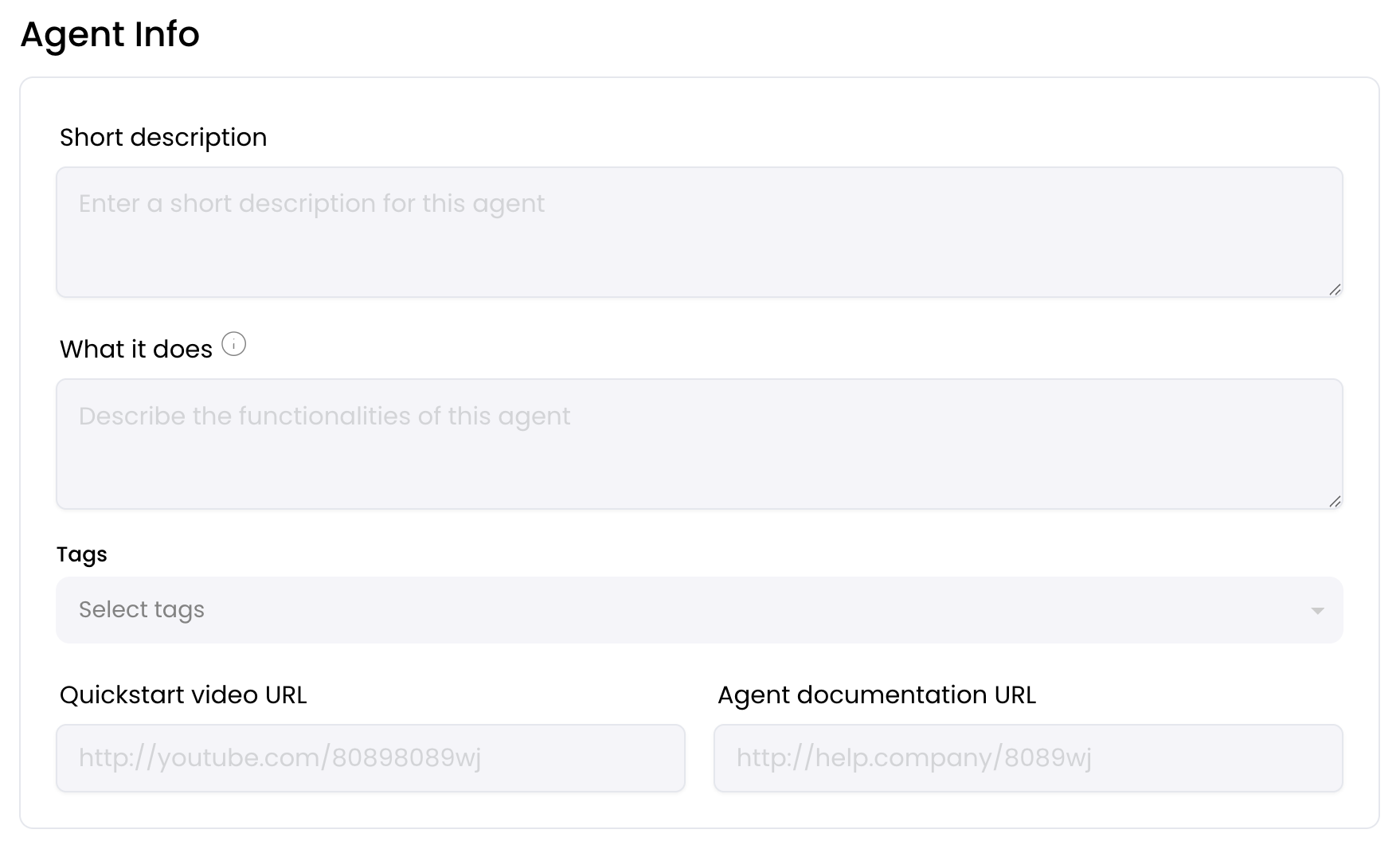
Before deploying to Writer, update the **Agent Info** under the **Agent Guide** tab to provide helpful information about the agent to users.
## Deploy to Writer
If your organization uses the Writer App in addition to AI Studio, you'll see a **Deploy to Writer** option. This allows you to select specific teams in Writer where you want to deploy the agent.
You'll have access to this option if you have access to the Writer App.
Before deploying to Writer, update the **Agent Info** under the **Agent Guide** tab to provide helpful information about the agent to users.
 Click the deploy button. Once deployed, the agent will be available to those teams within the app library. You can choose to deploy the agent to all teams or select specific teams.