> ## Documentation Index
> Fetch the complete documentation index at: https://dev.writer.com/llms.txt
> Use this file to discover all available pages before exploring further.
# Chat with Knowledge Graph
export const PromptComponent = ({prompt}) => ;
With Knowledge Graph mode for chat agents, you can create agents that can search for information and answer questions specific to your company's data.
This guide walks through the steps to create a Knowledge Graph from a Confluence space. Then, it creates a chat agent that uses that Knowledge Graph to answer questions about your company's policies.
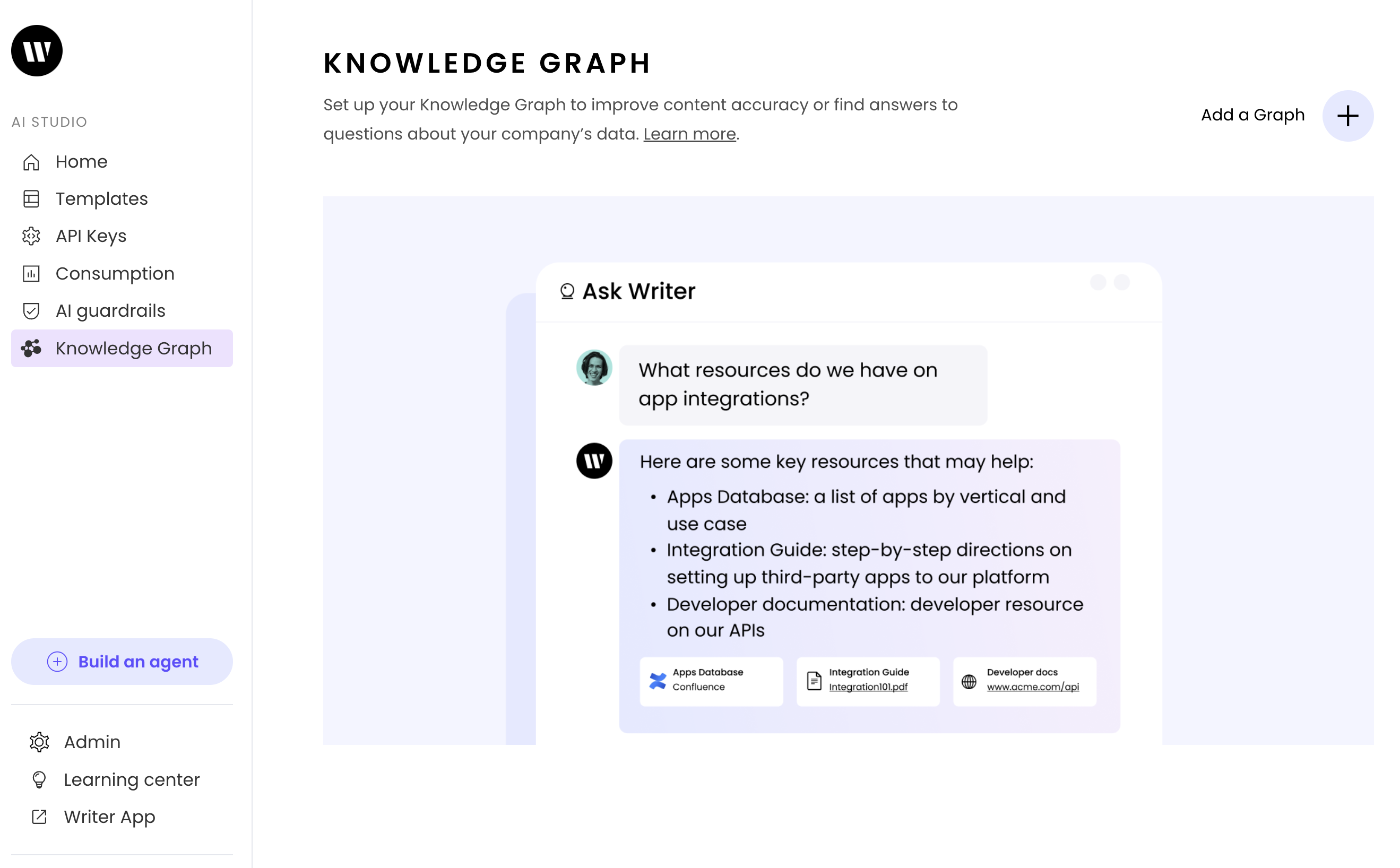
 To get started, set up a Knowledge Graph in Writer.
From the home screen of AI Studio, click **Knowledge Graphs** in the left sidebar and click **Add a Graph**.
To get started, set up a Knowledge Graph in Writer.
From the home screen of AI Studio, click **Knowledge Graphs** in the left sidebar and click **Add a Graph**.
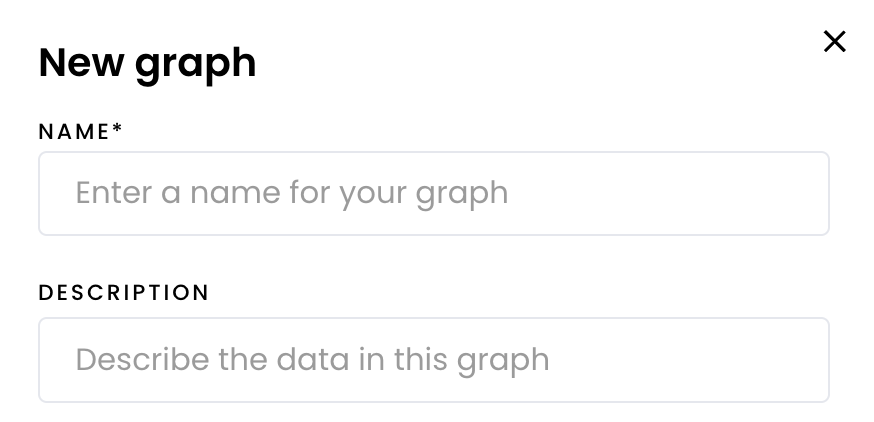
 Knowledge graphs created in AI Studio aren't accessible in the Ask Writer core app unless you define the Knowledge Graph as part of a custom agent.
In the modal that appears, give your graph a name and description.
Knowledge graphs created in AI Studio aren't accessible in the Ask Writer core app unless you define the Knowledge Graph as part of a custom agent.
In the modal that appears, give your graph a name and description.
 Choose how you want to add your data to the graph and add your data:
* Add via manual file upload: Upload files manually from your device
* Add via data connector: Integrate data from an existing tool such as Confluence, Notion, and Google Drive
* Add via API: Send docs to Writer [via the API](/home/knowledge-graph)
* Add websites: Create a list of websites to search
This example uses the **Add via data connector** option to integrate data from a Confluence space. To use this option, you need to have access to the Confluence space you want to integrate.
Learn more about creating and managing a Knowledge Graph in the [Knowledge Graphs support article](https://support.writer.com/article/242-how-to-create-and-manage-a-knowledge-graph).
Once you create your Knowledge Graph, you can then create an agent with chat capabilities and add the Knowledge Graph to the agent.
From the [AI Studio home page](https://app.writer.com/ai-studio), click **Build an agent** in the top right corner. Then, select **Chat** as the type of agent you want to create.
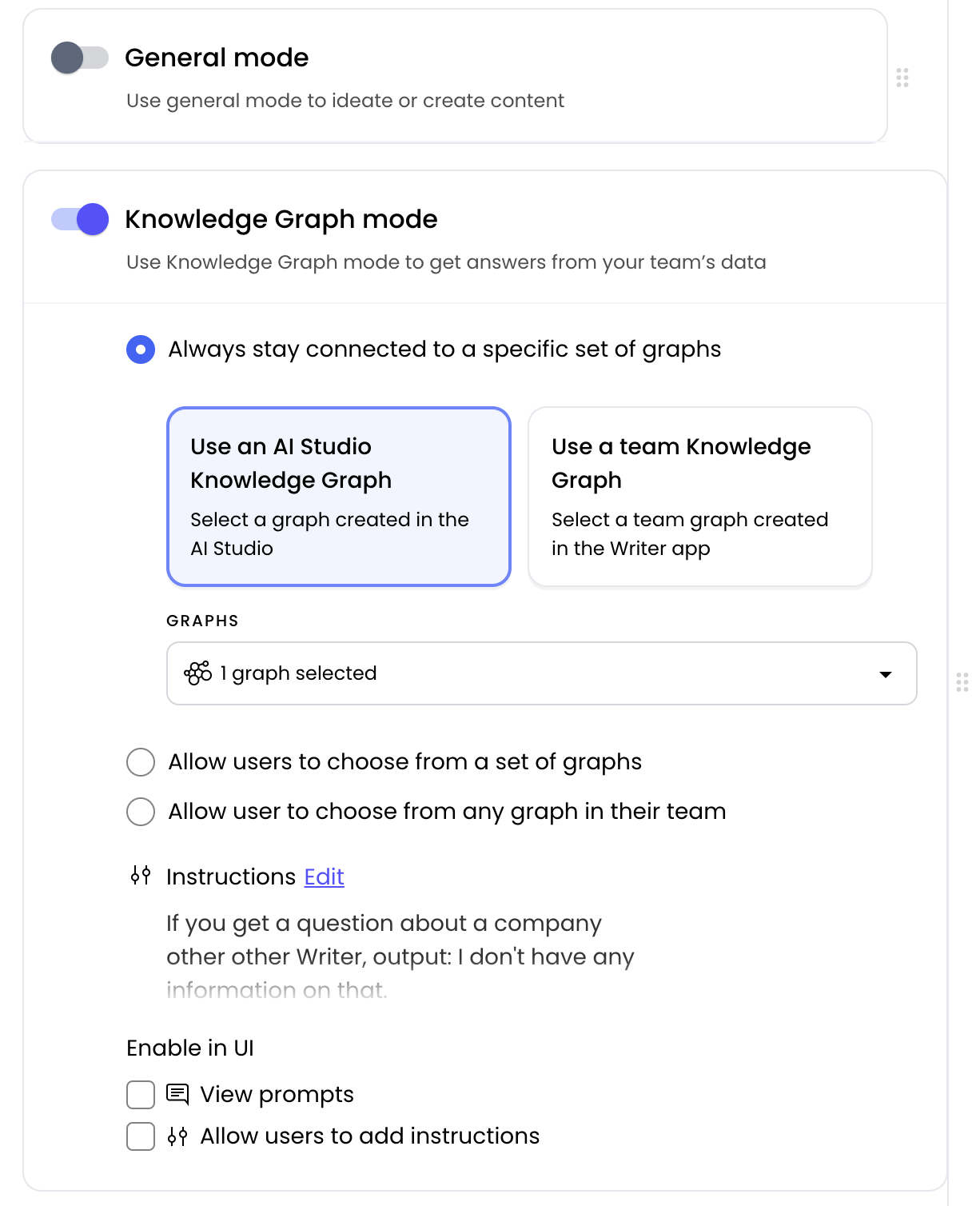
For this example, enable only the **Knowledge Graph mode** so the chat agent answers questions specifically about your company's data from the Knowledge Graph.
In the agent configuration, turn off the **General chat mode** toggle and turn on the **Knowledge Graph mode**.
Next, select **Always stay connected to a specific set of graphs** and select the Knowledge Graph you created in the previous step. This ensures that the agent only answers questions about the data in the Knowledge Graph you provide, and doesn't allow the user to switch to a different Knowledge Graph.
Choose how you want to add your data to the graph and add your data:
* Add via manual file upload: Upload files manually from your device
* Add via data connector: Integrate data from an existing tool such as Confluence, Notion, and Google Drive
* Add via API: Send docs to Writer [via the API](/home/knowledge-graph)
* Add websites: Create a list of websites to search
This example uses the **Add via data connector** option to integrate data from a Confluence space. To use this option, you need to have access to the Confluence space you want to integrate.
Learn more about creating and managing a Knowledge Graph in the [Knowledge Graphs support article](https://support.writer.com/article/242-how-to-create-and-manage-a-knowledge-graph).
Once you create your Knowledge Graph, you can then create an agent with chat capabilities and add the Knowledge Graph to the agent.
From the [AI Studio home page](https://app.writer.com/ai-studio), click **Build an agent** in the top right corner. Then, select **Chat** as the type of agent you want to create.
For this example, enable only the **Knowledge Graph mode** so the chat agent answers questions specifically about your company's data from the Knowledge Graph.
In the agent configuration, turn off the **General chat mode** toggle and turn on the **Knowledge Graph mode**.
Next, select **Always stay connected to a specific set of graphs** and select the Knowledge Graph you created in the previous step. This ensures that the agent only answers questions about the data in the Knowledge Graph you provide, and doesn't allow the user to switch to a different Knowledge Graph.
 **Want to further customize Knowledge Graph behavior?** You can fine-tune how your agent searches, ranks, and retrieves content from your Knowledge Graph using advanced configuration options. Learn more about [configuring Knowledge Graph settings](/no-code/chat#configure-knowledge-graph-settings) for detailed control over grounding level, search balance, response length, and more.
You can add additional instructions for Knowledge Graph mode by clicking **Add instructions**.
The instructions can include context for the model to understand what this agent does, and what types of answers it should provide. You may also want to include instructions on what to output if someone asks a question that isn't specific to a customer story or quote.
For example, you could include:
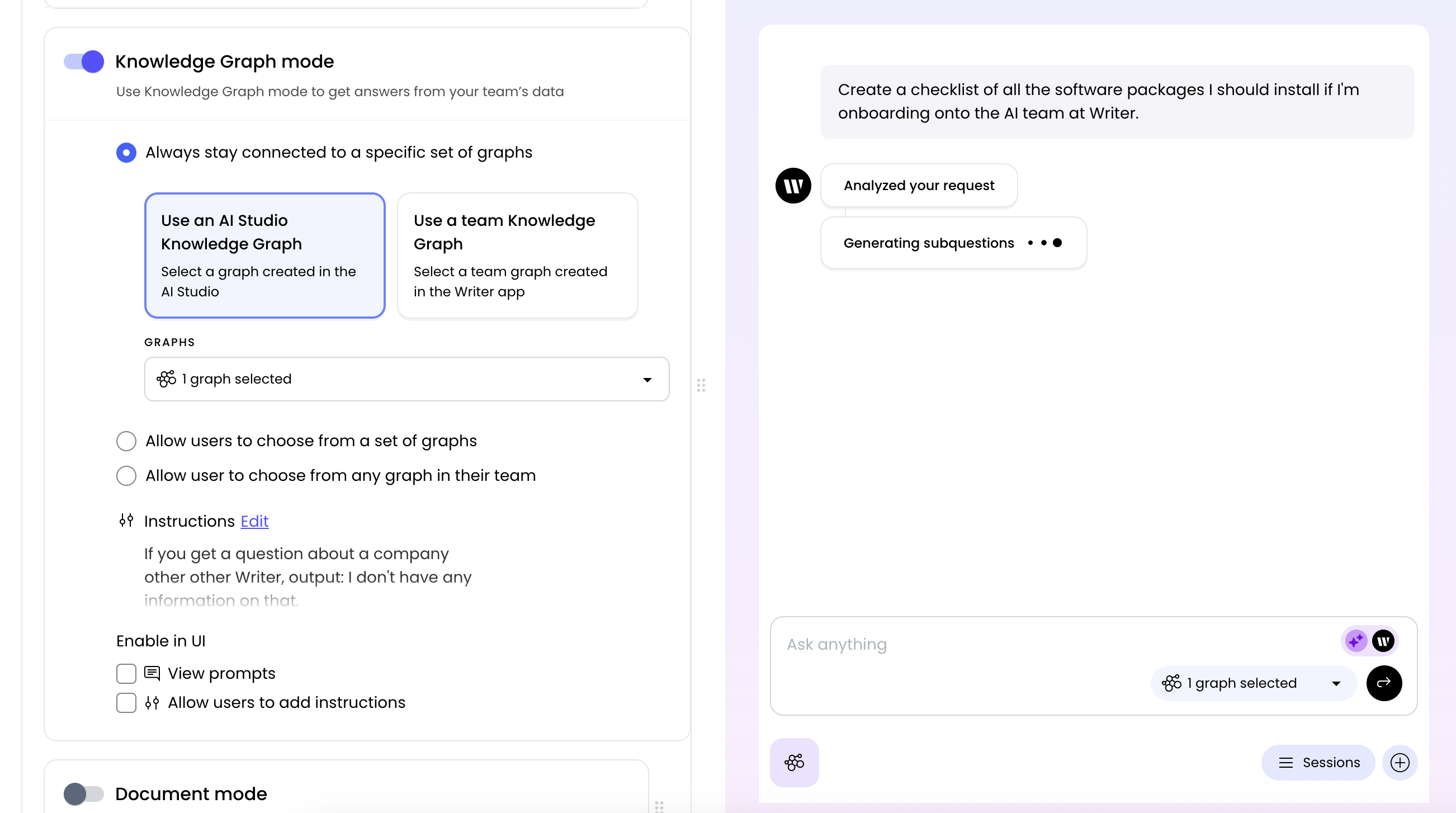
On the right side of the screen, you can see what your agent looks like and test it.
Try asking a variety of questions to make sure you're getting the types of answers you expect. You can continue to update the instructions until you're happy with the answers you receive.
Once you're happy with how everything looks, [deploy your agent](/no-code/deploying-an-agent) so that everyone can use it.
**Want to further customize Knowledge Graph behavior?** You can fine-tune how your agent searches, ranks, and retrieves content from your Knowledge Graph using advanced configuration options. Learn more about [configuring Knowledge Graph settings](/no-code/chat#configure-knowledge-graph-settings) for detailed control over grounding level, search balance, response length, and more.
You can add additional instructions for Knowledge Graph mode by clicking **Add instructions**.
The instructions can include context for the model to understand what this agent does, and what types of answers it should provide. You may also want to include instructions on what to output if someone asks a question that isn't specific to a customer story or quote.
For example, you could include:
On the right side of the screen, you can see what your agent looks like and test it.
Try asking a variety of questions to make sure you're getting the types of answers you expect. You can continue to update the instructions until you're happy with the answers you receive.
Once you're happy with how everything looks, [deploy your agent](/no-code/deploying-an-agent) so that everyone can use it.