> ## Documentation Index
> Fetch the complete documentation index at: https://dev.writer.com/llms.txt
> Use this file to discover all available pages before exploring further.
# Monitor agent performance
> Monitor agent performance with session logs and observability metrics in AI Studio. Track usage, analyze conversations, and debug agent behavior.
AI Studio provides session logs and observability metrics for agents so you can understand how your agents are performing.
The following observability views are available for individual agents:
* [Session logs](#session-logs)
* [Agent observability](#agent-observability)
You can also view [organization-wide usage and spend](/home/usage-and-spend).
## Session logs
Organization admins can choose to retain logs from agent sessions. When enabled, you can view the logs for an agent for the given retention period.
Session logs are only available to [organization
admins](https://support.writer.com). Logs are available for custom [no-code
agents](/no-code/introduction) and [Writer
Agent](https://support.writer.com/article/235-ask-writer), but are not yet
available for prebuilt agents.
### Enable session logging
To enable session logging, log in to [AI Studio](https://app.writer.com/aistudio) and navigate to the **Admin** tab in the left sidebar.
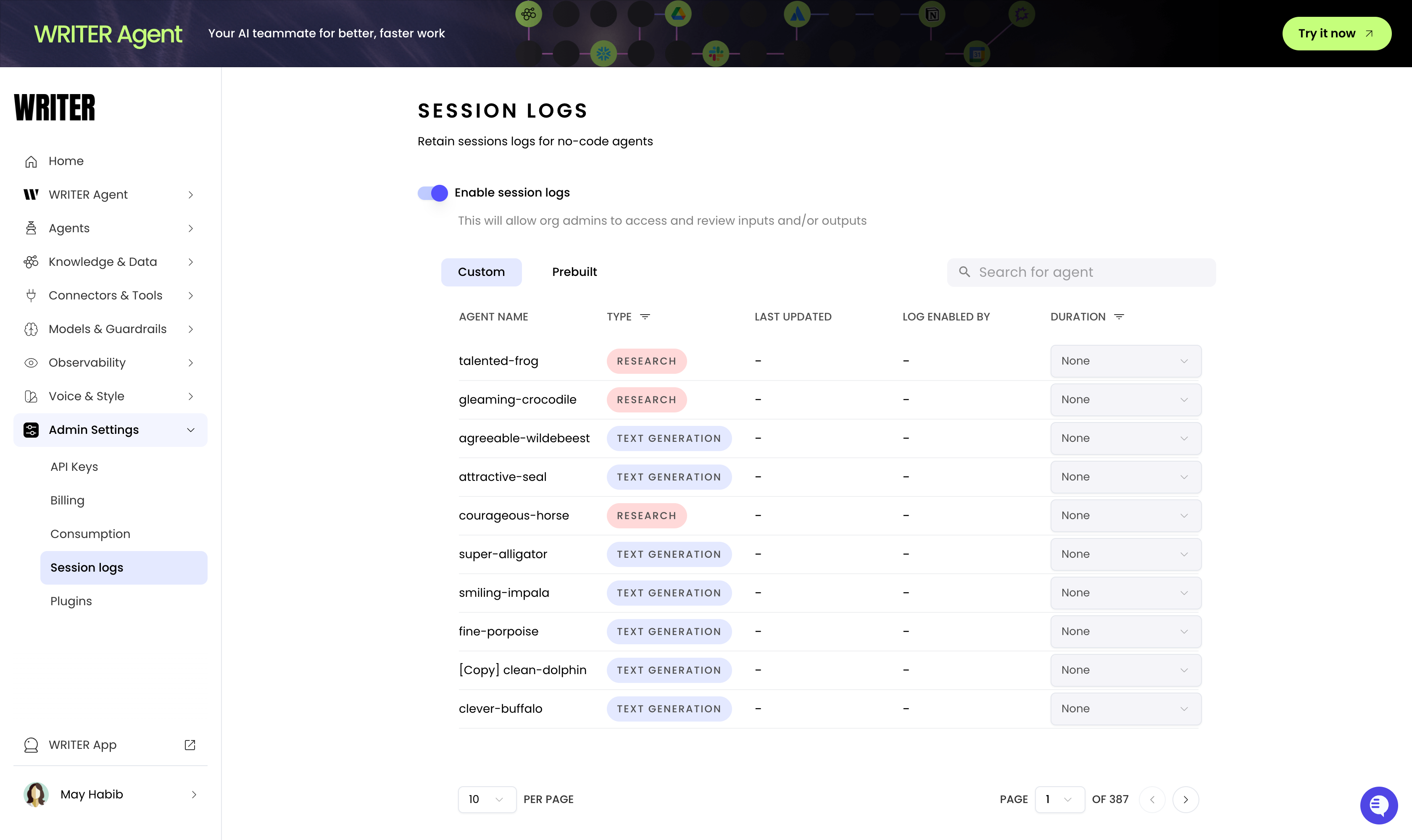 From there, you can enable session logging for your organization.
Once enabled, you can choose the retention period for session logs for each agent. The default is no retention. The possible retention periods are 7 days, 30 days, 90 days, or 180 days.
Whenever someone updates an agent's session log settings, all organization admins receive an email notification.
### View session logs
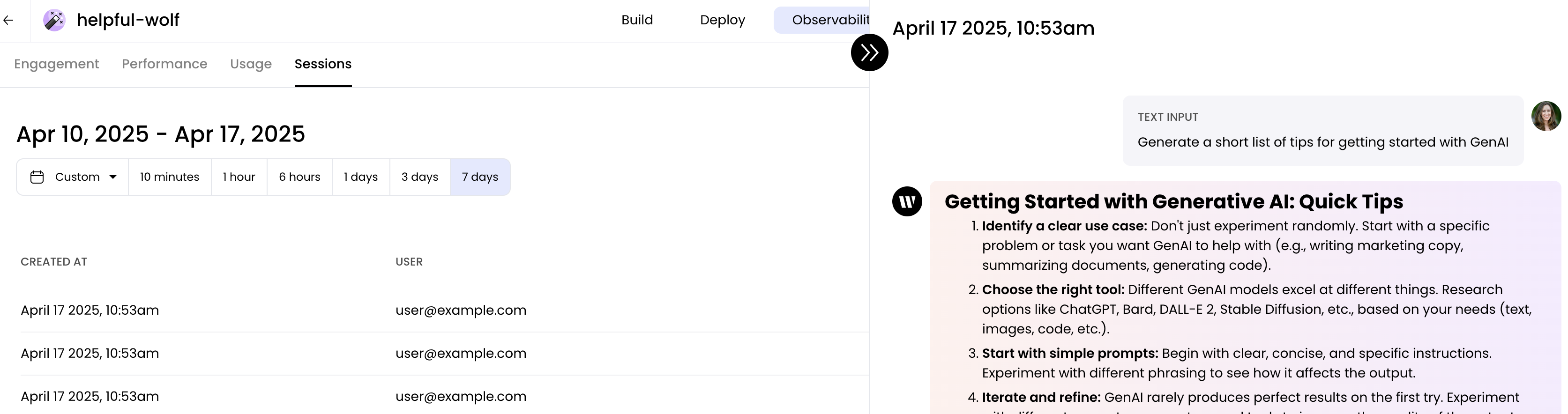
To view session logs, navigate to [AI Studio](https://app.writer.com/aistudio) and select **Agents** from the left sidebar. Select an agent from the list, then select the **Observability** tab from the top of the page and choose the **Session logs** view. Click on an individual session to view the logs.
From there, you can enable session logging for your organization.
Once enabled, you can choose the retention period for session logs for each agent. The default is no retention. The possible retention periods are 7 days, 30 days, 90 days, or 180 days.
Whenever someone updates an agent's session log settings, all organization admins receive an email notification.
### View session logs
To view session logs, navigate to [AI Studio](https://app.writer.com/aistudio) and select **Agents** from the left sidebar. Select an agent from the list, then select the **Observability** tab from the top of the page and choose the **Session logs** view. Click on an individual session to view the logs.
 #### Flagged responses
In a chat with a no-code agent, an end user can flag a response as inappropriate or inaccurate. An organization admin can then view the flagged responses within the session logs.
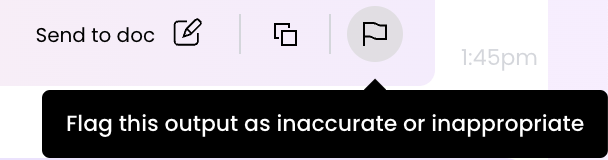
To flag a response in a chat, the user clicks the **Flag** button in the bottom right corner of the response.
#### Flagged responses
In a chat with a no-code agent, an end user can flag a response as inappropriate or inaccurate. An organization admin can then view the flagged responses within the session logs.
To flag a response in a chat, the user clicks the **Flag** button in the bottom right corner of the response.
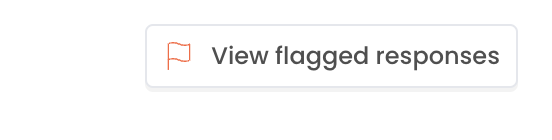
 In the session logs for a particular conversation, you can see any flagged responses by clicking the **View flagged responses** button in the top right corner of the session log.
 ## Agent observability
Agent observability provides a detailed view of an agent's engagement, performance, and usage. Anyone can view these metrics for agents in your organization. Session logs are also available, but [only for organization admins if the agent's session log settings are enabled](#view-session-logs).
These metrics are only available for deployed agents.
To view metrics for deployed agents, navigate to [AI Studio](https://app.writer.com/aistudio) and select **Agents** from the left sidebar. Select an agent from the list, then select the **Observability** tab from the top of the page and choose the specific metric you want to view.
* **Engagement metrics**: Show the top five users for the agent over the specified time period and the total number of user interactions for the agent.
* **Performance metrics**: Show the average response time as well as the P90, P95, and P99 response times for the agent over the specified time period. It also shows the response codes broken down by `200`, `400`, and `500` status codes.
* **Usage metrics**: Show the total number of tokens and the total spend for the agent over the specified time period.
## Next steps
* [Observability overview](/home/observability): Monitor events, errors, and performance across your deployment
* [Usage and spend](/home/usage-and-spend): Track organization-wide costs and token consumption
* [Export telemetry data](/home/integrations/openllmetry) to your existing observability tools via OpenLLMetry
* [Configure guardrails](/home/guardrails) to enforce content policies across your agents
## Agent observability
Agent observability provides a detailed view of an agent's engagement, performance, and usage. Anyone can view these metrics for agents in your organization. Session logs are also available, but [only for organization admins if the agent's session log settings are enabled](#view-session-logs).
These metrics are only available for deployed agents.
To view metrics for deployed agents, navigate to [AI Studio](https://app.writer.com/aistudio) and select **Agents** from the left sidebar. Select an agent from the list, then select the **Observability** tab from the top of the page and choose the specific metric you want to view.
* **Engagement metrics**: Show the top five users for the agent over the specified time period and the total number of user interactions for the agent.
* **Performance metrics**: Show the average response time as well as the P90, P95, and P99 response times for the agent over the specified time period. It also shows the response codes broken down by `200`, `400`, and `500` status codes.
* **Usage metrics**: Show the total number of tokens and the total spend for the agent over the specified time period.
## Next steps
* [Observability overview](/home/observability): Monitor events, errors, and performance across your deployment
* [Usage and spend](/home/usage-and-spend): Track organization-wide costs and token consumption
* [Export telemetry data](/home/integrations/openllmetry) to your existing observability tools via OpenLLMetry
* [Configure guardrails](/home/guardrails) to enforce content policies across your agents