> ## Documentation Index
> Fetch the complete documentation index at: https://dev.writer.com/llms.txt
> Use this file to discover all available pages before exploring further.
# Handling inputs
There are two, complementary, ways to handle inputs in Framework: via event handlers and via binding.
## Event handlers
Input components have *change* events that are dispatched when the value changes. The new value is provided as a payload in the event handler. Change events have slightly different names across components, reflecting the payloads they provide. For example, *Number Input* and *Slider Input* use the event `wf-number-change` while *Text Input* and *Text Area Input* use the generic `wf-change`.
As discussed in the [Event handlers](/framework/event-handlers) section, the payload can be accessed via the `payload` argument in the event handler.
```py theme={null}
# This event handler takes the payload and assigns it
# to the state element "name"
def handle_input_change(state, payload):
state["name"] = payload
```
## Two-way bindings
Writing event handlers for every input component can be tedious. In most cases, you'll only need to update a single element of state when the value changes, akin to the example above. You can achieve this by binding a component to a state element.
Bindings automatically handle the *change* event for the component and set the value of the state element to the payload. Furthermore, bindings are two-way. If the state element is updated from the back-end, the front-end component is updated to reflect the new value.
As mentioned in the [Builder basics](/framework/builder-basics) section of the guide, bindings can be configured in the component settings.
 The binding above establishes a two-way link between the component and the state element `name`. If `name` changes in the back-end, the component changes. If the component changes, the value of `name` changes.
## Using events and bindings simultaneously
Bindings can be used together with events. This is useful for triggering recalculations or applying dynamic filters. For example, you may want to have three *Number Input* components bound to `a`, `b` and `c` and display a value `n`. This easily done by binding the components and linking the same recalculation event handler to all three components.
```py theme={null}
def recalculate(state):
state["n"] = state["a"]*state["b"]*state["c"]
```
## Handling inputs safely
Framework automatically sanitises the payloads it provides for its built-in events, those that start with `wf-`.
For example, if a *Dropdown Input* component lists options `high` and `low`, you're guaranteed you won't get a value like `"Robert'); DROP TABLE students;--"` when handling `wf-option-change`. You'll get `"high"`, `"low"` or `None`.
Inputs are sanitised, but you should still be careful
As with any application, it's important to be familiar with the risks associated with handling user input, especially SQL injections. If you're using any custom HTML and mixing it with user generated content, make sure you understand XSS.
## Creating forms
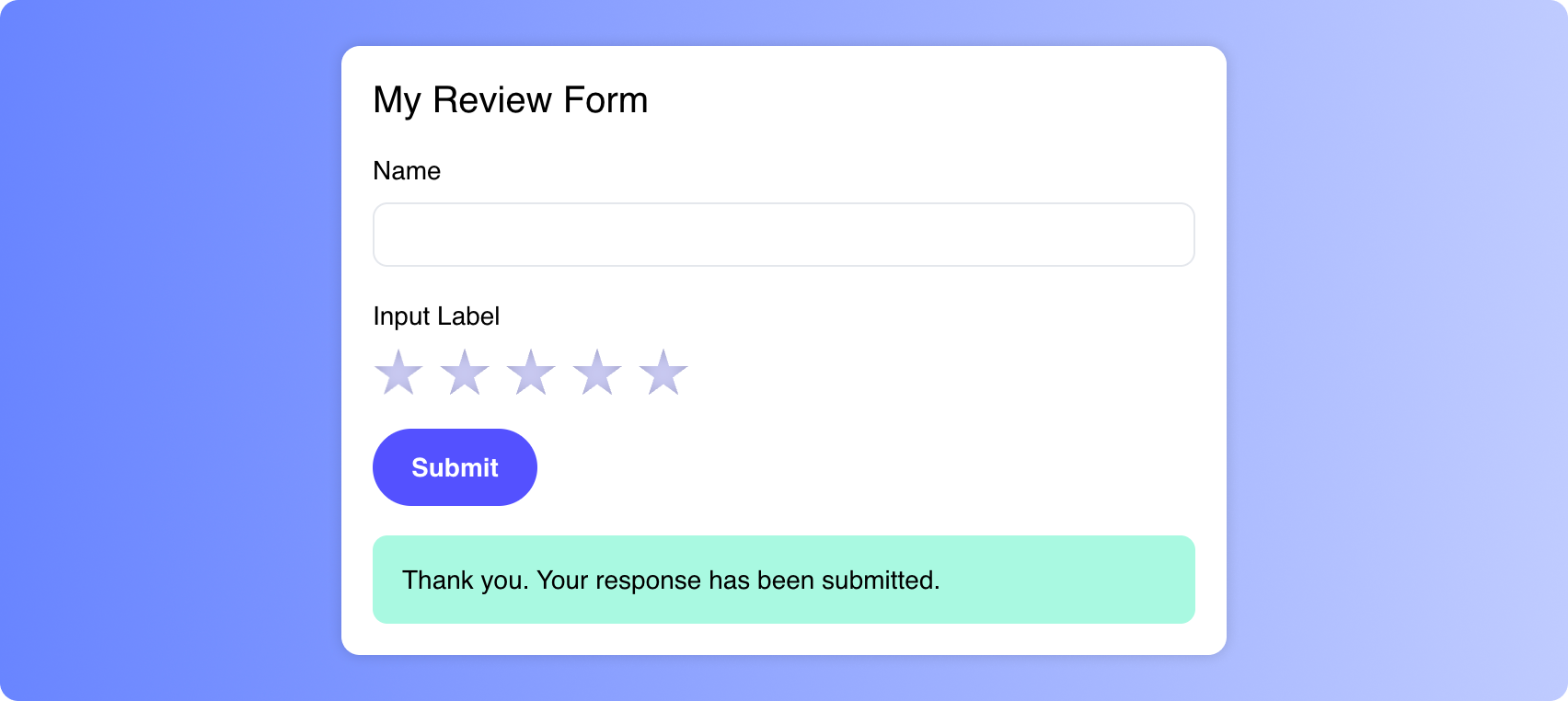
Input components can be combined with *Message* and *Button* components to create forms with messages, indicating whether the submission was successful.
The binding above establishes a two-way link between the component and the state element `name`. If `name` changes in the back-end, the component changes. If the component changes, the value of `name` changes.
## Using events and bindings simultaneously
Bindings can be used together with events. This is useful for triggering recalculations or applying dynamic filters. For example, you may want to have three *Number Input* components bound to `a`, `b` and `c` and display a value `n`. This easily done by binding the components and linking the same recalculation event handler to all three components.
```py theme={null}
def recalculate(state):
state["n"] = state["a"]*state["b"]*state["c"]
```
## Handling inputs safely
Framework automatically sanitises the payloads it provides for its built-in events, those that start with `wf-`.
For example, if a *Dropdown Input* component lists options `high` and `low`, you're guaranteed you won't get a value like `"Robert'); DROP TABLE students;--"` when handling `wf-option-change`. You'll get `"high"`, `"low"` or `None`.
Inputs are sanitised, but you should still be careful
As with any application, it's important to be familiar with the risks associated with handling user input, especially SQL injections. If you're using any custom HTML and mixing it with user generated content, make sure you understand XSS.
## Creating forms
Input components can be combined with *Message* and *Button* components to create forms with messages, indicating whether the submission was successful.