> ## Documentation Index
> Fetch the complete documentation index at: https://dev.writer.com/llms.txt
> Use this file to discover all available pages before exploring further.
# Dataframe
## DataFrames
If your application needs to present data as a table, it should use a **DataFrame**. DataFrames provide a simple way to present data in a grid format, require only a couple of lines of code to set up, and provide an interface that users expect from modern data applications.
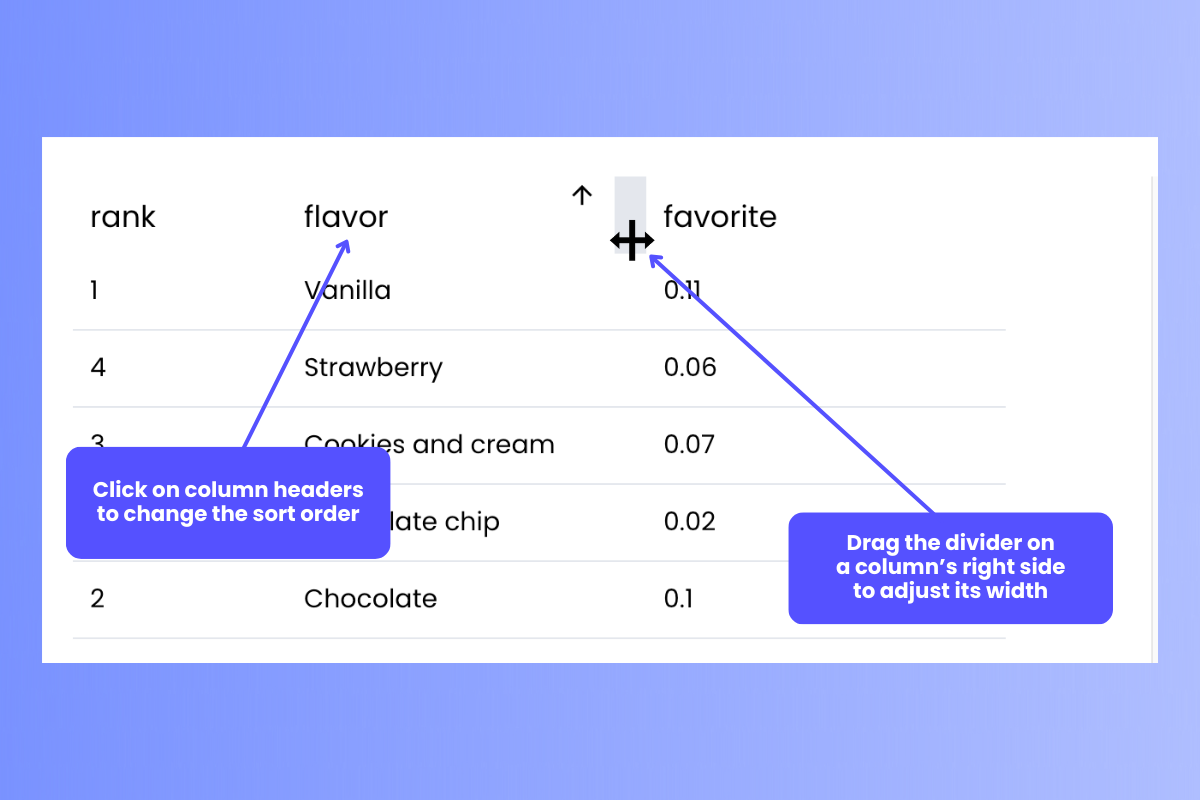
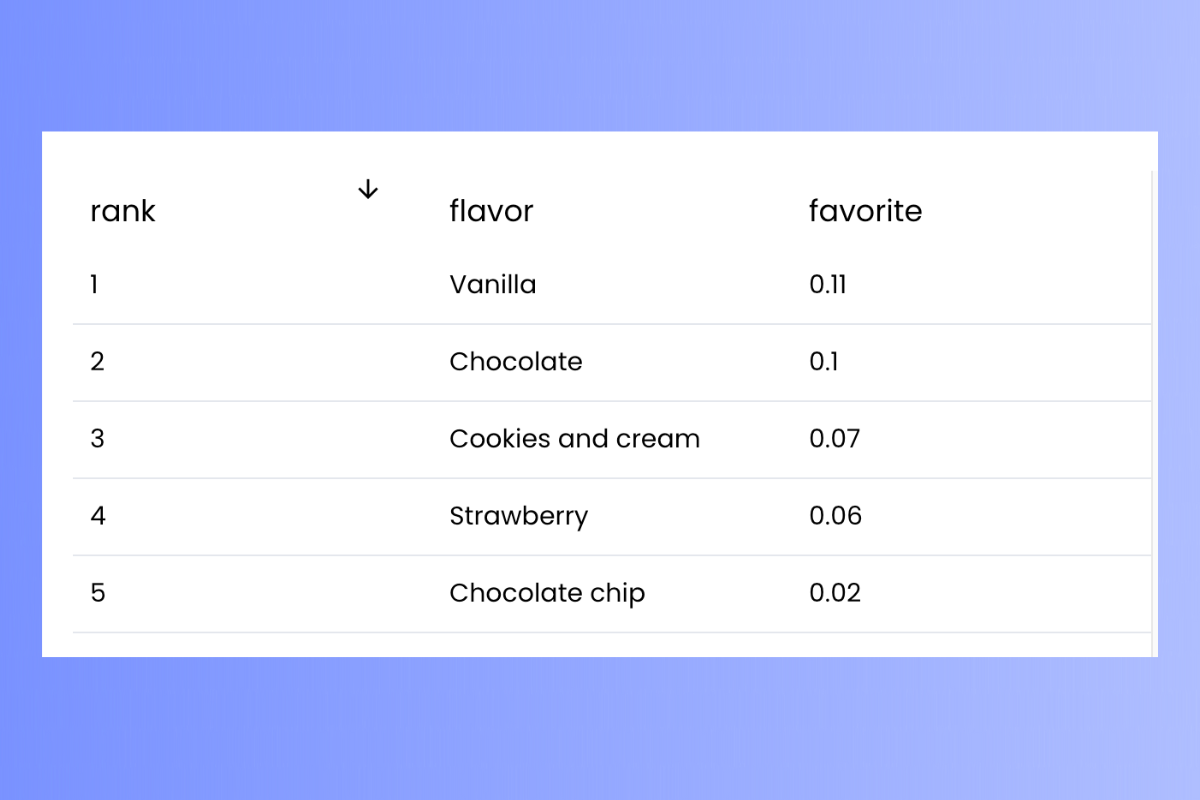 DataFrames built-in features that users expect, such as headers that can be clicked to change the sort order and resizable columns...
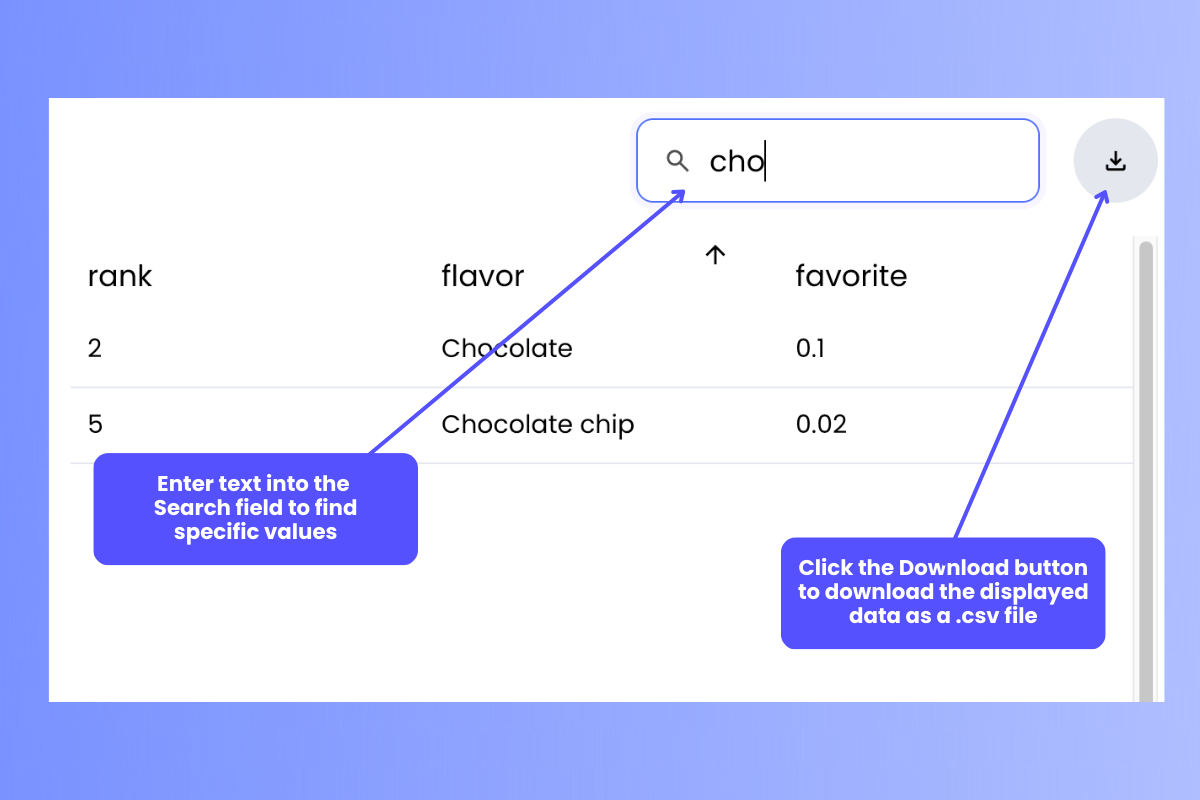
 ...and with the simple change of a parameter, you can enable features such as the Search field, which lets the user find the data they’re looking for (or filter out unwanted data), and the Download button, which downloads the data currently being displayed as a .csv file:
 You can find the full list of DataFrame properties and fields on the [*DataFrame* component page](/components/dataframe).
### “DataFrame” has multiple meanings
**Writer Framework has two objects with the name *DataFrame*:**
1. **UI DataFrame:** In Writer Framework's UI, "DataFrame" refers to a ***user interface component*** that displays data in rows and columns in a way similar to a spreadsheet or SQL table.
2. **Code Dataframe:** In code that you write for a Writer Framework application, `DataFrame` refers to a ***data structure*** that stores data in rows and columns in a way similar to a spreadsheet or SQL table.
To present a data table in Writer Framework, you create a `DataFrame` data structure in your code and then bind it to a UI Dataframe.
## Displaying a static DataFrame
A static DataFrame is one whose content does not change. The user can change its sort order, but the data within the DataFrame remains constant.
Writer Framework supports both [pandas](https://pandas.pydata.org/) and [Polars](https://pola.rs/) `DataFrame` data structures. Create a `DataFrame`, assign its value to a variable, then assign make that variable a value in the `state` dictionary:
```python pandas theme={null}
import writer as wf
import pandas as pd
data = [
{"rank": 1, "flavor": "Vanilla", "favorite": 0.11},
{"rank": 2, "flavor": "Chocolate", "favorite": 0.1},
{"rank": 3, "flavor": "Cookies and cream", "favorite": 0.07},
{"rank": 4, "flavor": "Strawberry", "favorite": 0.06},
{"rank": 5, "flavor": "Chocolate chip", "favorite": 0.02},
]
df = pd.DataFrame(data)
wf.init_state({
"mydf": df
})
```
```python Polars theme={null}
import writer as wf
import polars as pl
data = [
{"rank": 1, "flavor": "Vanilla", "favorite": 0.11},
{"rank": 2, "flavor": "Chocolate", "favorite": 0.1},
{"rank": 3, "flavor": "Cookies and cream", "favorite": 0.07},
{"rank": 4, "flavor": "Strawberry", "favorite": 0.06},
{"rank": 5, "flavor": "Chocolate chip", "favorite": 0.02},
]
df = pl.DataFrame(data)
wf.init_state({
"mydf": df
})
```
The call to `wf.init_state()` adds the `DataFrame` to the application's `state` variable as the value of the `mydf` key.
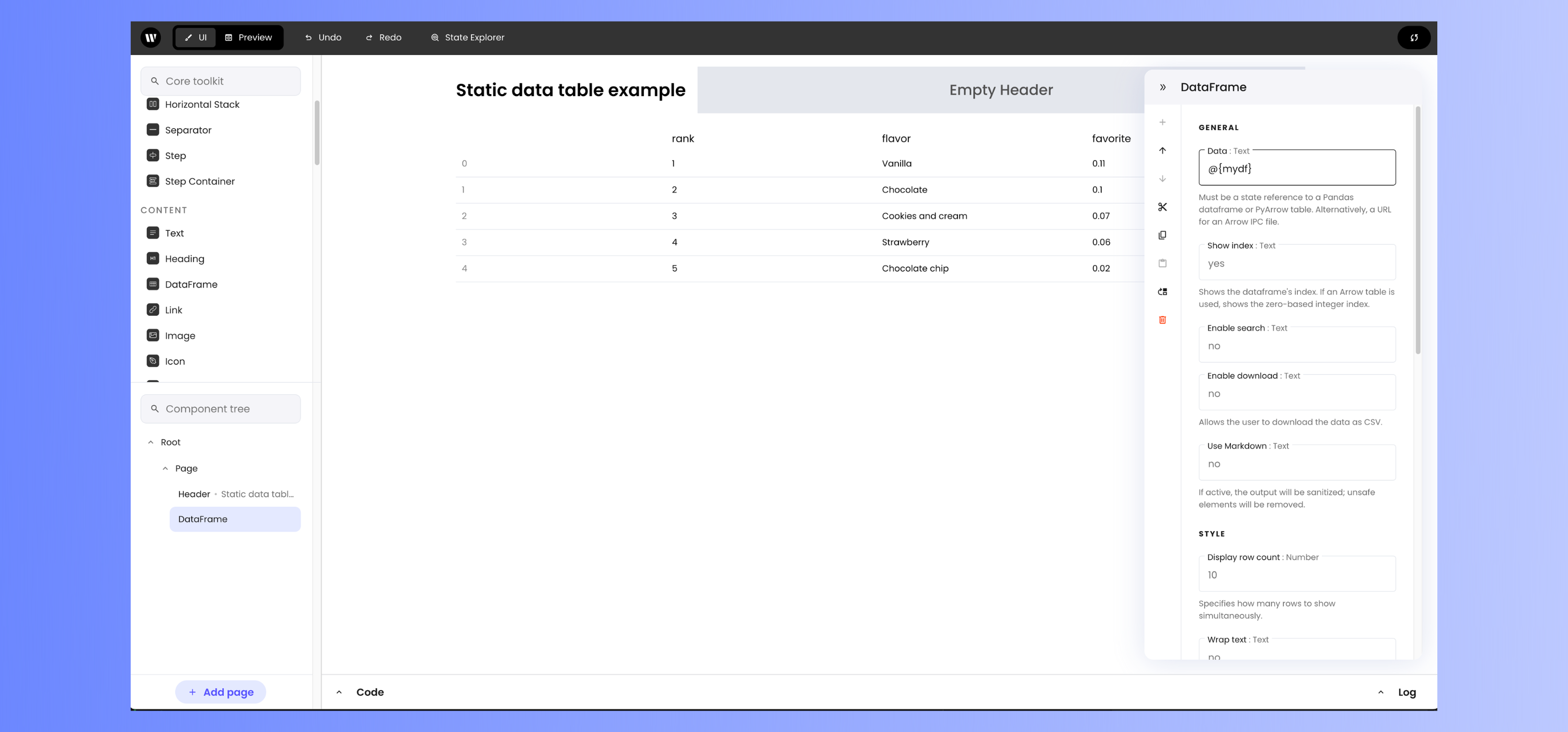
Add a DataFrame UI component to the user interface, then set its **Data** property to `@{`*dataframe\_key*`}`, where *dataframe\_key* is the `state` variable key whose value refers to the `DataFrame` data structure.
In the case of this example, `mydf` is the `state` variable key referring to the `DataFrame`, so set the **Data** property to `@{mydf}`.
You can find the full list of DataFrame properties and fields on the [*DataFrame* component page](/components/dataframe).
### “DataFrame” has multiple meanings
**Writer Framework has two objects with the name *DataFrame*:**
1. **UI DataFrame:** In Writer Framework's UI, "DataFrame" refers to a ***user interface component*** that displays data in rows and columns in a way similar to a spreadsheet or SQL table.
2. **Code Dataframe:** In code that you write for a Writer Framework application, `DataFrame` refers to a ***data structure*** that stores data in rows and columns in a way similar to a spreadsheet or SQL table.
To present a data table in Writer Framework, you create a `DataFrame` data structure in your code and then bind it to a UI Dataframe.
## Displaying a static DataFrame
A static DataFrame is one whose content does not change. The user can change its sort order, but the data within the DataFrame remains constant.
Writer Framework supports both [pandas](https://pandas.pydata.org/) and [Polars](https://pola.rs/) `DataFrame` data structures. Create a `DataFrame`, assign its value to a variable, then assign make that variable a value in the `state` dictionary:
```python pandas theme={null}
import writer as wf
import pandas as pd
data = [
{"rank": 1, "flavor": "Vanilla", "favorite": 0.11},
{"rank": 2, "flavor": "Chocolate", "favorite": 0.1},
{"rank": 3, "flavor": "Cookies and cream", "favorite": 0.07},
{"rank": 4, "flavor": "Strawberry", "favorite": 0.06},
{"rank": 5, "flavor": "Chocolate chip", "favorite": 0.02},
]
df = pd.DataFrame(data)
wf.init_state({
"mydf": df
})
```
```python Polars theme={null}
import writer as wf
import polars as pl
data = [
{"rank": 1, "flavor": "Vanilla", "favorite": 0.11},
{"rank": 2, "flavor": "Chocolate", "favorite": 0.1},
{"rank": 3, "flavor": "Cookies and cream", "favorite": 0.07},
{"rank": 4, "flavor": "Strawberry", "favorite": 0.06},
{"rank": 5, "flavor": "Chocolate chip", "favorite": 0.02},
]
df = pl.DataFrame(data)
wf.init_state({
"mydf": df
})
```
The call to `wf.init_state()` adds the `DataFrame` to the application's `state` variable as the value of the `mydf` key.
Add a DataFrame UI component to the user interface, then set its **Data** property to `@{`*dataframe\_key*`}`, where *dataframe\_key* is the `state` variable key whose value refers to the `DataFrame` data structure.
In the case of this example, `mydf` is the `state` variable key referring to the `DataFrame`, so set the **Data** property to `@{mydf}`.
 ## Displaying an editable DataFrame
A editable DataFrame is one whose content can change. Like static DataFrames, editable DataFrames use the **DataFrame** UI component. Unlike static tables, the DataFrame UI component is bound to an instance of `EditableDataFrame`, a class provided by the Writer library. Changes to a `EditableDataFrame` object will be immediately reflected in the DataFrame UI component that it is bound to.
An `EditableDataFrame` object can be instantiated from any of the following:
1. A pandas `DataFrame`
2. A Polars `DataFrame`
3. A list of dictionaries
```python pandas theme={null}
import writer as wf
import pandas as pd
data = [
{"rank": 1, "flavor": "Vanilla", "favorite": 0.11},
{"rank": 2, "flavor": "Chocolate", "favorite": 0.1},
{"rank": 3, "flavor": "Cookies and cream", "favorite": 0.07},
{"rank": 4, "flavor": "Strawberry", "favorite": 0.06},
{"rank": 5, "flavor": "Chocolate chip", "favorite": 0.02},
]
df = pd.DataFrame(data)
wf.init_state({
"mydf": wf.EditableDataFrame(df)
})
```
```python Polars theme={null}
import writer as wf
import polars as pl
data = [
{"rank": 1, "flavor": "Vanilla", "favorite": 0.11},
{"rank": 2, "flavor": "Chocolate", "favorite": 0.1},
{"rank": 3, "flavor": "Cookies and cream", "favorite": 0.07},
{"rank": 4, "flavor": "Strawberry", "favorite": 0.06},
{"rank": 5, "flavor": "Chocolate chip", "favorite": 0.02},
]
df = pl.DataFrame(data)
wf.init_state({
"mydf": wf.EditableDataFrame(df)
})
```
```python List of dictionaries theme={null}
import writer as wf
data = [
{"rank": 1, "flavor": "Vanilla", "favorite": 0.11},
{"rank": 2, "flavor": "Chocolate", "favorite": 0.1},
{"rank": 3, "flavor": "Cookies and cream", "favorite": 0.07},
{"rank": 4, "flavor": "Strawberry", "favorite": 0.06},
{"rank": 5, "flavor": "Chocolate chip", "favorite": 0.02},
]
wf.init_state({
"mydf": wf.EditableDataFrame(data)
})
```
The call to `wf.init_state()` adds the `DataFrame` to the application's `state` variable as the value of the `mydf` key.
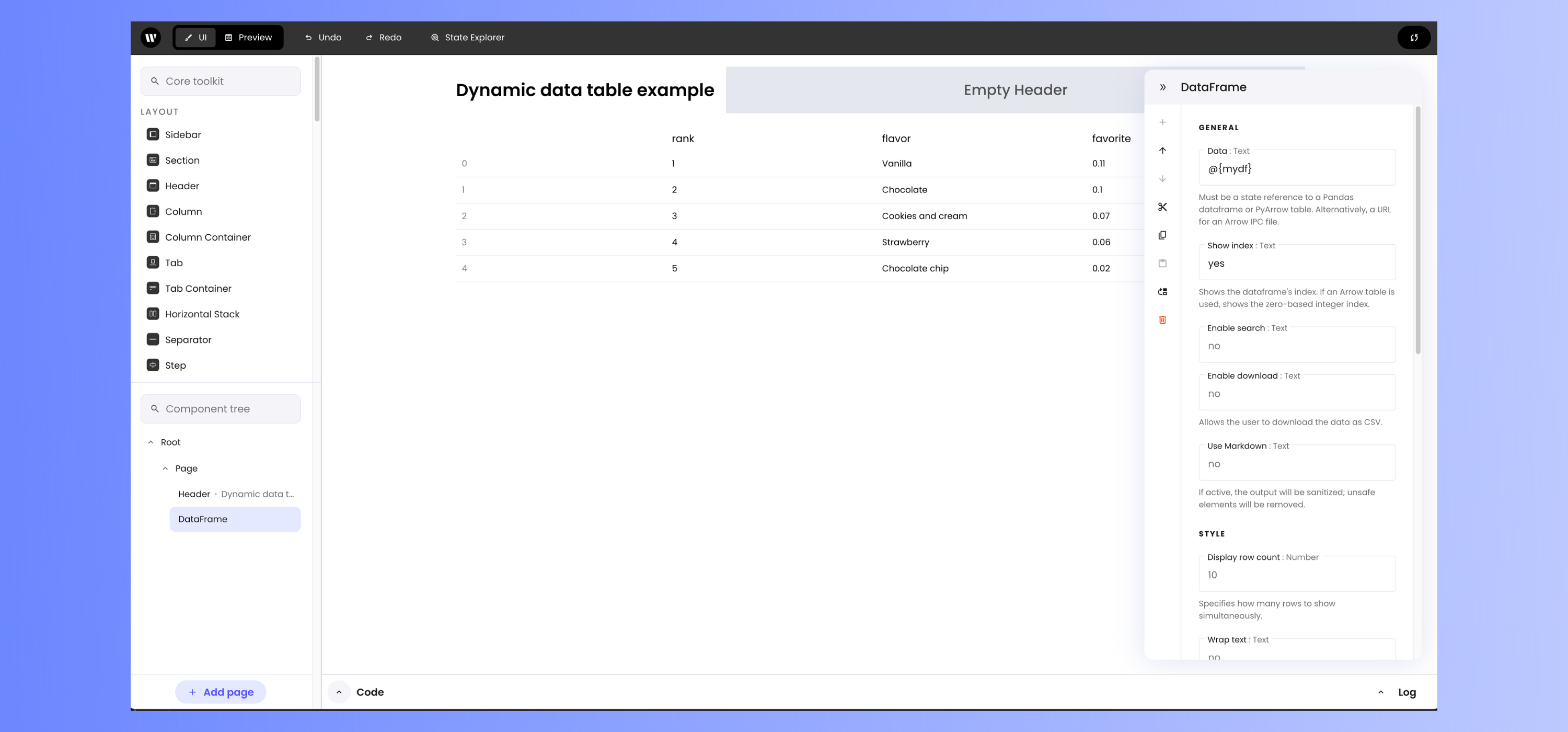
Add a **DataFrame** component to the user interface, then set its **Data** property to `@{`*dataframe\_key*`}`, where *dataframe\_key* is the `state` variable key whose value refers to the `DataFrame` data structure.
In the case of this example, `mydf` is the `state` variable key referring to the `DataFrame`, so set the **Data** property to `@{mydf}`.
## Displaying an editable DataFrame
A editable DataFrame is one whose content can change. Like static DataFrames, editable DataFrames use the **DataFrame** UI component. Unlike static tables, the DataFrame UI component is bound to an instance of `EditableDataFrame`, a class provided by the Writer library. Changes to a `EditableDataFrame` object will be immediately reflected in the DataFrame UI component that it is bound to.
An `EditableDataFrame` object can be instantiated from any of the following:
1. A pandas `DataFrame`
2. A Polars `DataFrame`
3. A list of dictionaries
```python pandas theme={null}
import writer as wf
import pandas as pd
data = [
{"rank": 1, "flavor": "Vanilla", "favorite": 0.11},
{"rank": 2, "flavor": "Chocolate", "favorite": 0.1},
{"rank": 3, "flavor": "Cookies and cream", "favorite": 0.07},
{"rank": 4, "flavor": "Strawberry", "favorite": 0.06},
{"rank": 5, "flavor": "Chocolate chip", "favorite": 0.02},
]
df = pd.DataFrame(data)
wf.init_state({
"mydf": wf.EditableDataFrame(df)
})
```
```python Polars theme={null}
import writer as wf
import polars as pl
data = [
{"rank": 1, "flavor": "Vanilla", "favorite": 0.11},
{"rank": 2, "flavor": "Chocolate", "favorite": 0.1},
{"rank": 3, "flavor": "Cookies and cream", "favorite": 0.07},
{"rank": 4, "flavor": "Strawberry", "favorite": 0.06},
{"rank": 5, "flavor": "Chocolate chip", "favorite": 0.02},
]
df = pl.DataFrame(data)
wf.init_state({
"mydf": wf.EditableDataFrame(df)
})
```
```python List of dictionaries theme={null}
import writer as wf
data = [
{"rank": 1, "flavor": "Vanilla", "favorite": 0.11},
{"rank": 2, "flavor": "Chocolate", "favorite": 0.1},
{"rank": 3, "flavor": "Cookies and cream", "favorite": 0.07},
{"rank": 4, "flavor": "Strawberry", "favorite": 0.06},
{"rank": 5, "flavor": "Chocolate chip", "favorite": 0.02},
]
wf.init_state({
"mydf": wf.EditableDataFrame(data)
})
```
The call to `wf.init_state()` adds the `DataFrame` to the application's `state` variable as the value of the `mydf` key.
Add a **DataFrame** component to the user interface, then set its **Data** property to `@{`*dataframe\_key*`}`, where *dataframe\_key* is the `state` variable key whose value refers to the `DataFrame` data structure.
In the case of this example, `mydf` is the `state` variable key referring to the `DataFrame`, so set the **Data** property to `@{mydf}`.
 ## Updating an editable DataFrame
Editable DataFrames are updated by updating the `EditableDataFrame` object they are bound to, which is done using `EditableDataFrame`'s methods.
### `record_add`: Add a new row
`record_add()` adds a new row to an `EditableDataFrame`. It takes a dictionary with the following structure...
```python theme={null}
{"record": new_row}
```
...where `new_row` is a dictionary containing the data for the row to be added.
In the code example above, you would add a new row to the DataFrame with the following code:
```python theme={null}
state["mydf"].record_add({"record": {"rank": 6, "flavor": "Birthday cake", "favorite": 0.01}})
```
### `record`: Read the contents of a row
`record()` returns a row in an `EditableDataFrame`. It takes an integer specifying the index of the row.
In the code example above, you would retrieve the record at row 1 with the following code:
```python theme={null}
record = state["mydf"].record(1)
```
### `record_update`: Change an existing row
`record_update()` replaces an existing row in an `EditableDataFrame` with a new one. It takes a dictionary with the following structure...
```python theme={null}
{
"record_index": index,
"record": row_to_update
}
```
...where `index` is an integer specifying which row should be updated and `row_to_update` is a dictionary containing the updated row data.
In the code example above, you would update the row at index 0 with the following code:
```python theme={null}
state["mydf"].record_update({
"record_index": 0,
"record": {"rank": 6, "flavor": "Bubble gum", "favorite": 0.08}
})
```
### `record_remove`: Delete an existing row
`record_remove()` removes an existing row from an `EditableDataFrame`. It takes a dictionary with the following structure...
```python theme={null}
{"record_index": index}
```
...where `index` is an integer specifying which row should be deleted.
In the code example above, you would delete the row at index 2 with the following code:
```python theme={null}
state["mydf"].record_remove({"record_index": 2})
```
## Enabling additional features
The DataFrame component has these “always-on” features:
1. **Sorting:** Clicking a column header sorts the entire DataFrame based on that column's values. The first click sorts that DataFrame in ascending order, a second click changes it to descending order, and a third click restores the DataFrame to its original sort order.
2. **Column resizing:** Click and drag the dividing line on the right edge of a column header to adjust its width.
DataFrames have other features that you need to activate, which are listed below.
### Search field
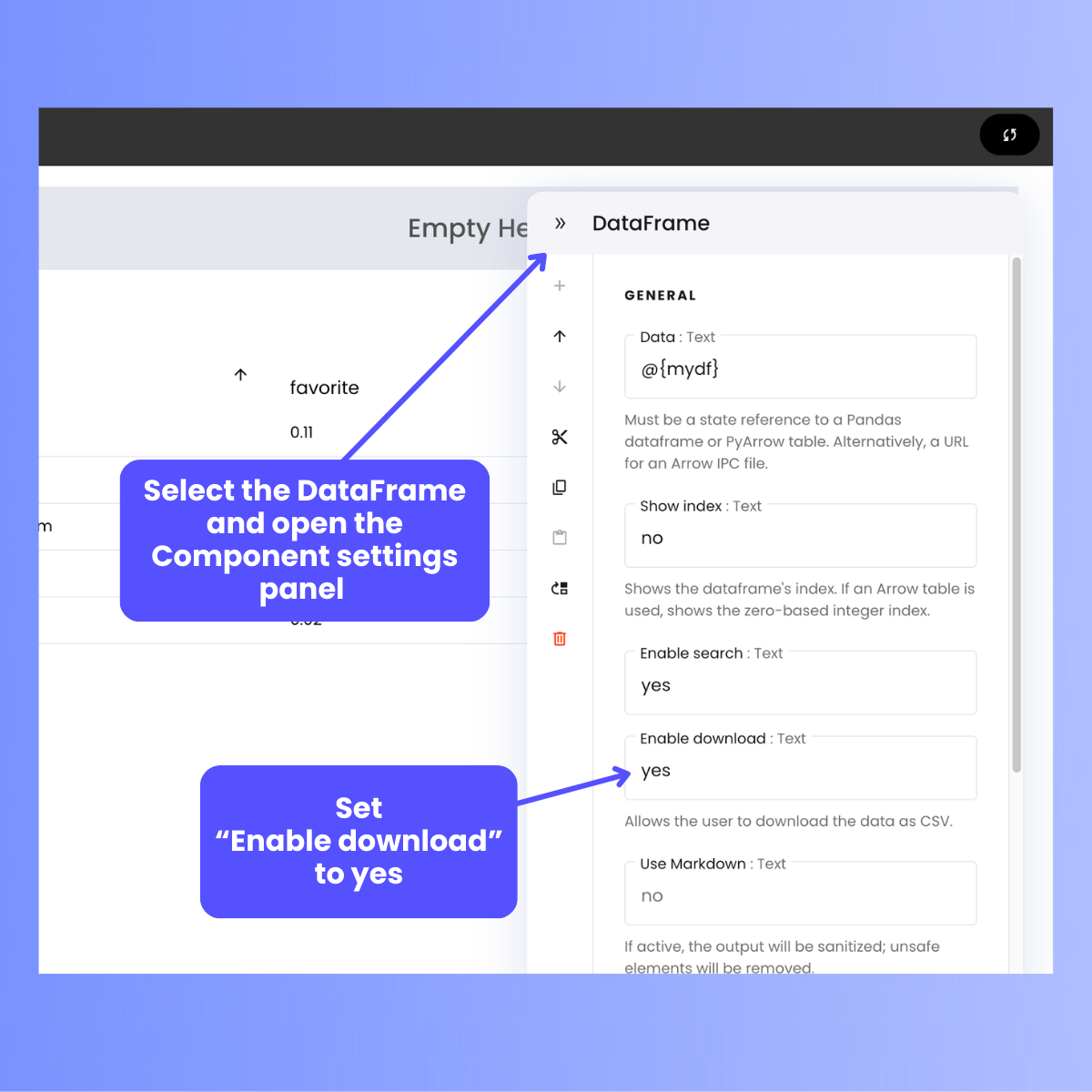
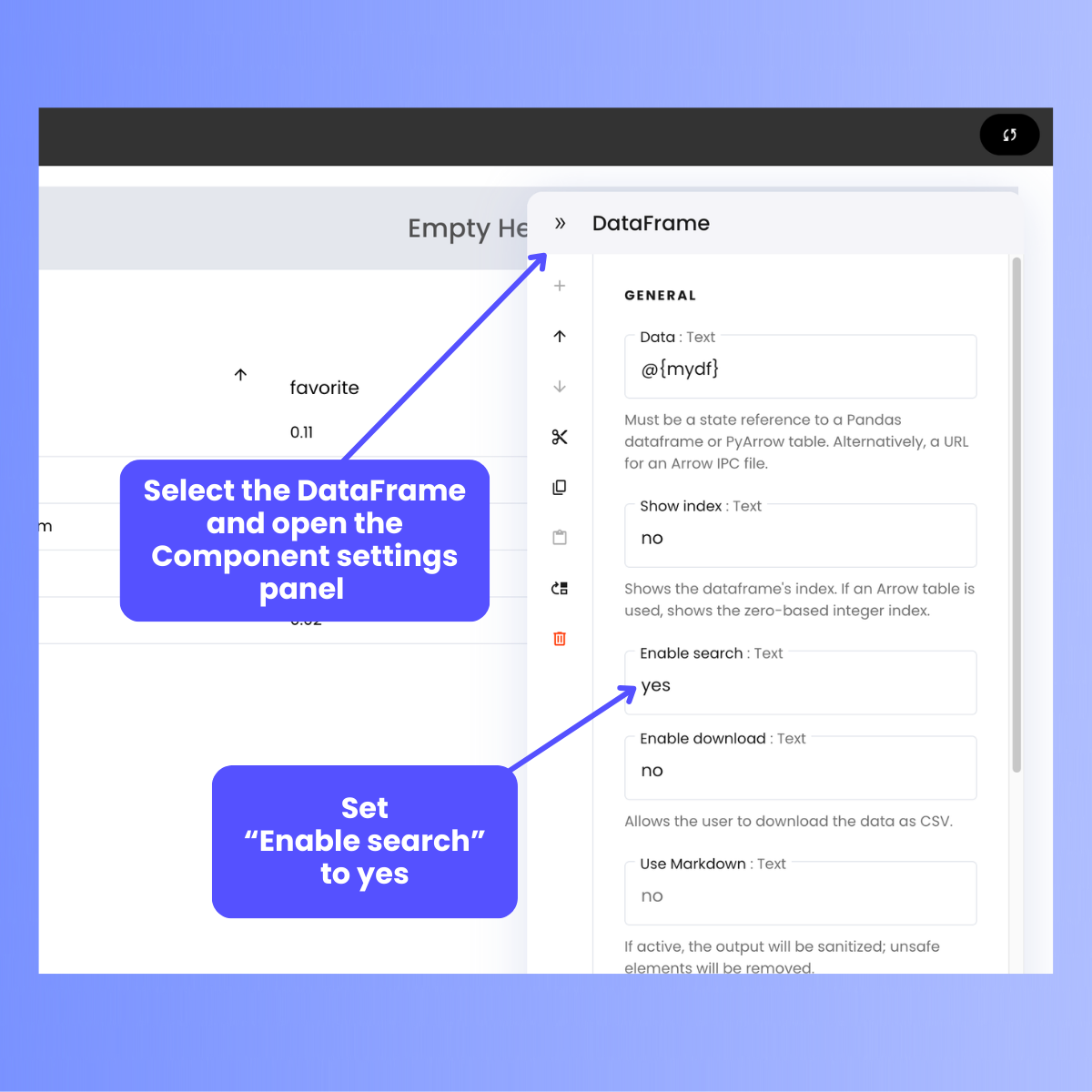
To enable the Search field, select the DataFrame, open the Component settings panel, and set **Enable search** to **yes**.
## Updating an editable DataFrame
Editable DataFrames are updated by updating the `EditableDataFrame` object they are bound to, which is done using `EditableDataFrame`'s methods.
### `record_add`: Add a new row
`record_add()` adds a new row to an `EditableDataFrame`. It takes a dictionary with the following structure...
```python theme={null}
{"record": new_row}
```
...where `new_row` is a dictionary containing the data for the row to be added.
In the code example above, you would add a new row to the DataFrame with the following code:
```python theme={null}
state["mydf"].record_add({"record": {"rank": 6, "flavor": "Birthday cake", "favorite": 0.01}})
```
### `record`: Read the contents of a row
`record()` returns a row in an `EditableDataFrame`. It takes an integer specifying the index of the row.
In the code example above, you would retrieve the record at row 1 with the following code:
```python theme={null}
record = state["mydf"].record(1)
```
### `record_update`: Change an existing row
`record_update()` replaces an existing row in an `EditableDataFrame` with a new one. It takes a dictionary with the following structure...
```python theme={null}
{
"record_index": index,
"record": row_to_update
}
```
...where `index` is an integer specifying which row should be updated and `row_to_update` is a dictionary containing the updated row data.
In the code example above, you would update the row at index 0 with the following code:
```python theme={null}
state["mydf"].record_update({
"record_index": 0,
"record": {"rank": 6, "flavor": "Bubble gum", "favorite": 0.08}
})
```
### `record_remove`: Delete an existing row
`record_remove()` removes an existing row from an `EditableDataFrame`. It takes a dictionary with the following structure...
```python theme={null}
{"record_index": index}
```
...where `index` is an integer specifying which row should be deleted.
In the code example above, you would delete the row at index 2 with the following code:
```python theme={null}
state["mydf"].record_remove({"record_index": 2})
```
## Enabling additional features
The DataFrame component has these “always-on” features:
1. **Sorting:** Clicking a column header sorts the entire DataFrame based on that column's values. The first click sorts that DataFrame in ascending order, a second click changes it to descending order, and a third click restores the DataFrame to its original sort order.
2. **Column resizing:** Click and drag the dividing line on the right edge of a column header to adjust its width.
DataFrames have other features that you need to activate, which are listed below.
### Search field
To enable the Search field, select the DataFrame, open the Component settings panel, and set **Enable search** to **yes**.
 ### Download button
To enable the Download button, select the DataFrame, open the Component settings panel, and set **Enable download** to **yes**.
### Download button
To enable the Download button, select the DataFrame, open the Component settings panel, and set **Enable download** to **yes**.