> ## Documentation Index
> Fetch the complete documentation index at: https://dev.writer.com/llms.txt
> Use this file to discover all available pages before exploring further.
# Chat assistant
In this tutorial, you'll use the Writer Framework to create a simple yet powerful chat assistant that can engage in conversations on various topics, provide answers to your questions, and maybe even help you when you're experiencing writer's block!
The process will take only minutes using a drag-and-drop visual editor to build the user interface and Python for the back-end code.
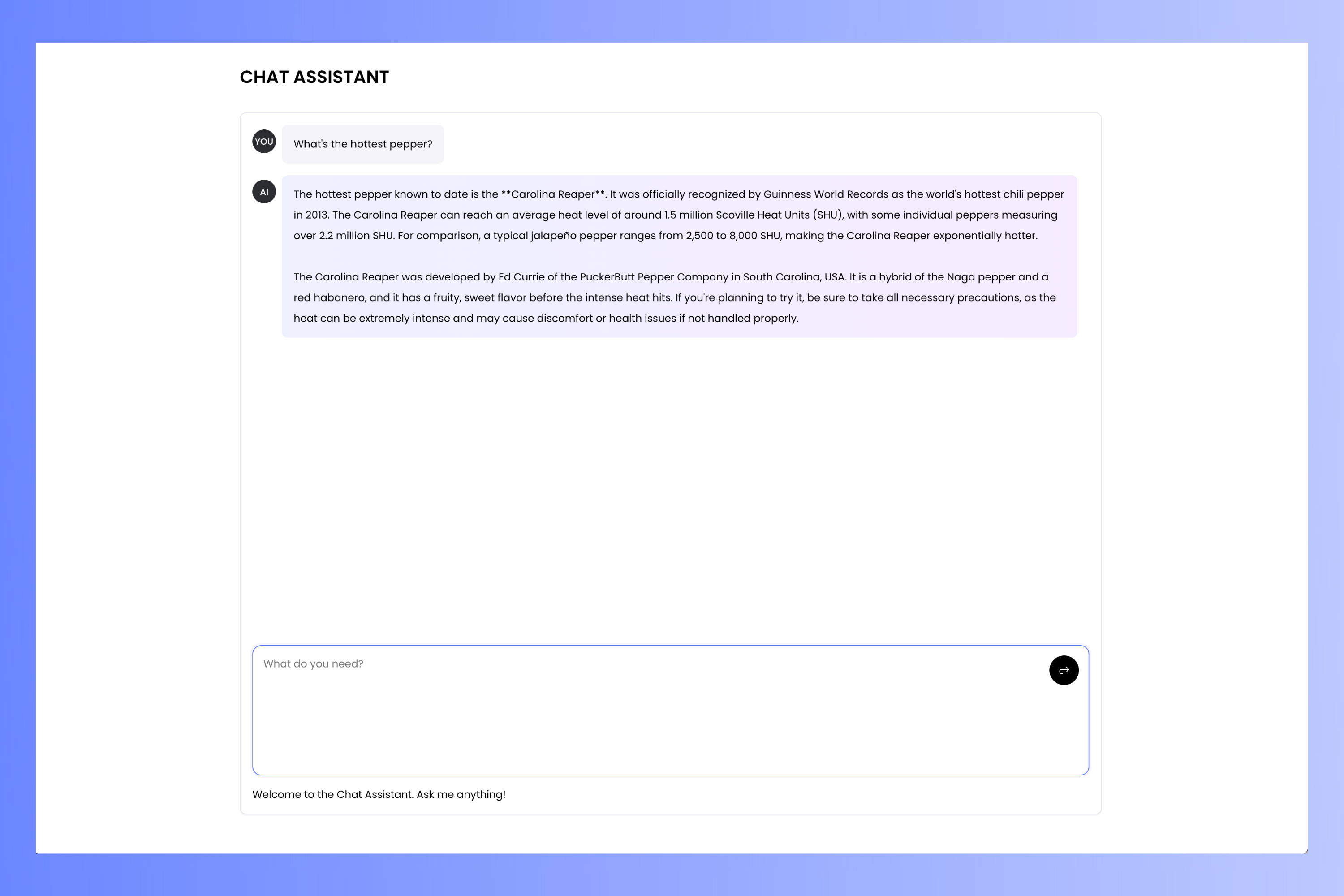
Here's what the finished project will look like:
 ## Prerequisites
Before starting, ensure you have:
* **A Writer account:** You don't need an account to use Writer Framework, but you'll need one to use the AI module. [Sign up for a free account here](https://app.writer.com/register).
* **Python 3.9.2 or later**: Use the installer from [python.org](https://www.python.org/downloads/).
* **pip:** This command-line application comes with Python and is used for installing Python packages, including those from Writer.
* **A basic understanding of Python:** You should be familiar with the basics of the language.
* **Your favorite code editor (optional):** There's a code editor built into Writer for editing back-end code, but you can also use Visual Studio Code, Notepad++, Vim, Emacs, or any text editor made for programming if you prefer.
## Setting up your project
### Create a Writer app and get its API key
First, you'll need to create a new app within Writer.
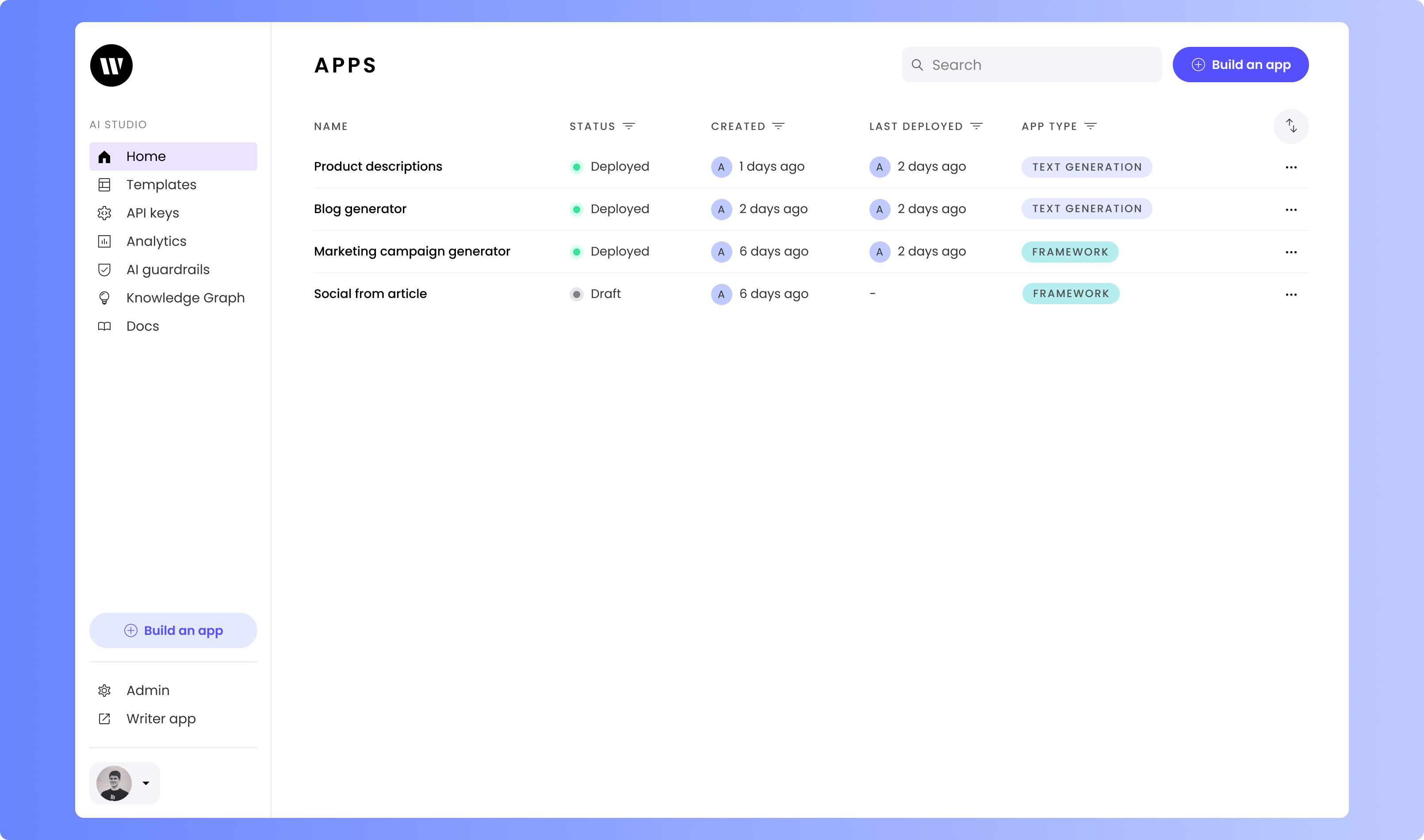
Log into Writer. From the Home screen, click on the **Build an app** button.
## Prerequisites
Before starting, ensure you have:
* **A Writer account:** You don't need an account to use Writer Framework, but you'll need one to use the AI module. [Sign up for a free account here](https://app.writer.com/register).
* **Python 3.9.2 or later**: Use the installer from [python.org](https://www.python.org/downloads/).
* **pip:** This command-line application comes with Python and is used for installing Python packages, including those from Writer.
* **A basic understanding of Python:** You should be familiar with the basics of the language.
* **Your favorite code editor (optional):** There's a code editor built into Writer for editing back-end code, but you can also use Visual Studio Code, Notepad++, Vim, Emacs, or any text editor made for programming if you prefer.
## Setting up your project
### Create a Writer app and get its API key
First, you'll need to create a new app within Writer.
Log into Writer. From the Home screen, click on the **Build an app** button.
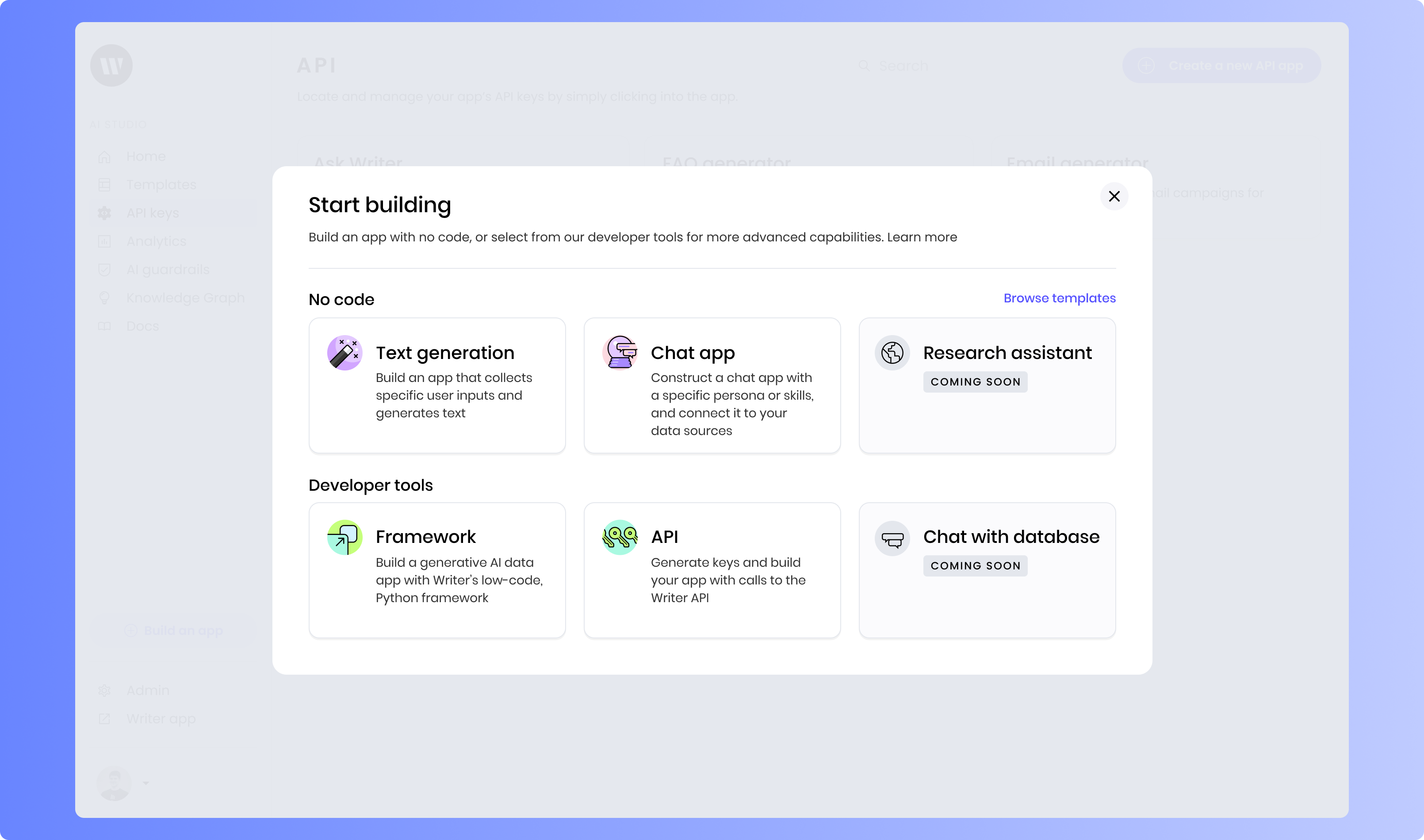
 The **Start building** menu will appear, presenting options for the types of apps you can create.
Select **Framework**, located under **Developer tools**. This will create a brand new app based on Writer Framework.
The **Start building** menu will appear, presenting options for the types of apps you can create.
Select **Framework**, located under **Developer tools**. This will create a brand new app based on Writer Framework.
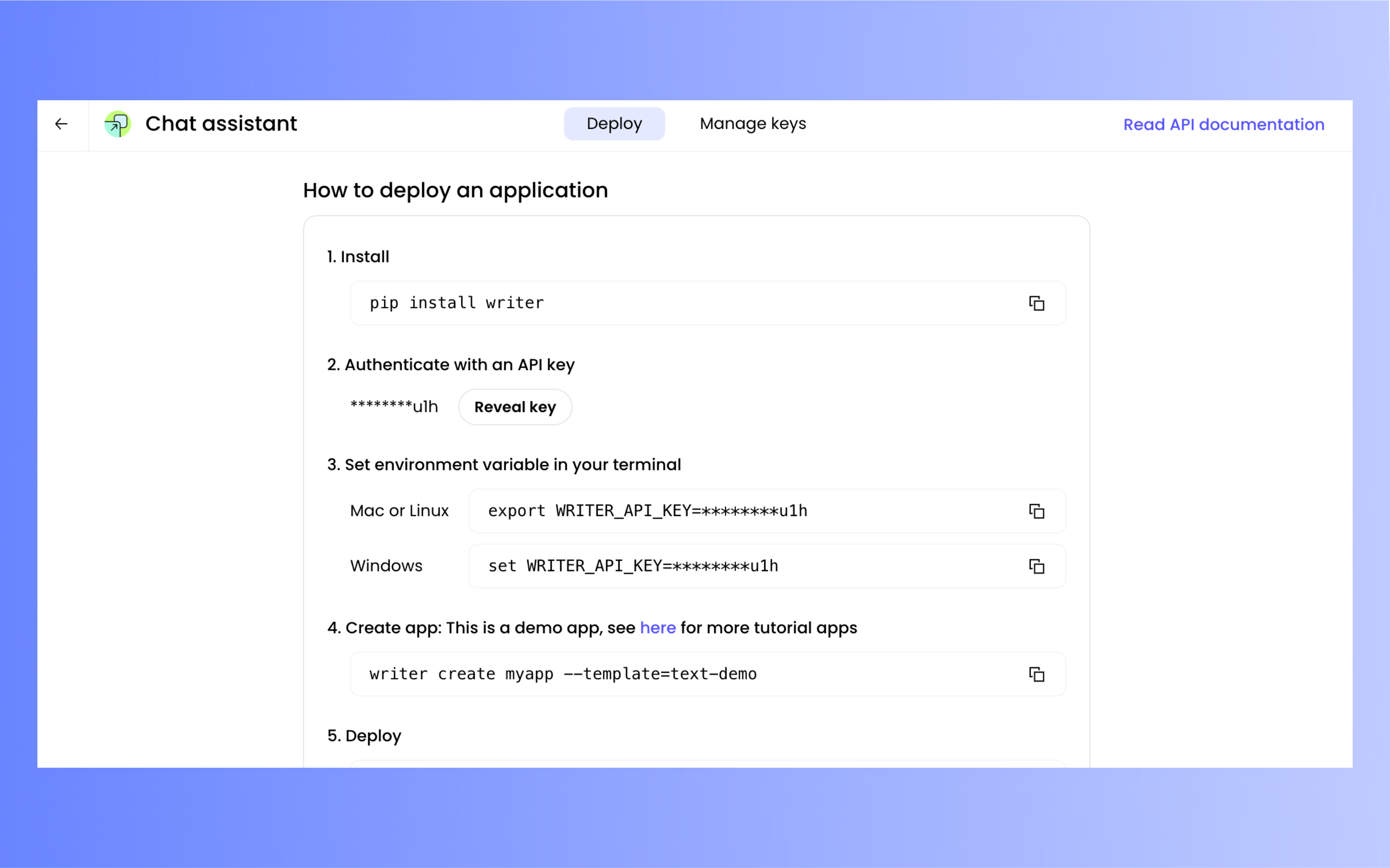
 On the next screen, titled **How to deploy an application**, you can get the API key for the app by clicking on the **Reveal key** button, located under the text **Authenticate with an API key**. Your complete API key will be displayed, and a "copy" button will appear. Click this button to copy the key; you'll use it in the next step.
 ### Set up your computer and create the app's project
The next step is to set up the Writer Framework environment on your computer. You'll do this by creating a directory for the project, installing dependencies, and creating the project for the application using a template.
Open your terminal application. On macOS and Linux, this application goes by the name *Terminal*; on Windows, you can use either *Windows PowerShell* (which is preferred) or *Command Prompt*.
If you already have the `writer` and `python-dotenv` packages installed on your computer, you can skip this step.
Install the `writer` and `python-dotenv` packages by entering the following commands in your terminal application:
```
pip install writer python-dotenv
```
This command tells `pip`, the Python package installer, to install two packages:
* `writer`, which provides some command-line commands and enables Python code to interact with Writer and the Writer Framework.
* `python-dotenv`, which makes it easy to manage environment variables by loading them from a `.env` file. This one is optional for this exercise, but you might find it useful when working on larger projects.
To pass your API key to the Writer Framework, you need to set an environment variable called `WRITER_API_KEY`.
Select your operating system and terminal application below, then copy and paste the command into your terminal application, replacing `[your_api_key]` with the API key you copied earlier:
```sh macOS/Linux (Terminal) theme={null}
export WRITER_API_KEY=[your_api_key]
```
```sh On Windows (Windows PowerShell) theme={null}
$env:WRITER_API_KEY=[your_api_key]
```
```sh On Windows (Command Prompt) theme={null}
set WRITER_API_KEY=[your_api_key]
```
The `WRITER_API_KEY` environment variable will remain defined as long your terminal session is open (that is, until you close your terminal application’s window).
Create the project by entering this command into your terminal application:
```
writer create chat-assistant --template=ai-starter
```
This command sets up a new project called `chat-assistant` using a starter template called `ai-starter` so that you're not starting "from scratch."
## Build the UI
Now that you've created the project, it's time to define the UI. The Writer Framework's drag-and-drop capabilities make it easy — even if you haven't done much UI work before!
The project editor is a web application that runs on your computer and enables you to define and edit your app's user interface. Launch it by typing the following into your terminal application:
```
writer edit chat-assistant
```
You'll see a URL. Control-click it (command-click on macOS) to open it, or copy the URL and paste it into the address bar of a browser window.
The browser window will contain the project editor, which will look like this:
### Set up your computer and create the app's project
The next step is to set up the Writer Framework environment on your computer. You'll do this by creating a directory for the project, installing dependencies, and creating the project for the application using a template.
Open your terminal application. On macOS and Linux, this application goes by the name *Terminal*; on Windows, you can use either *Windows PowerShell* (which is preferred) or *Command Prompt*.
If you already have the `writer` and `python-dotenv` packages installed on your computer, you can skip this step.
Install the `writer` and `python-dotenv` packages by entering the following commands in your terminal application:
```
pip install writer python-dotenv
```
This command tells `pip`, the Python package installer, to install two packages:
* `writer`, which provides some command-line commands and enables Python code to interact with Writer and the Writer Framework.
* `python-dotenv`, which makes it easy to manage environment variables by loading them from a `.env` file. This one is optional for this exercise, but you might find it useful when working on larger projects.
To pass your API key to the Writer Framework, you need to set an environment variable called `WRITER_API_KEY`.
Select your operating system and terminal application below, then copy and paste the command into your terminal application, replacing `[your_api_key]` with the API key you copied earlier:
```sh macOS/Linux (Terminal) theme={null}
export WRITER_API_KEY=[your_api_key]
```
```sh On Windows (Windows PowerShell) theme={null}
$env:WRITER_API_KEY=[your_api_key]
```
```sh On Windows (Command Prompt) theme={null}
set WRITER_API_KEY=[your_api_key]
```
The `WRITER_API_KEY` environment variable will remain defined as long your terminal session is open (that is, until you close your terminal application’s window).
Create the project by entering this command into your terminal application:
```
writer create chat-assistant --template=ai-starter
```
This command sets up a new project called `chat-assistant` using a starter template called `ai-starter` so that you're not starting "from scratch."
## Build the UI
Now that you've created the project, it's time to define the UI. The Writer Framework's drag-and-drop capabilities make it easy — even if you haven't done much UI work before!
The project editor is a web application that runs on your computer and enables you to define and edit your app's user interface. Launch it by typing the following into your terminal application:
```
writer edit chat-assistant
```
You'll see a URL. Control-click it (command-click on macOS) to open it, or copy the URL and paste it into the address bar of a browser window.
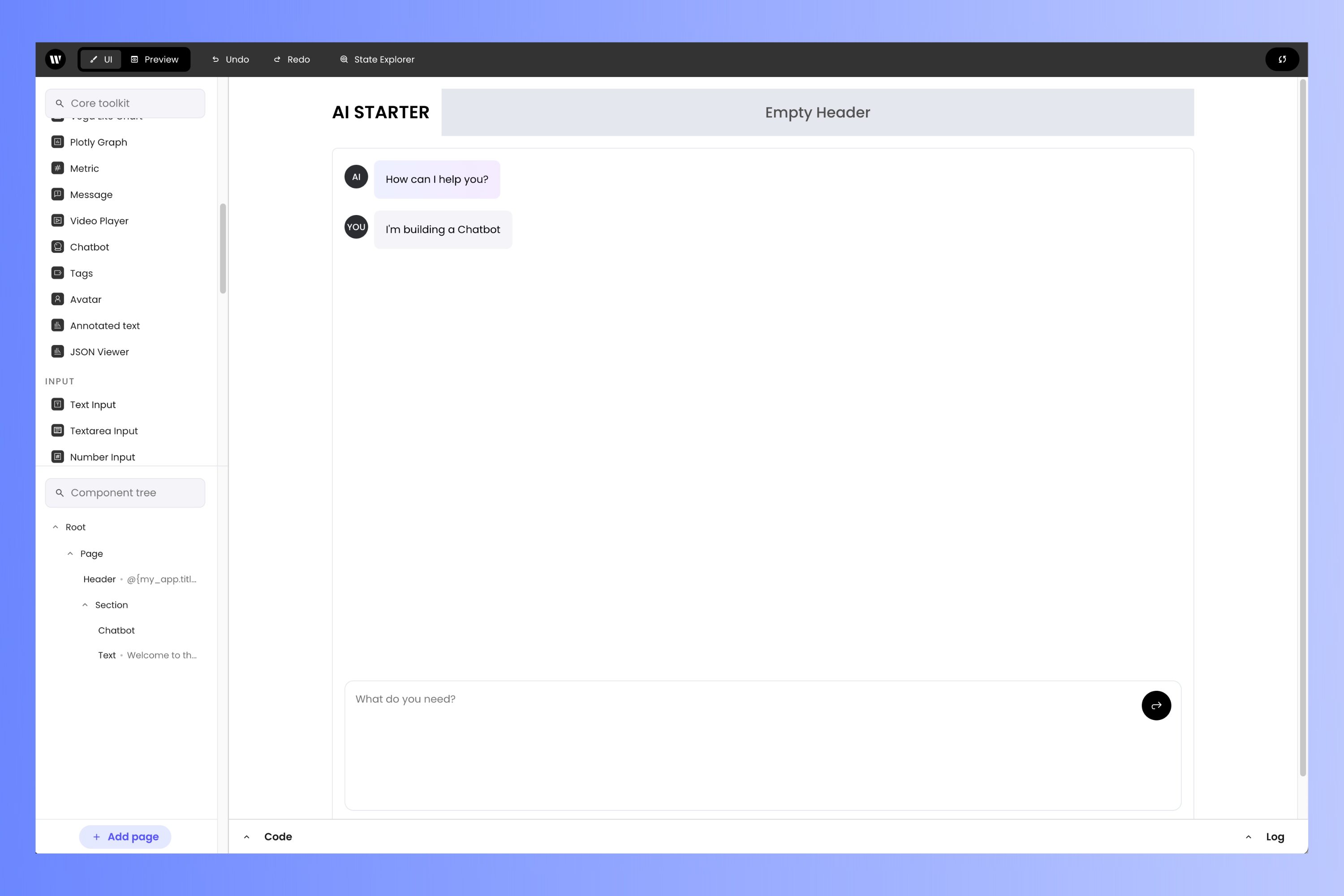
The browser window will contain the project editor, which will look like this:
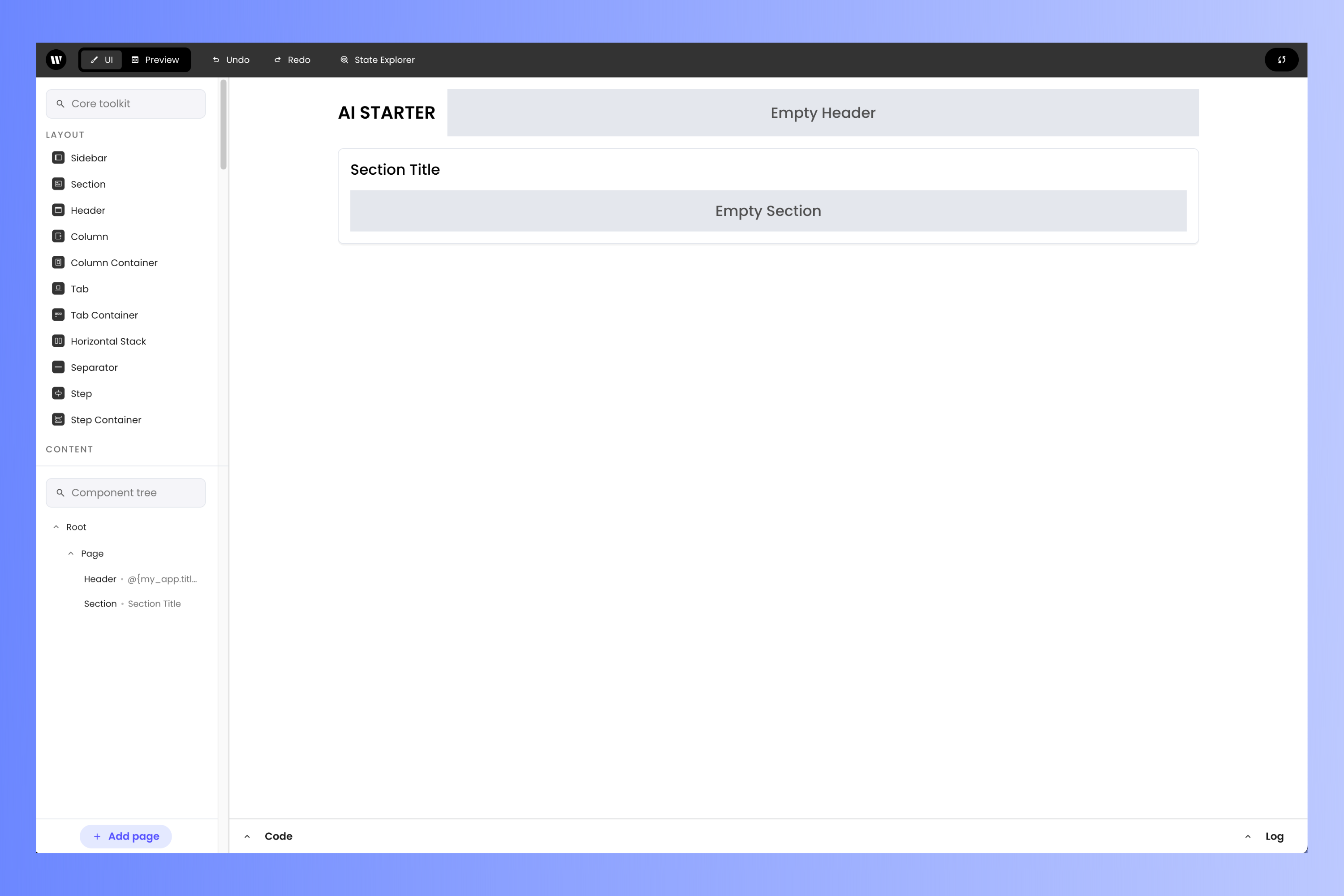 You'll see the following:
* The **canvas** is in the center. It displays the app's user interface.
* The column on the left contains:
* The **Core toolkit**, which contains all the UI components. You define the user interface by dragging components from the Toolkit and placing them on the canvas.
* The **Component tree**, which shows the arrangement of the UI components on the canvas. It's also useful for selecting items on the canvas, especially when it has a lot of UI components.
It's time to build the UI!
Select the **Header** component by clicking it — it's the component at the top, containing the title **AI STARTER** and a gray area labeled **Empty Header**.
When you click it, you'll see the **properties** panel appear on the right side of the page. This lets you view and edit the properties of the selected component.
You'll see the following:
* The **canvas** is in the center. It displays the app's user interface.
* The column on the left contains:
* The **Core toolkit**, which contains all the UI components. You define the user interface by dragging components from the Toolkit and placing them on the canvas.
* The **Component tree**, which shows the arrangement of the UI components on the canvas. It's also useful for selecting items on the canvas, especially when it has a lot of UI components.
It's time to build the UI!
Select the **Header** component by clicking it — it's the component at the top, containing the title **AI STARTER** and a gray area labeled **Empty Header**.
When you click it, you'll see the **properties** panel appear on the right side of the page. This lets you view and edit the properties of the selected component.
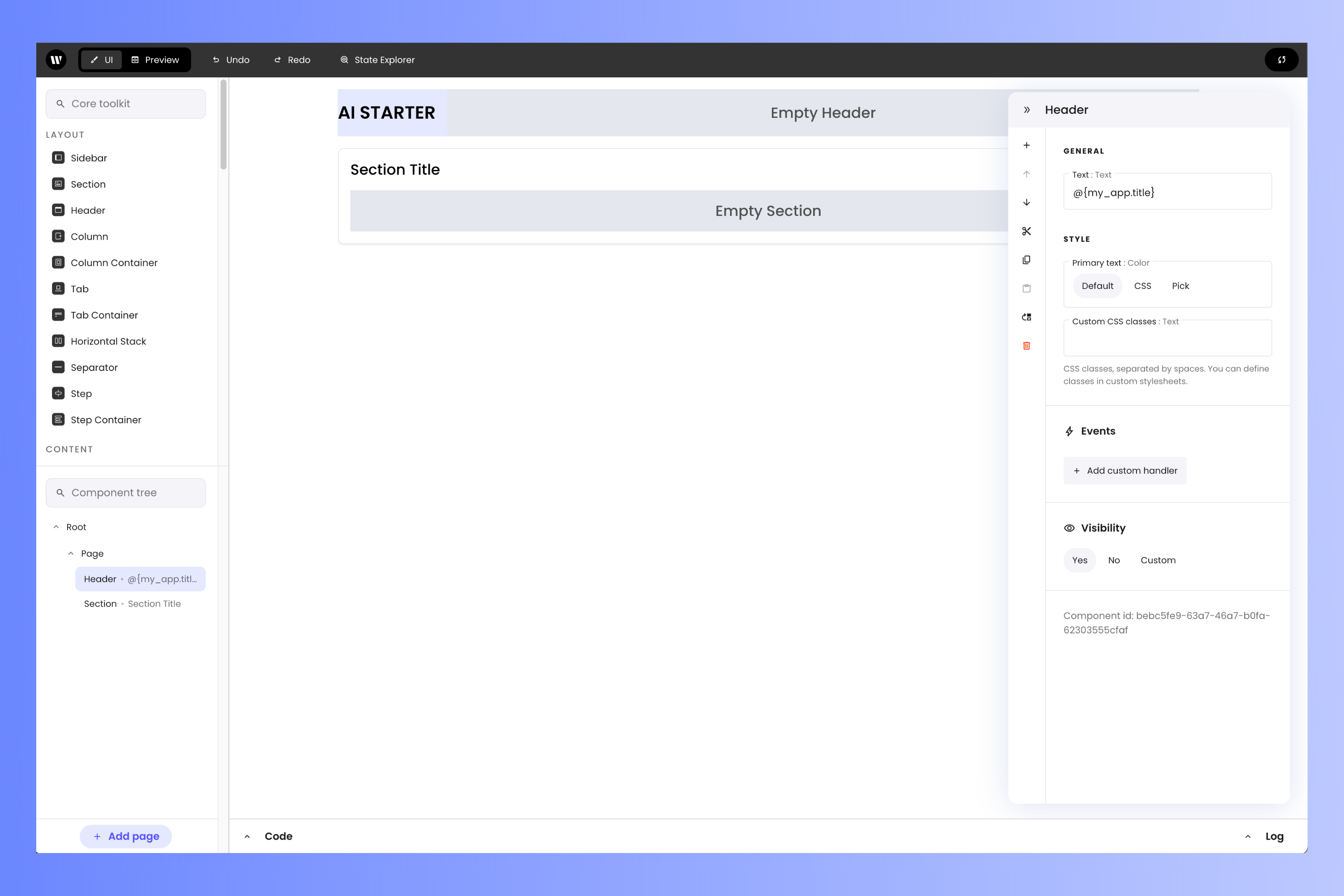 The first property you'll see in the panel is the **Text** property, which defines the text that appears as the header's title. It should contain the value `@{my_app.title}`. The `@{` and `}` indicate that `my_app.title` is a variable and that its contents should be the text displayed instead of the literal text "my\_app.title". You'll set the value of this variable soon.
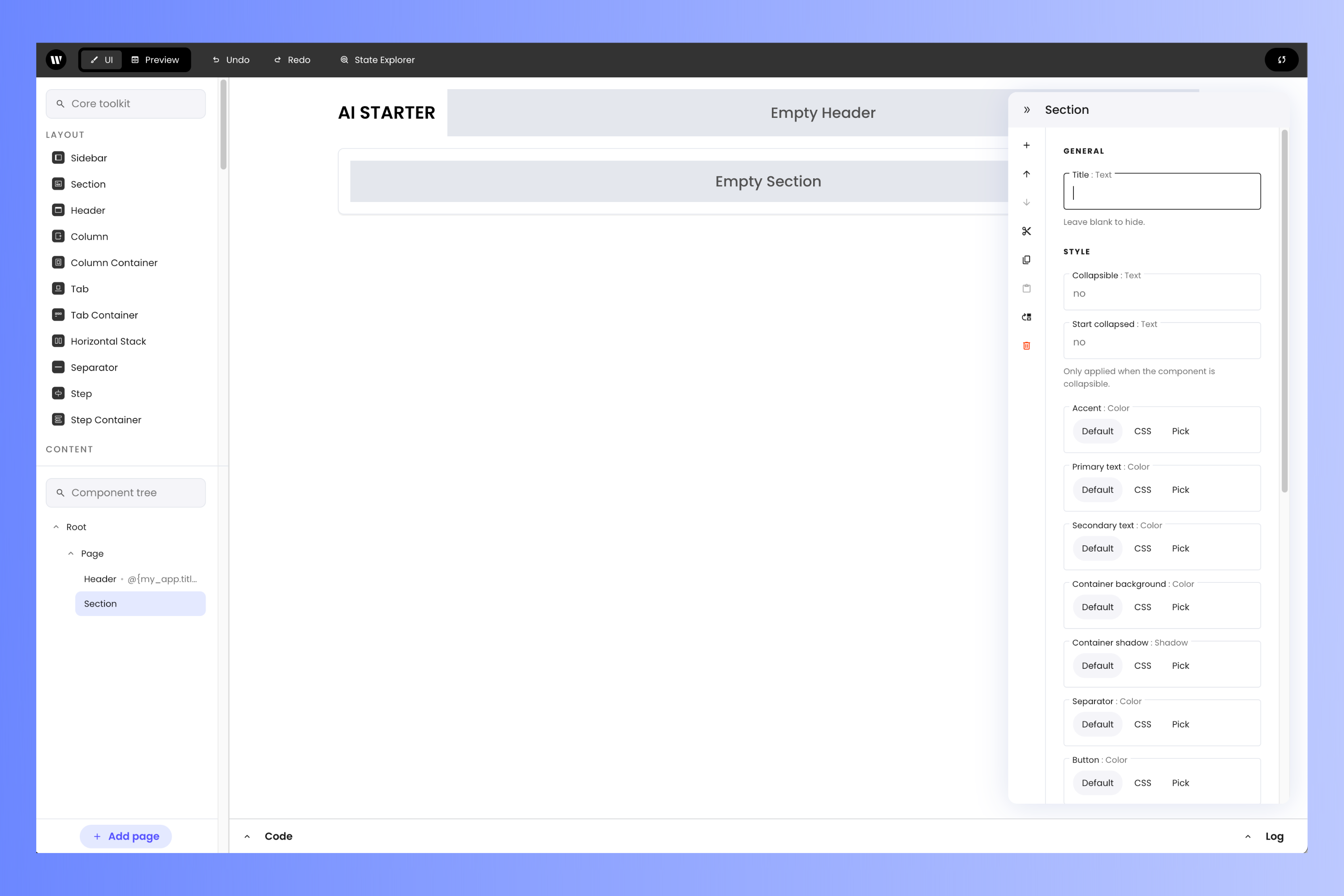
Select the **Section** component by clicking it — it's just below the **Header** component and contains the title **Section Title** and a gray area labeled **Empty Section**.
In the **properties** panel, clear out the value of the **Title** property. This will remove the **Section**'s default title.
The first property you'll see in the panel is the **Text** property, which defines the text that appears as the header's title. It should contain the value `@{my_app.title}`. The `@{` and `}` indicate that `my_app.title` is a variable and that its contents should be the text displayed instead of the literal text "my\_app.title". You'll set the value of this variable soon.
Select the **Section** component by clicking it — it's just below the **Header** component and contains the title **Section Title** and a gray area labeled **Empty Section**.
In the **properties** panel, clear out the value of the **Title** property. This will remove the **Section**'s default title.
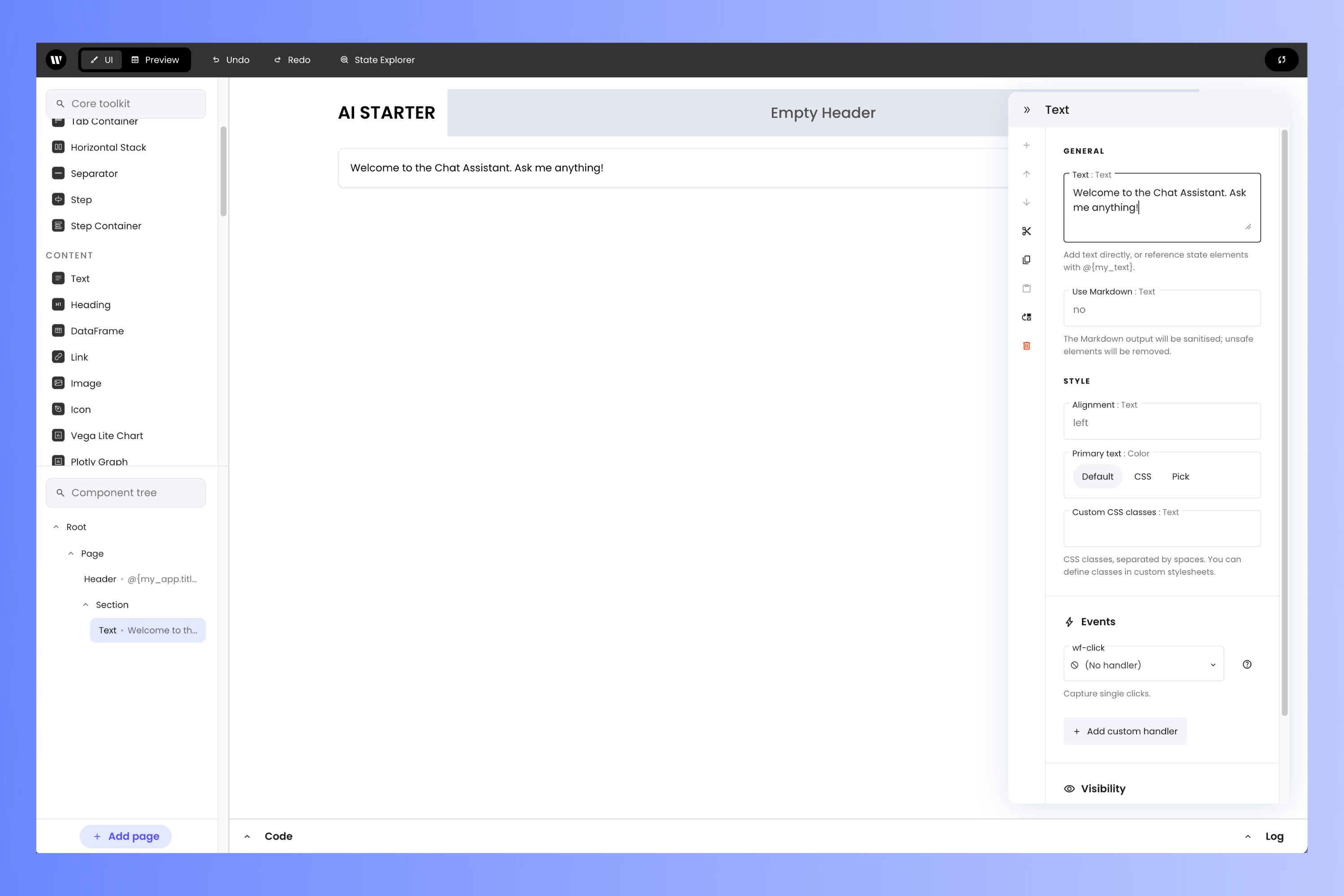
 Drag a **Text** component from the **Core toolkit** panel on the left (it's under **Content**, and you may need to scroll down a little to find it) and into the *Section*. Sections can act as containers for other components.
You can search for a specific component by using the search bar at the top of the **Core toolkit** panel.
Select the **Text** component. In the **properties** panel, set the **Text** property to provide instructions or context for your chat assistant. Here's an example: `Welcome to the Chat Assistant. Ask me anything!`
Drag a **Text** component from the **Core toolkit** panel on the left (it's under **Content**, and you may need to scroll down a little to find it) and into the *Section*. Sections can act as containers for other components.
You can search for a specific component by using the search bar at the top of the **Core toolkit** panel.
Select the **Text** component. In the **properties** panel, set the **Text** property to provide instructions or context for your chat assistant. Here's an example: `Welcome to the Chat Assistant. Ask me anything!`
 The heart of this app is the **Chatbot** component, a pre-built component that displays the conversation between the LLM and the user and provides a text field where the user can enter prompts.
Drag a **Chatbot** component from the **Core toolkit** panel (it's under **Content**) into the *Section*, just below the Text box.
The heart of this app is the **Chatbot** component, a pre-built component that displays the conversation between the LLM and the user and provides a text field where the user can enter prompts.
Drag a **Chatbot** component from the **Core toolkit** panel (it's under **Content**) into the *Section*, just below the Text box.
 ## Add the back-end code
With the UI laid out, it's time to work on the logic behind it.
The logic behind the user interface is defined in a file named `main.py`, which is in your project's directory. This file was automatically generated; you'll update the code in it to define the behavior of your app.
The simplest way to edit `main.py` is within the project editor. Click on the "toggle code" button (beside the word **Code**) near the lower left corner of the project editor page.
## Add the back-end code
With the UI laid out, it's time to work on the logic behind it.
The logic behind the user interface is defined in a file named `main.py`, which is in your project's directory. This file was automatically generated; you'll update the code in it to define the behavior of your app.
The simplest way to edit `main.py` is within the project editor. Click on the "toggle code" button (beside the word **Code**) near the lower left corner of the project editor page.
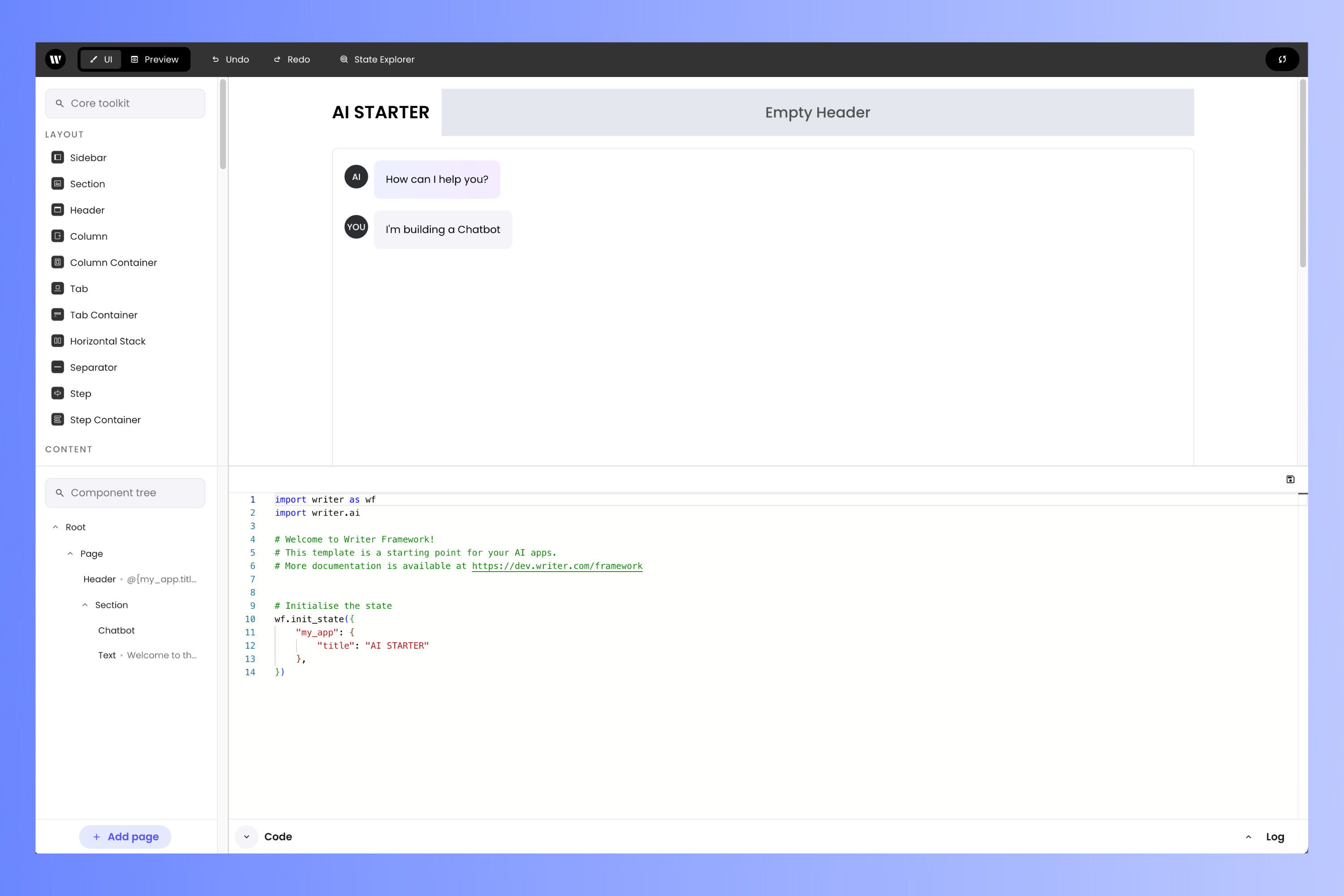
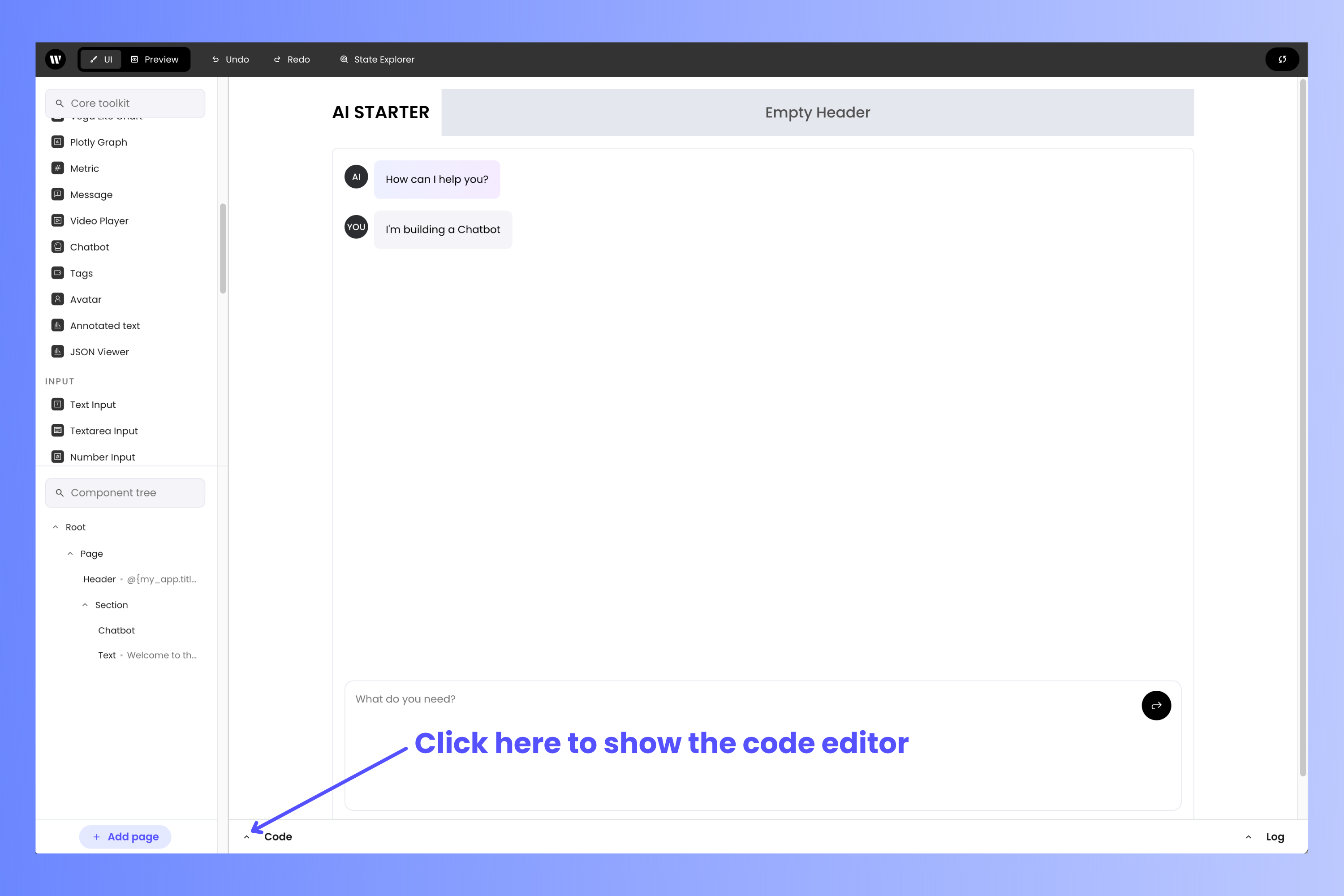 A pane with the name **Code** will appear at the bottom half of the screen, displaying an editor for the the contents of `main.py`.
 If you'd rather use a code editor instead of coding in the browser, use it to open the `main.py` file in your project's directory.
Now follow these steps:
You should see the following at the start of the file:
```python theme={null}
import writer as wf
import writer.ai
```
Replace that code with the following:
```python theme={null}
import os
import writer as wf
import writer.ai
# Set the API key
wf.api_key = os.getenv("WRITER_API_KEY")
```
This code imports the libraries that the application will need and then reads your Writer Framework API key in the `WRITER_API_KEY` environment variable.
The application needs a function to handle incoming chat messages. Find these comments in the code...
```python theme={null}
# Welcome to Writer Framework!
# This template is a starting point for your AI apps.
# More documentation is available at https://dev.writer.com/framework
```
...and replace them with the following function:
```python theme={null}
def generate_completion(state, payload):
print(f"Here's what the user entered: {payload['content']}")
state["conversation"] += payload
print(f"Conversation: {state['conversation'].messages}")
try:
for index, chunk in enumerate(state["conversation"].stream_complete()):
print(f"Chunk {index}: {chunk}")
if not chunk.get("content"):
chunk["content"] = ""
state["conversation"] += chunk
print(f"state['conversation']:\n{state['conversation'].messages}")
except Exception as e:
print(f"Error during stream_complete: {e}")
```
The `generate_completion()` function will be called when the user enters a prompt, which is contained in the `payload` object. The `payload` object is added to the `conversation` object contained in the application's `state`, which adds the user's prompt to the record of the conversation between the user and the LLM.
After adding the user's prompt to the conversational record, `generate_completion()` calls the `conversation` object's `stream_complete()` method, which generates an LLM completion based on the conversation so far. As its name implies, `stream_complete()` returns the completion as a stream of text chunks, which are captured and added to the `conversation` object.
The `conversation` object in the code above is an instance of Writer’s `Conversation` class. You can find out more about this class on our [*Writer AI module*](https://dev.writer.com/framework/ai-module) page.
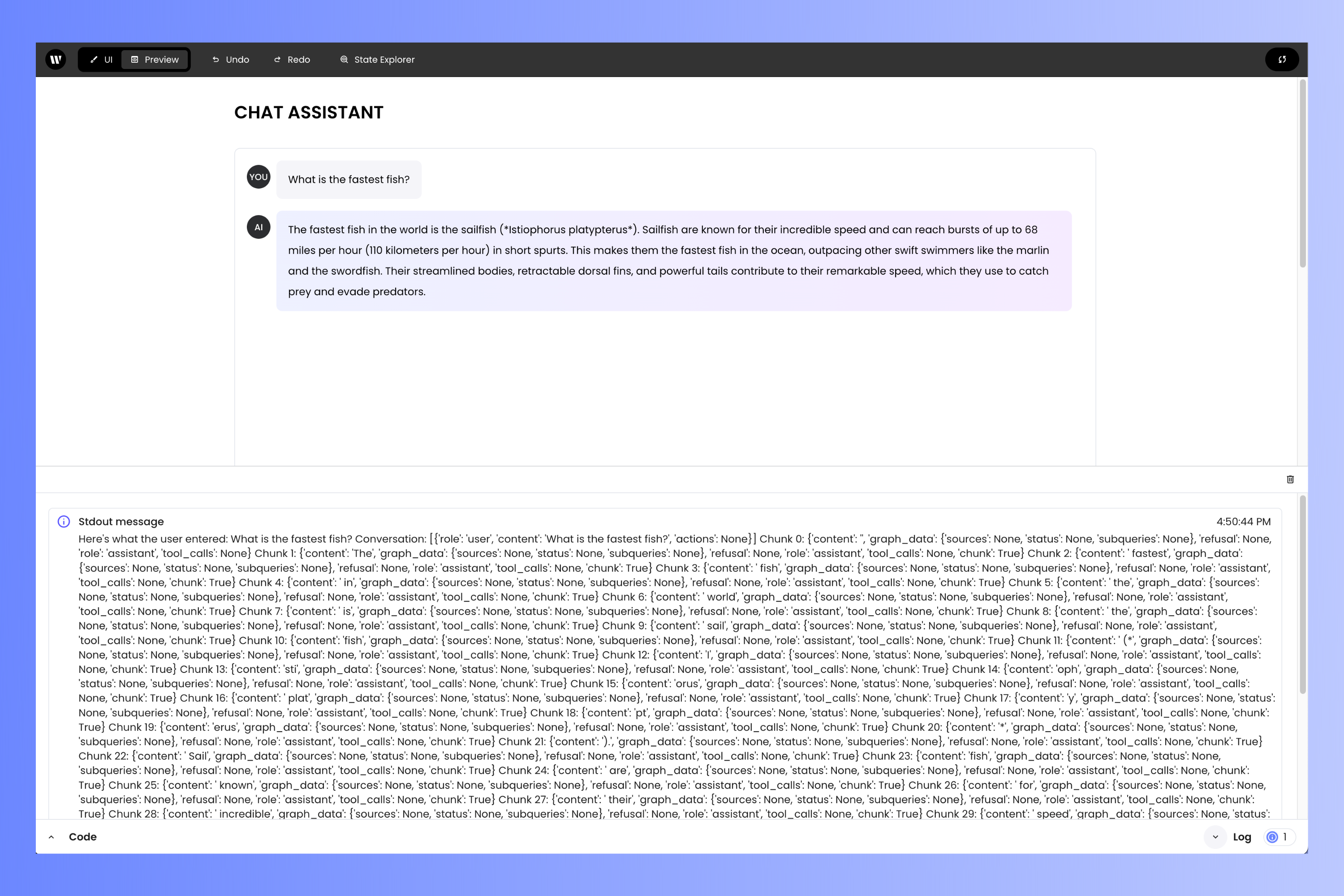
Note that `generate_completion()` completion uses a lot of `print()` functions for debugging purposes, and you can use them to get a better idea of what's happening in the function. You'll see their output in both your terminal application and in the project editor's 'log' pane (which will be covered shortly) as you use the chat assistant. This output will include:
* The prompt the user entered
* The chunks of data that make up the LLM's response as they are generated
* The record of the conversation between the user and the LLM.
The `print()` functions don't affect the operation of the chat assistant in any way, and you can remove them if you wish.
The final step is to set the application's initial state. Find this code, which should be just after the `generate_completion()` function...
```python theme={null}
# Initialise the state
wf.init_state({
"my_app": {
"title": "AI STARTER"
},
})
```
...and replace it with this:
```python theme={null}
# Initialize the state
wf.init_state({
"conversation": writer.ai.Conversation(),
"my_app": {
"title": "CHAT ASSISTANT"
},
})
```
The Writer Framework's `init_state()` method sets the initial value of `state`, a dictionary containing values that define the state of the application. The key-value pairs in `state` are how you store values used by your app and how you pass data between the back-end code and the UI.
The code above sets the initial value of `state` so that it has two key-value pairs:
* `conversation`: An object that keeps a record of the conversation that the user is having with the LLM. You'll bind its value to the **Chatbot** component soon.
* `my_app`: A dictionary containing values that define the application's appearance. This dictionary has a single key-value pair, `title`, which defines the text that appears as the application's title in the **Header**.
For more details about the `state` variable, see our [*Application state*](https://dev.writer.com/framework/application-state#application-state) page.
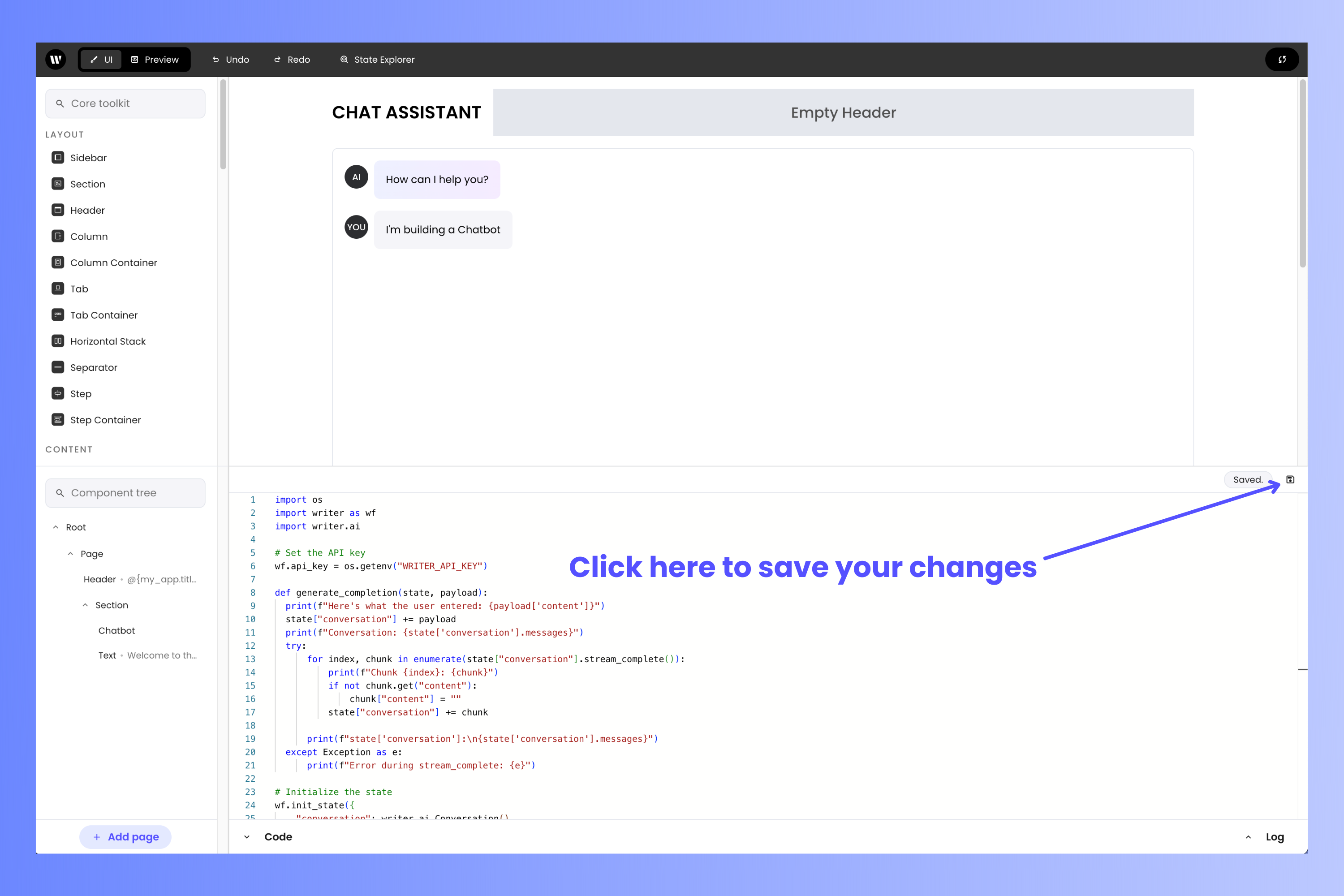
That’s all the code. If you edited the code in the browser, save it by clicking the “save” button near the top right corner of the code editor.
If you'd rather use a code editor instead of coding in the browser, use it to open the `main.py` file in your project's directory.
Now follow these steps:
You should see the following at the start of the file:
```python theme={null}
import writer as wf
import writer.ai
```
Replace that code with the following:
```python theme={null}
import os
import writer as wf
import writer.ai
# Set the API key
wf.api_key = os.getenv("WRITER_API_KEY")
```
This code imports the libraries that the application will need and then reads your Writer Framework API key in the `WRITER_API_KEY` environment variable.
The application needs a function to handle incoming chat messages. Find these comments in the code...
```python theme={null}
# Welcome to Writer Framework!
# This template is a starting point for your AI apps.
# More documentation is available at https://dev.writer.com/framework
```
...and replace them with the following function:
```python theme={null}
def generate_completion(state, payload):
print(f"Here's what the user entered: {payload['content']}")
state["conversation"] += payload
print(f"Conversation: {state['conversation'].messages}")
try:
for index, chunk in enumerate(state["conversation"].stream_complete()):
print(f"Chunk {index}: {chunk}")
if not chunk.get("content"):
chunk["content"] = ""
state["conversation"] += chunk
print(f"state['conversation']:\n{state['conversation'].messages}")
except Exception as e:
print(f"Error during stream_complete: {e}")
```
The `generate_completion()` function will be called when the user enters a prompt, which is contained in the `payload` object. The `payload` object is added to the `conversation` object contained in the application's `state`, which adds the user's prompt to the record of the conversation between the user and the LLM.
After adding the user's prompt to the conversational record, `generate_completion()` calls the `conversation` object's `stream_complete()` method, which generates an LLM completion based on the conversation so far. As its name implies, `stream_complete()` returns the completion as a stream of text chunks, which are captured and added to the `conversation` object.
The `conversation` object in the code above is an instance of Writer’s `Conversation` class. You can find out more about this class on our [*Writer AI module*](https://dev.writer.com/framework/ai-module) page.
Note that `generate_completion()` completion uses a lot of `print()` functions for debugging purposes, and you can use them to get a better idea of what's happening in the function. You'll see their output in both your terminal application and in the project editor's 'log' pane (which will be covered shortly) as you use the chat assistant. This output will include:
* The prompt the user entered
* The chunks of data that make up the LLM's response as they are generated
* The record of the conversation between the user and the LLM.
The `print()` functions don't affect the operation of the chat assistant in any way, and you can remove them if you wish.
The final step is to set the application's initial state. Find this code, which should be just after the `generate_completion()` function...
```python theme={null}
# Initialise the state
wf.init_state({
"my_app": {
"title": "AI STARTER"
},
})
```
...and replace it with this:
```python theme={null}
# Initialize the state
wf.init_state({
"conversation": writer.ai.Conversation(),
"my_app": {
"title": "CHAT ASSISTANT"
},
})
```
The Writer Framework's `init_state()` method sets the initial value of `state`, a dictionary containing values that define the state of the application. The key-value pairs in `state` are how you store values used by your app and how you pass data between the back-end code and the UI.
The code above sets the initial value of `state` so that it has two key-value pairs:
* `conversation`: An object that keeps a record of the conversation that the user is having with the LLM. You'll bind its value to the **Chatbot** component soon.
* `my_app`: A dictionary containing values that define the application's appearance. This dictionary has a single key-value pair, `title`, which defines the text that appears as the application's title in the **Header**.
For more details about the `state` variable, see our [*Application state*](https://dev.writer.com/framework/application-state#application-state) page.
That’s all the code. If you edited the code in the browser, save it by clicking the “save” button near the top right corner of the code editor.
 Click the "toggle code" button to hide the code editor.
## Bind the UI to the back-end code
You've built the UI and written the code behind it. Let's connect the two! Go back to the browser window with the project editor and do the following:
Earlier, you saw that the **Header** component's **Text** property was set to `@{my_app.title}`, a value in the app's `state` variable. You changed this value when you update the call to the Writer Framework's `init_state()` method.
Recall that the `conversation` object contained within the `state` variable contains the record of the conversation that the user is having with the LLM. Binding the **Chatbot** component to this object allows it to display the conversation to the user.
Select the **Chatbot** component. In the **properties** panel, find the **Conversation** property and set its value to `@{conversation}`.
Click the "toggle code" button to hide the code editor.
## Bind the UI to the back-end code
You've built the UI and written the code behind it. Let's connect the two! Go back to the browser window with the project editor and do the following:
Earlier, you saw that the **Header** component's **Text** property was set to `@{my_app.title}`, a value in the app's `state` variable. You changed this value when you update the call to the Writer Framework's `init_state()` method.
Recall that the `conversation` object contained within the `state` variable contains the record of the conversation that the user is having with the LLM. Binding the **Chatbot** component to this object allows it to display the conversation to the user.
Select the **Chatbot** component. In the **properties** panel, find the **Conversation** property and set its value to `@{conversation}`.
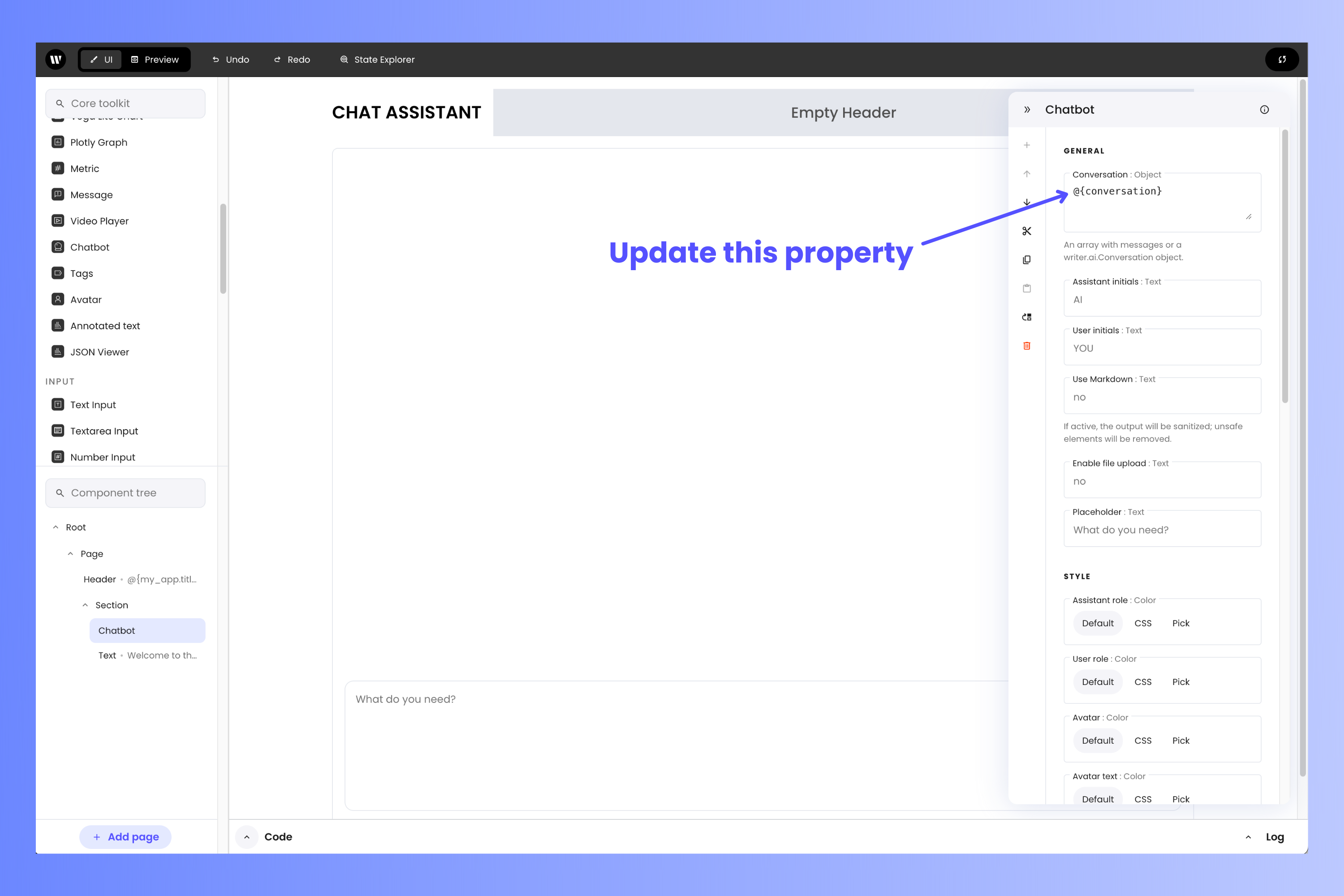 The value `@{conversation}` specifies that the **Chatbot** component should get its information from the value corresponding to the `conversation` key in the application's `state` variable.
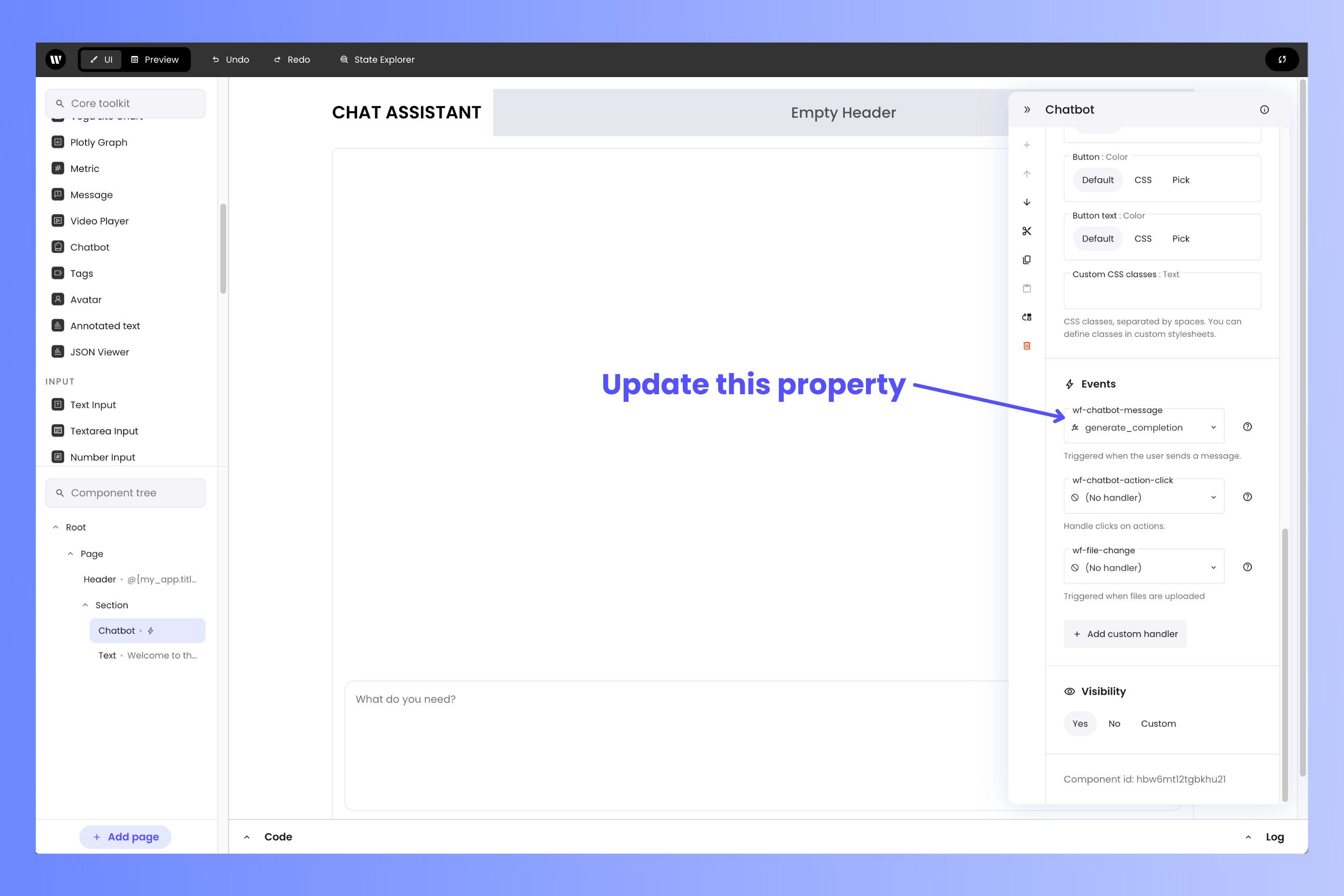
You need to specify that the **Chatbot** component should call the `generate_completion()` function when the user enters a prompt.
Do this by scrolling down the **properties** panel to the **Events** section until you see a property called **`wf_chatbot_message`**. Select **`generate_completion`** from its menu.
The value `@{conversation}` specifies that the **Chatbot** component should get its information from the value corresponding to the `conversation` key in the application's `state` variable.
You need to specify that the **Chatbot** component should call the `generate_completion()` function when the user enters a prompt.
Do this by scrolling down the **properties** panel to the **Events** section until you see a property called **`wf_chatbot_message`**. Select **`generate_completion`** from its menu.
 ## Test the application
You've completed all the steps to make a working chat assistant, and you can try using it right now, even while editing the user interface!
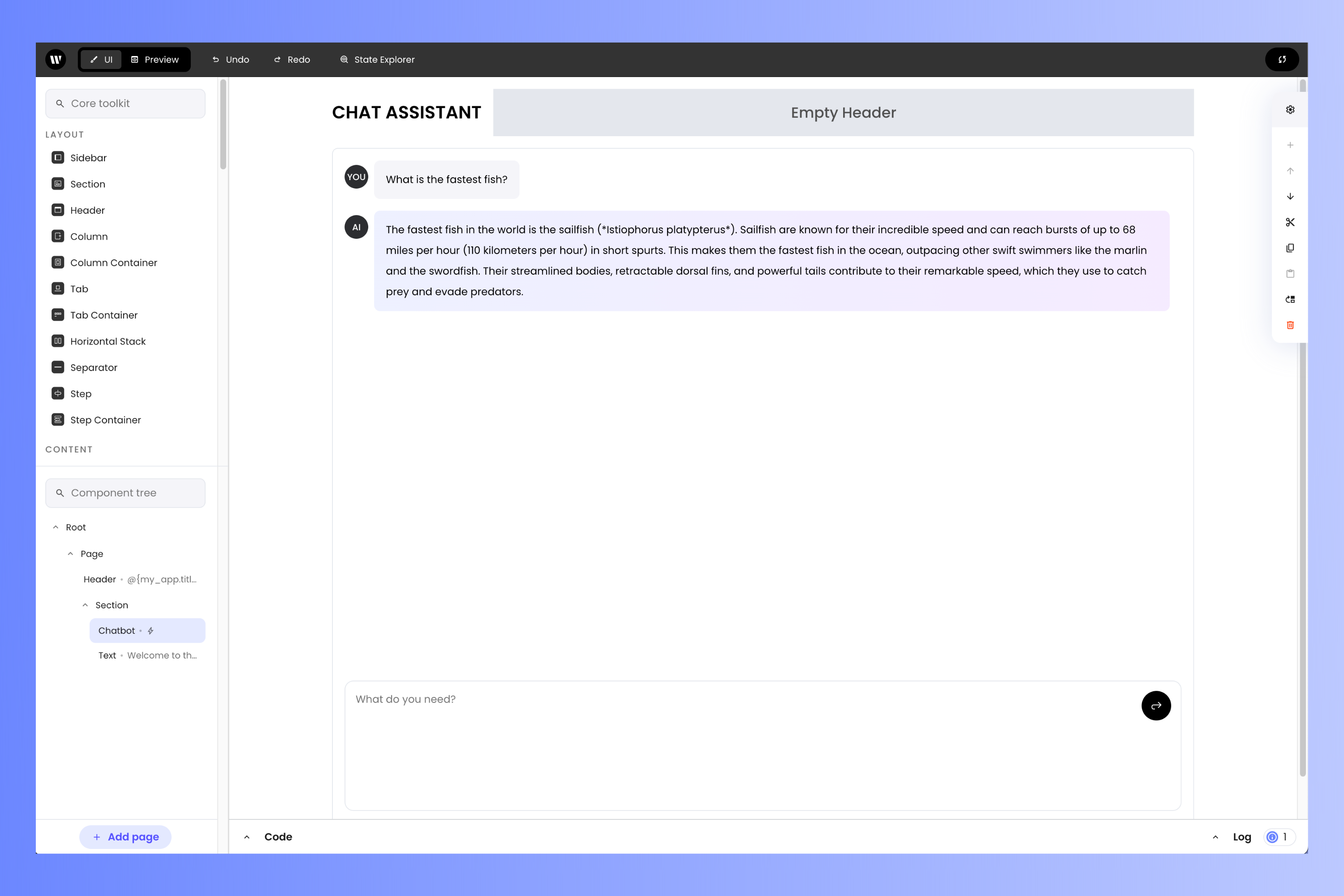
Try entering some prompts into the text entry at the bottom of the **Chatbot** component. The LLM should respond accordingly:
## Test the application
You've completed all the steps to make a working chat assistant, and you can try using it right now, even while editing the user interface!
Try entering some prompts into the text entry at the bottom of the **Chatbot** component. The LLM should respond accordingly:
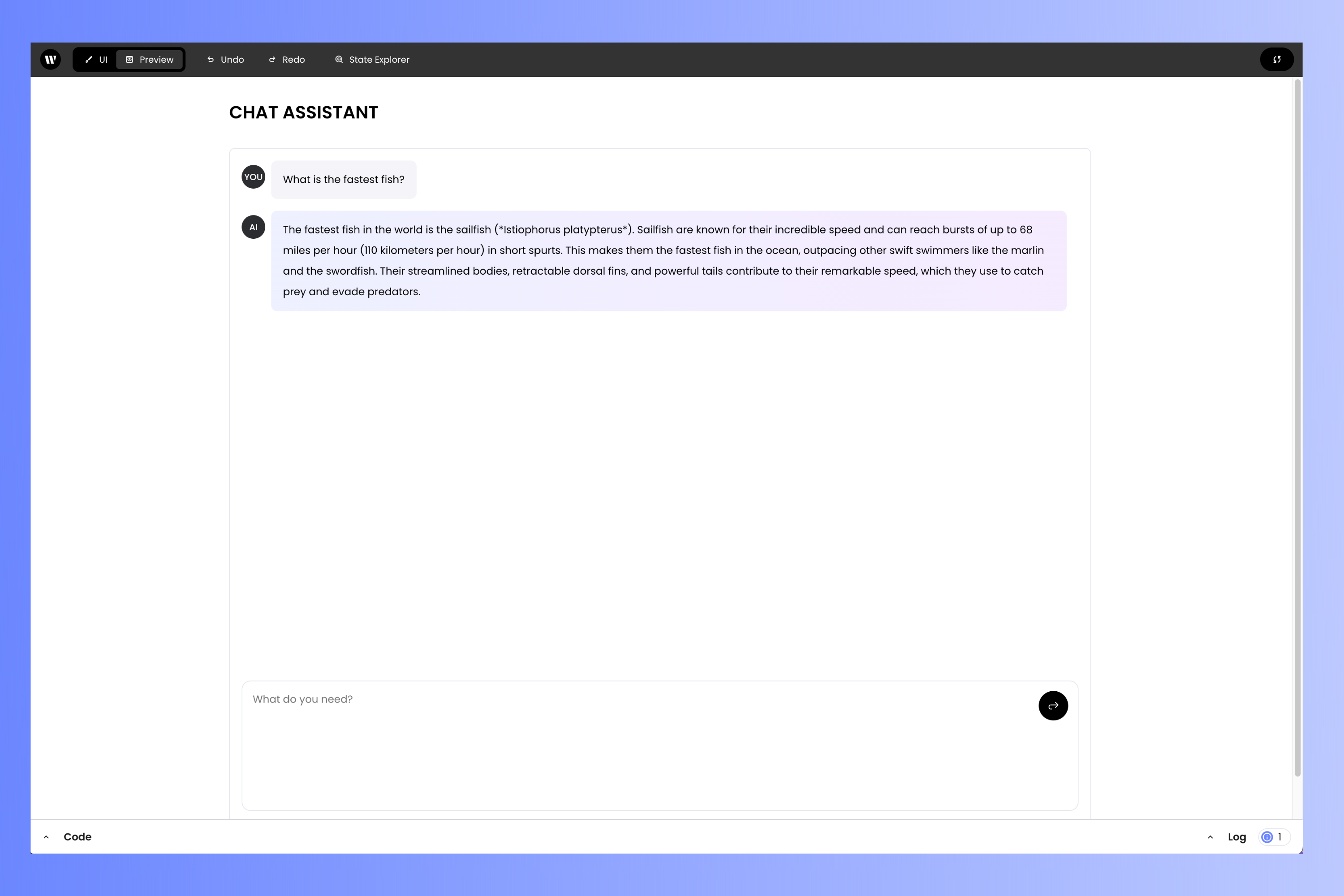
 To get a better sense of what the experience will be like for the user, switch to the preview by changing the edit mode (located near the upper left corner of the page) from *UI* mode to *Preview* mode by selecting the **Preview** option:
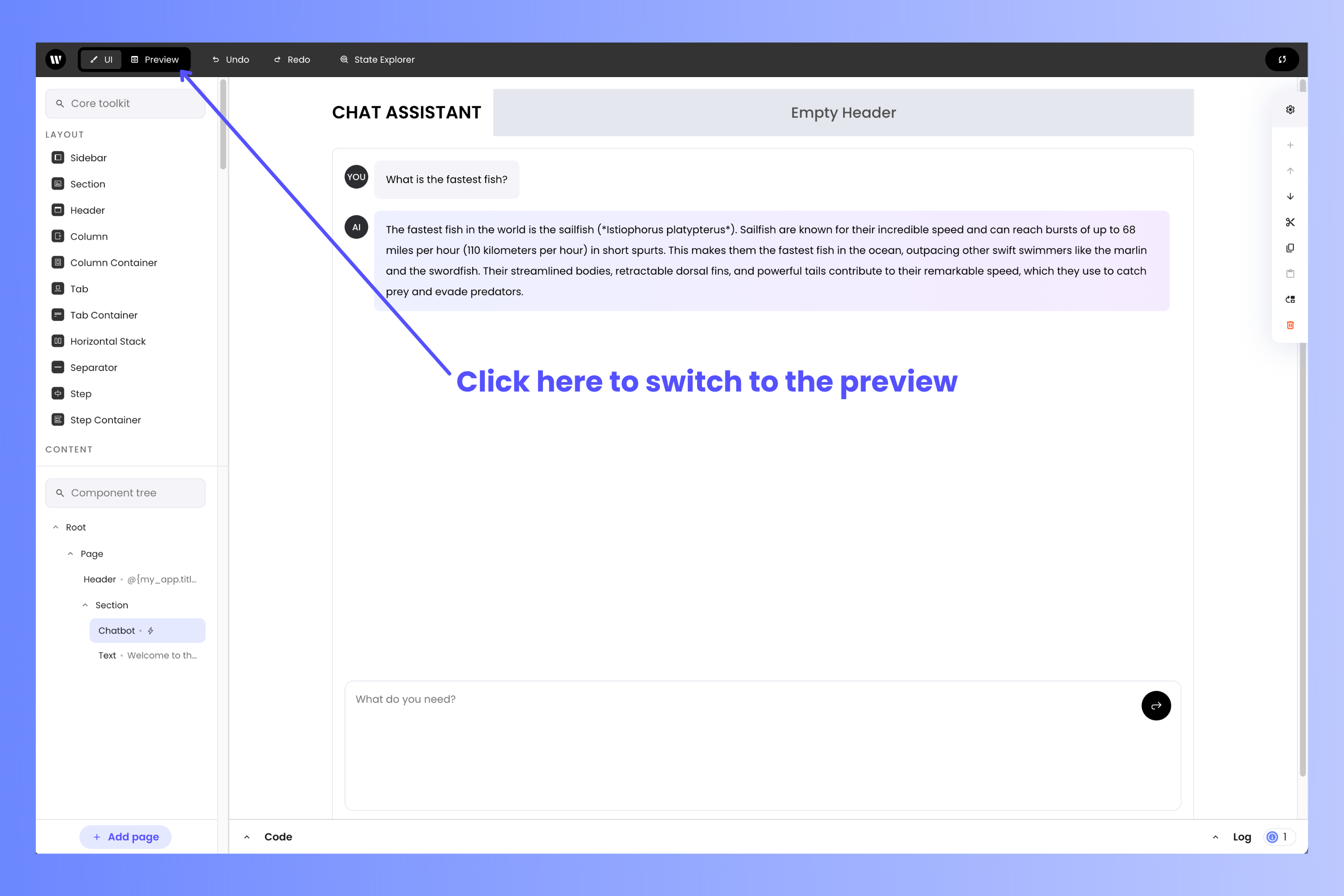 Here’s what the app looks like in *Preview* mode:
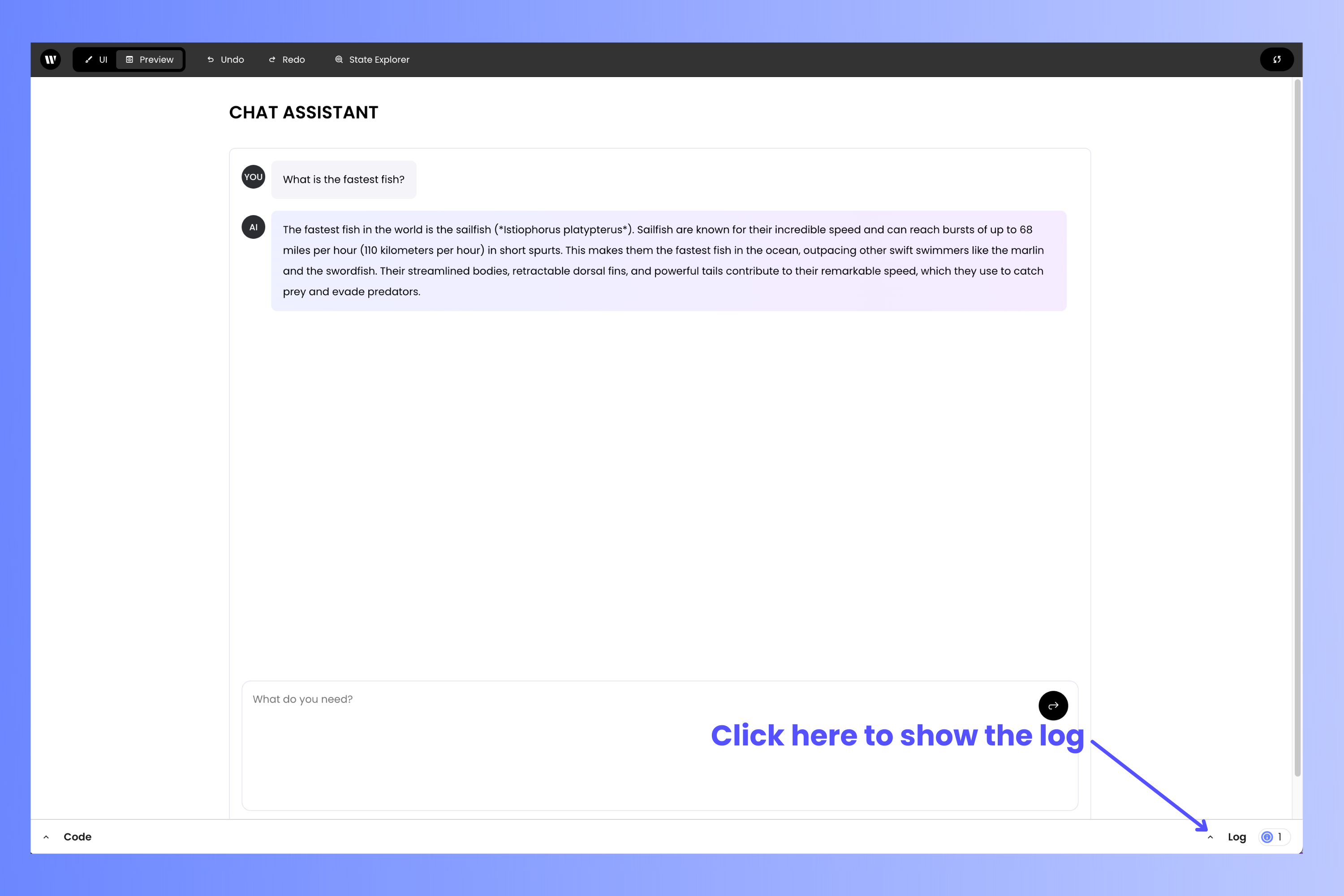
 You can see the output of any `print()` functions and error messages by clicking on the **Log** button located near the upper right corner of the page:
 Here’s what the app looks like when displaying the log:
 It's very helpful to be able to test the application while editing it. As you continue to work with Writer Framework, you'll find yourself alternating between making changes to your application and testing those changes without having to leave the project editor.
## Run the application locally
Once you've tested the application, it's time to run it locally.
Switch back to your terminal application. Stop the project editor with ctrl-c, then run the application by entering the following command:
```
writer run chat-assistant
```
Note that the command starts with `writer run` as opposed to `writer edit`. This launches the application as your users will see it, without any of the editing tools. Even though you can preview your applications in the project editor, it's still a good idea to test it by running it on your computer, outside the project editor, before deploying it.
You'll be able to access the application with your browser at the URL that appears on the command line. It should look like this:
The Writer editor, which you launched with `writer edit chat-assistant`, and your application, which you launched with `writer run chat-assistant`, run on the same URL, but on different *ports* (specified by the number after the `:` character at the end of the URL).
## Conclusion
That's it — you've built a functional chat assistant using the Writer Framework!
Feel free to modify this project! The Writer platform is flexible enough for you to customize, extend, and evolve your application into something completely different! To find out what else you can do, check out the documentation for [Writer Framework](https://dev.writer.com/framework/introduction) and the [Writer API](https://dev.writer.com/introduction).
It's very helpful to be able to test the application while editing it. As you continue to work with Writer Framework, you'll find yourself alternating between making changes to your application and testing those changes without having to leave the project editor.
## Run the application locally
Once you've tested the application, it's time to run it locally.
Switch back to your terminal application. Stop the project editor with ctrl-c, then run the application by entering the following command:
```
writer run chat-assistant
```
Note that the command starts with `writer run` as opposed to `writer edit`. This launches the application as your users will see it, without any of the editing tools. Even though you can preview your applications in the project editor, it's still a good idea to test it by running it on your computer, outside the project editor, before deploying it.
You'll be able to access the application with your browser at the URL that appears on the command line. It should look like this:
The Writer editor, which you launched with `writer edit chat-assistant`, and your application, which you launched with `writer run chat-assistant`, run on the same URL, but on different *ports* (specified by the number after the `:` character at the end of the URL).
## Conclusion
That's it — you've built a functional chat assistant using the Writer Framework!
Feel free to modify this project! The Writer platform is flexible enough for you to customize, extend, and evolve your application into something completely different! To find out what else you can do, check out the documentation for [Writer Framework](https://dev.writer.com/framework/introduction) and the [Writer API](https://dev.writer.com/introduction).