 ## Overview
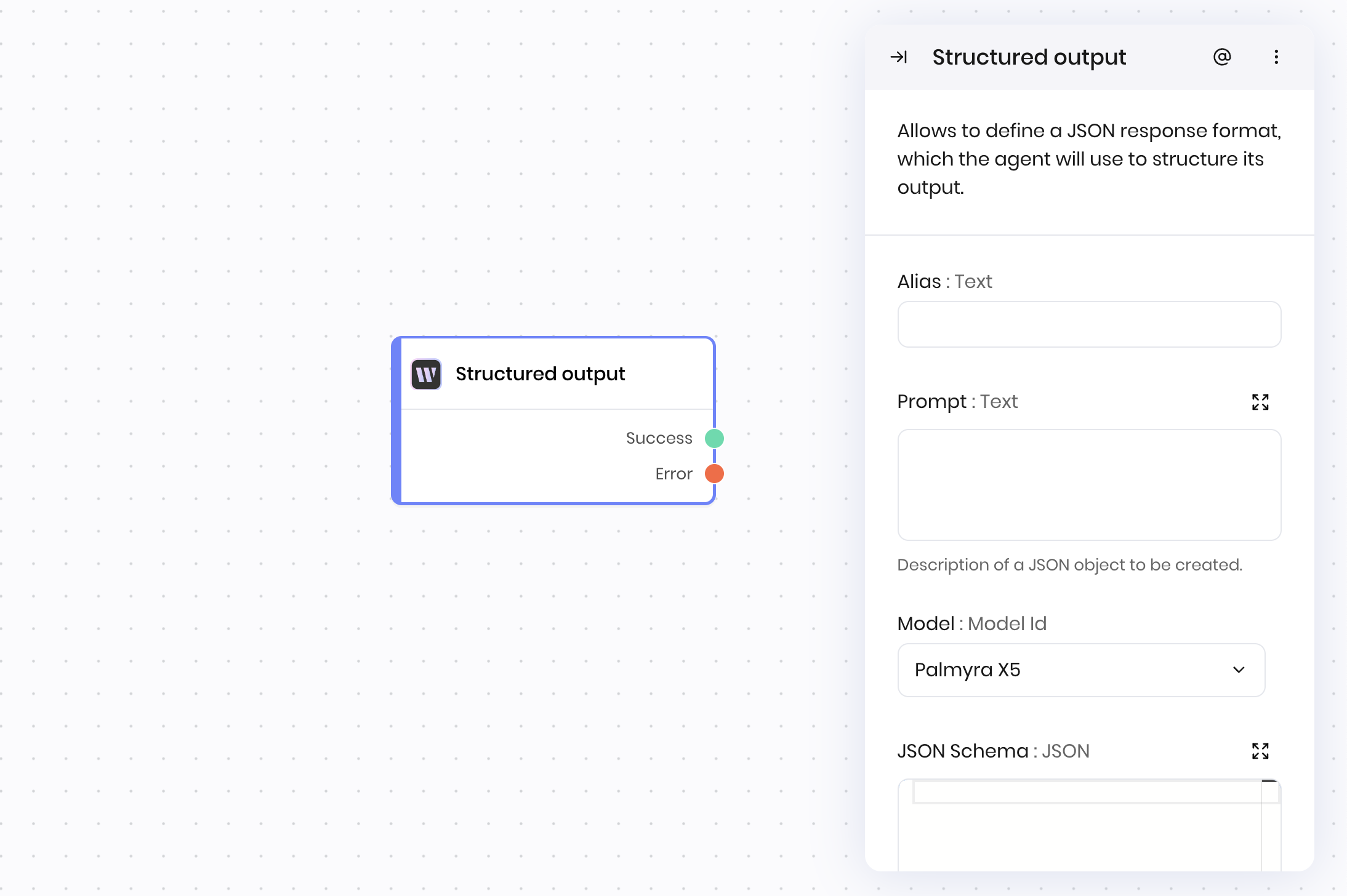
The **Structured Output** block allows you to define a JSON response format that the AI model uses to structure its output. This is useful when you need the model to return data in a specific schema, such as for downstream processing, API responses, reliable data extraction, or integrations. The block returns the JSON object that matches the schema.
You can specify a prompt describing the data you want, and provide a [JSON Schema](https://json-schema.org/) to enforce the structure of the output. The model attempts to generate a response that matches the schema.
## Common use cases
* Extracting structured data from unstructured text; for example, extracting entities, tables, or key-value pairs
* Generating API responses in a specific format
* Creating objects for further automation or integration
* Enforcing data validation on AI-generated output
## How it works
1. **Prompt**: Describe the data you want the model to generate.
2. **JSON Schema**: Define the required structure for the output. See [JSON Schema](https://json-schema.org/) for more information about how to write a JSON Schema.
3. **Model**: Select the model to use for generation.
4. **Max output tokens**: Set the maximum length of the output.
The block sends the prompt and schema to the model, which returns a JSON object matching the schema. If the output isn't parsable as JSON or doesn't match the schema, the block raises an error.
## Examples
### Data extraction from documents
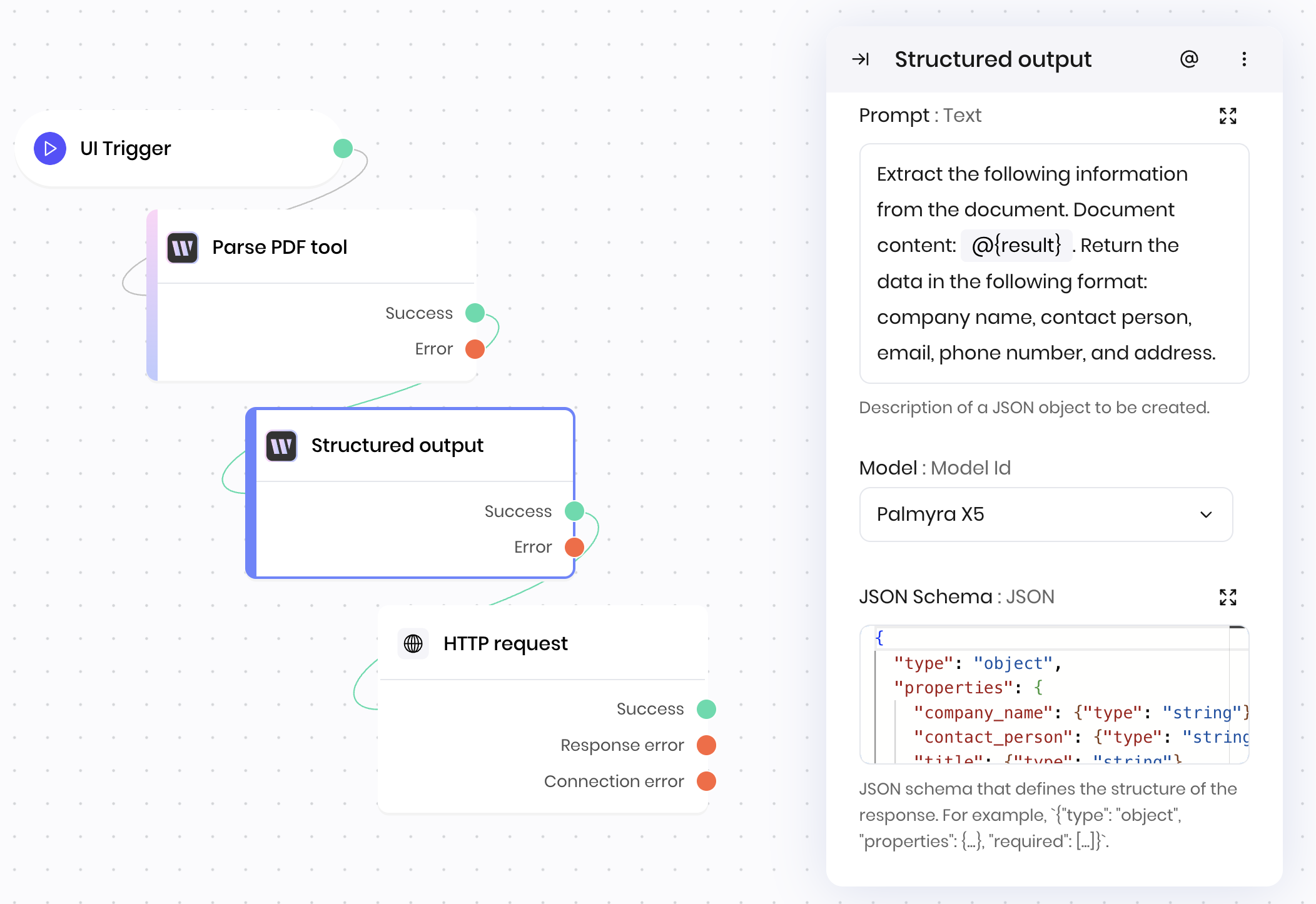
This example shows how to extract structured data from unstructured documents using AI.
**Blueprint Flow:**
1. **UI Trigger** → User selects a document from the interface
2. **Parse PDF tool** → Extracts text from document. Note: the document must already be uploaded to the Writer cloud.
3. **Structured output** → Extracts specific data fields
4. **HTTP Request** → Sends structured data to external API
**Block Configuration:**
* **Prompt:** "Extract the following information from the document. Document content: @{result}. Return the data in the following format: company name, contact person, email, phone number, and address."
* **JSON Schema:**
```json theme={null}
{
"type": "object",
"properties": {
"company_name": {"type": "string"},
"contact_person": {"type": "string"},
"title": {"type": "string"},
"email": {"type": "string", "format": "email"},
"phone": {"type": "string"},
"address": {"type": "string"}
},
"required": ["company_name", "contact_person", "email"],
"additionalProperties": false
}
```
* **Model:** `palmyra-x5`
This workflow enables automated extraction of structured data from unstructured documents.
## Overview
The **Structured Output** block allows you to define a JSON response format that the AI model uses to structure its output. This is useful when you need the model to return data in a specific schema, such as for downstream processing, API responses, reliable data extraction, or integrations. The block returns the JSON object that matches the schema.
You can specify a prompt describing the data you want, and provide a [JSON Schema](https://json-schema.org/) to enforce the structure of the output. The model attempts to generate a response that matches the schema.
## Common use cases
* Extracting structured data from unstructured text; for example, extracting entities, tables, or key-value pairs
* Generating API responses in a specific format
* Creating objects for further automation or integration
* Enforcing data validation on AI-generated output
## How it works
1. **Prompt**: Describe the data you want the model to generate.
2. **JSON Schema**: Define the required structure for the output. See [JSON Schema](https://json-schema.org/) for more information about how to write a JSON Schema.
3. **Model**: Select the model to use for generation.
4. **Max output tokens**: Set the maximum length of the output.
The block sends the prompt and schema to the model, which returns a JSON object matching the schema. If the output isn't parsable as JSON or doesn't match the schema, the block raises an error.
## Examples
### Data extraction from documents
This example shows how to extract structured data from unstructured documents using AI.
**Blueprint Flow:**
1. **UI Trigger** → User selects a document from the interface
2. **Parse PDF tool** → Extracts text from document. Note: the document must already be uploaded to the Writer cloud.
3. **Structured output** → Extracts specific data fields
4. **HTTP Request** → Sends structured data to external API
**Block Configuration:**
* **Prompt:** "Extract the following information from the document. Document content: @{result}. Return the data in the following format: company name, contact person, email, phone number, and address."
* **JSON Schema:**
```json theme={null}
{
"type": "object",
"properties": {
"company_name": {"type": "string"},
"contact_person": {"type": "string"},
"title": {"type": "string"},
"email": {"type": "string", "format": "email"},
"phone": {"type": "string"},
"address": {"type": "string"}
},
"required": ["company_name", "contact_person", "email"],
"additionalProperties": false
}
```
* **Model:** `palmyra-x5`
This workflow enables automated extraction of structured data from unstructured documents.
 ## Fields
| Name | Type | Control | Default | Description | Options | Validation |
|---|---|---|---|---|---|---|
| Prompt | Text | Textarea | - | Description of a JSON object to be created. | - | - |
| Model | Model Id | - |
palmyra-x5
|
- | - | - |
| JSON Schema | JSON | - |
{"{}"}
|
JSON schema that defines the structure of the response. For example, `{"type": "object", "properties": {...}, "required": [...]}`. | - | - |
| Max output tokens | Number | - |
1024
|
- | - | Range: 1 to 16384 |
| Name | Field | Type | Description |
|---|---|---|---|
| Success | - | success | The structured output was generated. |
| Error | - | error | There was an error generating the output. |