 ## Overview
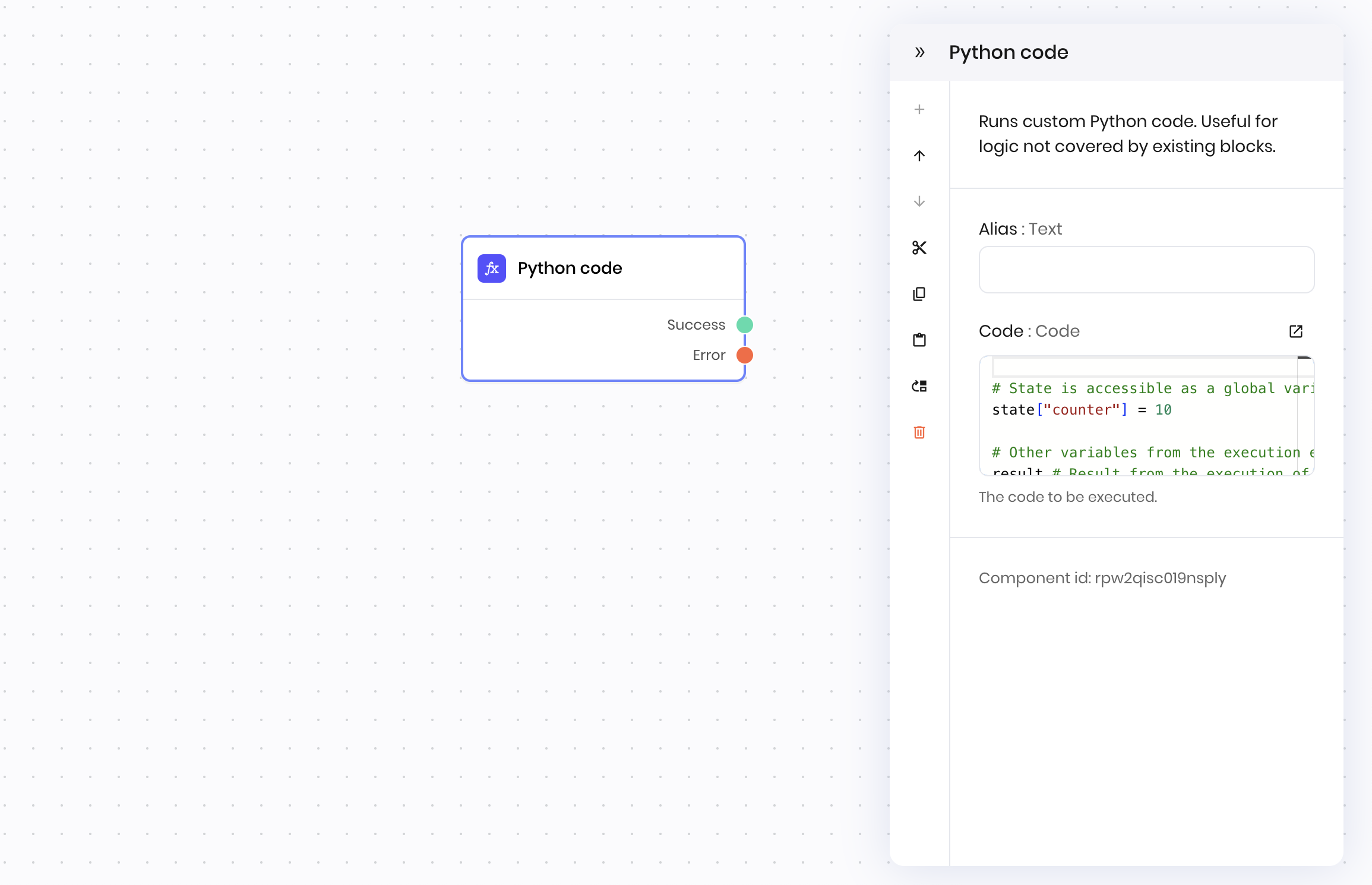
The Python code block allows you to write Python code to extend your blueprint's functionality. Use it to perform custom data processing, calculations, API integrations, or any other logic that requires Python programming capabilities.
## Common use cases
* Custom data processing and transformations
* Complex calculations and mathematical operations
* API integrations with external services
* File manipulation and data parsing
## How it works
1. **Code execution**: Write Python code in the block's code editor.
2. **Variable access**: Access [state variables](/agent-builder/state), [environment variables](/agent-builder/execution-environment), and [preinstalled libraries](/agent-builder/python-libraries).
3. **Output generation**: Use `set_output()` to return values to subsequent blocks.
4. **Error handling**: Handle exceptions and provide meaningful error messages. If an error occurs, access the error message in the next block using `@{message}`.
5. **Error exit condition**: Raise an `Exception` to trigger the **Error** exit condition and route to error handling blocks.
The block provides a full Python environment with access to [state variables](/agent-builder/state), [execution environment variables](/agent-builder/execution-environment), and [preinstalled libraries](/agent-builder/python-libraries).
## Examples
### Calculate average from list
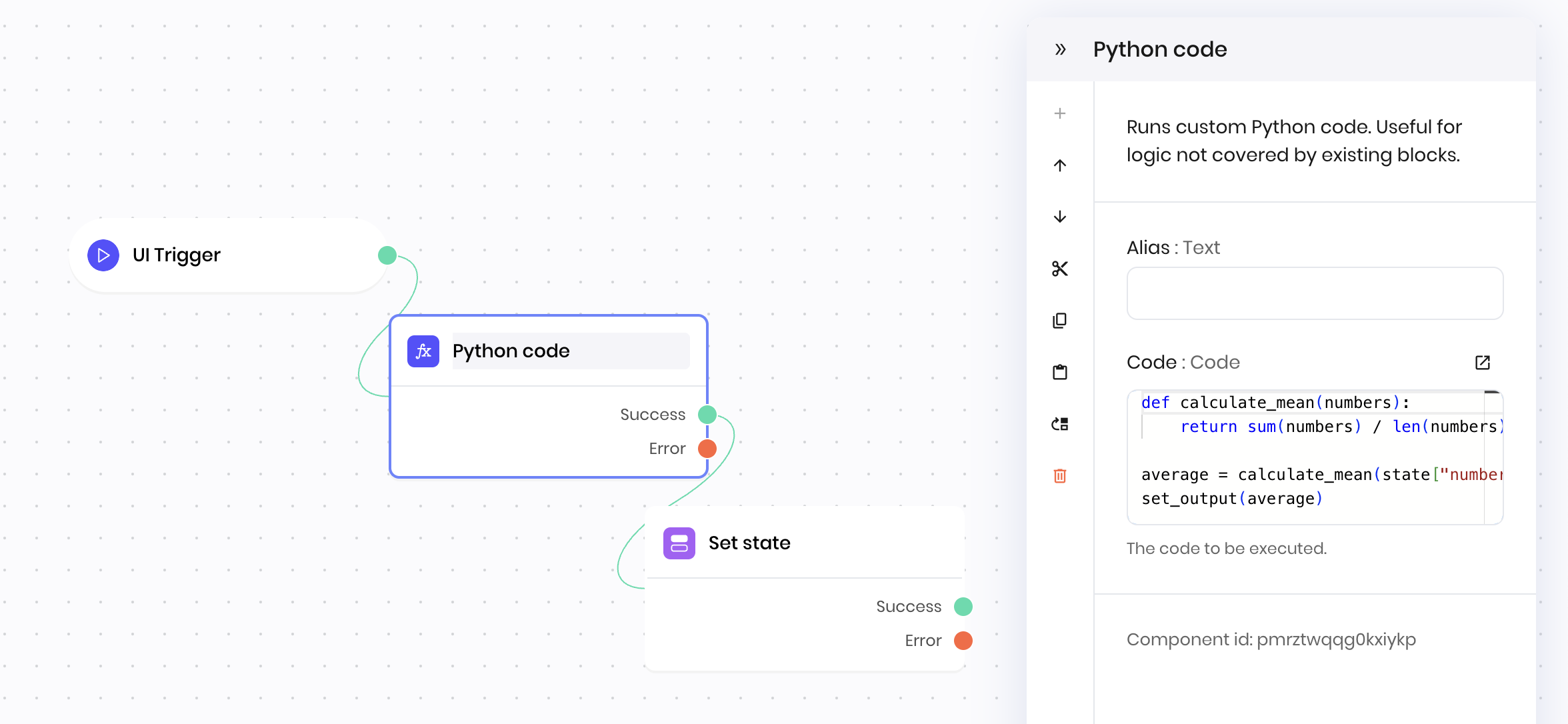
This example shows how to return a value from the Python code block. It calculates the average of a list of numbers and returns the result to the next block by using the `set_output` function.
**Blueprint flow:**
1. **UI Trigger** → User provides list of numbers
2. **Python code** → Calculates average of numbers
3. **Set state** → Stores result in state variable
```python theme={null}
def calculate_mean(numbers):
return sum(numbers) / len(numbers)
average = calculate_mean(state["numbers"])
set_output(average)
```
## Overview
The Python code block allows you to write Python code to extend your blueprint's functionality. Use it to perform custom data processing, calculations, API integrations, or any other logic that requires Python programming capabilities.
## Common use cases
* Custom data processing and transformations
* Complex calculations and mathematical operations
* API integrations with external services
* File manipulation and data parsing
## How it works
1. **Code execution**: Write Python code in the block's code editor.
2. **Variable access**: Access [state variables](/agent-builder/state), [environment variables](/agent-builder/execution-environment), and [preinstalled libraries](/agent-builder/python-libraries).
3. **Output generation**: Use `set_output()` to return values to subsequent blocks.
4. **Error handling**: Handle exceptions and provide meaningful error messages. If an error occurs, access the error message in the next block using `@{message}`.
5. **Error exit condition**: Raise an `Exception` to trigger the **Error** exit condition and route to error handling blocks.
The block provides a full Python environment with access to [state variables](/agent-builder/state), [execution environment variables](/agent-builder/execution-environment), and [preinstalled libraries](/agent-builder/python-libraries).
## Examples
### Calculate average from list
This example shows how to return a value from the Python code block. It calculates the average of a list of numbers and returns the result to the next block by using the `set_output` function.
**Blueprint flow:**
1. **UI Trigger** → User provides list of numbers
2. **Python code** → Calculates average of numbers
3. **Set state** → Stores result in state variable
```python theme={null}
def calculate_mean(numbers):
return sum(numbers) / len(numbers)
average = calculate_mean(state["numbers"])
set_output(average)
```
 ### Error handling with exceptions
You can trigger the **Error** exit condition by raising an `Exception` in your Python code. This allows you to route to error handling blocks when specific conditions are met.
**Example:**
```python theme={null}
# Validate user input and raise exception if invalid
user_age = state.get("age", 0)
if user_age < 0 or user_age > 120:
raise Exception("Invalid age: Age must be between 0 and 120")
if not state.get("email"):
raise Exception("Missing required field: Email address")
# Process valid data
set_output({"status": "valid", "age": user_age})
```
When an `Exception` occurs, the Python code block exits with the **Error** condition, allowing you to route to error handling blocks in your blueprint. You can access the error message in the next block by referencing the `@{message}` variable.
## Available variables and libraries
Python code block can access the following global variables and libraries:
* [State variables](/agent-builder/state)
* [Execution environment variables](/agent-builder/execution-environment)
* [Preinstalled Python libraries](/agent-builder/python-libraries)
* Functions you've defined in your `main.py` file
### Return values from the Python code block
To return a value from a Python code block and store it in the `result` execution environment variable, you must use the `set_output` function.
Anything that runs in the block but is not returned in the `set_output` function does not get passed to the next block.
## Fields
### Error handling with exceptions
You can trigger the **Error** exit condition by raising an `Exception` in your Python code. This allows you to route to error handling blocks when specific conditions are met.
**Example:**
```python theme={null}
# Validate user input and raise exception if invalid
user_age = state.get("age", 0)
if user_age < 0 or user_age > 120:
raise Exception("Invalid age: Age must be between 0 and 120")
if not state.get("email"):
raise Exception("Missing required field: Email address")
# Process valid data
set_output({"status": "valid", "age": user_age})
```
When an `Exception` occurs, the Python code block exits with the **Error** condition, allowing you to route to error handling blocks in your blueprint. You can access the error message in the next block by referencing the `@{message}` variable.
## Available variables and libraries
Python code block can access the following global variables and libraries:
* [State variables](/agent-builder/state)
* [Execution environment variables](/agent-builder/execution-environment)
* [Preinstalled Python libraries](/agent-builder/python-libraries)
* Functions you've defined in your `main.py` file
### Return values from the Python code block
To return a value from a Python code block and store it in the `result` execution environment variable, you must use the `set_output` function.
Anything that runs in the block but is not returned in the `set_output` function does not get passed to the next block.
## Fields
| Name | Type | Control | Default | Description | Options | Validation |
|---|---|---|---|---|---|---|
| Code | Code | Textarea | - | The code to be executed. | - | - |
| Name | Field | Type | Description |
|---|---|---|---|
| Success | - | success | The code executed successfully. |
| Error | - | error | There was an error executing the code. |