 ## Overview
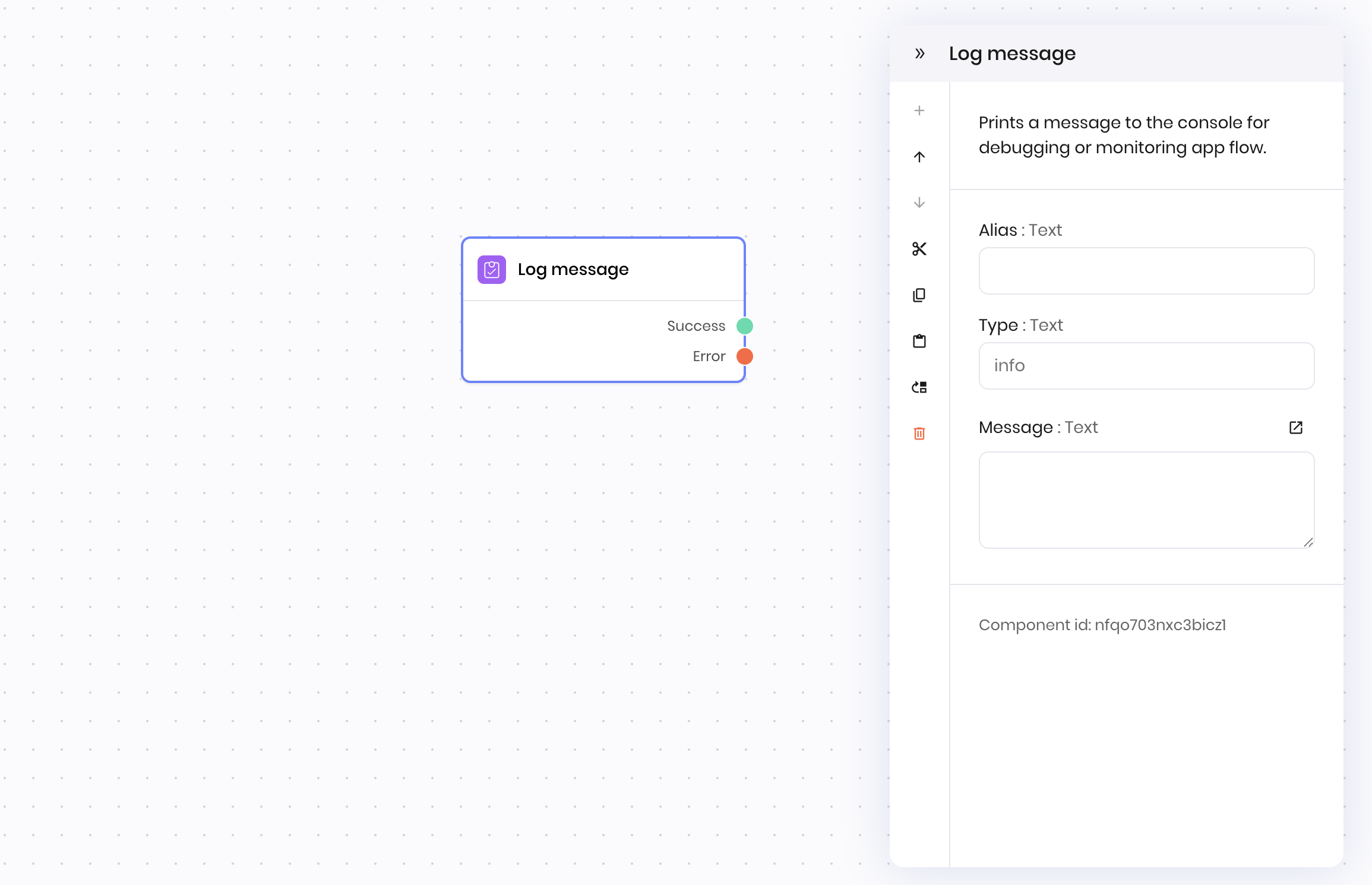
The **Log message** block writes a message to the workflow log. Use it to record information, debug workflows, or track the progress of your blueprint execution.
You can specify any message, including variables or state values, to help with troubleshooting or monitoring.
To view the logs, click the **Log** tab in the Agent Builder editor.
## Overview
The **Log message** block writes a message to the workflow log. Use it to record information, debug workflows, or track the progress of your blueprint execution.
You can specify any message, including variables or state values, to help with troubleshooting or monitoring.
To view the logs, click the **Log** tab in the Agent Builder editor.
 ## Common use cases
* Debugging workflow execution by logging variable values
* Tracking the progress of a workflow
* Recording errors or important events
* Auditing workflow steps for compliance
## How it works
1. **Message**: Enter the message to log. You can log variables using the `@{variable_name}` syntax. For example, to log the value of the `@{payload}` variable, you can use the message `"Payload: @{payload}"`.
2. **Type**: Choose the type of message to log. You can choose from the following options:
* **info**: Log a message with information.
* **error**: Log a message with an error.
The block writes the message to the log. The message is available in the workflow execution logs for review.
## Examples
### Debug workflow execution
This example shows how to add logging throughout a workflow that processes multiple resumes from job applicants. The workflow extracts key information from each resume PDF and generates a summary report. The log message block is used to record the progress of the workflow.
**Blueprint Flow:**
1. **UI Trigger** → HR manager uploads multiple resumes for processing
2. **For-each loop** → Processes document sections
3. **Log message** → Records section completion and confirms parsing success
4. **Parse PDF** → Parses the PDF file
5. **Text generation** → Assembles final document
**Block Configuration:**
* **Message:** `Processing resume for @{itemId}.`
* **Type:** `info`
## Common use cases
* Debugging workflow execution by logging variable values
* Tracking the progress of a workflow
* Recording errors or important events
* Auditing workflow steps for compliance
## How it works
1. **Message**: Enter the message to log. You can log variables using the `@{variable_name}` syntax. For example, to log the value of the `@{payload}` variable, you can use the message `"Payload: @{payload}"`.
2. **Type**: Choose the type of message to log. You can choose from the following options:
* **info**: Log a message with information.
* **error**: Log a message with an error.
The block writes the message to the log. The message is available in the workflow execution logs for review.
## Examples
### Debug workflow execution
This example shows how to add logging throughout a workflow that processes multiple resumes from job applicants. The workflow extracts key information from each resume PDF and generates a summary report. The log message block is used to record the progress of the workflow.
**Blueprint Flow:**
1. **UI Trigger** → HR manager uploads multiple resumes for processing
2. **For-each loop** → Processes document sections
3. **Log message** → Records section completion and confirms parsing success
4. **Parse PDF** → Parses the PDF file
5. **Text generation** → Assembles final document
**Block Configuration:**
* **Message:** `Processing resume for @{itemId}.`
* **Type:** `info`
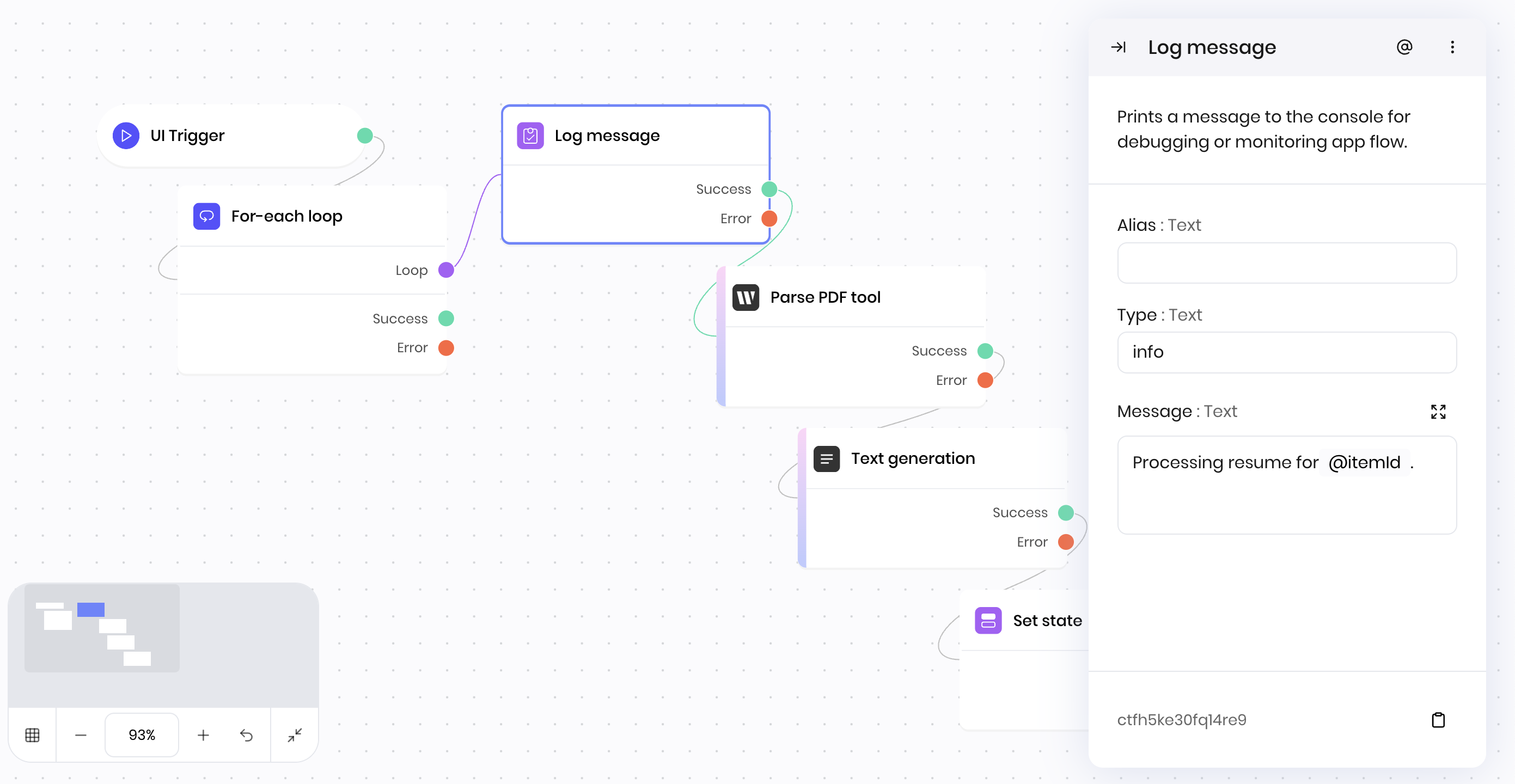 The logs display the progress of the workflow as it processes each resume. You can see the logs in the **Log** tab of the Agent Builder editor.
## Fields
The logs display the progress of the workflow as it processes each resume. You can see the logs in the **Log** tab of the Agent Builder editor.
## Fields
| Name | Type | Control | Default | Description | Options | Validation |
|---|---|---|---|---|---|---|
| Type | Text | - |
info
|
- |
|
- |
| Message | Text | Textarea | - | - | - | - |
| Name | Field | Type | Description |
|---|---|---|---|
| Success | - | success | The message was logged successfully. |
| Error | - | error | There was an error logging the message. |