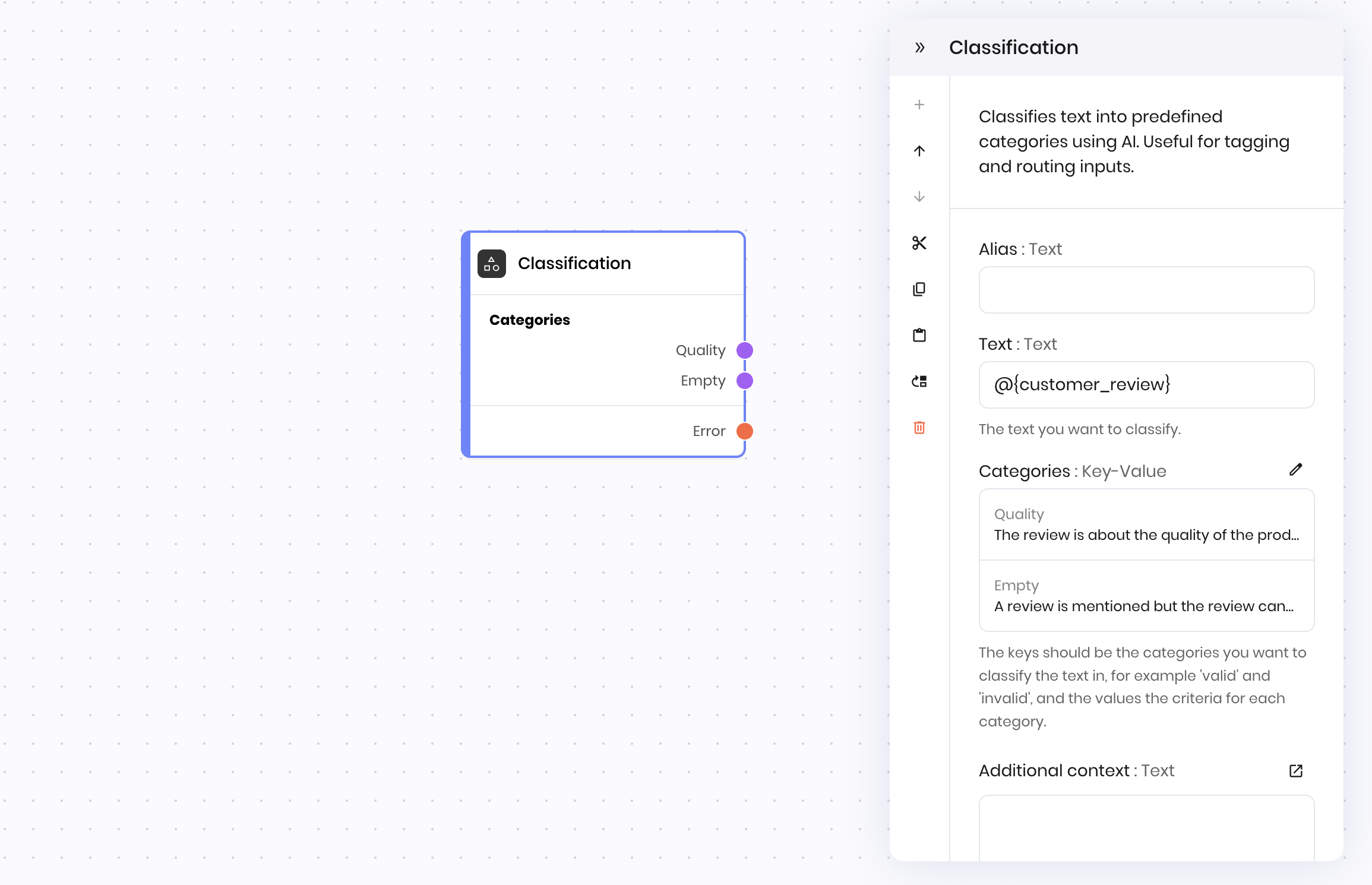
 ## Overview
The **Classification** block classifies text into predefined categories using AI. Unlike blocks that have a single "success" path (such as the [Tool calling block](/blueprints/toolcalling)), the Classification block creates multiple execution paths based on your defined categories. The workflow continues down the specific path that matches the classification result, not through a single return value or success state.
This makes the Classification block ideal for:
* Routing workflows based on content type, sentiment, or intent
* Tagging content into predefined categories
* Branching logic where different categories trigger different actions
For example, if you define categories like `urgent`, `normal`, and `low_priority`, the Classification block analyzes the input text and continues execution down the corresponding path (`urgent`, `normal`, or `low_priority`).
**Key difference from other blocks**: the Classification block doesn't have a final `success` state that takes a return value. Instead, it creates separate execution paths for each category you define, and the workflow continues down the path that matches the classification result.
The `@{result}` variable from the **Classification** block contains the name of the selected category.
## Common use cases
* **Customer support routing**: Classify support tickets as "Technical", "Billing", or "General" to route them to appropriate teams
* **Content moderation**: Categorize user submissions as "Appropriate", "Needs Review", or "Inappropriate"
* **Sentiment analysis**: Classify feedback as "Positive", "Negative", or "Neutral"
* **Document organization**: Sort documents by type such as "Invoice", "Contract", or "Report"
* **Lead qualification**: Classify sales inquiries as "Hot Lead", "Warm Lead", or "Information Request"
## How it works
1. **Input text**: Provide the text you want to classify (often from user input or previous block results)
2. **Define categories**: Set up category names and descriptions that help the AI understand what each category represents
3. **AI classification**: The block analyzes the text and determines which category best fits
4. **Routing**: The workflow automatically follows the connection path that matches the chosen category
## Example
The following example shows a **Classification** block that analyzes customer reviews to determine their primary focus, then routes to different response workflows based on the classification.
## Overview
The **Classification** block classifies text into predefined categories using AI. Unlike blocks that have a single "success" path (such as the [Tool calling block](/blueprints/toolcalling)), the Classification block creates multiple execution paths based on your defined categories. The workflow continues down the specific path that matches the classification result, not through a single return value or success state.
This makes the Classification block ideal for:
* Routing workflows based on content type, sentiment, or intent
* Tagging content into predefined categories
* Branching logic where different categories trigger different actions
For example, if you define categories like `urgent`, `normal`, and `low_priority`, the Classification block analyzes the input text and continues execution down the corresponding path (`urgent`, `normal`, or `low_priority`).
**Key difference from other blocks**: the Classification block doesn't have a final `success` state that takes a return value. Instead, it creates separate execution paths for each category you define, and the workflow continues down the path that matches the classification result.
The `@{result}` variable from the **Classification** block contains the name of the selected category.
## Common use cases
* **Customer support routing**: Classify support tickets as "Technical", "Billing", or "General" to route them to appropriate teams
* **Content moderation**: Categorize user submissions as "Appropriate", "Needs Review", or "Inappropriate"
* **Sentiment analysis**: Classify feedback as "Positive", "Negative", or "Neutral"
* **Document organization**: Sort documents by type such as "Invoice", "Contract", or "Report"
* **Lead qualification**: Classify sales inquiries as "Hot Lead", "Warm Lead", or "Information Request"
## How it works
1. **Input text**: Provide the text you want to classify (often from user input or previous block results)
2. **Define categories**: Set up category names and descriptions that help the AI understand what each category represents
3. **AI classification**: The block analyzes the text and determines which category best fits
4. **Routing**: The workflow automatically follows the connection path that matches the chosen category
## Example
The following example shows a **Classification** block that analyzes customer reviews to determine their primary focus, then routes to different response workflows based on the classification.
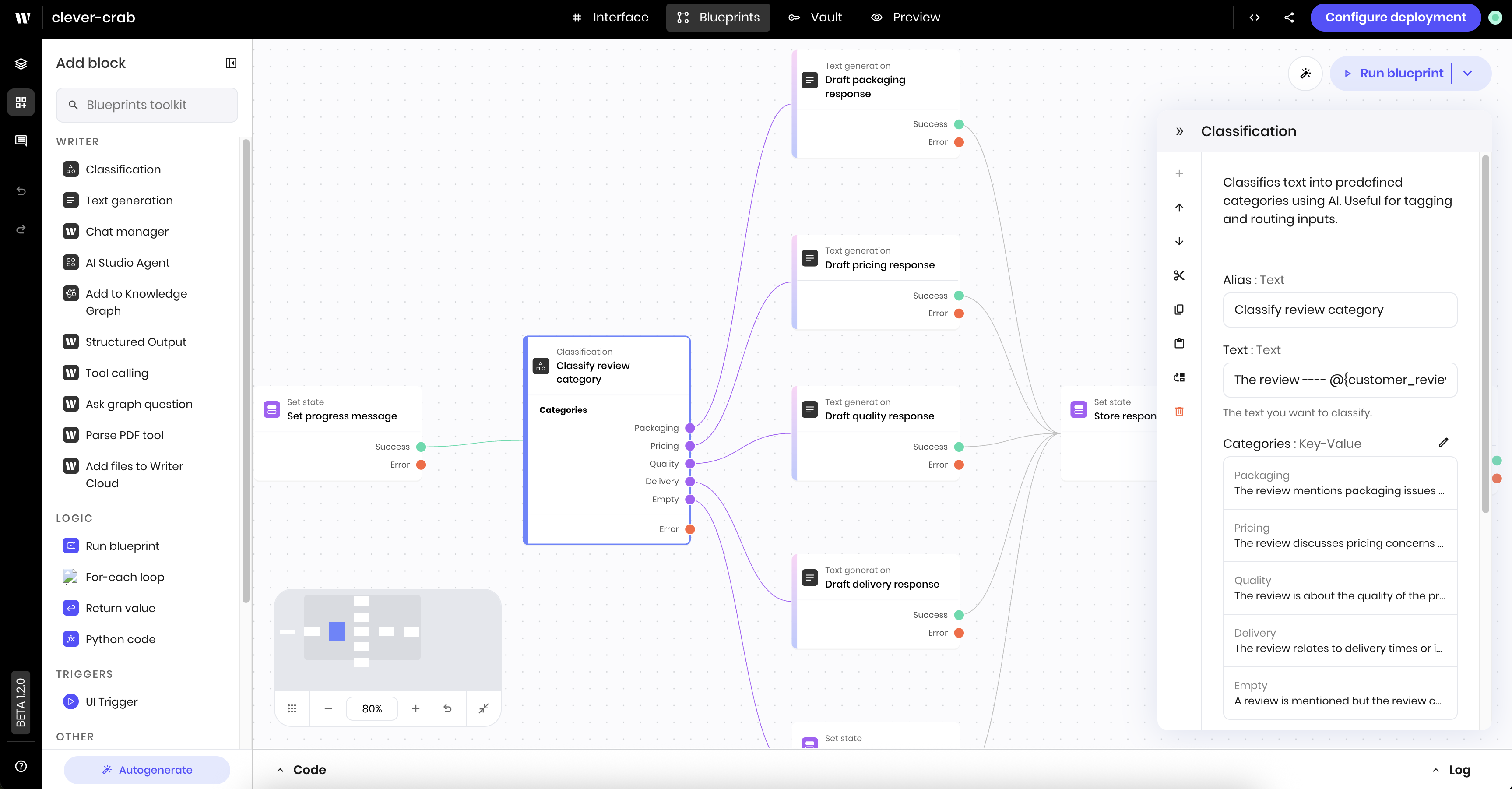 In this example, a customer review is classified into one of five categories:
* **Packaging**: Issues with how the product was packaged or shipped
* **Pricing**: Concerns about cost, value, or billing
* **Quality**: Problems or praise related to product quality
* **Delivery**: Issues with shipping speed or delivery process
* **Empty**: Reviews that don't contain useful feedback
Based on the classification, the workflow routes to different **Text generation** blocks that create appropriate responses for each category.
### Setting up categories
When configuring the **Classification** block, you define categories as key-value pairs:
In this example, a customer review is classified into one of five categories:
* **Packaging**: Issues with how the product was packaged or shipped
* **Pricing**: Concerns about cost, value, or billing
* **Quality**: Problems or praise related to product quality
* **Delivery**: Issues with shipping speed or delivery process
* **Empty**: Reviews that don't contain useful feedback
Based on the classification, the workflow routes to different **Text generation** blocks that create appropriate responses for each category.
### Setting up categories
When configuring the **Classification** block, you define categories as key-value pairs:
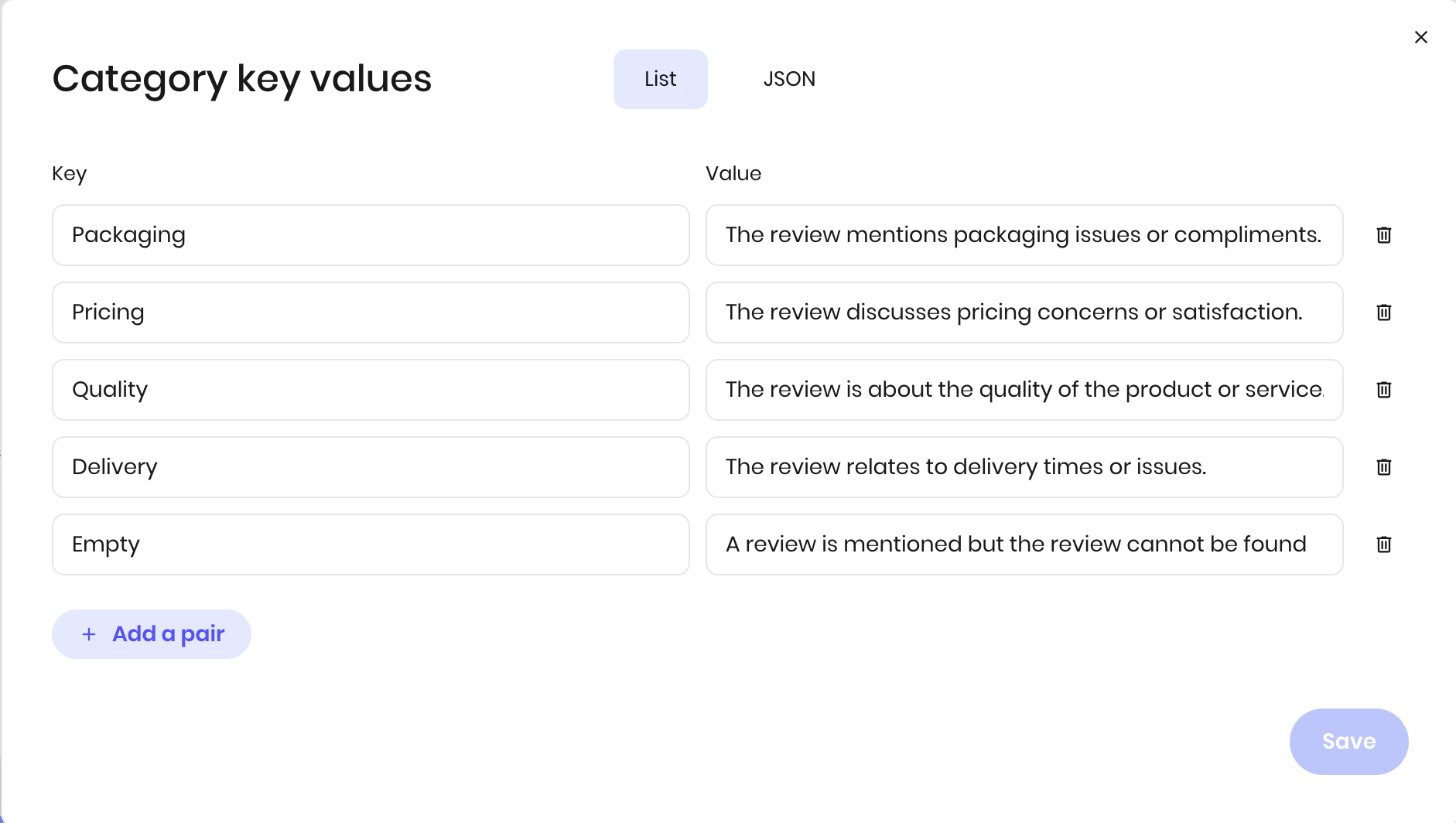 **Key**: The category name (this becomes the connection point name)\
**Value**: A description that helps the AI understand what belongs in this category
For the customer review example:
* **Quality**: "The review is about the quality of the product or service"
* **Pricing**: "The review discusses pricing concerns or satisfaction"
* **Delivery**: "The review relates to delivery time or issues"
### Using classification results
After classification, the workflow automatically follows the connection that matches the selected category. You can connect different blocks to each category to create specialized workflows.
The classification result is also available in subsequent blocks using `@{result}`, which contains the name of the selected category.
## Best practices
### Writing effective category descriptions
* **Be specific**: Include concrete examples of what should be classified in each category
* **Use clear language**: Avoid ambiguous terms that could apply to multiple categories
* **Consider edge cases**: Think about borderline cases and which category they should fall into
* **Test with real data**: Use actual examples from your use case to verify classifications are accurate
### Category naming
* **Use descriptive names**: Choose names that clearly indicate the category's purpose
* **Follow naming rules**: Category names should contain only letters, digits, underscores, and spaces
* **Keep it consistent**: Use a consistent naming convention across all categories
* **Avoid special characters**: Stick to alphanumeric characters for reliable connections
### Performance optimization
* **Provide context**: Use the "Additional context" field to give the AI more information for better classification
* **Handle edge cases**: Always include a "Other" or "Unknown" category for inputs that don't fit your main categories
### Adding context for better classification
Use the "Additional context" field to provide information that helps with classification:
```
Additional context: This is a product review for a high-end electronics item. Focus on technical aspects, build quality, and user experience when classifying.
```
## Fields
**Key**: The category name (this becomes the connection point name)\
**Value**: A description that helps the AI understand what belongs in this category
For the customer review example:
* **Quality**: "The review is about the quality of the product or service"
* **Pricing**: "The review discusses pricing concerns or satisfaction"
* **Delivery**: "The review relates to delivery time or issues"
### Using classification results
After classification, the workflow automatically follows the connection that matches the selected category. You can connect different blocks to each category to create specialized workflows.
The classification result is also available in subsequent blocks using `@{result}`, which contains the name of the selected category.
## Best practices
### Writing effective category descriptions
* **Be specific**: Include concrete examples of what should be classified in each category
* **Use clear language**: Avoid ambiguous terms that could apply to multiple categories
* **Consider edge cases**: Think about borderline cases and which category they should fall into
* **Test with real data**: Use actual examples from your use case to verify classifications are accurate
### Category naming
* **Use descriptive names**: Choose names that clearly indicate the category's purpose
* **Follow naming rules**: Category names should contain only letters, digits, underscores, and spaces
* **Keep it consistent**: Use a consistent naming convention across all categories
* **Avoid special characters**: Stick to alphanumeric characters for reliable connections
### Performance optimization
* **Provide context**: Use the "Additional context" field to give the AI more information for better classification
* **Handle edge cases**: Always include a "Other" or "Unknown" category for inputs that don't fit your main categories
### Adding context for better classification
Use the "Additional context" field to provide information that helps with classification:
```
Additional context: This is a product review for a high-end electronics item. Focus on technical aspects, build quality, and user experience when classifying.
```
## Fields
| Name | Type | Control | Default | Description | Options | Validation |
|---|---|---|---|---|---|---|
| Text | Text | - | - | The text you want to classify. | - | - |
| Categories | Key-Value | - |
{"{}"}
|
The keys should be the categories you want to classify the text into, for example 'valid' and 'invalid', and the values are the criteria for each category. Category names should contain only letters of the English alphabet, digits, underscores, and spaces. | - | - |
| Additional context | Text | Textarea | - | Any additional information that might help the AI in making the classification decision. | - | - |
| Name | Field | Type | Description |
|---|---|---|---|
| - | categories | dynamic | - |
| Error | - | error | There was an error classifying the text. |