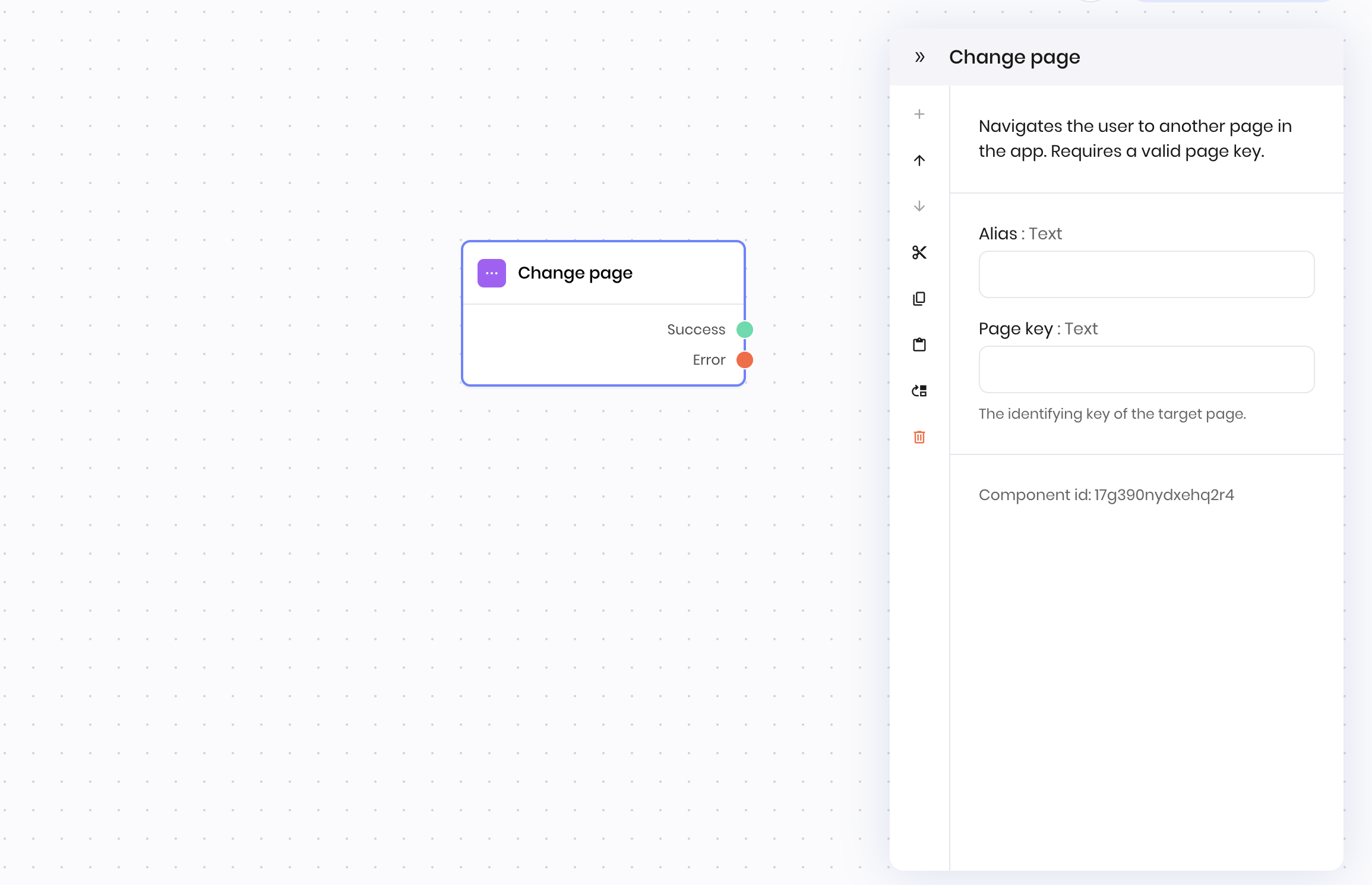
 ## Overview
The **Change page** block navigates the user to a different page in the application. Use it to control the flow of your app, redirect after actions, or guide users through multi-step processes.
You can specify the target page and optionally pass parameters.
## Common use cases
* Redirecting users after form submission
* Navigating between steps in a multi-step workflow
* Sending users to a confirmation or error page
* Guiding users through onboarding or tutorials
## How it works
1. **Page**: Enter the name or path of the page to navigate to. Each page needs a unique key to identify it in the blueprint.
2. **Parameters**: Optionally specify parameters to pass to the new page.
The block triggers a navigation event, sending the user to the specified page.
## Examples
### Post-submission redirect
**Interface:**
1. A page with text inputs for name and email, and a button to submit the form.
2. A second page with the key `confirmation_page`. It contains a message to confirm the form submission with more details about the form submission.
**Blueprint Flow:**
1. **UI Trigger** → User presses button to submit a form
2. **Change page** → Navigates to the page with the key `confirmation`
**Block Configuration:**
* **Page key:** `confirmation`
## Overview
The **Change page** block navigates the user to a different page in the application. Use it to control the flow of your app, redirect after actions, or guide users through multi-step processes.
You can specify the target page and optionally pass parameters.
## Common use cases
* Redirecting users after form submission
* Navigating between steps in a multi-step workflow
* Sending users to a confirmation or error page
* Guiding users through onboarding or tutorials
## How it works
1. **Page**: Enter the name or path of the page to navigate to. Each page needs a unique key to identify it in the blueprint.
2. **Parameters**: Optionally specify parameters to pass to the new page.
The block triggers a navigation event, sending the user to the specified page.
## Examples
### Post-submission redirect
**Interface:**
1. A page with text inputs for name and email, and a button to submit the form.
2. A second page with the key `confirmation_page`. It contains a message to confirm the form submission with more details about the form submission.
**Blueprint Flow:**
1. **UI Trigger** → User presses button to submit a form
2. **Change page** → Navigates to the page with the key `confirmation`
**Block Configuration:**
* **Page key:** `confirmation`
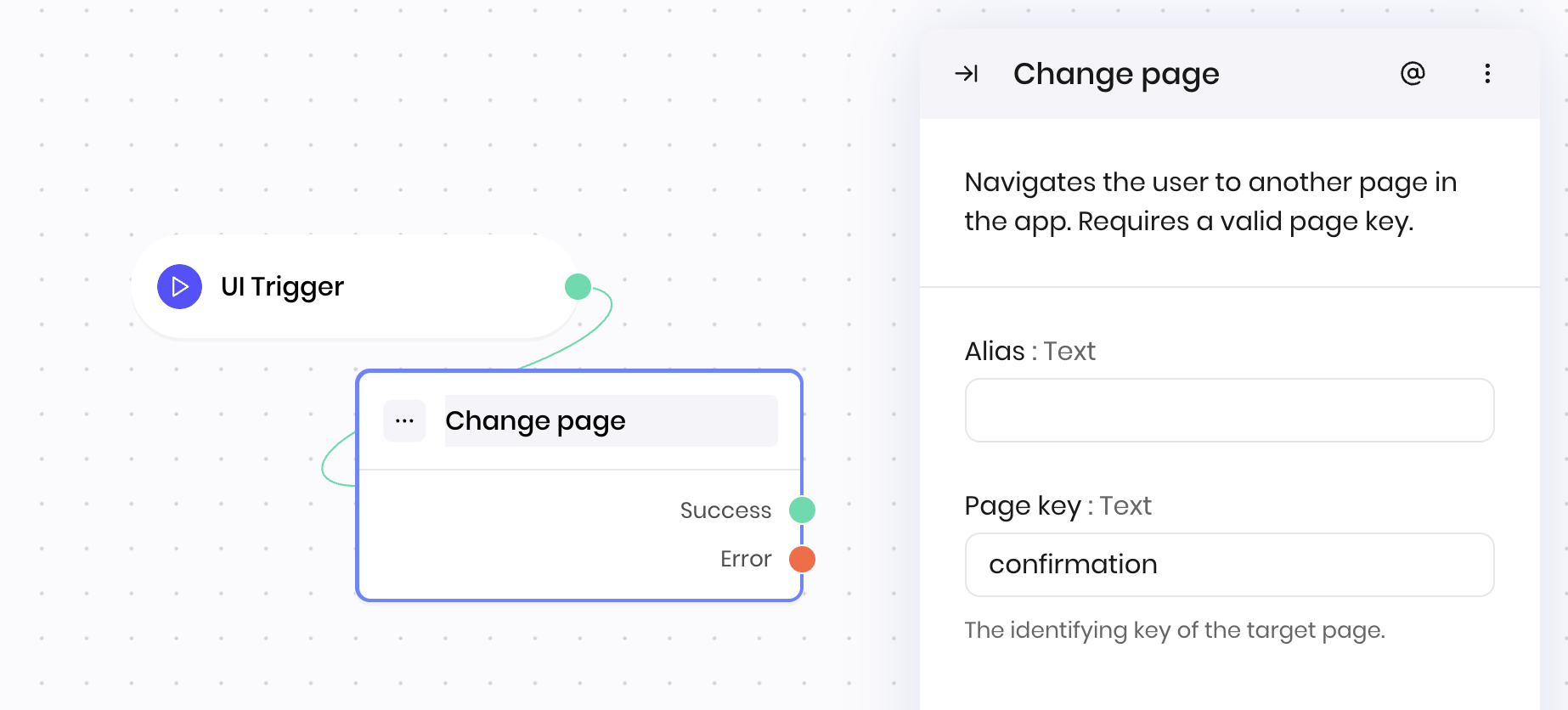 This workflow ensures users are directed to the confirmation page after submitting the form.
## Fields
This workflow ensures users are directed to the confirmation page after submitting the form.
## Fields
| Name | Type | Control | Default | Description | Options | Validation |
|---|---|---|---|---|---|---|
| Page key | Text | - | - | The identifying key of the target page. | - | - |
| Name | Field | Type | Description |
|---|---|---|---|
| Success | - | success | The page change was successful. |
| Error | - | error | There was an error changing the page. |