 ## Overview
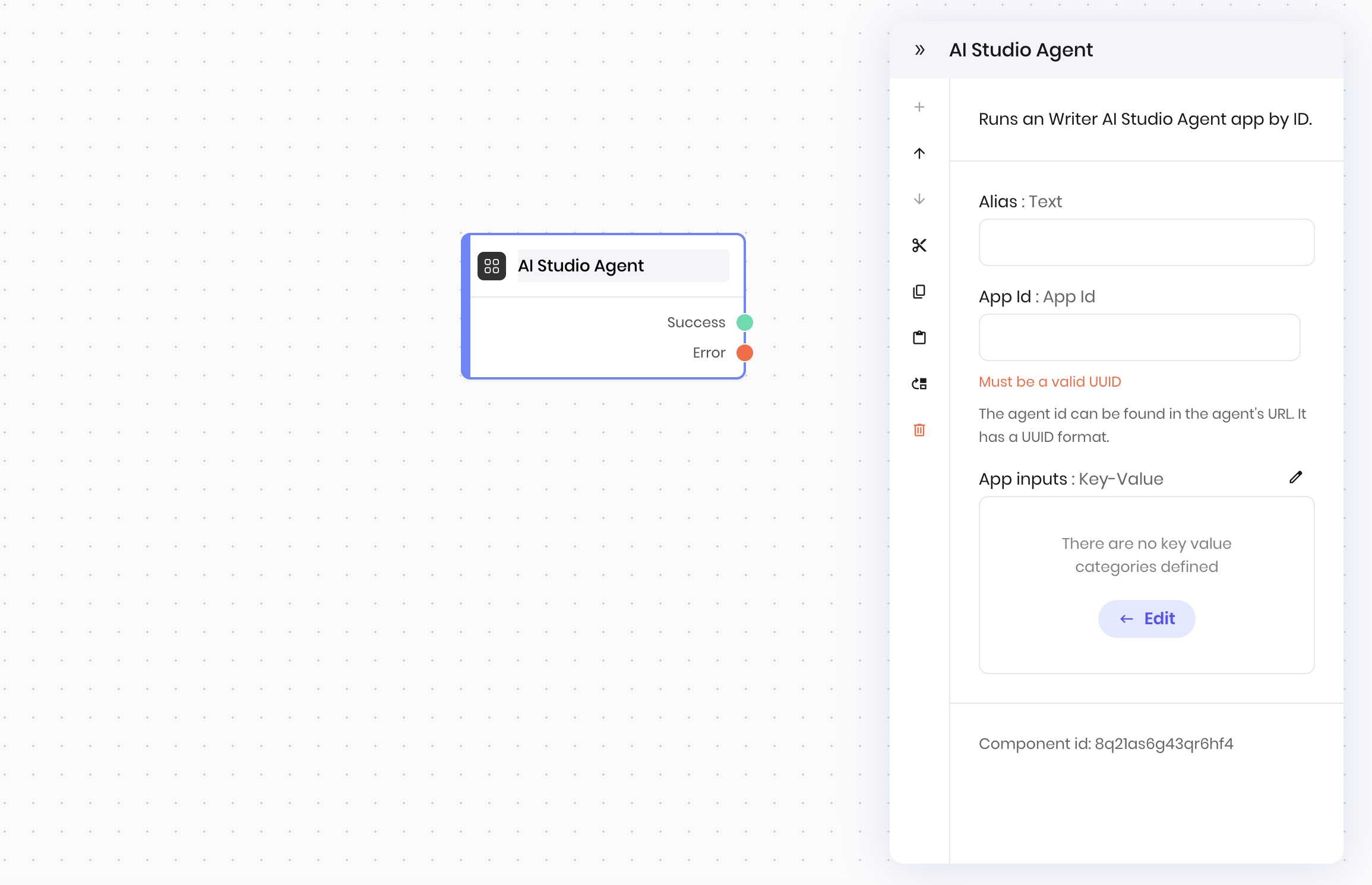
The **AI Studio Agent** block runs a [deployed no-code AI Studio agent](/no-code/introduction). Only agents with [text generation](/no-code/text-generation) and [research](/no-code/research) capabilities are supported.
Under `App Id`, you can select the no-code agent you'd like to run from a pre-populated list of your deployed no-code agents.
## Overview
The **AI Studio Agent** block runs a [deployed no-code AI Studio agent](/no-code/introduction). Only agents with [text generation](/no-code/text-generation) and [research](/no-code/research) capabilities are supported.
Under `App Id`, you can select the no-code agent you'd like to run from a pre-populated list of your deployed no-code agents.
 ### File and image inputs
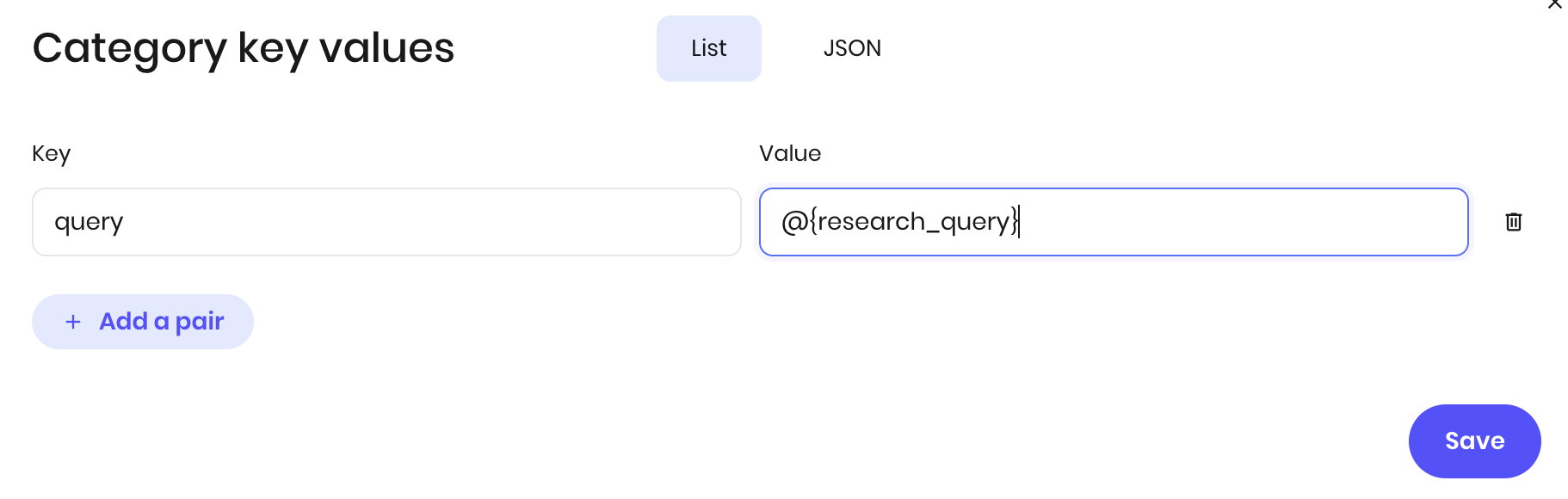
If the input is a file or an image, you must upload the file to Writer first and then pass the ID to the agent. You can't pass the file or image directly to the agent.
See the [Upload, parse, and summarize PDFs](/agent-builder/summarize-pdfs#first-blueprint%3A-upload-file-to-writer-cloud) tutorial for more information on how to upload files to the Writer cloud.
If the no-code agent accepts URLs to a file or image as input, you can pass a URL to the agent as a value rather than uploading the file to the Writer cloud.
## Output
The **AI Studio Agent** block returns the output of the no-code agent as a string.
You can access the output of an **AI Studio Agent** block using the `@{result}` variable in the block that follows it in a blueprint.
## Example
The following example shows an **AI Studio Agent** block that runs a no-code AI Studio agent.
### File and image inputs
If the input is a file or an image, you must upload the file to Writer first and then pass the ID to the agent. You can't pass the file or image directly to the agent.
See the [Upload, parse, and summarize PDFs](/agent-builder/summarize-pdfs#first-blueprint%3A-upload-file-to-writer-cloud) tutorial for more information on how to upload files to the Writer cloud.
If the no-code agent accepts URLs to a file or image as input, you can pass a URL to the agent as a value rather than uploading the file to the Writer cloud.
## Output
The **AI Studio Agent** block returns the output of the no-code agent as a string.
You can access the output of an **AI Studio Agent** block using the `@{result}` variable in the block that follows it in a blueprint.
## Example
The following example shows an **AI Studio Agent** block that runs a no-code AI Studio agent.
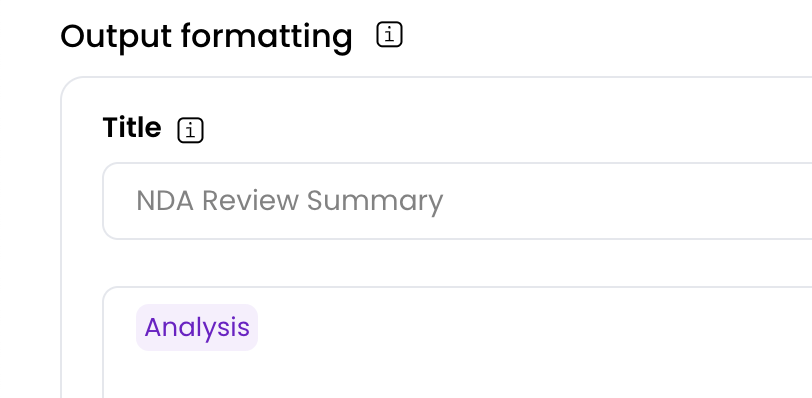
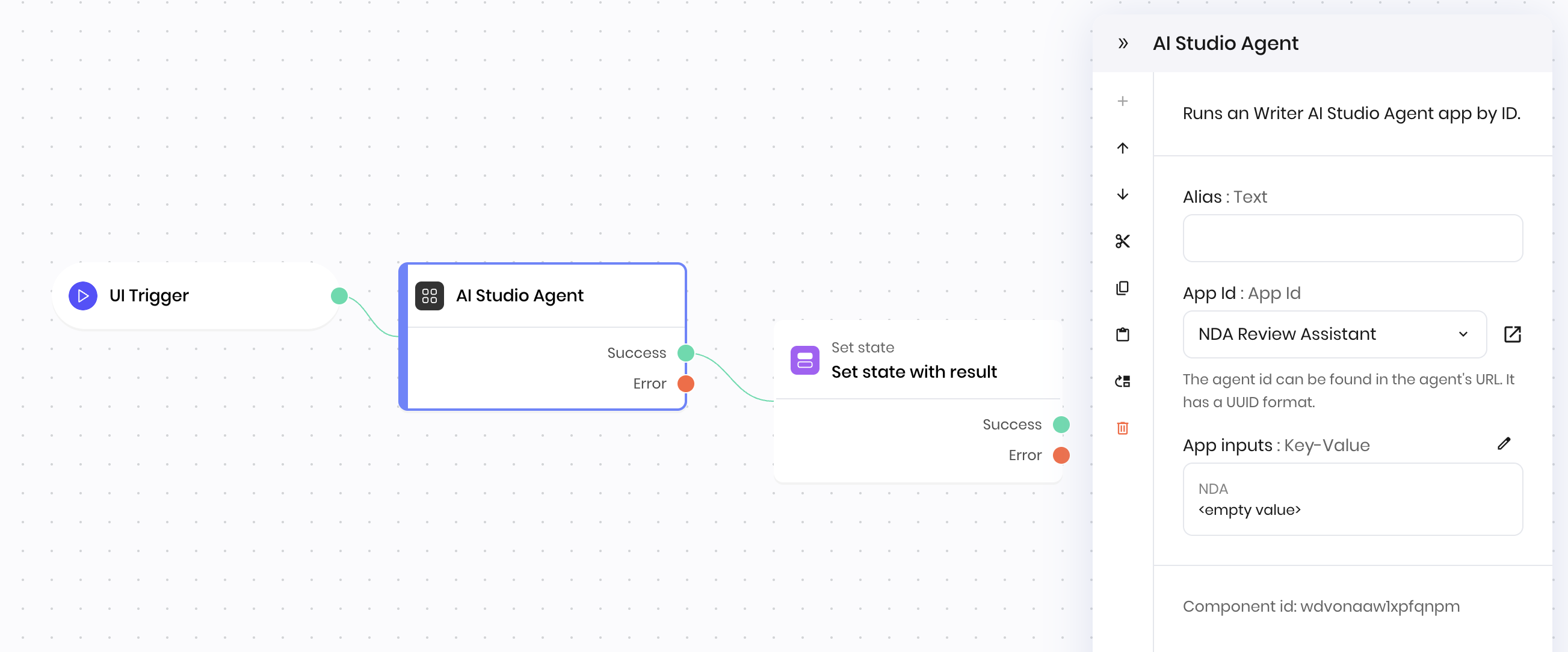 The no-code agent is an NDA review assistant that accepts a file input with the name `NDA` and runs a text generation workflow. It returns the analysis from the workflow in the `Output formatting` field.
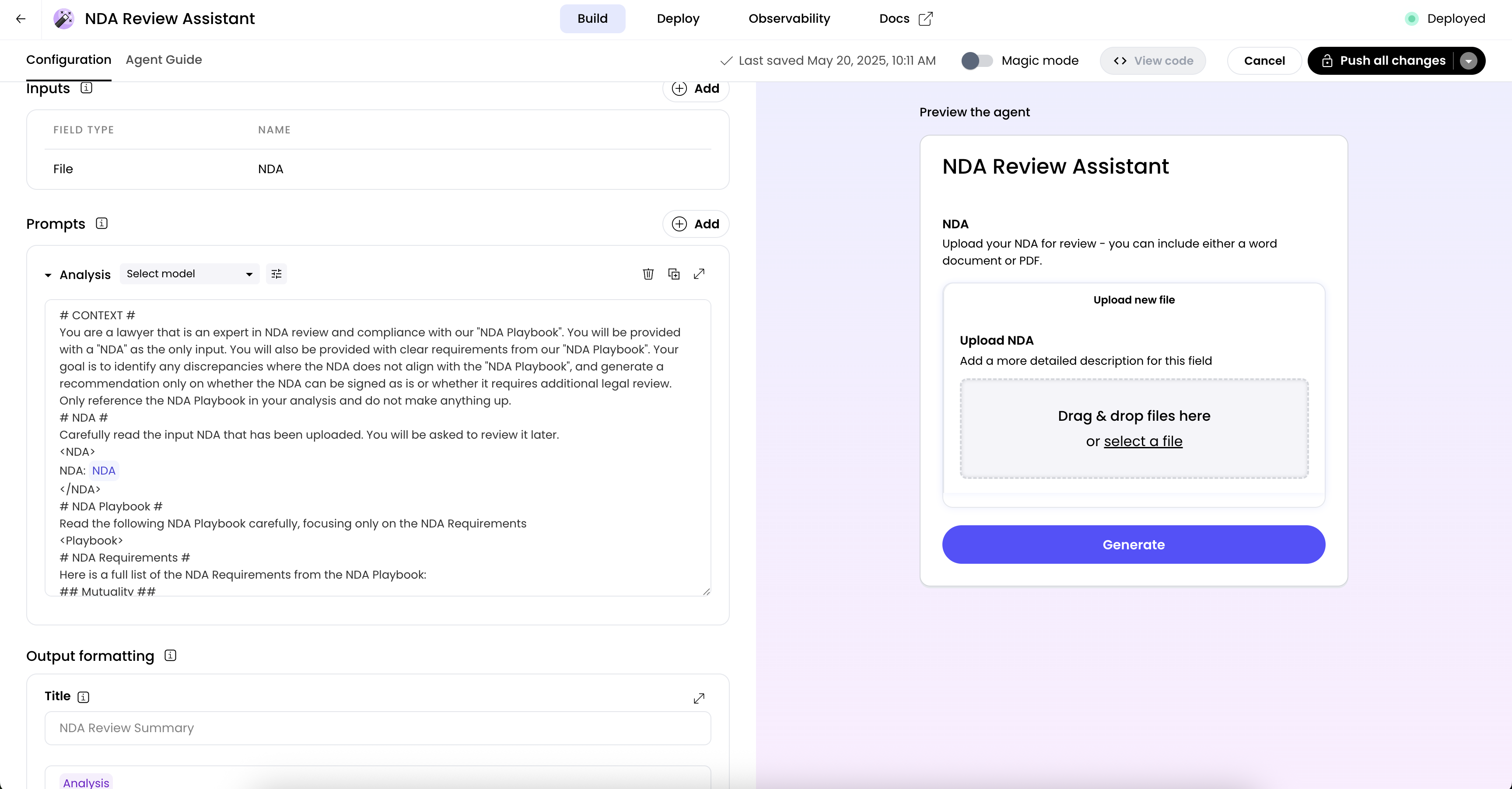 In this example blueprint, the **AI Studio Agent** block provides a file ID for an uploaded file, which is stored in the agent's state as `nda_file_id`. The file must already be uploaded to the Writer cloud.
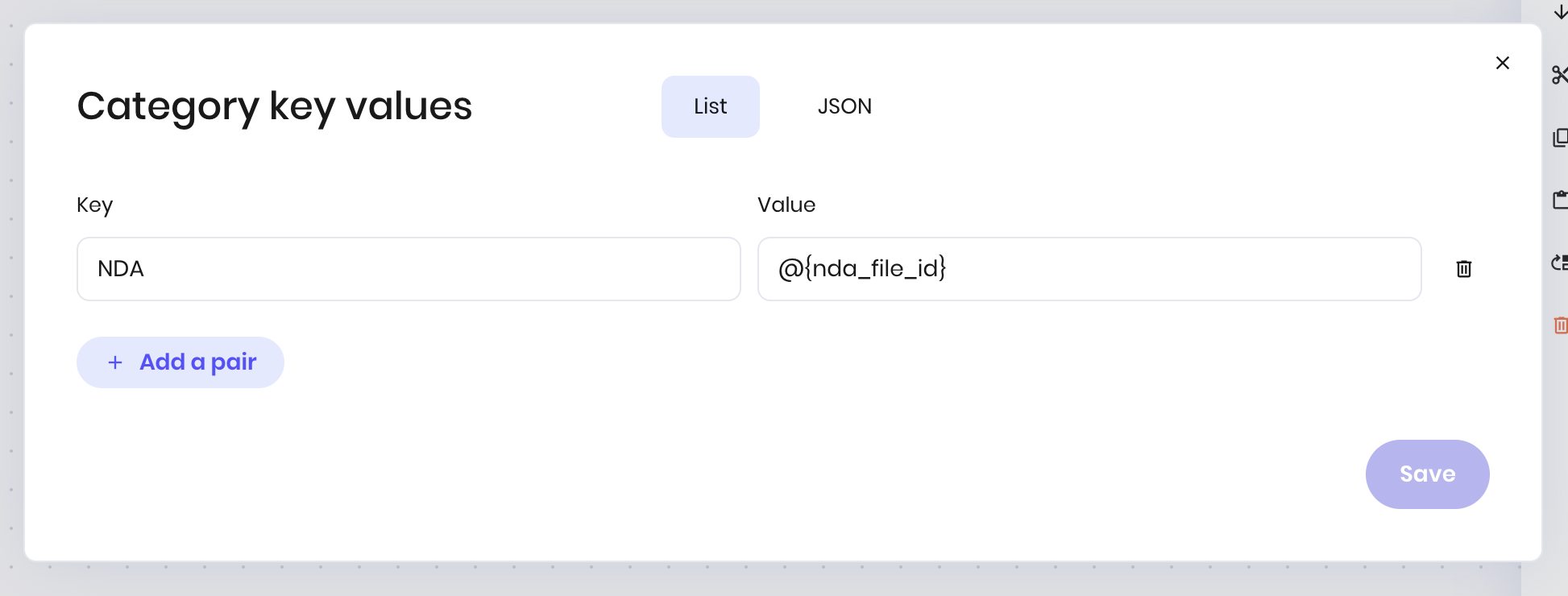 The **AI Studio Agent** block returns the output of the no-code agent and proceeds to the next block, which stores the `@{result}` in a state variable.
## Errors
If the AI Studio Agent block fails with the error `Failed to acquire proper response for completion from data`, ensure that your no-code agent in AI Studio returns a value in the `Output formatting` field and that you are passing the correct inputs to the agent.
The **AI Studio Agent** block returns the output of the no-code agent and proceeds to the next block, which stores the `@{result}` in a state variable.
## Errors
If the AI Studio Agent block fails with the error `Failed to acquire proper response for completion from data`, ensure that your no-code agent in AI Studio returns a value in the `Output formatting` field and that you are passing the correct inputs to the agent.
 ## Fields
| Name | Type | Control | Default | Description | Options | Validation |
|---|---|---|---|---|---|---|
| App Id | App Id | - | - | The agent id can be found in the agent's URL. It has a UUID format. | - | Format: uuid |
| App inputs | Key-Value | - |
{"{}"}
|
- | - | - |
| Name | Field | Type | Description |
|---|---|---|---|
| Success | - | success | The agent ran successfully. |
| Error | - | error | There was an error running the agent. |