 ## Overview
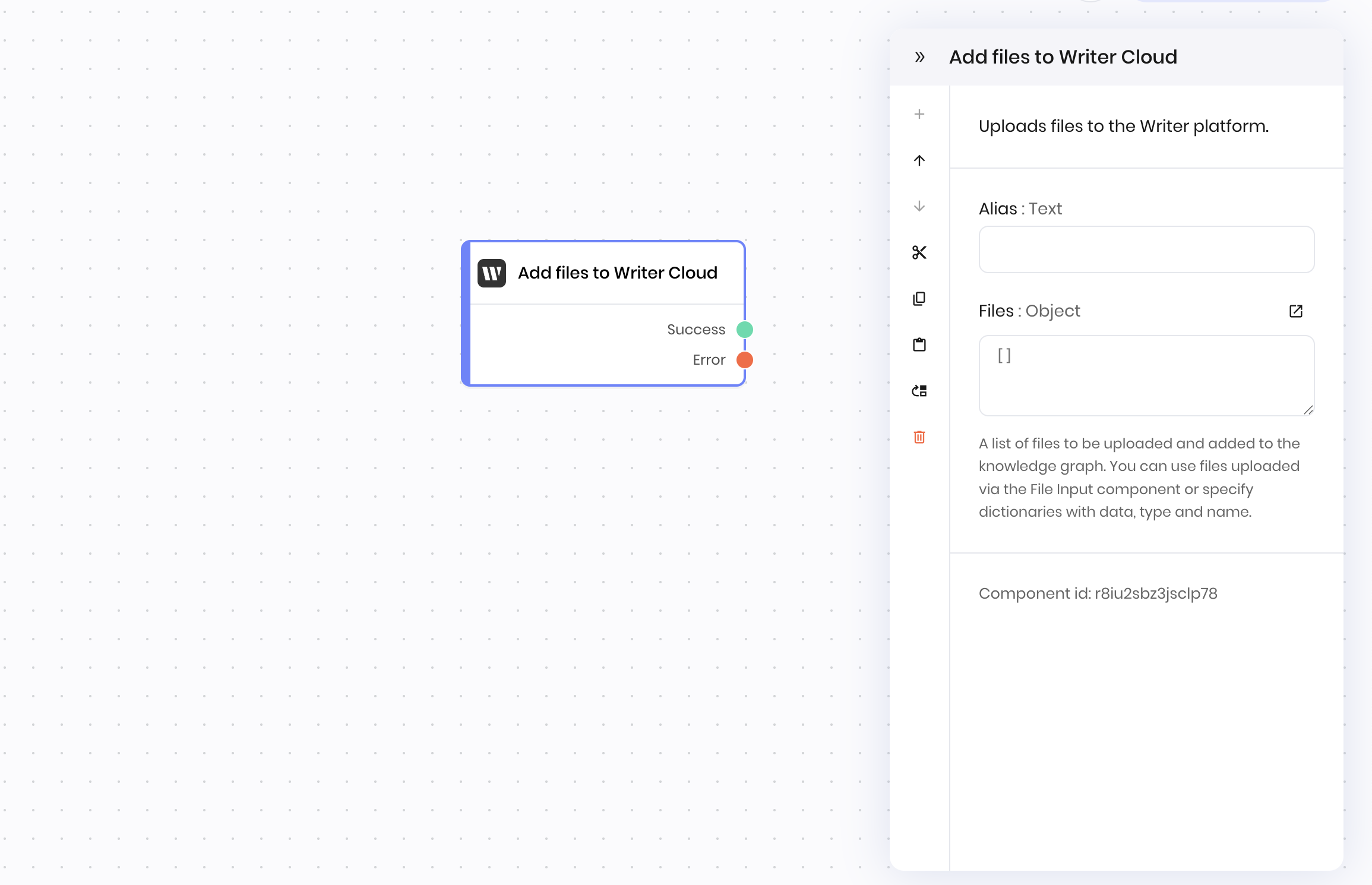
The **Add files to Writer Cloud** block uploads files to the Writer cloud so you can use them in your workflows. It accepts a list of file objects as inputs.
## File inputs
The **Add files to Writer Cloud** block accepts a list of file objects as inputs. Each file object must have the following fields:
| Field | Type | Description |
| ------ | ------ | -------------------------------------------------------------------------------------------------------------- |
| `name` | string | The name of the file. |
| `data` | bytes | The content of the file as bytes. |
| `type` | string | The [MIME type](https://developer.mozilla.org/en-US/docs/Web/HTTP/Guides/MIME_types/Common_types) of the file. |
### Adding files from the file input block
If you upload a file with the **File input** interface block, the list of file objects is automatically created for you, so all you have to do is pass the list to the **Add files to Writer Cloud** block. See the [example below](#example%3A-upload-files-to-writer-cloud-from-the-file-input-block) for how to do this.
You can retrieve the file objects list from the **File input** interface block in two ways:
* Connect a UI Trigger to the **File input** block's `wf-file-change` event. Then, use the `@{payload}` environment variable to access the file objects. The trigger will fire when a user adds or removes files from the file input block.
* Under **Binding** in the **File input** interface block, define a state variable that contains the list of file objects. Then reference that variable in the **Add files to Writer Cloud** block.
## Output
Once the files are uploaded to the Writer cloud, the **Add files to Writer Cloud** block returns a list containing the uploaded file IDs and other information about the files.
You can access the output of an **Add files to Writer Cloud** block using the `@{result}` variable in the block that follows it in a blueprint.
Each file object has the following fields:
| Field | Type | Description |
| ------------ | ------ | ----------------------------------------------------------------------- |
| `id` | string | The ID of the file. |
| `name` | string | The name of the file. |
| `status` | string | The status of the file. Can be `in_progress`, `completed`, or `failed`. |
| `created_at` | string | The date and time the file was created. |
| `graph_ids` | array | The IDs of any Knowledge Graphs that the file is associated with. |
```json theme={null}
[
{
"id": "701118ae",
"name": "research_paper.pdf",
"status": "in_progress",
"created_at": "2025-06-17T16:18:42.672407+00:00",
"graph_ids": []
}
]
```
### File processing status
If the uploaded file's status is `in_progress`, the file is being processed and is not ready to be used in a workflow.
Some files are processed quickly, such as PDFs and images, and are ready to be used in a workflow within seconds. Others, such as Word documents, may take a few minutes to process.
There are a few ways you can handle files that are still being processed:
* Split the blueprint into two parts: one that uploads the files when a user adds them to the file input block, and another that uses the files when a user clicks a button in the UI. This way, you can use the files in the workflow as soon as they're uploaded, and wait for the user to click a button to use the files in the second part of the blueprint. See an example in the [Upload, parse, and summarize PDFs](/agent-builder/summarize-pdfs#build-the-blueprints) tutorial.
* Add a Python block that introduces a few seconds of delay before the workflow continues.
* Add a [**Tool calling** block](/agent-builder/tool-calling) that can check the status of the file [using the Writer API](/api-reference/file-api/get-file) and wait for the file to be processed before continuing.
## Example: Upload files to Writer Cloud from the file input block
This example shows how to upload files to Writer Cloud that are stored in a state variable. In this example, the interface contains a file input block that's bound to the state variable `files`. After the UI Trigger fires, the **Add files to Writer Cloud** block uploads the files to Writer Cloud by accessing the `@{files}` state variable.
## Overview
The **Add files to Writer Cloud** block uploads files to the Writer cloud so you can use them in your workflows. It accepts a list of file objects as inputs.
## File inputs
The **Add files to Writer Cloud** block accepts a list of file objects as inputs. Each file object must have the following fields:
| Field | Type | Description |
| ------ | ------ | -------------------------------------------------------------------------------------------------------------- |
| `name` | string | The name of the file. |
| `data` | bytes | The content of the file as bytes. |
| `type` | string | The [MIME type](https://developer.mozilla.org/en-US/docs/Web/HTTP/Guides/MIME_types/Common_types) of the file. |
### Adding files from the file input block
If you upload a file with the **File input** interface block, the list of file objects is automatically created for you, so all you have to do is pass the list to the **Add files to Writer Cloud** block. See the [example below](#example%3A-upload-files-to-writer-cloud-from-the-file-input-block) for how to do this.
You can retrieve the file objects list from the **File input** interface block in two ways:
* Connect a UI Trigger to the **File input** block's `wf-file-change` event. Then, use the `@{payload}` environment variable to access the file objects. The trigger will fire when a user adds or removes files from the file input block.
* Under **Binding** in the **File input** interface block, define a state variable that contains the list of file objects. Then reference that variable in the **Add files to Writer Cloud** block.
## Output
Once the files are uploaded to the Writer cloud, the **Add files to Writer Cloud** block returns a list containing the uploaded file IDs and other information about the files.
You can access the output of an **Add files to Writer Cloud** block using the `@{result}` variable in the block that follows it in a blueprint.
Each file object has the following fields:
| Field | Type | Description |
| ------------ | ------ | ----------------------------------------------------------------------- |
| `id` | string | The ID of the file. |
| `name` | string | The name of the file. |
| `status` | string | The status of the file. Can be `in_progress`, `completed`, or `failed`. |
| `created_at` | string | The date and time the file was created. |
| `graph_ids` | array | The IDs of any Knowledge Graphs that the file is associated with. |
```json theme={null}
[
{
"id": "701118ae",
"name": "research_paper.pdf",
"status": "in_progress",
"created_at": "2025-06-17T16:18:42.672407+00:00",
"graph_ids": []
}
]
```
### File processing status
If the uploaded file's status is `in_progress`, the file is being processed and is not ready to be used in a workflow.
Some files are processed quickly, such as PDFs and images, and are ready to be used in a workflow within seconds. Others, such as Word documents, may take a few minutes to process.
There are a few ways you can handle files that are still being processed:
* Split the blueprint into two parts: one that uploads the files when a user adds them to the file input block, and another that uses the files when a user clicks a button in the UI. This way, you can use the files in the workflow as soon as they're uploaded, and wait for the user to click a button to use the files in the second part of the blueprint. See an example in the [Upload, parse, and summarize PDFs](/agent-builder/summarize-pdfs#build-the-blueprints) tutorial.
* Add a Python block that introduces a few seconds of delay before the workflow continues.
* Add a [**Tool calling** block](/agent-builder/tool-calling) that can check the status of the file [using the Writer API](/api-reference/file-api/get-file) and wait for the file to be processed before continuing.
## Example: Upload files to Writer Cloud from the file input block
This example shows how to upload files to Writer Cloud that are stored in a state variable. In this example, the interface contains a file input block that's bound to the state variable `files`. After the UI Trigger fires, the **Add files to Writer Cloud** block uploads the files to Writer Cloud by accessing the `@{files}` state variable.
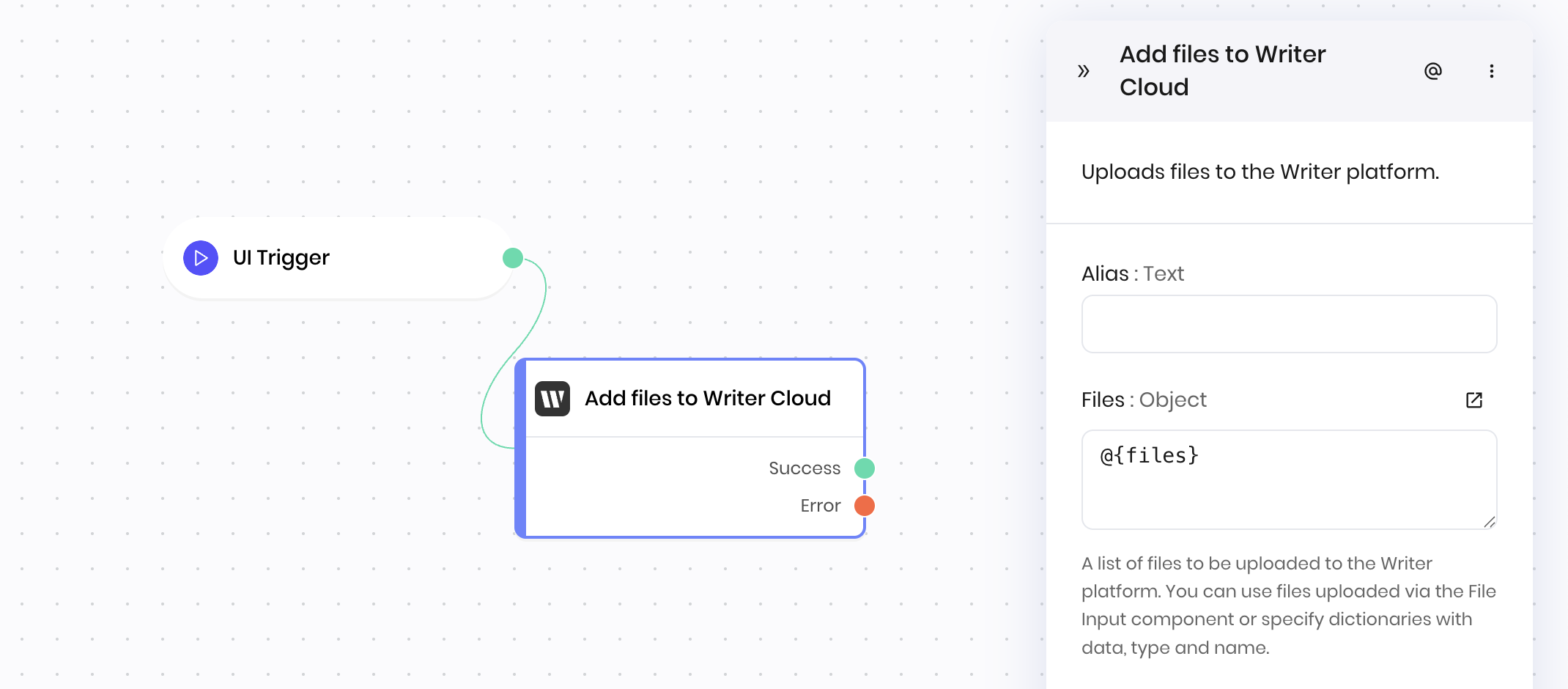 The `@{files}` state variable looks like this:
```json theme={null}
[
{
"name": "research_paper.pdf",
"data": "...",
"type": "application/pdf"
}
]
```
## Example: Create and upload files from Python processing
This example shows how to manually create file objects in a **Python code** block and then upload them to Writer Cloud. In this scenario, a Python block generates a CSV report from data processing and creates the file object programmatically.
The `@{files}` state variable looks like this:
```json theme={null}
[
{
"name": "research_paper.pdf",
"data": "...",
"type": "application/pdf"
}
]
```
## Example: Create and upload files from Python processing
This example shows how to manually create file objects in a **Python code** block and then upload them to Writer Cloud. In this scenario, a Python block generates a CSV report from data processing and creates the file object programmatically.
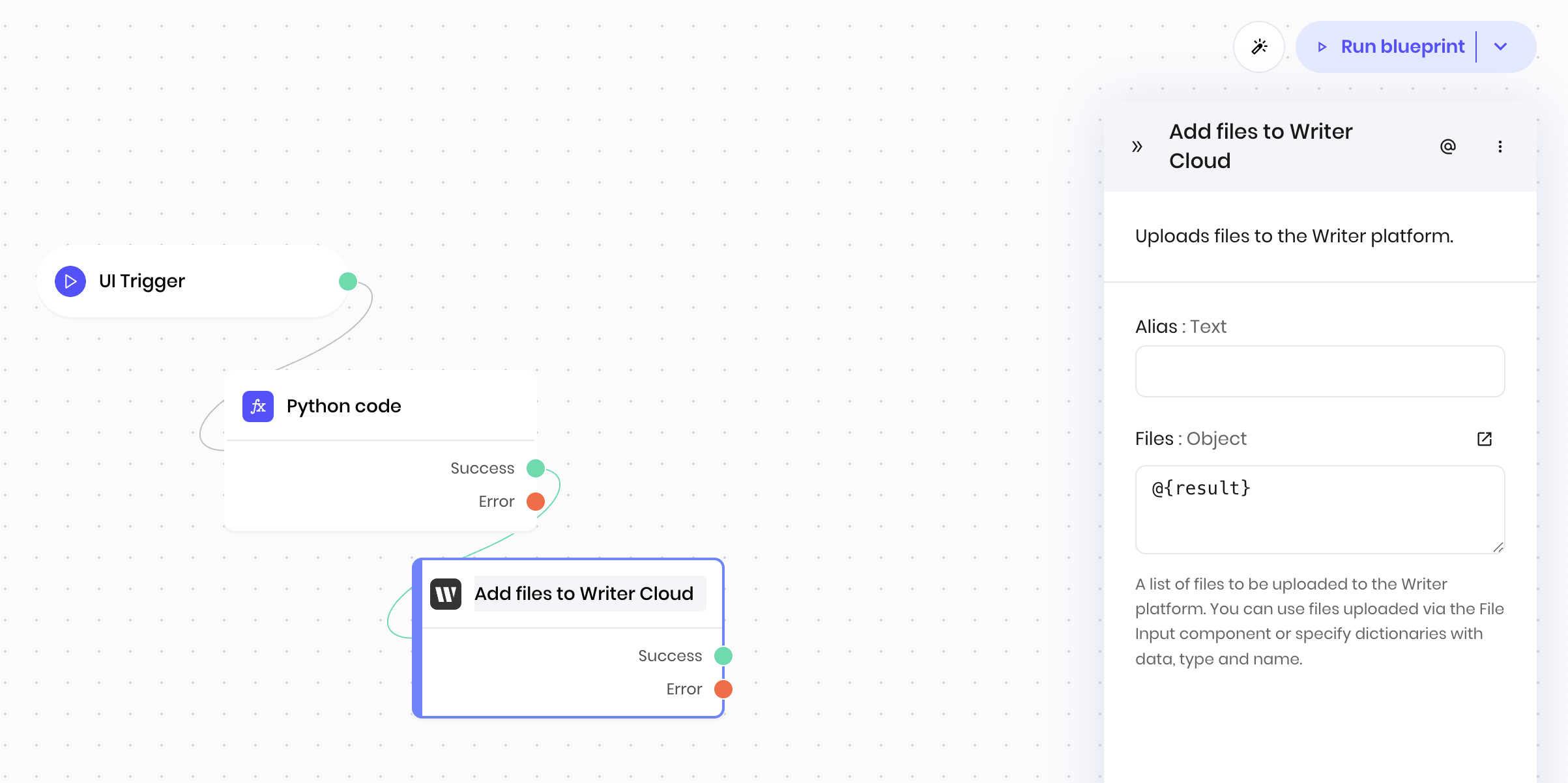 The **Python code** block contains the following code, which creates a CSV file object and returns it as a list for the **Add files to Writer Cloud** block to access.
```python theme={null}
import csv
import io
# Sample data processing
data = [
["Name", "Score", "Category"],
["Product A", 85, "Electronics"],
["Product B", 92, "Home & Garden"],
["Product C", 78, "Electronics"]
]
# Create CSV content
csv_buffer = io.StringIO()
writer = csv.writer(csv_buffer)
writer.writerows(data)
csv_content = csv_buffer.getvalue()
# Convert to bytes
csv_bytes = csv_content.encode('utf-8')
# Create file object
file_object = {
"name": "product_analysis.csv",
"data": csv_bytes,
"type": "text/csv"
}
# Return the file object as a list (required by Add files to Writer Cloud block)
set_output([file_object])
```
The Python block outputs `[file_object]`, which the **Add files to Writer Cloud** block then accesses using `@{result}` to upload the CSV file.
## Fields
The **Python code** block contains the following code, which creates a CSV file object and returns it as a list for the **Add files to Writer Cloud** block to access.
```python theme={null}
import csv
import io
# Sample data processing
data = [
["Name", "Score", "Category"],
["Product A", 85, "Electronics"],
["Product B", 92, "Home & Garden"],
["Product C", 78, "Electronics"]
]
# Create CSV content
csv_buffer = io.StringIO()
writer = csv.writer(csv_buffer)
writer.writerows(data)
csv_content = csv_buffer.getvalue()
# Convert to bytes
csv_bytes = csv_content.encode('utf-8')
# Create file object
file_object = {
"name": "product_analysis.csv",
"data": csv_bytes,
"type": "text/csv"
}
# Return the file object as a list (required by Add files to Writer Cloud block)
set_output([file_object])
```
The Python block outputs `[file_object]`, which the **Add files to Writer Cloud** block then accesses using `@{result}` to upload the CSV file.
## Fields
| Name | Type | Control | Default | Description | Options | Validation |
|---|---|---|---|---|---|---|
| Files | Object | - |
\[]
|
A list of files to be uploaded to the Writer platform. You can use files uploaded via the File input component or specify dictionaries with data, type and name. | - | - |
| Name | Field | Type | Description |
|---|---|---|---|
| Success | - | success | File successfully uploaded. |
| Error | - | error | There was an error uploading the files. |