

About API keys
The Writer API uses token authentication for API requests. API keys are used as tokens, which you pass in theAuthorization header of your requests:
API agents and API keys
Writer API keys are attached to AI Studio API agents. API capabilities are set at the agent level. Within an API-based agent, you can create multiple API keys that share the capabilities of the agent. To create keys with different capabilities, create multiple API agents. Each API key can be scoped to All teams or a Specific team within your organization. Team scoping controls which team can use a given key, while the agent’s capabilities determine which API endpoints the key can access.Create an API agent
- From the AI Studio home page, open Admin settings in the navigation menu, then select API Keys.
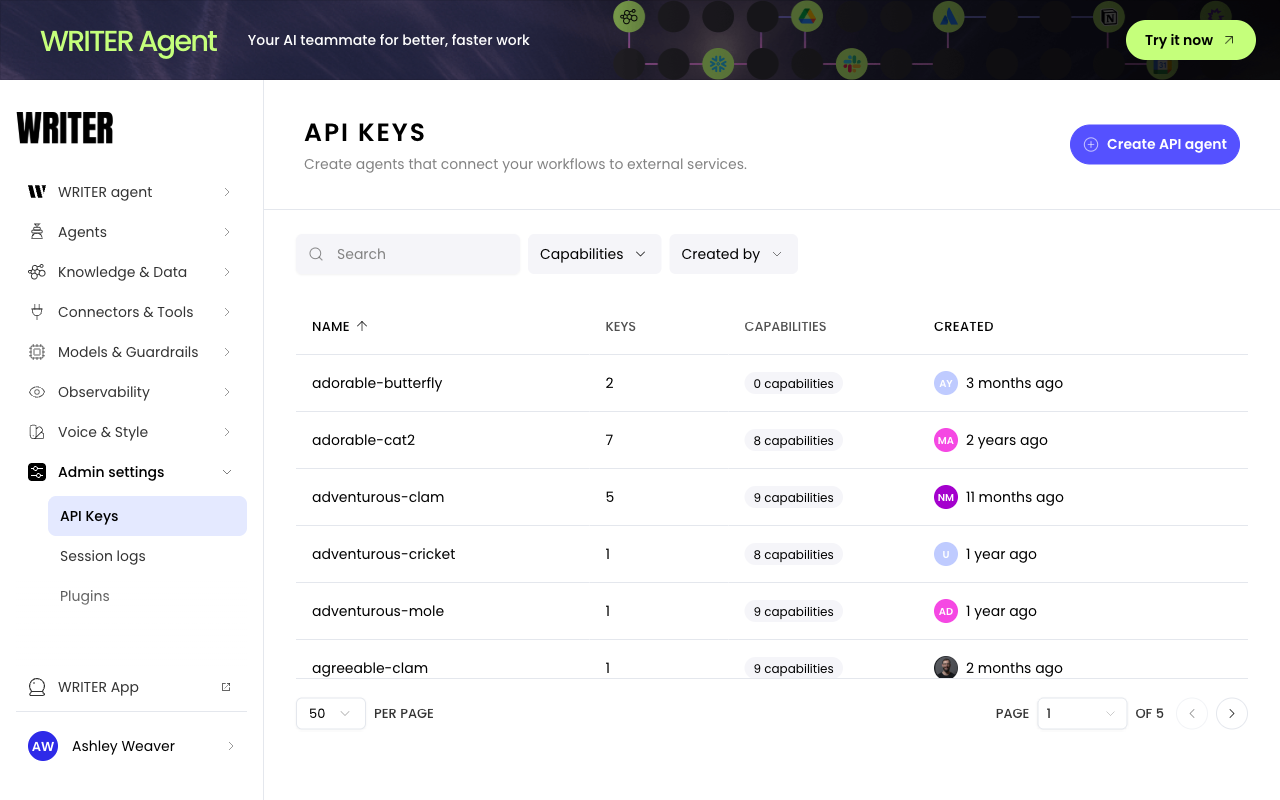
- Click Create API agent in the top right corner of the page.
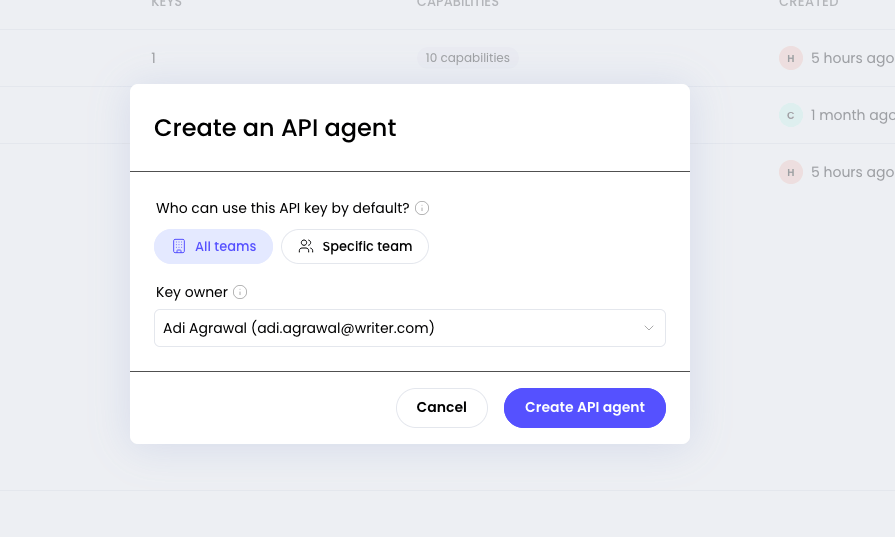
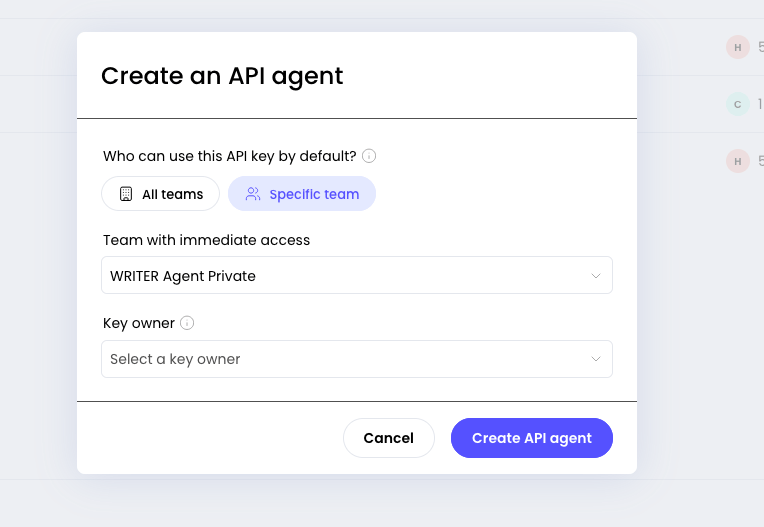
- In the Create an API agent dialog, under Who can use this API key by default, choose All teams or Specific team:
-
For All teams, select a Key owner:
-
For Specific team, choose the Team with immediate access and select a Key owner:
-
For All teams, select a Key owner:
- Click Create API agent.
- When the agent opens, select the title field to rename the agent, and enter a short description so you can recognize what the agent is for.
Create an API key
Each API agent has a default API key, calledProduction. To create additional API keys:
- Navigate to the API application. From the AI Studio home page, click Admin Settings in the navigation menu, then select API Keys.
- Click the API agent’s tile you want to generate a new key for.
- Click Generate a new key.
- Configure the new key:
- API key name: a descriptive name to help you identify the key.
- Under Who can use this API key by default, choose All teams or Specific team:
-
For All teams, select a Key owner:
-
For Specific team, choose the Team with immediate access and select a Key owner:
-
For All teams, select a Key owner:
- Click Generate a new key to create the key.
- Immediately after generating the key, copy the key and save it securely. You can’t view the key again after you navigate away from this page.
Store the API key in a secure location, such as a
.env file (for example, WRITER_API_KEY=<API_KEY>). If you lose a key, revoke it and generate a new one—you can’t recover the original secret.See your API agents and manage API keys
- From the AI Studio home page, open Admin settings → API Keys.
- In the table, open an agent’s row to go to that agent.
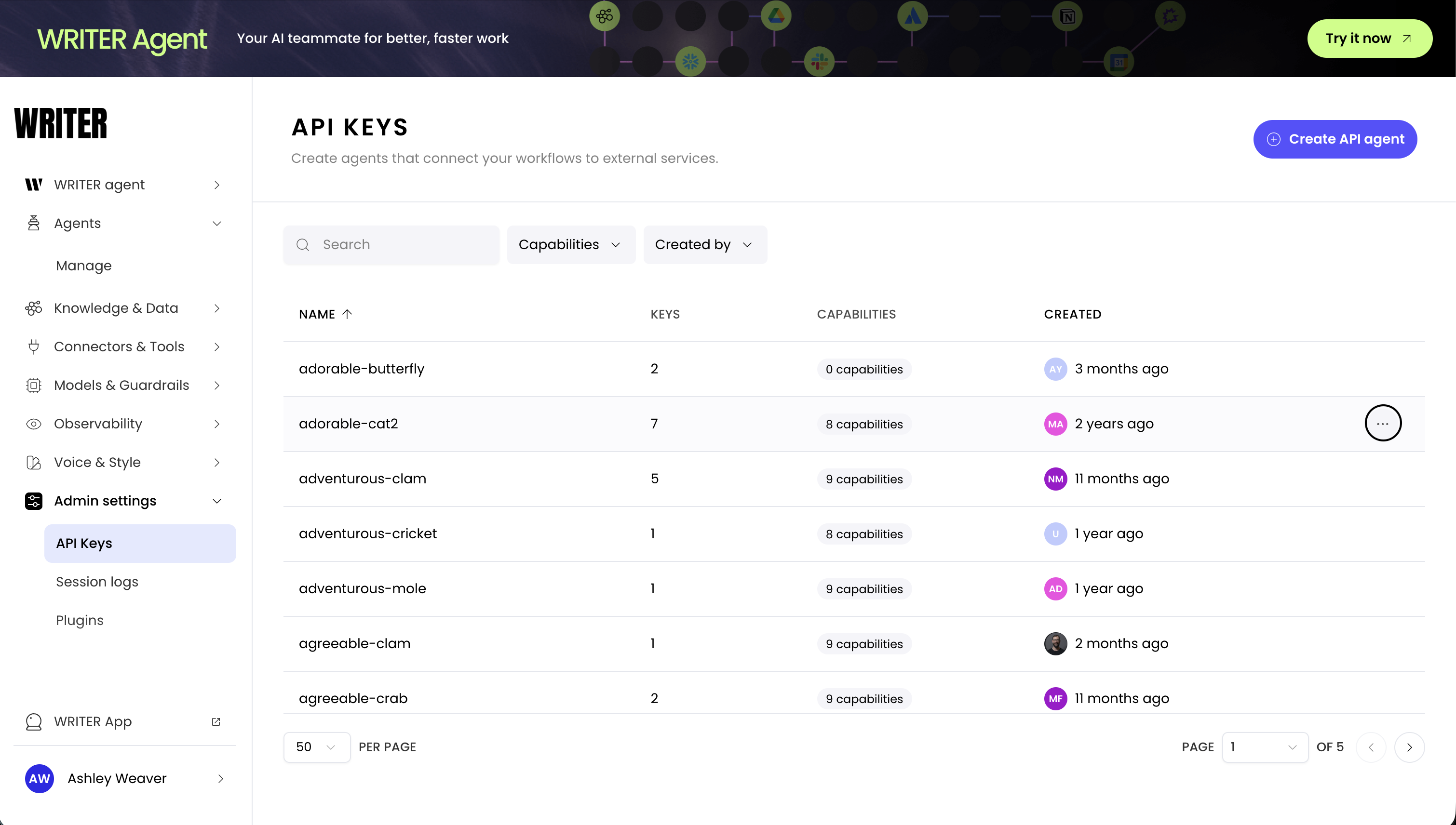
You can’t view or reveal the full API key after it’s created. Copy it the first time it’s shown and store it securely. To replace a lost key, generate a new key from the API agent page.
Manage API agent capabilities
API capabilities are set at the agent level and apply to all keys within that agent. To manage API agent capabilities:- From the AI Studio home page, click Admin Settings in the navigation menu, then select API Keys.
- Click an individual agent’s tile to navigate to the agent.
- Under Capabilities, toggle to enable or turn off a specific capability for the agent.
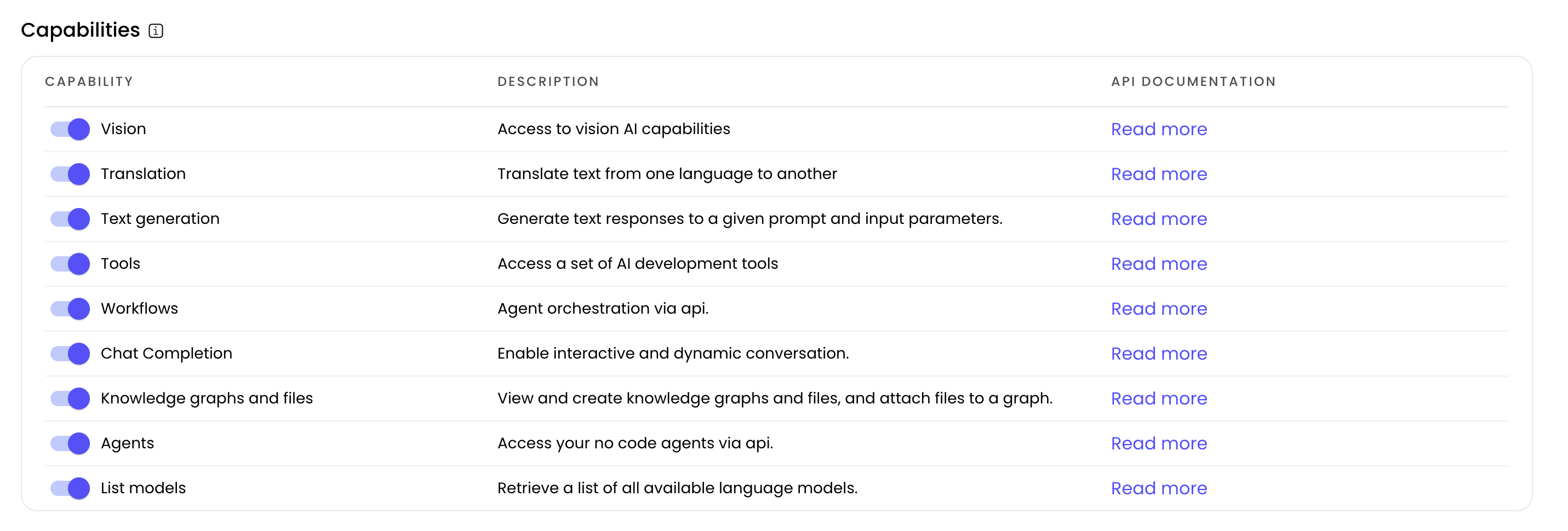
Capabilities map to Writer API endpoints. Click Read more in the API Documentation column to learn more about the specific endpoints.
Delete an API agent
To delete an API agent:- From the AI Studio home page, open Admin settings → API Keys.
- On the row for the agent you want to remove, open the Actions menu, then select Delete.

- Confirm the deletion by clicking Delete.
Delete an API key
To delete an API key:- From the AI Studio home page, open Admin settings → API Keys.
- Open the agent in the table, then stay on the Manage keys tab.
- On the row for the key you want to remove, open the Actions menu, then select Revoke.
- Confirm by clicking Revoke key.
Next steps
- Make your first API call using your API key
- Read the chat completion endpoint reference
- Review API error codes if requests fail authentication