> ## Documentation Index
> Fetch the complete documentation index at: https://dev.writer.com/llms.txt
> Use this file to discover all available pages before exploring further.
# Use tool calling in Agent Builder
> Add tool calling to Agent Builder blueprints and chatbots. Connect Knowledge Graphs and define custom functions with JSON Schema.
This page describes how to use tool calling in Agent Builder. If you're looking for an overview of tool calling, see [Introduction to tool calling](/agent-builder/tool-calling-intro).
Agent Builder provides two ways to use tool calling:
* In a chatbot conversation with the [**Chat reply** block](/blueprints/chatreply). Use this block to add tool calling to your chatbot conversation.
* In a blueprint with the [**Tool calling** block](/blueprints/toolcalling). Use this block to add tool calling to your blueprint outside of a chatbot conversation.
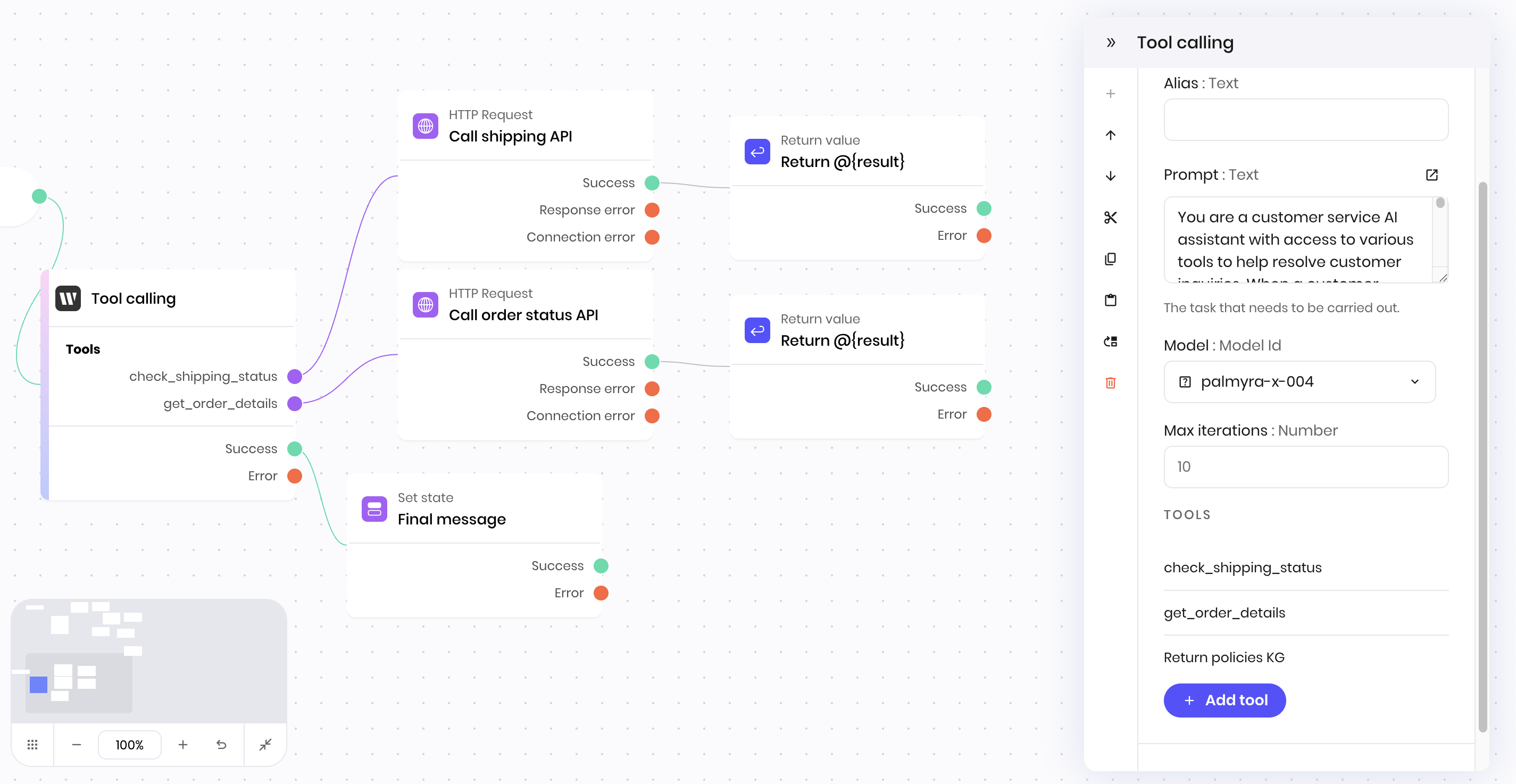 Both blocks allow you to either connect to Knowledge Graphs or define the functions you want to provide to the model as [JSON Schema](https://json-schema.org/) objects. Then, when the model decides to use a tool, it either queries the Knowledge Graphs or sends the call to your blueprint, which executes the tool and sends the results back to the model.
## Add tool calling to your blueprint
To add tool calling to your blueprint, you need to:
1. [Add the **Tool calling** block to your blueprint](#add-the-tool-calling-block)
2. [Write a prompt that explains what the tool calling block is trying to accomplish](#write-a-prompt)
3. [Define the tools you want to provide to the model](#define-your-tools)
4. [Connect the tool calling block to the blocks that execute the tools](#connect-the-tool-calling-connectors-to-the-blocks-that-execute-the-tools)
5. [Add a **Return value** block to the end of the tool calling block](#add-a-return-value-block)
### Add the tool calling block
Add either the [**Tool calling** block](/blueprints/toolcalling) to your blueprint or the [**Chat reply** block](/blueprints/chatreply) to your chatbot conversation.
### Write a prompt
The prompt you write for the tool calling block in the **Prompt** field guides the model's behavior and decision making. It should explain what the tool calling block is trying to accomplish and what tools are available to use.
### Define your tools
Define the tools you want to provide to the **Tool calling** block, so that it knows what tools are available to use.
To add a new tool, click the **Add tool+** button in the **Tool calling** block's configuration menu.
In the **Add tool** modal that appears, select the **Tool type** from the dropdown, either:
* **Function**: A function that the model can call
* **Knowledge Graph**: A Knowledge Graph that the model can query
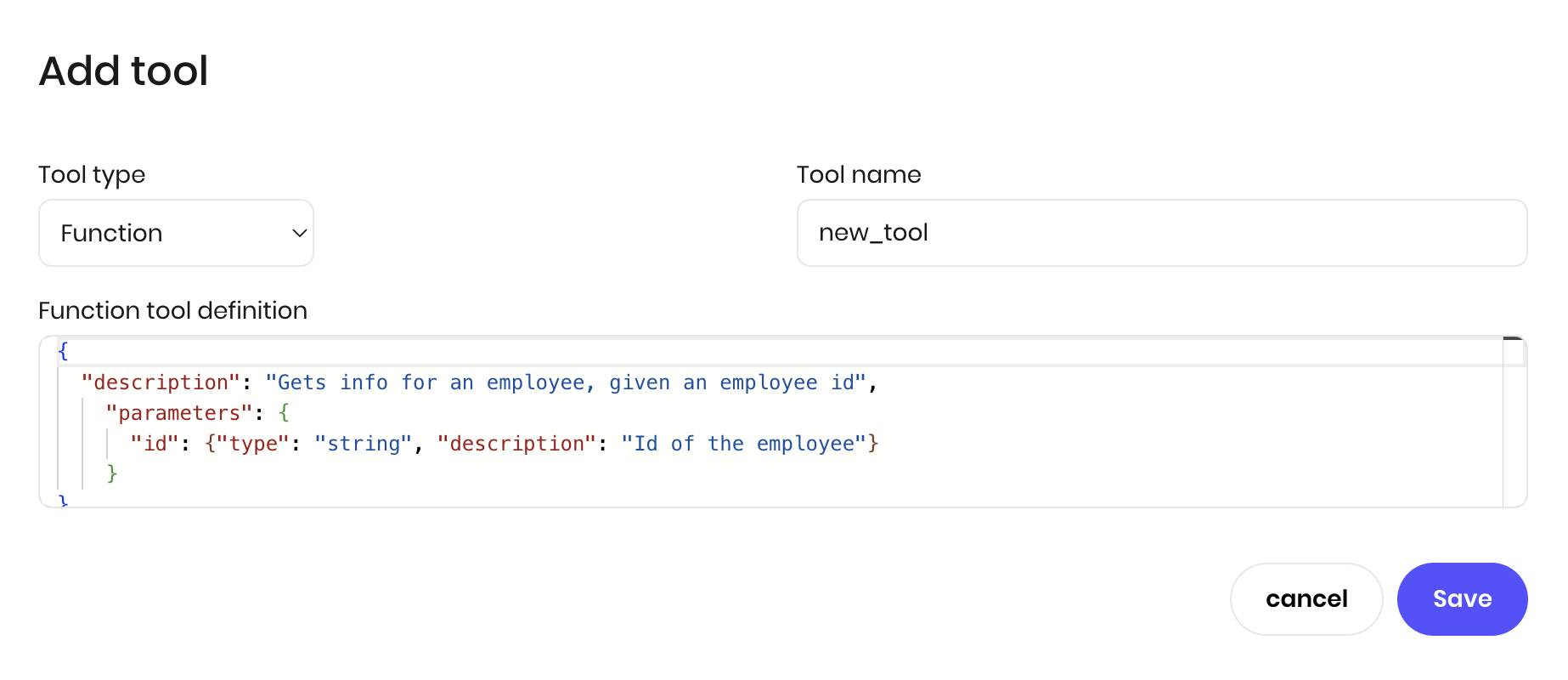
If you're using a function, enter the function name and definition. See [tool definition](#tool-definition) for more details about how to define the function.
Both blocks allow you to either connect to Knowledge Graphs or define the functions you want to provide to the model as [JSON Schema](https://json-schema.org/) objects. Then, when the model decides to use a tool, it either queries the Knowledge Graphs or sends the call to your blueprint, which executes the tool and sends the results back to the model.
## Add tool calling to your blueprint
To add tool calling to your blueprint, you need to:
1. [Add the **Tool calling** block to your blueprint](#add-the-tool-calling-block)
2. [Write a prompt that explains what the tool calling block is trying to accomplish](#write-a-prompt)
3. [Define the tools you want to provide to the model](#define-your-tools)
4. [Connect the tool calling block to the blocks that execute the tools](#connect-the-tool-calling-connectors-to-the-blocks-that-execute-the-tools)
5. [Add a **Return value** block to the end of the tool calling block](#add-a-return-value-block)
### Add the tool calling block
Add either the [**Tool calling** block](/blueprints/toolcalling) to your blueprint or the [**Chat reply** block](/blueprints/chatreply) to your chatbot conversation.
### Write a prompt
The prompt you write for the tool calling block in the **Prompt** field guides the model's behavior and decision making. It should explain what the tool calling block is trying to accomplish and what tools are available to use.
### Define your tools
Define the tools you want to provide to the **Tool calling** block, so that it knows what tools are available to use.
To add a new tool, click the **Add tool+** button in the **Tool calling** block's configuration menu.
In the **Add tool** modal that appears, select the **Tool type** from the dropdown, either:
* **Function**: A function that the model can call
* **Knowledge Graph**: A Knowledge Graph that the model can query
If you're using a function, enter the function name and definition. See [tool definition](#tool-definition) for more details about how to define the function.
 If you're using a Knowledge Graph, select the Knowledge Graph(s) you want to use from the dropdown of available Knowledge Graphs.
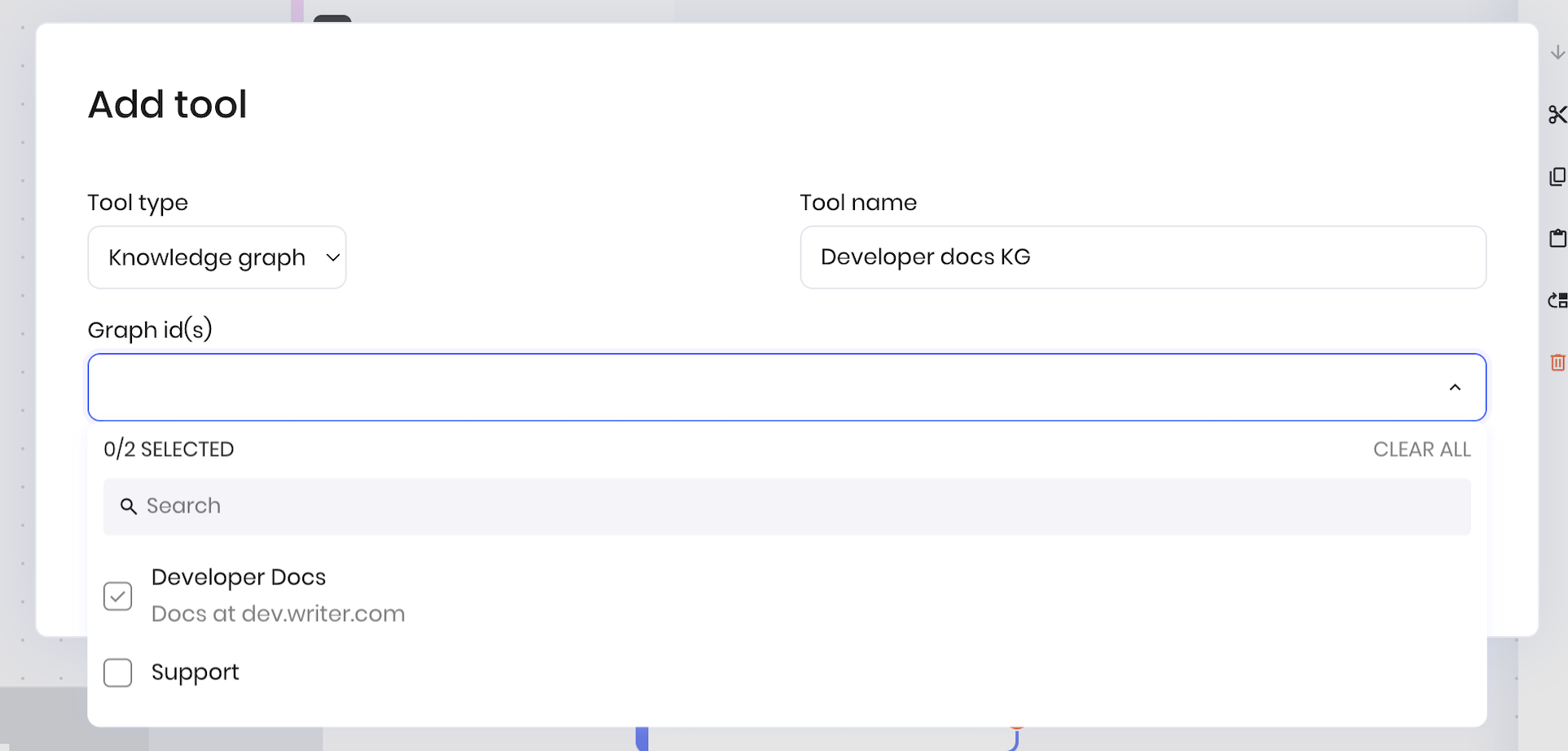 If you are using the Knowledge Graph tool, you only need to select which Knowledge Graphs you want to use. You do not need to define the tool or connect it to the blocks that execute the tools as described below. The following steps are only for the Function tool type.
#### Tool definition
The tool definition for a `Function` tool follows the [JSON Schema](https://json-schema.org/) format and has the following structure:
| Parameter | Type | Description |
| ----------------------- | ------ | -------------------------------------------------------------------------------------------------------------------------------- |
| `name` | string | The name of the tool |
| `description` | string | A description of what the tool does and when the model should use it |
| `parameters` | object | An object containing the tool's input parameters |
| `parameters.type` | string | The type of the parameter, which is `object` for a JSON schema |
| `parameters.properties` | object | An object containing the tool's parameters in the form of a [JSON schema](https://json-schema.org/). See below for more details. |
| `parameters.required` | array | An array of the tool's required parameters |
#### Example tool definition
Below is an example of a tool definition that gets the details of a package's shipping status. It takes a tracking number and a carrier name as input parameters and returns the shipping status of the package.
```json theme={null}
{
"name": "check_shipping_status",
"description": "Gets real-time shipping and tracking information for a package",
"parameters": {
"type": "object",
"properties": {
"tracking_number": {
"type": "string",
"description": "The shipping carrier's tracking number"
},
"carrier": {
"type": "string",
"enum": ["fedex", "ups", "usps", "dhl"],
"description": "Shipping carrier name"
}
},
"required": ["tracking_number", "carrier"]
}
}
```
### Connect the tool calling connectors to the blocks that execute the tools
When you define a `Function` tool in the block's configuration, it adds a connection point, shown as a purple circle, to the block. This allows you to connect it to another block or chain of blocks that perform the tool's work.
The example above shows the following setup for a tool that, among other functions, can check the status of a package:
Create an **HTTP Request** block that calls a shipping status API. Access the arguments to the tool call by the names you provided in the tool definition; for example, `@{tracking_number}` and `@{carrier}`.
Add a **Return value** block to the end of the **HTTP Request** block to send the result back to the model.
Provide a [tool definition](#example-tool-definition) to the **Tool calling** block that indicates there's a tool that can check the status of a package and it needs the tracking number and carrier name as input parameters.
Connect the **HTTP Request** block to the **Tool calling** block at the `check_shipping_status` connection point.
When the model decides to use the tool, it sends the tool call to the **HTTP Request** block, which executes the tool. The **HTTP Request** block runs and passes the result to the **Return value** block, which sends the results back to the model
Every `Function` tool call needs a **Return value** block at the end that sends the results back to the model.
When the **Tool calling** block completes all tool calls and integrates the results into the response, it moves to the next block in the blueprint that's connected to the `Success` transition. The `@{result}` variable is available in the next block with the tool calling block's final output.
## View tool calls logs
When a Tool Calling block executes, it provides a list of thoughts and actions that it took to complete the task. You can observe these in the logs of the blueprint.
Expand the **Logs** section at the bottom of the blueprint. Find the **Tool calling** log and click the **Trace** button to see the full trace of the tool calls.
If you are using the Knowledge Graph tool, you only need to select which Knowledge Graphs you want to use. You do not need to define the tool or connect it to the blocks that execute the tools as described below. The following steps are only for the Function tool type.
#### Tool definition
The tool definition for a `Function` tool follows the [JSON Schema](https://json-schema.org/) format and has the following structure:
| Parameter | Type | Description |
| ----------------------- | ------ | -------------------------------------------------------------------------------------------------------------------------------- |
| `name` | string | The name of the tool |
| `description` | string | A description of what the tool does and when the model should use it |
| `parameters` | object | An object containing the tool's input parameters |
| `parameters.type` | string | The type of the parameter, which is `object` for a JSON schema |
| `parameters.properties` | object | An object containing the tool's parameters in the form of a [JSON schema](https://json-schema.org/). See below for more details. |
| `parameters.required` | array | An array of the tool's required parameters |
#### Example tool definition
Below is an example of a tool definition that gets the details of a package's shipping status. It takes a tracking number and a carrier name as input parameters and returns the shipping status of the package.
```json theme={null}
{
"name": "check_shipping_status",
"description": "Gets real-time shipping and tracking information for a package",
"parameters": {
"type": "object",
"properties": {
"tracking_number": {
"type": "string",
"description": "The shipping carrier's tracking number"
},
"carrier": {
"type": "string",
"enum": ["fedex", "ups", "usps", "dhl"],
"description": "Shipping carrier name"
}
},
"required": ["tracking_number", "carrier"]
}
}
```
### Connect the tool calling connectors to the blocks that execute the tools
When you define a `Function` tool in the block's configuration, it adds a connection point, shown as a purple circle, to the block. This allows you to connect it to another block or chain of blocks that perform the tool's work.
The example above shows the following setup for a tool that, among other functions, can check the status of a package:
Create an **HTTP Request** block that calls a shipping status API. Access the arguments to the tool call by the names you provided in the tool definition; for example, `@{tracking_number}` and `@{carrier}`.
Add a **Return value** block to the end of the **HTTP Request** block to send the result back to the model.
Provide a [tool definition](#example-tool-definition) to the **Tool calling** block that indicates there's a tool that can check the status of a package and it needs the tracking number and carrier name as input parameters.
Connect the **HTTP Request** block to the **Tool calling** block at the `check_shipping_status` connection point.
When the model decides to use the tool, it sends the tool call to the **HTTP Request** block, which executes the tool. The **HTTP Request** block runs and passes the result to the **Return value** block, which sends the results back to the model
Every `Function` tool call needs a **Return value** block at the end that sends the results back to the model.
When the **Tool calling** block completes all tool calls and integrates the results into the response, it moves to the next block in the blueprint that's connected to the `Success` transition. The `@{result}` variable is available in the next block with the tool calling block's final output.
## View tool calls logs
When a Tool Calling block executes, it provides a list of thoughts and actions that it took to complete the task. You can observe these in the logs of the blueprint.
Expand the **Logs** section at the bottom of the blueprint. Find the **Tool calling** log and click the **Trace** button to see the full trace of the tool calls.
 The trace shows the series of thoughts, actions, and tool calls that the model made to complete the task.
