> ## Documentation Index
> Fetch the complete documentation index at: https://dev.writer.com/llms.txt
> Use this file to discover all available pages before exploring further.
# Upload, parse, and summarize PDFs
> Build a PDF research paper summarizer with Agent Builder. Upload PDFs, parse content, and generate summaries for specific personas.
This tutorial follows a similar format to the [Agent Builder Quickstart](/agent-builder/quickstart) use case of summarizing text; in this case, it adds the ability to upload and parse PDFs with Agent Builder and summarize the content.
This tutorial use case is a research paper summarizer that summarizes papers for a specific persona.
If you haven't completed the Agent Builder Quickstart, you may want to do that first to familiarize yourself with the mechanics of Agent Builder.
## Build the UI
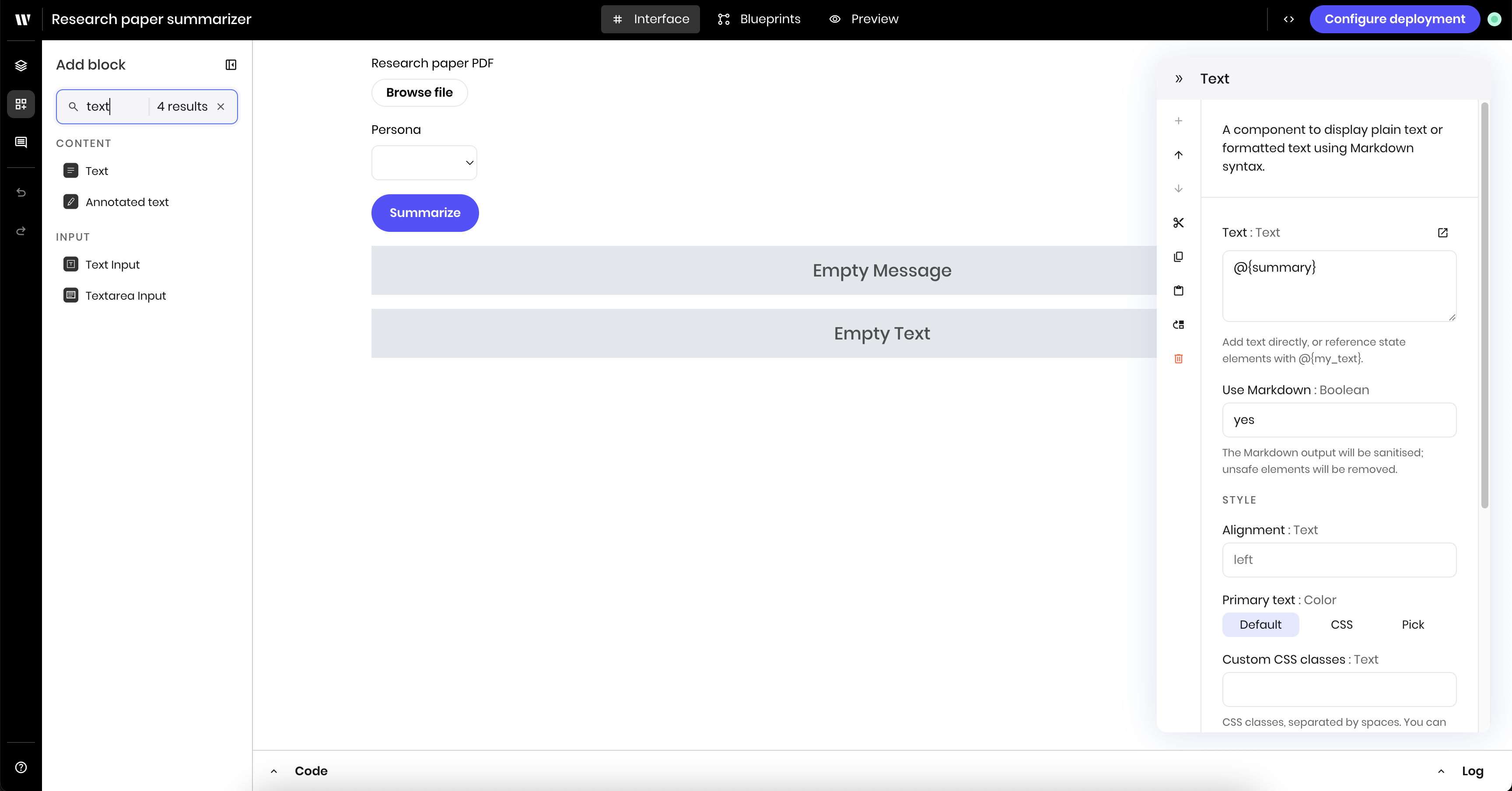
The UI for the agent contains:
* A file input block
* A select input to choose the persona to summarize the file for
* A button to start the summarization process
* A message block to indicate that the file is in progress
* A text block to display the results
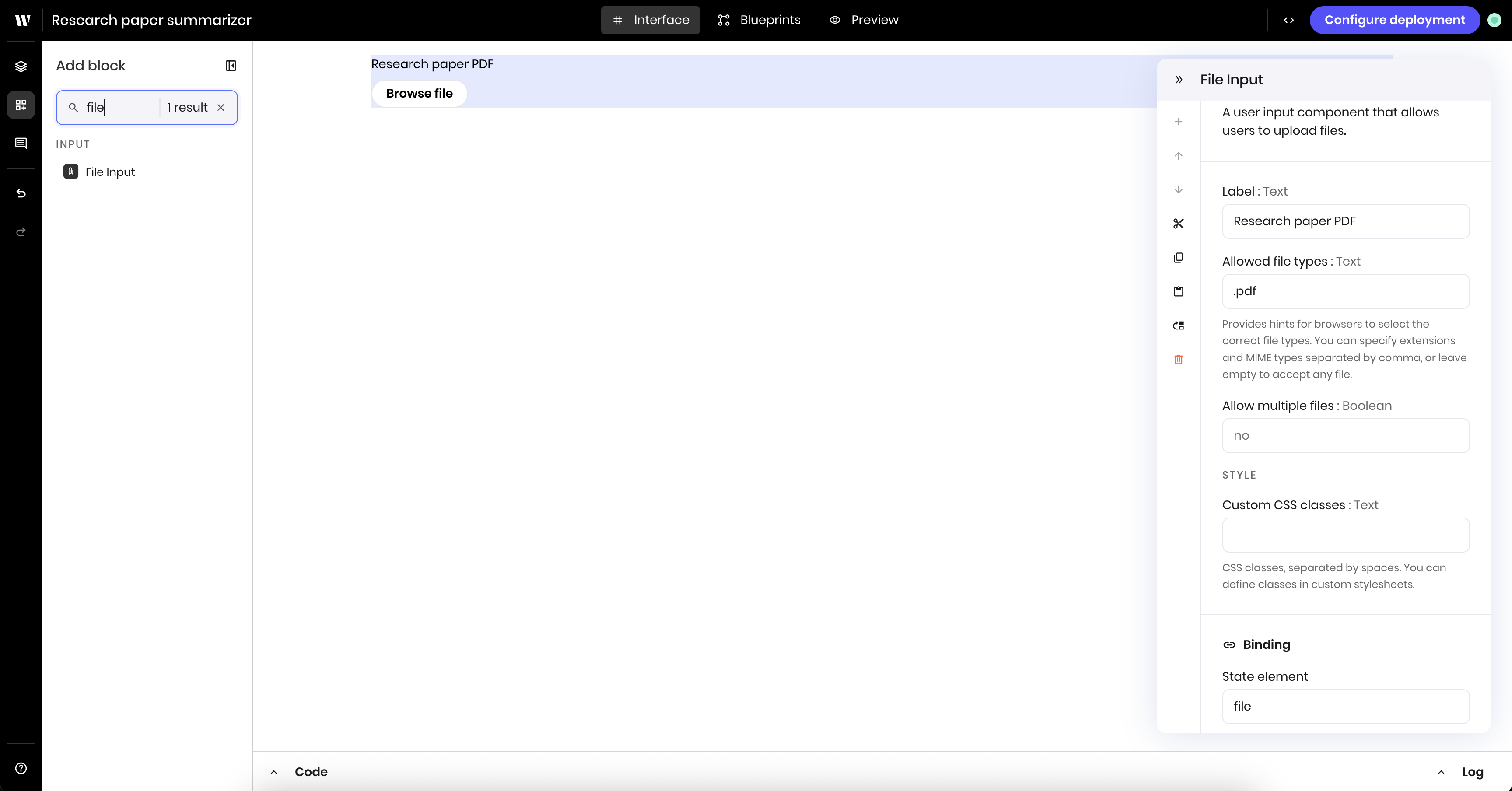
First, add a File Input block to the canvas. In the block's configuration panel, update the following fields:
* **Label**: `Research paper PDF`
* **Allowed file types**: `.pdf`
* **Allow multiple files**: `no`
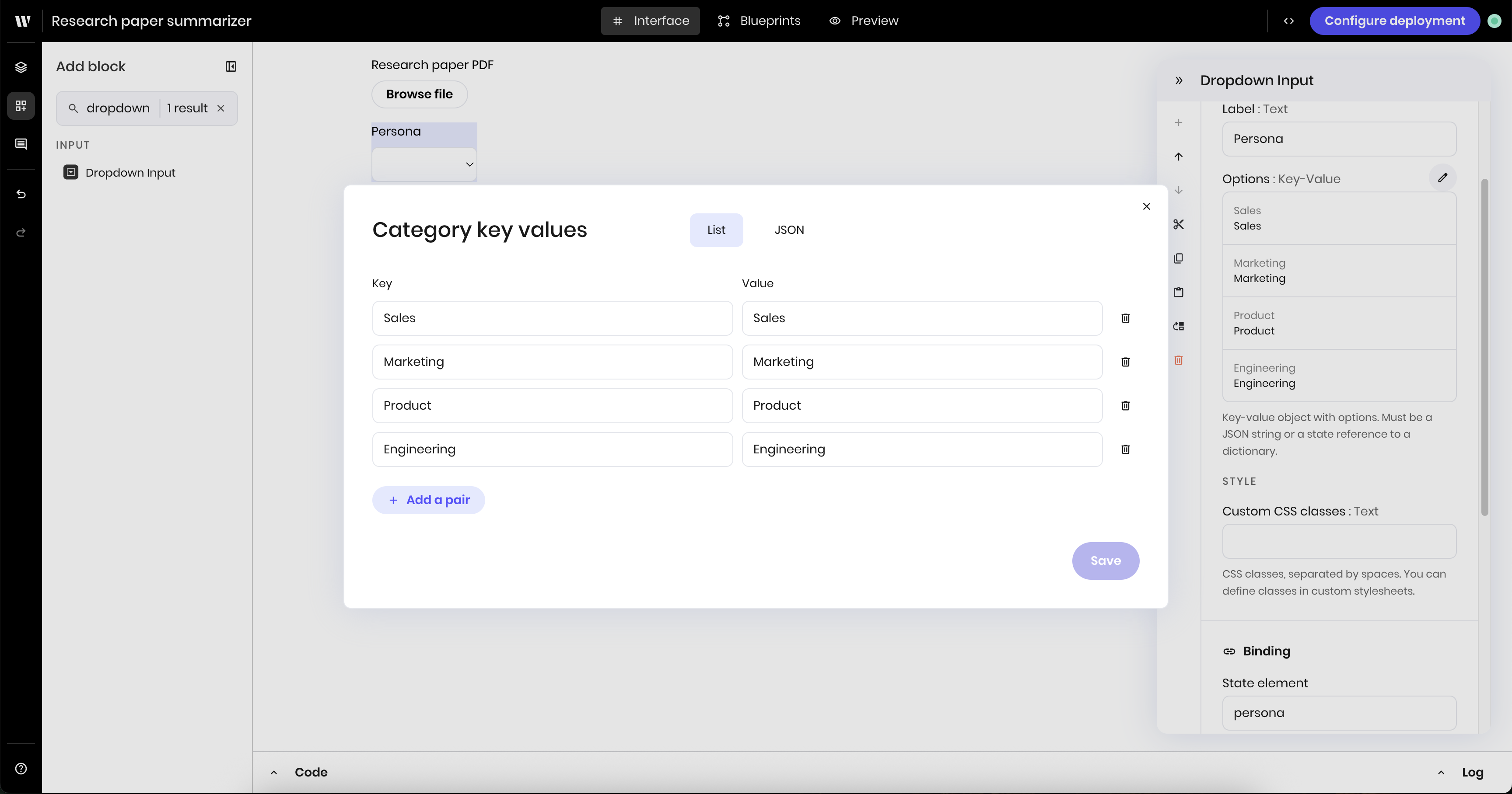
 Next, add a **Select input** block to the canvas, which creates a dropdown. In the block's configuration panel, update the following fields:
* **Label**: `Persona`
* **Options**: add the personas you want to summarize the file for. This example uses the personas `Sales`, `Marketing`, `Product`, and `Engineering`.
* **Link variable** under **Binding**: `persona`. You use this variable name in the blueprint when asking the text generation block to generate a summary for the selected persona.
Next, add a **Select input** block to the canvas, which creates a dropdown. In the block's configuration panel, update the following fields:
* **Label**: `Persona`
* **Options**: add the personas you want to summarize the file for. This example uses the personas `Sales`, `Marketing`, `Product`, and `Engineering`.
* **Link variable** under **Binding**: `persona`. You use this variable name in the blueprint when asking the text generation block to generate a summary for the selected persona.
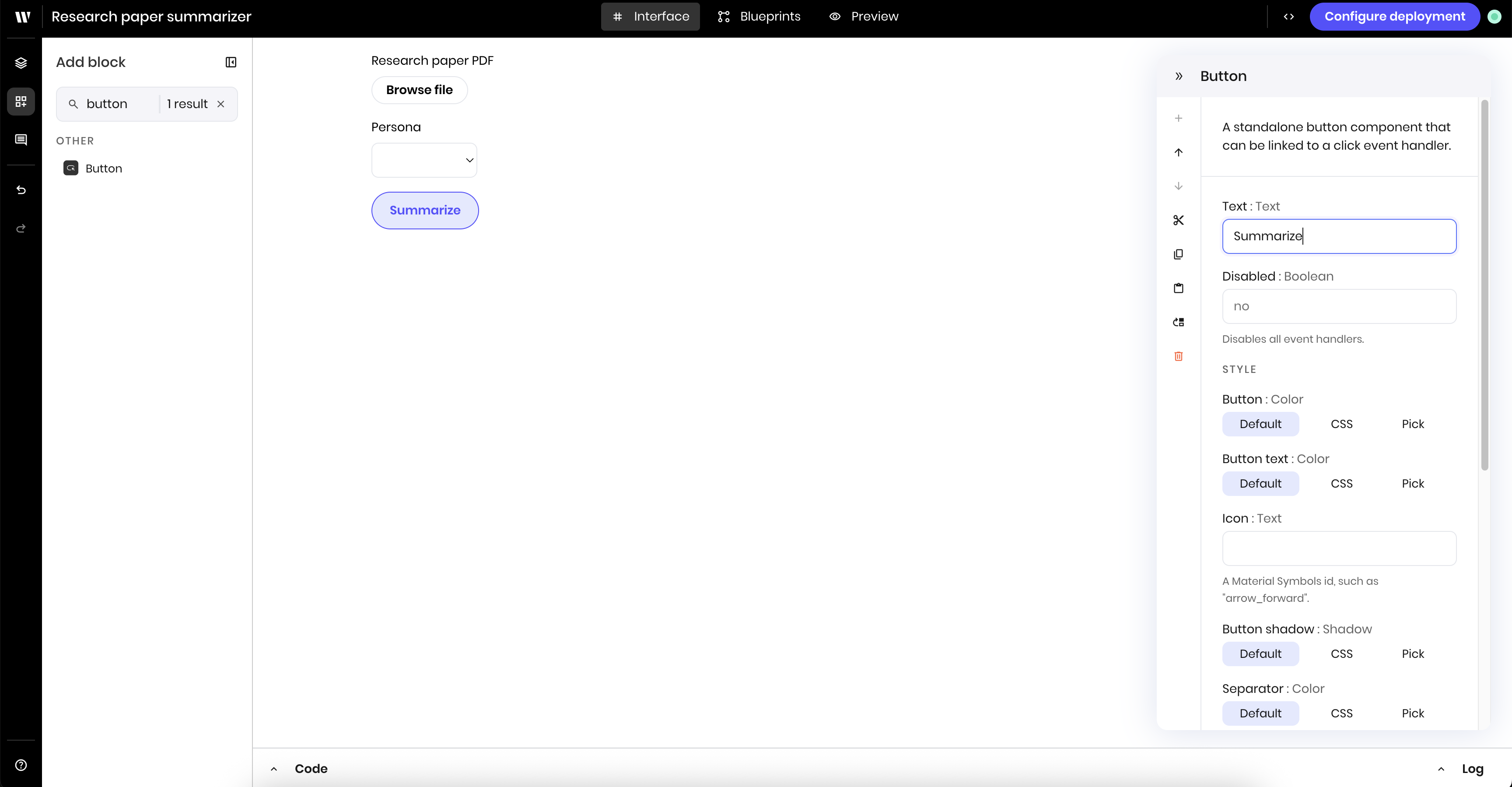
 Add a **Button** block to the canvas. In the block's configuration panel, update the following fields:
* **Text**: `Summarize`
Add a **Button** block to the canvas. In the block's configuration panel, update the following fields:
* **Text**: `Summarize`
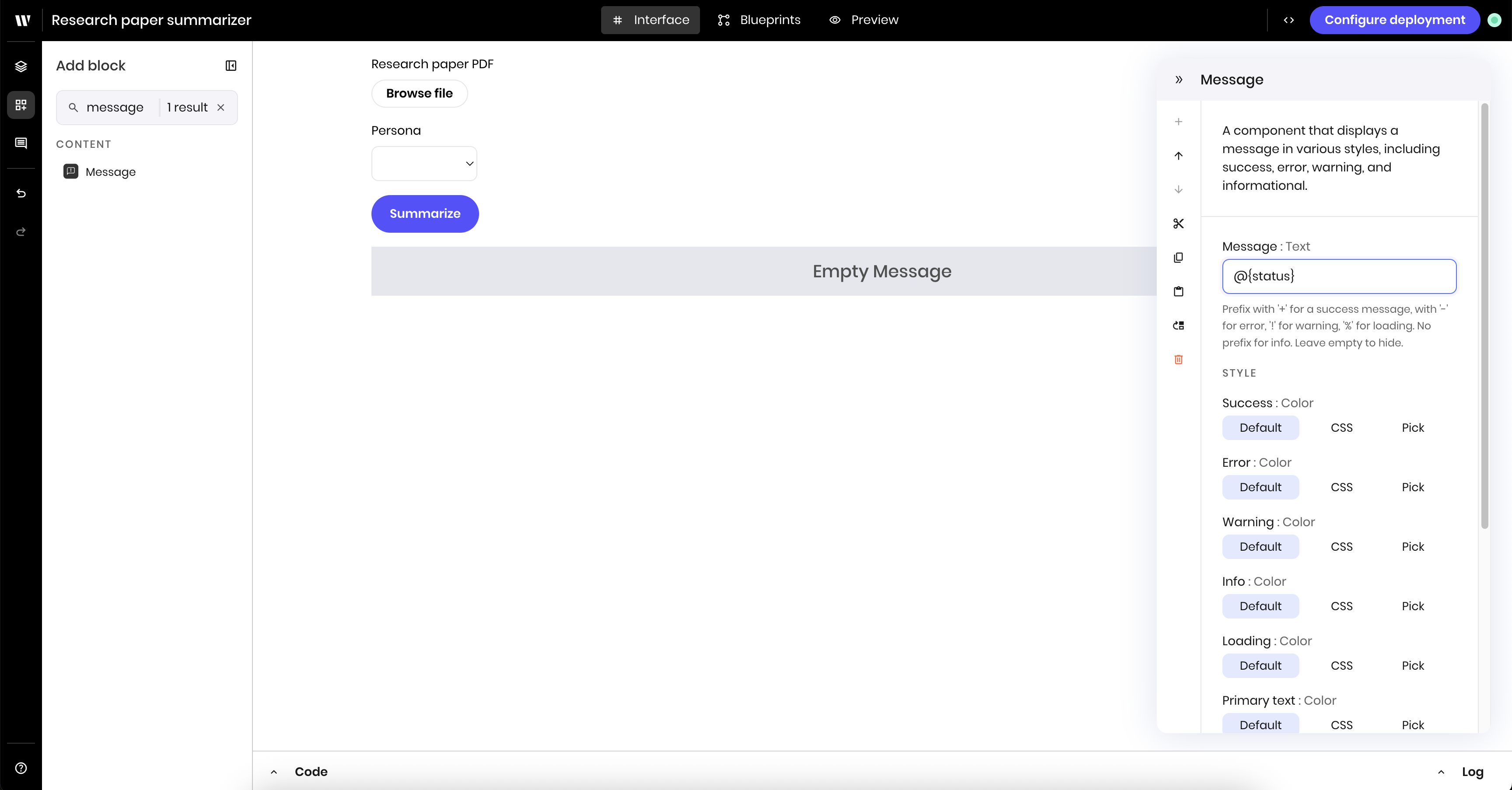
 Add a **Message** block to the canvas, which will display a message to the user indicating that the summarization is in progress. In the block's configuration panel, update the following fields:
* **Message**: `@{status}`. This will display the status message from the agent's state. You use this variable name in the blueprint to update the status message in the UI.
Add a **Message** block to the canvas, which will display a message to the user indicating that the summarization is in progress. In the block's configuration panel, update the following fields:
* **Message**: `@{status}`. This will display the status message from the agent's state. You use this variable name in the blueprint to update the status message in the UI.
 Finally, add a **Text** block to the canvas, which will display the summary results. In the block's configuration panel, update the following fields:
* **Text**: `@{summary}`. This will display the summary results from the agent's state. You use this name in the blueprint to display the summary results in the UI.
* **Use markdown**: `yes`
Finally, add a **Text** block to the canvas, which will display the summary results. In the block's configuration panel, update the following fields:
* **Text**: `@{summary}`. This will display the summary results from the agent's state. You use this name in the blueprint to display the summary results in the UI.
* **Use markdown**: `yes`
 ## Build the blueprints
The agent has two blueprints:
* [One for uploading a file to Writer cloud](#first-blueprint-upload-file-to-writer-cloud) when a user adds a file to the file input block
* [One for parsing the file and summarizing it](#second-blueprint-parse-and-summarize-the-file) when a user clicks the button to start summarizing
The agent's logic is segmented into two blueprints so that the file uploading can complete before the parsing and summarizing begins.
### First blueprint: Upload file to Writer cloud
Before you can work with the content of a PDF file in a blueprint, you need to upload it to the Writer Cloud with the **Add files to Writer Cloud** block. Once you've uploaded the file, you can access it in the blueprint using the uploaded file's ID and perform operations like parsing the PDF and providing that information to a text generation block.
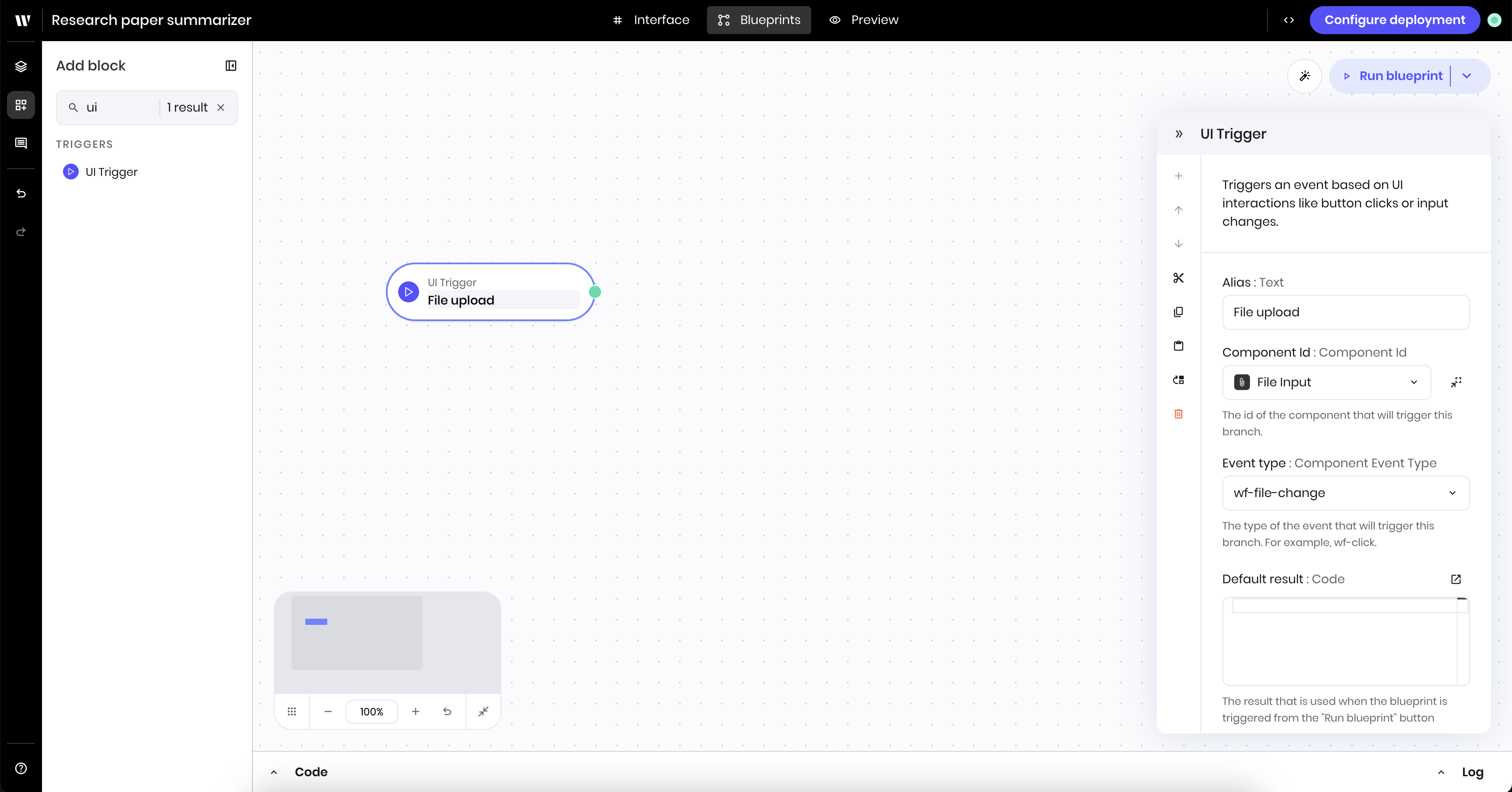
Add a **UI trigger** block to the canvas. This triggers the blueprint when a user adds or changes the file in the file input block.
In the block's configuration panel, update the following fields:
* **Alias**: `File upload`. This is optional, but helps to identify the trigger in the blueprint.
* **Component Id**: Select the `File Input` component from the dropdown of UI blocks
* **Event type**: `wf-file-change`
## Build the blueprints
The agent has two blueprints:
* [One for uploading a file to Writer cloud](#first-blueprint-upload-file-to-writer-cloud) when a user adds a file to the file input block
* [One for parsing the file and summarizing it](#second-blueprint-parse-and-summarize-the-file) when a user clicks the button to start summarizing
The agent's logic is segmented into two blueprints so that the file uploading can complete before the parsing and summarizing begins.
### First blueprint: Upload file to Writer cloud
Before you can work with the content of a PDF file in a blueprint, you need to upload it to the Writer Cloud with the **Add files to Writer Cloud** block. Once you've uploaded the file, you can access it in the blueprint using the uploaded file's ID and perform operations like parsing the PDF and providing that information to a text generation block.
Add a **UI trigger** block to the canvas. This triggers the blueprint when a user adds or changes the file in the file input block.
In the block's configuration panel, update the following fields:
* **Alias**: `File upload`. This is optional, but helps to identify the trigger in the blueprint.
* **Component Id**: Select the `File Input` component from the dropdown of UI blocks
* **Event type**: `wf-file-change`
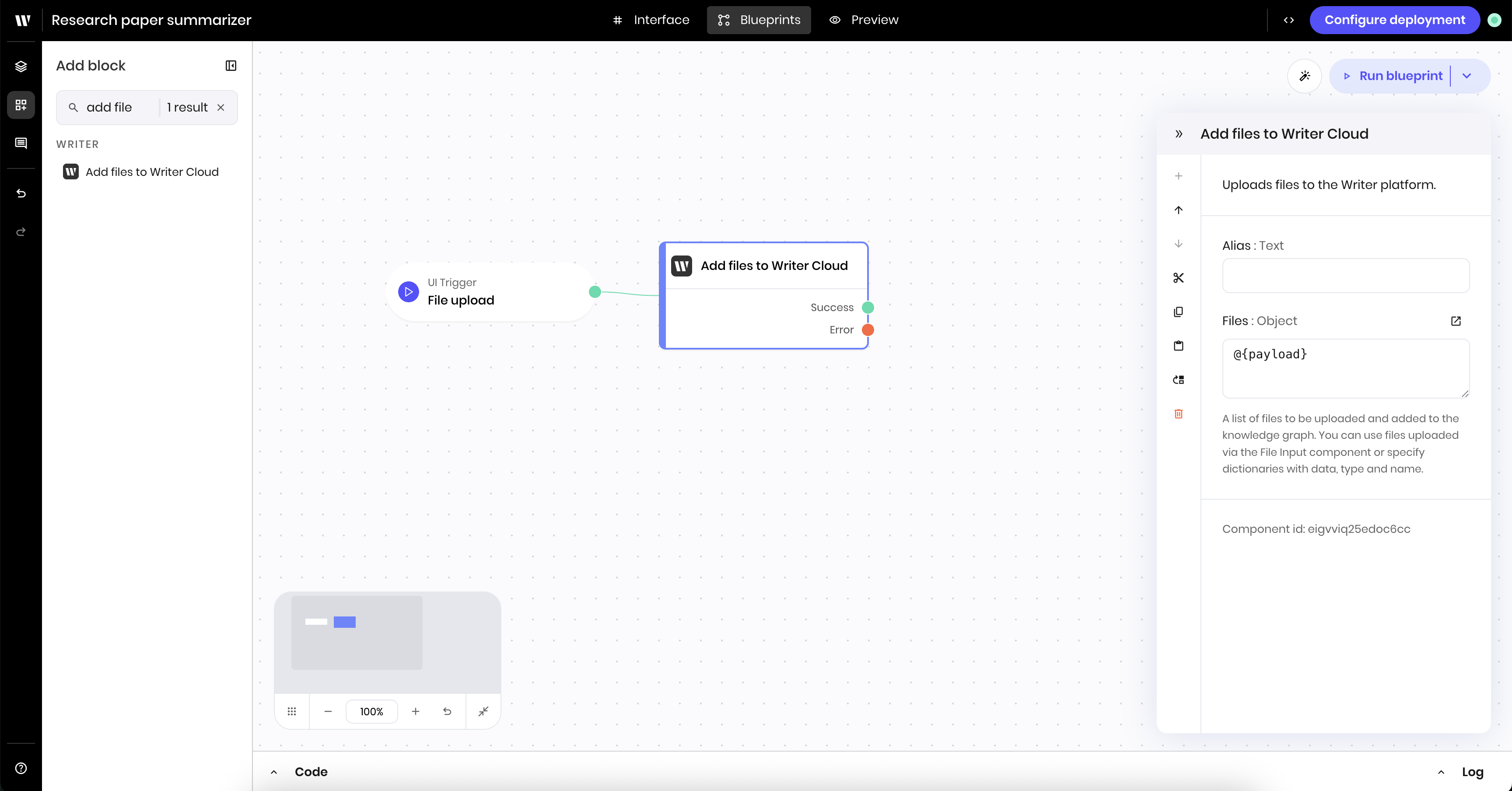
 Add a **Add files to Writer Cloud** block to the canvas. This block uploads the file to Writer Cloud.
In the block's configuration panel, update the following fields:
* **Files**: `@{payload}`. This references the payload provided by the preceding UI trigger. The payload contains the file that was uploaded to the file input block.
Add a **Add files to Writer Cloud** block to the canvas. This block uploads the file to Writer Cloud.
In the block's configuration panel, update the following fields:
* **Files**: `@{payload}`. This references the payload provided by the preceding UI trigger. The payload contains the file that was uploaded to the file input block.
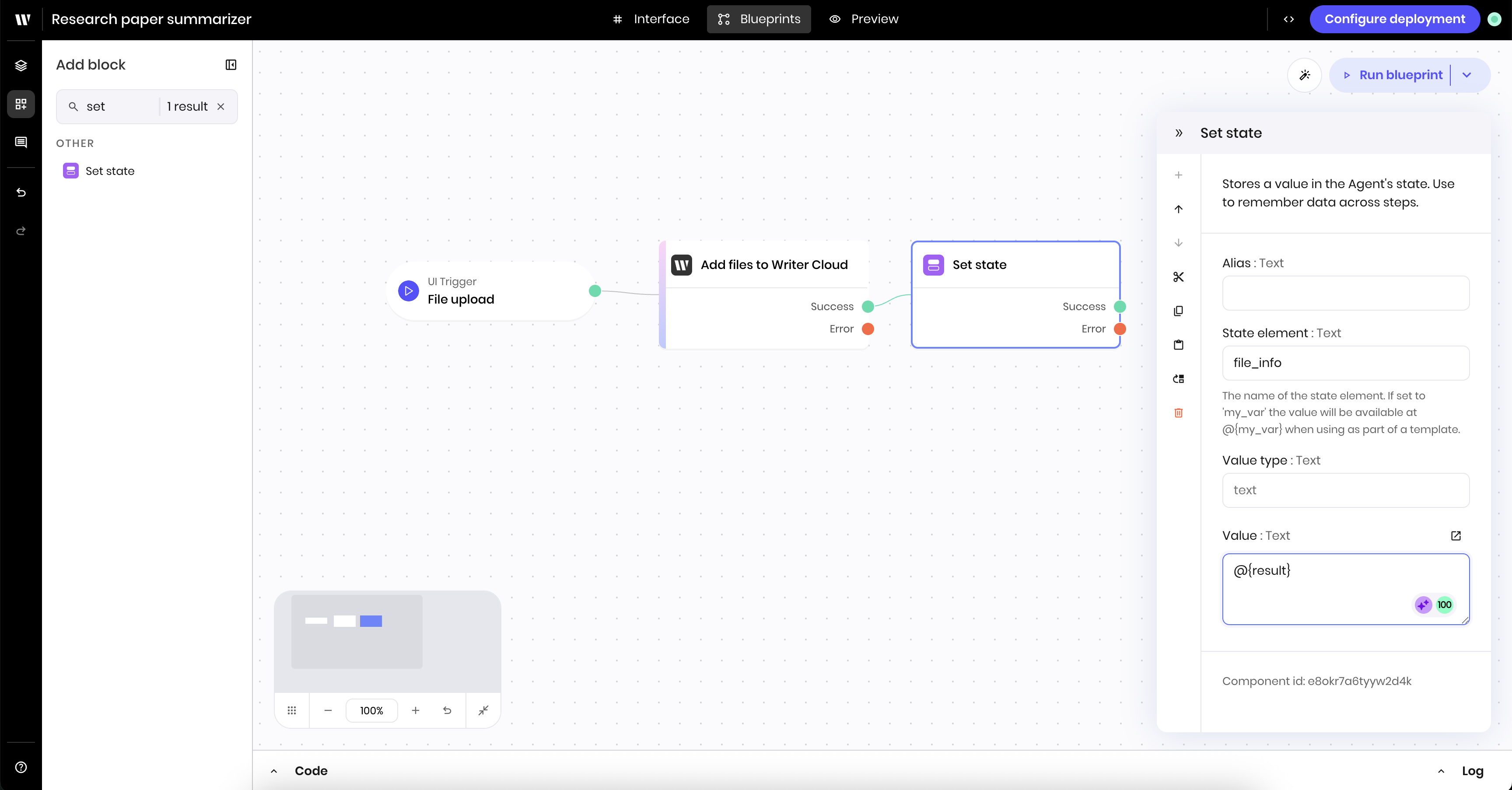
 Finally, add a **Set state** block to the canvas. This block takes the results from the **Add files to Writer Cloud** block and stores it in the state as the `file_info` state variable. This is the information about the uploaded file, specifically the `id` of the file in Writer Cloud, that will be used in the next blueprint.
In the block's configuration panel, update the following fields:
* **Link variable**: `file_info`
* **Value type**: `text`
* **Value**: `@{result}`. This references the `result` from the previous block, which is the information about the uploaded file.
Finally, add a **Set state** block to the canvas. This block takes the results from the **Add files to Writer Cloud** block and stores it in the state as the `file_info` state variable. This is the information about the uploaded file, specifically the `id` of the file in Writer Cloud, that will be used in the next blueprint.
In the block's configuration panel, update the following fields:
* **Link variable**: `file_info`
* **Value type**: `text`
* **Value**: `@{result}`. This references the `result` from the previous block, which is the information about the uploaded file.
 ### Second blueprint: Parse and summarize the file
Once you've uploaded the file to the Writer Cloud, you can parse the PDF and provide the file's content to a text generation block.
First, add a new blueprint to the canvas. Navigate to the Blueprint Layers section in the sidebar and click **+ Add blueprint** at the bottom of the blueprint layers outline.
### Second blueprint: Parse and summarize the file
Once you've uploaded the file to the Writer Cloud, you can parse the PDF and provide the file's content to a text generation block.
First, add a new blueprint to the canvas. Navigate to the Blueprint Layers section in the sidebar and click **+ Add blueprint** at the bottom of the blueprint layers outline.
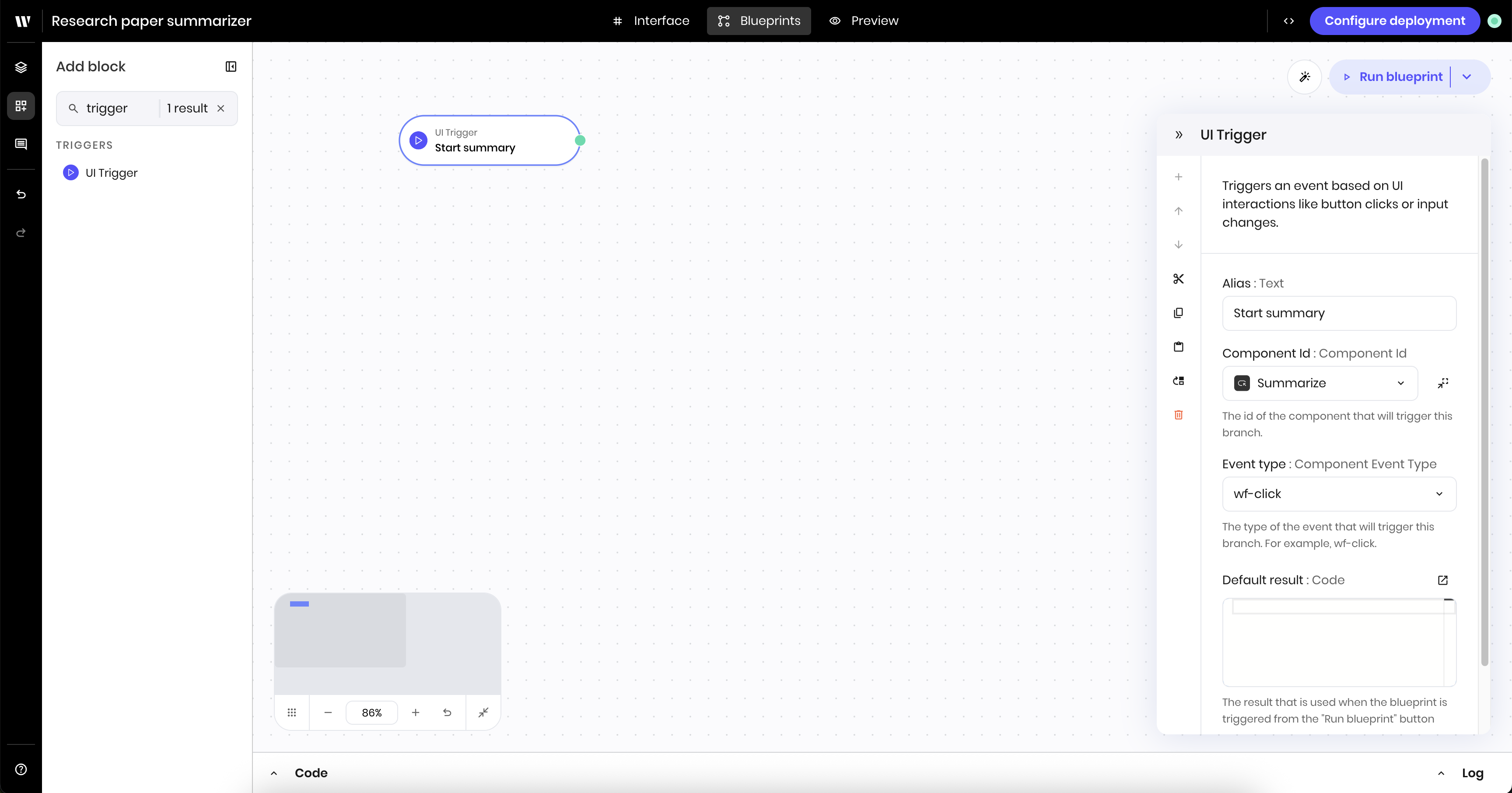
 Navigate back to the Add Block section of the Agent Builder and add a **UI trigger** block to the new blueprint. This triggers the blueprint when a user clicks the button to start summarizing.
In the block's configuration panel, update the following fields:
* **Alias**: `Start summary` (optional, to make the trigger easier to identify)
* **Component Id**: Select the `Summarize` button component from the dropdown of UI blocks
* **Event type**: `wf-click`
Navigate back to the Add Block section of the Agent Builder and add a **UI trigger** block to the new blueprint. This triggers the blueprint when a user clicks the button to start summarizing.
In the block's configuration panel, update the following fields:
* **Alias**: `Start summary` (optional, to make the trigger easier to identify)
* **Component Id**: Select the `Summarize` button component from the dropdown of UI blocks
* **Event type**: `wf-click`
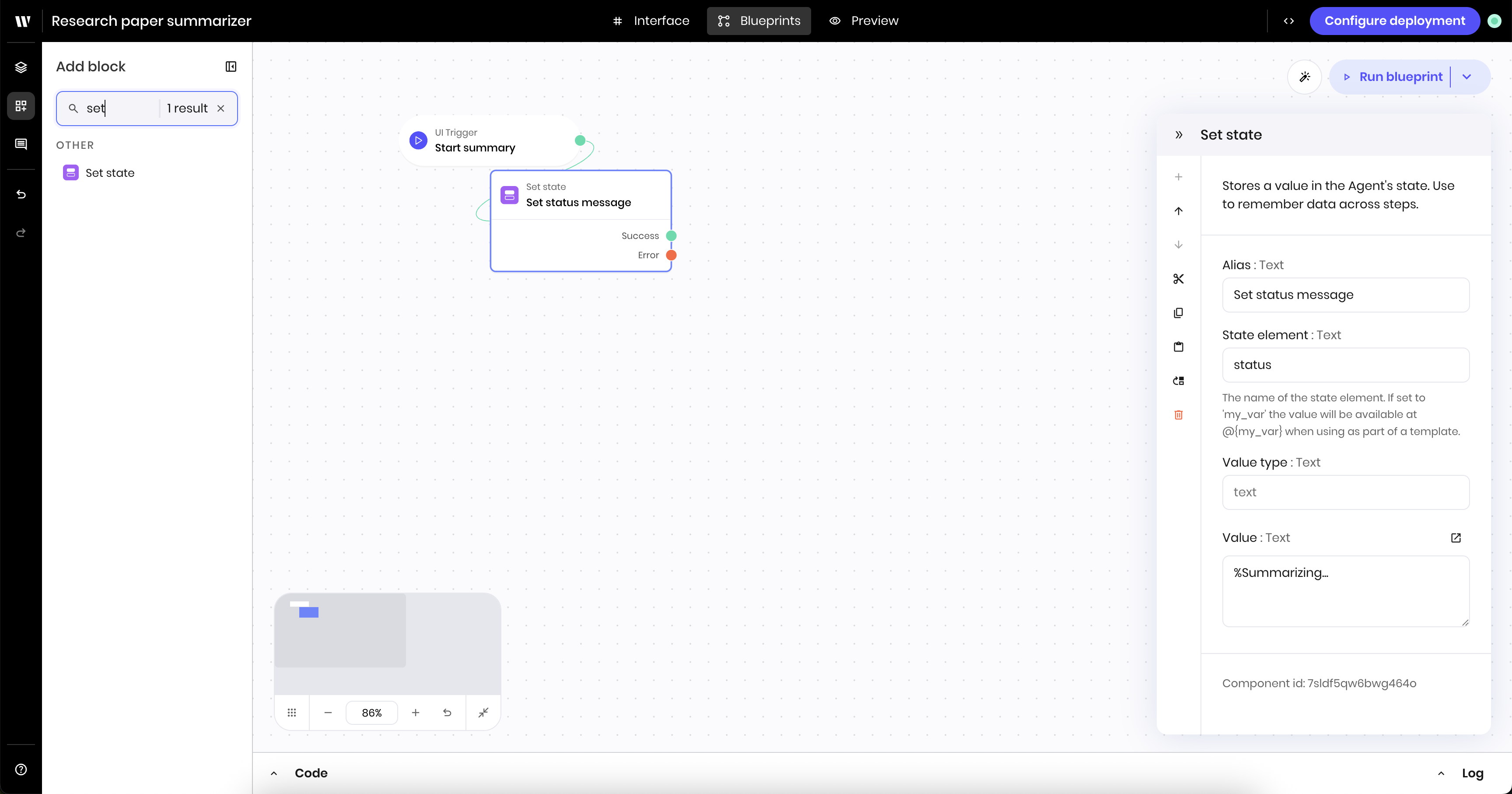
 Add a **Set state** block to the canvas. This block updates the status message in the state to indicate that the summarization is in progress. The message will appear in the UI message block.
In the block's configuration panel, update the following fields:
* **Link variable**: `status`
* **Value type**: `text`
* **Value**: `%Summarizing...`. The `%` symbol creates an animated spinning icon when the message appears in the UI.
Add a **Set state** block to the canvas. This block updates the status message in the state to indicate that the summarization is in progress. The message will appear in the UI message block.
In the block's configuration panel, update the following fields:
* **Link variable**: `status`
* **Value type**: `text`
* **Value**: `%Summarizing...`. The `%` symbol creates an animated spinning icon when the message appears in the UI.
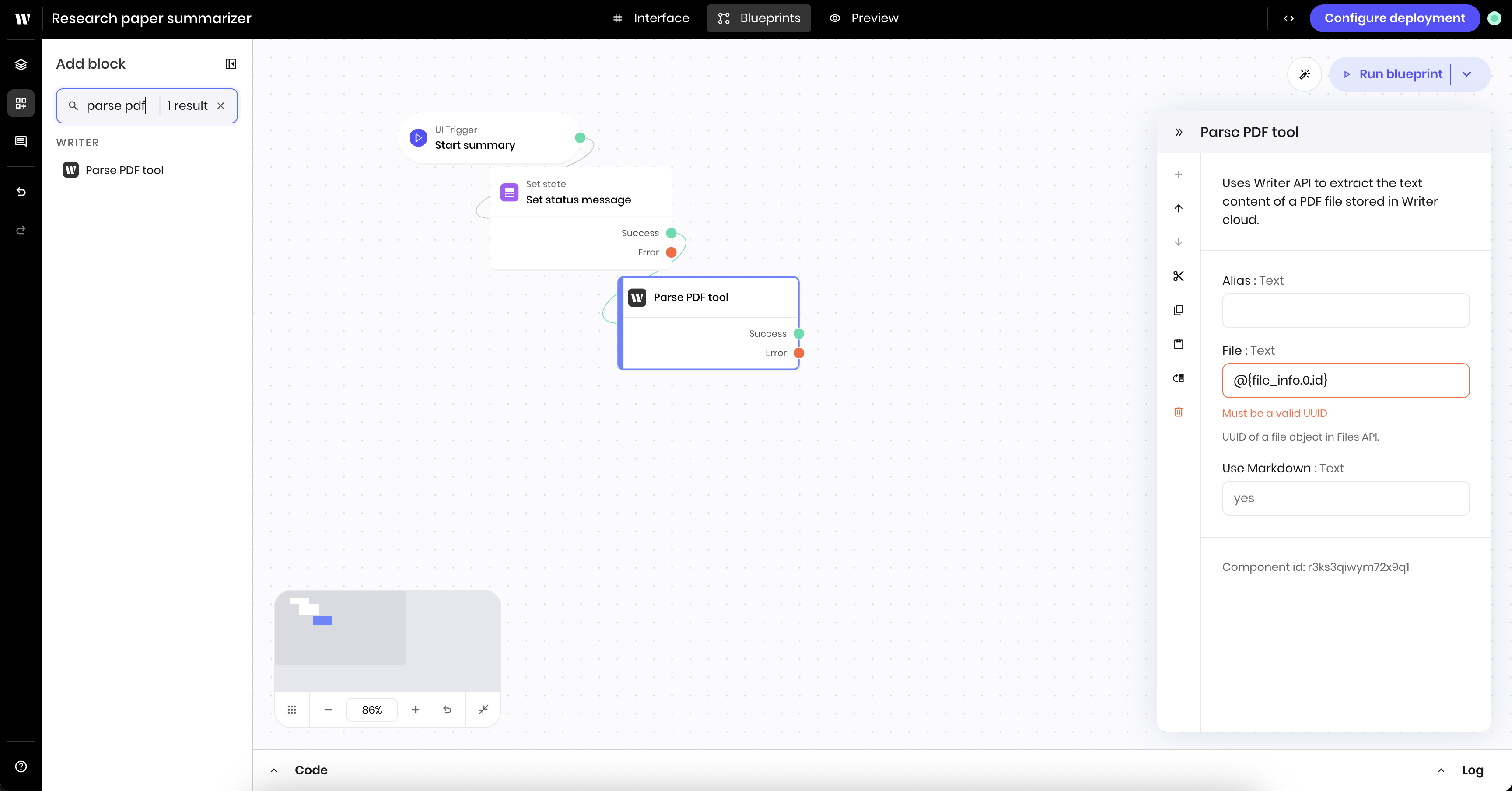
 Add a **Parse PDF Tool** block to the canvas. This block parses the uploaded PDF file so that the agent can generate a summary of the file.
In the block's configuration panel, update the following fields:
* **File**: `@{file_info.0.id}`. This references the `file_info` state variable you defined in the first blueprint and specifically access the `id` of the uploaded file.
The `file_info` state variable is an array of objects, containing one object with information from the **Add files to Writer Cloud** block. You can see the values of state variables by clicking the **State Explorer** (`<>`) icon at the top of the canvas. Learn more about [nested state variables](/agent-builder/state#nested-state-variables).
Add a **Parse PDF Tool** block to the canvas. This block parses the uploaded PDF file so that the agent can generate a summary of the file.
In the block's configuration panel, update the following fields:
* **File**: `@{file_info.0.id}`. This references the `file_info` state variable you defined in the first blueprint and specifically access the `id` of the uploaded file.
The `file_info` state variable is an array of objects, containing one object with information from the **Add files to Writer Cloud** block. You can see the values of state variables by clicking the **State Explorer** (`<>`) icon at the top of the canvas. Learn more about [nested state variables](/agent-builder/state#nested-state-variables).
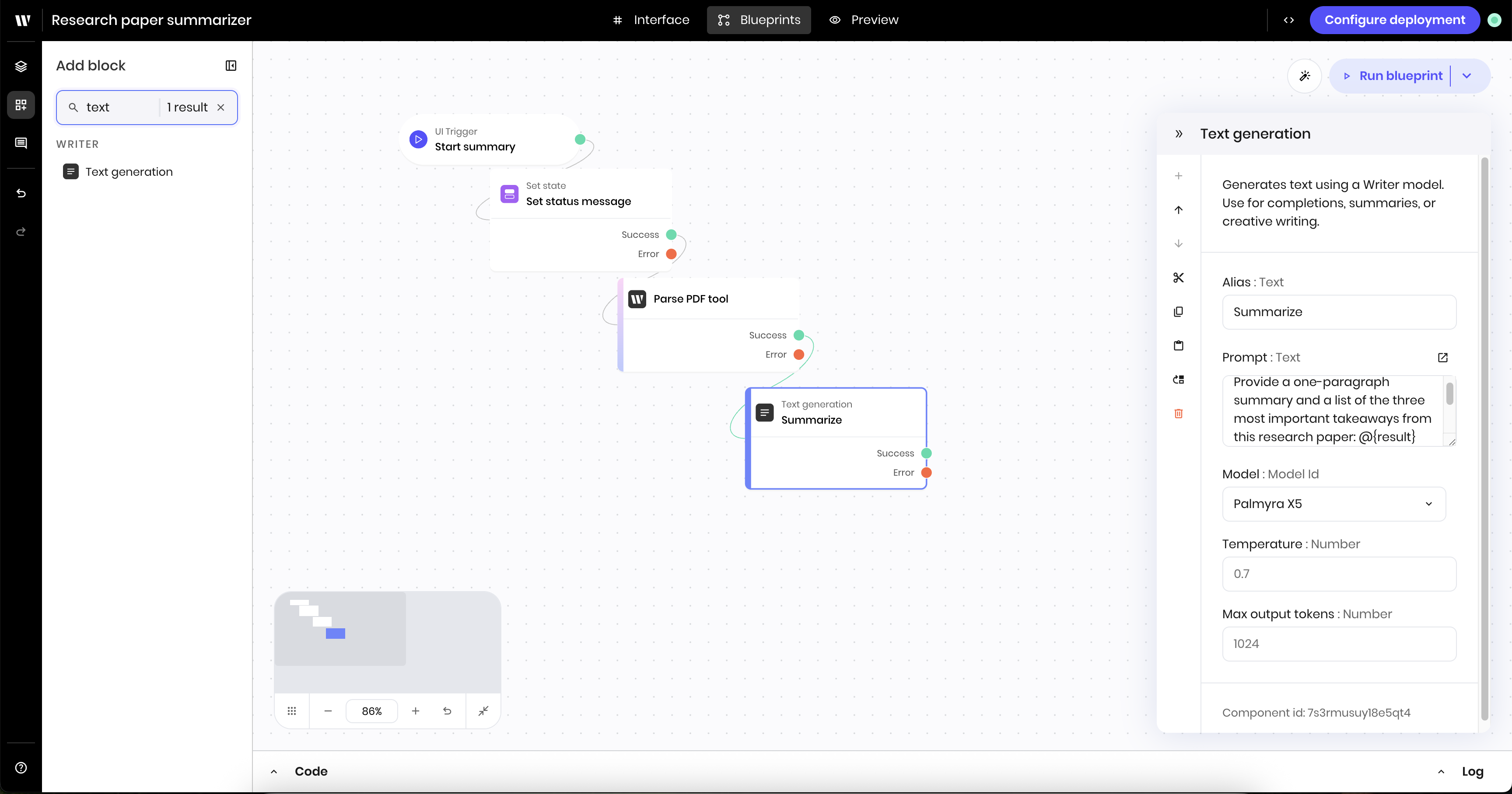
 Add a **Text generation** block to the canvas. This block generates text with a Palmyra LLM based on a prompt.
In the block's configuration panel, update the following fields:
* **Prompt**: `Provide a one-paragraph summary and a list of the three most important takeaways from this research paper: @{result}. Provide the summary for the user persona @{persona}.`
* `@{result}` references the `result` from the previous block, which is the parsed PDF file.
* `@{persona}` references the `persona` state variable you defined in the UI.
* **Model**: `Palmyra X5`
You can also update the additional fields **Temperature** and **Max tokens** to further control the output of the text generation.
Add a **Text generation** block to the canvas. This block generates text with a Palmyra LLM based on a prompt.
In the block's configuration panel, update the following fields:
* **Prompt**: `Provide a one-paragraph summary and a list of the three most important takeaways from this research paper: @{result}. Provide the summary for the user persona @{persona}.`
* `@{result}` references the `result` from the previous block, which is the parsed PDF file.
* `@{persona}` references the `persona` state variable you defined in the UI.
* **Model**: `Palmyra X5`
You can also update the additional fields **Temperature** and **Max tokens** to further control the output of the text generation.
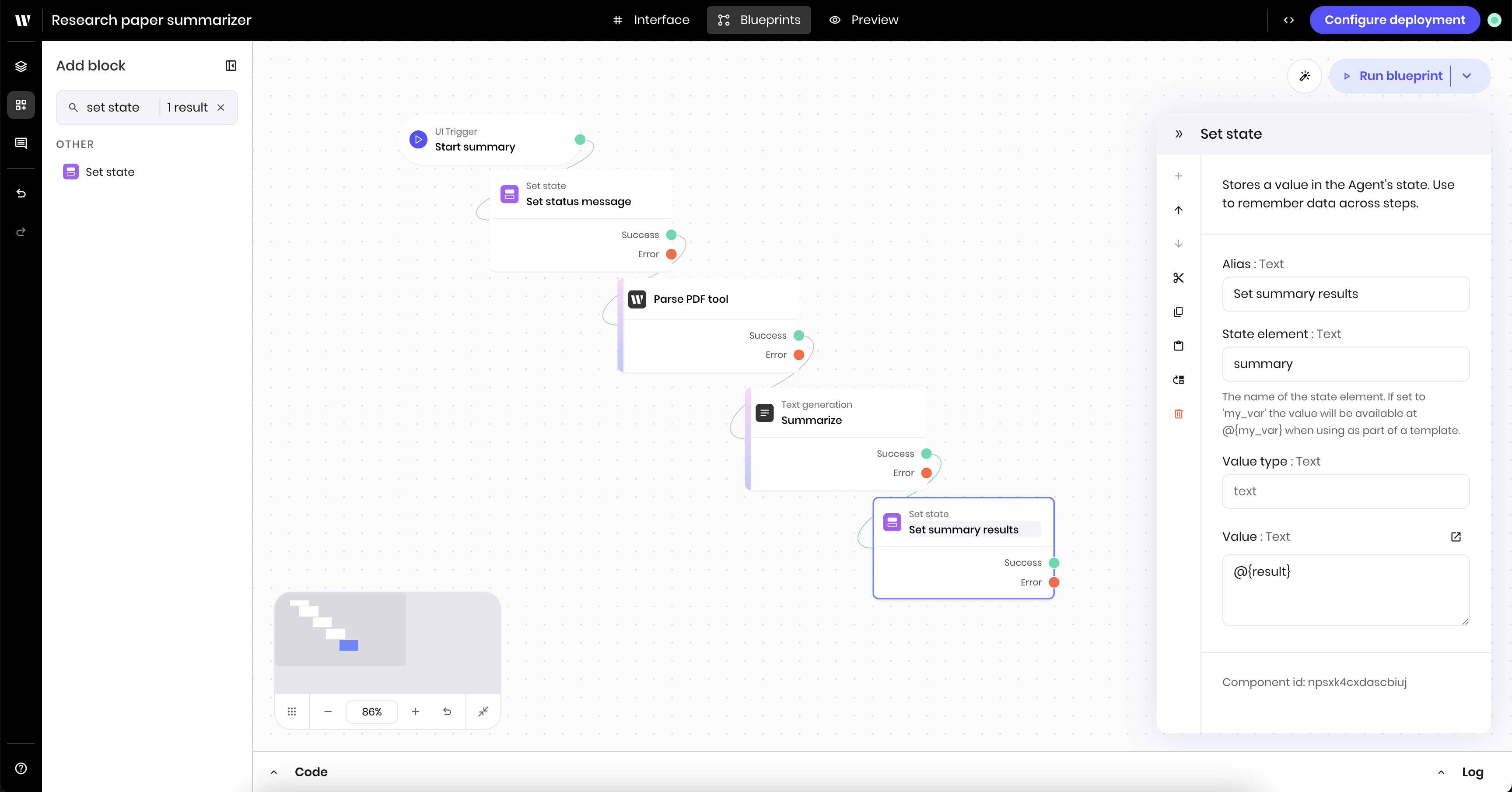
 Add a **Set state** block to the canvas. This block takes the results from the previous text generation block and stores it in the state as the `summary` state variable.
In the block's configuration panel, update the following fields:
* **Link variable**: `summary`
* **Value type**: `text`
* **Value**: `@{result}`. This references the `result` from the previous block, which is the summary of the parsed PDF file.
Add a **Set state** block to the canvas. This block takes the results from the previous text generation block and stores it in the state as the `summary` state variable.
In the block's configuration panel, update the following fields:
* **Link variable**: `summary`
* **Value type**: `text`
* **Value**: `@{result}`. This references the `result` from the previous block, which is the summary of the parsed PDF file.
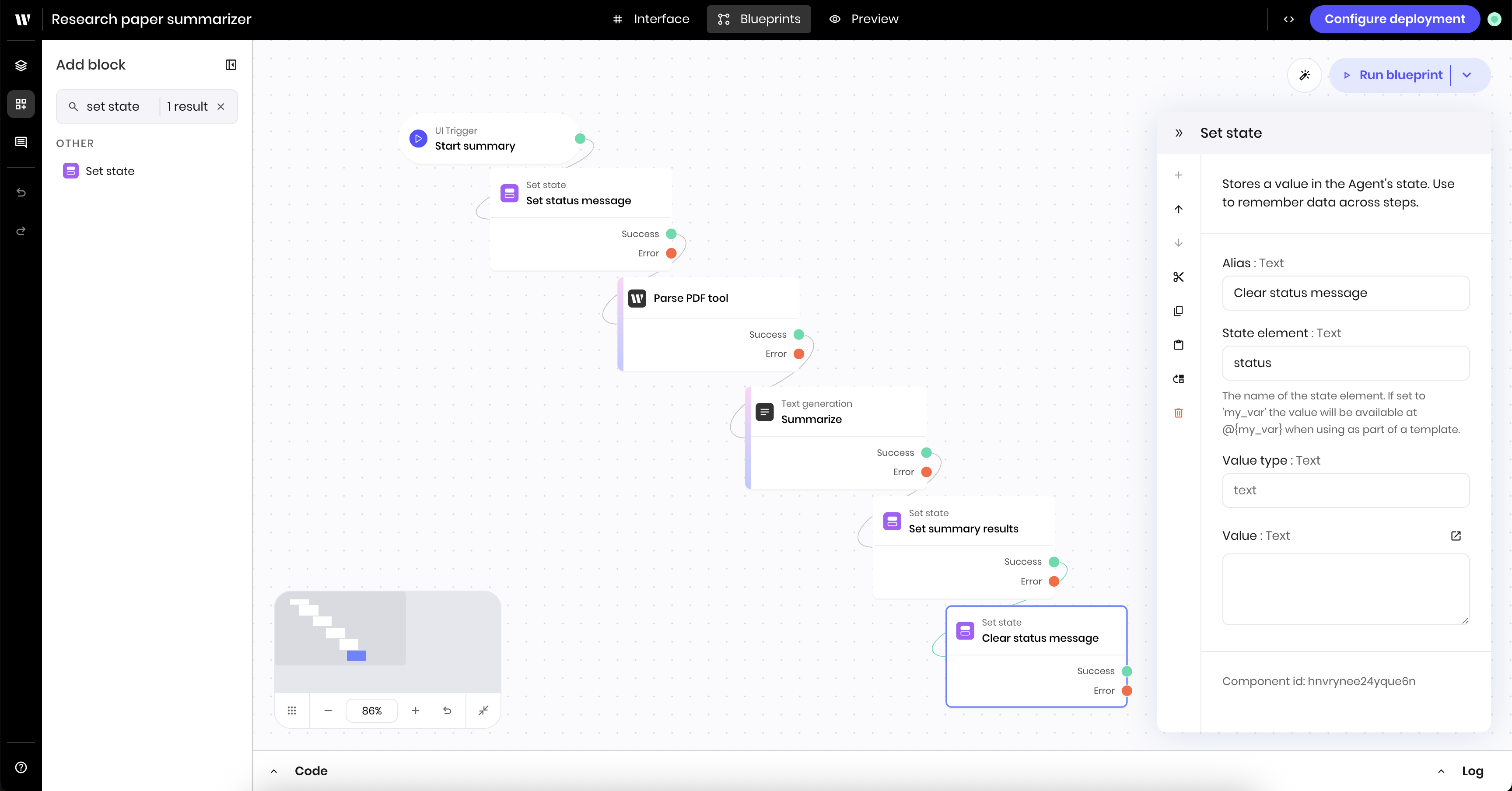
 Finally, add a **Set state** block to the canvas to clear the status message from the state.
In the block's configuration panel, update the following fields:
* **Link variable**: `status`
* **Value type**: `text`
* **Value**: Leave blank. This clears the status message from the state.
Finally, add a **Set state** block to the canvas to clear the status message from the state.
In the block's configuration panel, update the following fields:
* **Link variable**: `status`
* **Value type**: `text`
* **Value**: Leave blank. This clears the status message from the state.
 ## Preview the agent
Now that you've built the agent, you can preview it.
1. Navigate to the **Preview** tab in the Agent Builder.
2. Add a PDF file to the file input block and select a persona from the dropdown.
3. Click the **Summarize** button to start the summarization process.
4. You should see the status message update to `%Summarizing...` and the summary results appear in the text block.
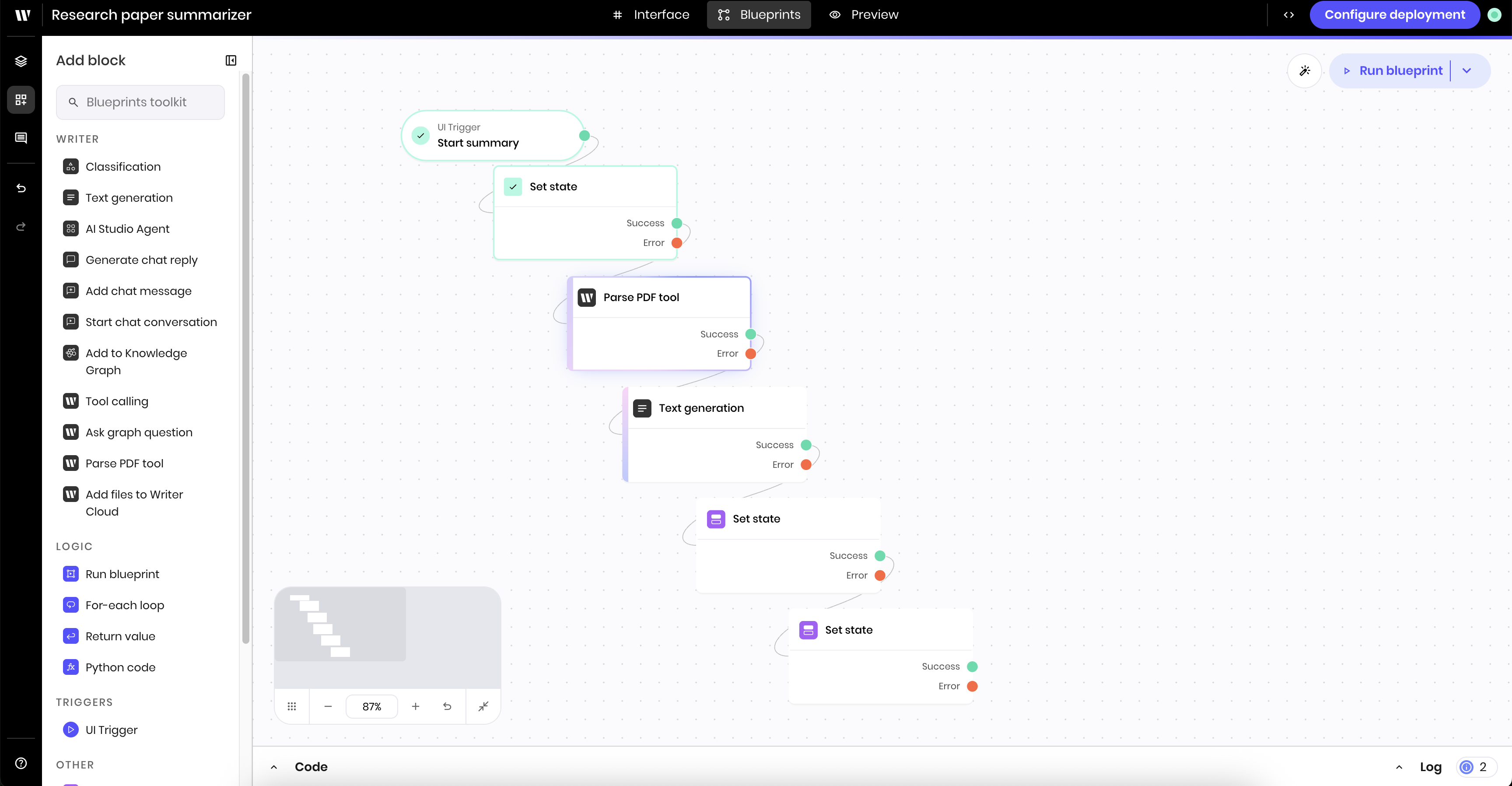
The results take a few seconds to generate. You can see the progress of the Agent Builder by going to the **Blueprints** tab. The blueprint blocks that have already run will be highlighted in green, and the one that's currently running will have an animated blue border.
## Preview the agent
Now that you've built the agent, you can preview it.
1. Navigate to the **Preview** tab in the Agent Builder.
2. Add a PDF file to the file input block and select a persona from the dropdown.
3. Click the **Summarize** button to start the summarization process.
4. You should see the status message update to `%Summarizing...` and the summary results appear in the text block.
The results take a few seconds to generate. You can see the progress of the Agent Builder by going to the **Blueprints** tab. The blueprint blocks that have already run will be highlighted in green, and the one that's currently running will have an animated blue border.
 If you encounter any issues, refer to the [Troubleshooting](/agent-builder/troubleshooting) guide for debugging information.