> ## Documentation Index
> Fetch the complete documentation index at: https://dev.writer.com/llms.txt
> Use this file to discover all available pages before exploring further.
# Build dynamic UI components with Repeaters
> Display dynamic lists of data in Agent Builder UI with Repeaters. Create repeating components for lists, dictionaries, and nested data structures.
The [**Repeater** component](/components/repeater) in Agent Builder allows you to display dynamic lists of data in your UI. It's similar to the [For-each loop block](/blueprints/for-eachloop) in blueprints, but for UI elements.
This document provides an overview of Repeaters and how to use them in your Agent Builder agents with two examples.
## Overview
A Repeater takes a list or dictionary and creates a copy of its child components for each item in that data. Inside the Repeater, you can access:
* `@{item}`: the current item's value
* `@{itemId}`: the current item's index, for arrays, or key, for dictionaries
Below is an example interface with a Repeater that displays a list of recipes based on user input. The Repeater is used to display each recipe in a tabbed layout and also to display the ingredients and steps for each recipe as nested text Repeaters.
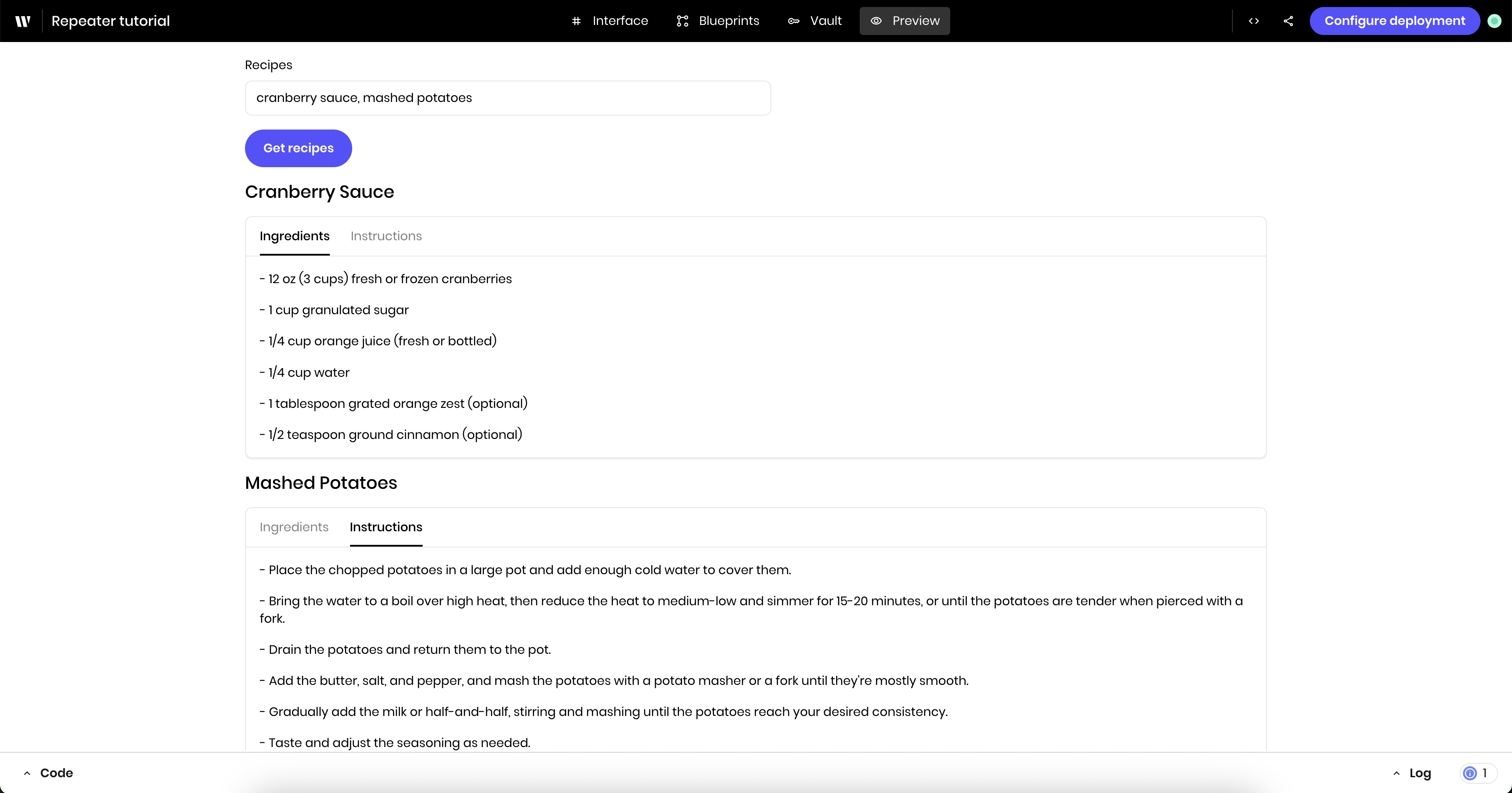 See the [tutorial](#tutorial%3A-build-a-recipe-generator-with-repeaters) below for more details about building this recipe generator.
### When to use Repeaters
Repeaters are useful for displaying:
* Lists of files, tasks, or messages
* Search results or product catalogs
* User-generated content like comments or reviews
* Data from APIs or structured output
* Any collection where you don't know the exact number of items
## Example: Display a list of items
This example starts with a small use case to dynamically display whatever a user selects from a select input.
See the [tutorial](#tutorial%3A-build-a-recipe-generator-with-repeaters) below for more details about building this recipe generator.
### When to use Repeaters
Repeaters are useful for displaying:
* Lists of files, tasks, or messages
* Search results or product catalogs
* User-generated content like comments or reviews
* Data from APIs or structured output
* Any collection where you don't know the exact number of items
## Example: Display a list of items
This example starts with a small use case to dynamically display whatever a user selects from a select input.
 To start, you should have a new Agent Builder agent and clear the demo agent so you can start from scratch. See the instructions for [clearing the demo agent](/agent-builder/quickstart#clear-the-demo-agent) in the Agent Builder quickstart.
### Set up the select input
The select input allows the user to select multiple items from a list. You'll use it to select the items to display in the Repeater.
First, add a **Select input** block to the agent's interface. This is the input that will be used to select the items to display in the Repeater.
Update the following settings:
* **Label**: `Items`
* Under **Options**, add a few key-value pairs as options for the dropdown. For example:
* Key: Apple, Value: Apple
* Key: Berry, Value: Berry
* Key: Cherry, Value: Cherry
* **Link variable** under **Binding**: `list`
When you define the options for the select input, the values are what the user sees in the select dropdown, and the keys are what will be stored in the state variable.
Add a **Heading** component to the agent's interface. This separates the select input from the Repeater.
Under **Text**, update the text to `You selected:`. Next, you'll add the Repeater below this heading.
To start, you should have a new Agent Builder agent and clear the demo agent so you can start from scratch. See the instructions for [clearing the demo agent](/agent-builder/quickstart#clear-the-demo-agent) in the Agent Builder quickstart.
### Set up the select input
The select input allows the user to select multiple items from a list. You'll use it to select the items to display in the Repeater.
First, add a **Select input** block to the agent's interface. This is the input that will be used to select the items to display in the Repeater.
Update the following settings:
* **Label**: `Items`
* Under **Options**, add a few key-value pairs as options for the dropdown. For example:
* Key: Apple, Value: Apple
* Key: Berry, Value: Berry
* Key: Cherry, Value: Cherry
* **Link variable** under **Binding**: `list`
When you define the options for the select input, the values are what the user sees in the select dropdown, and the keys are what will be stored in the state variable.
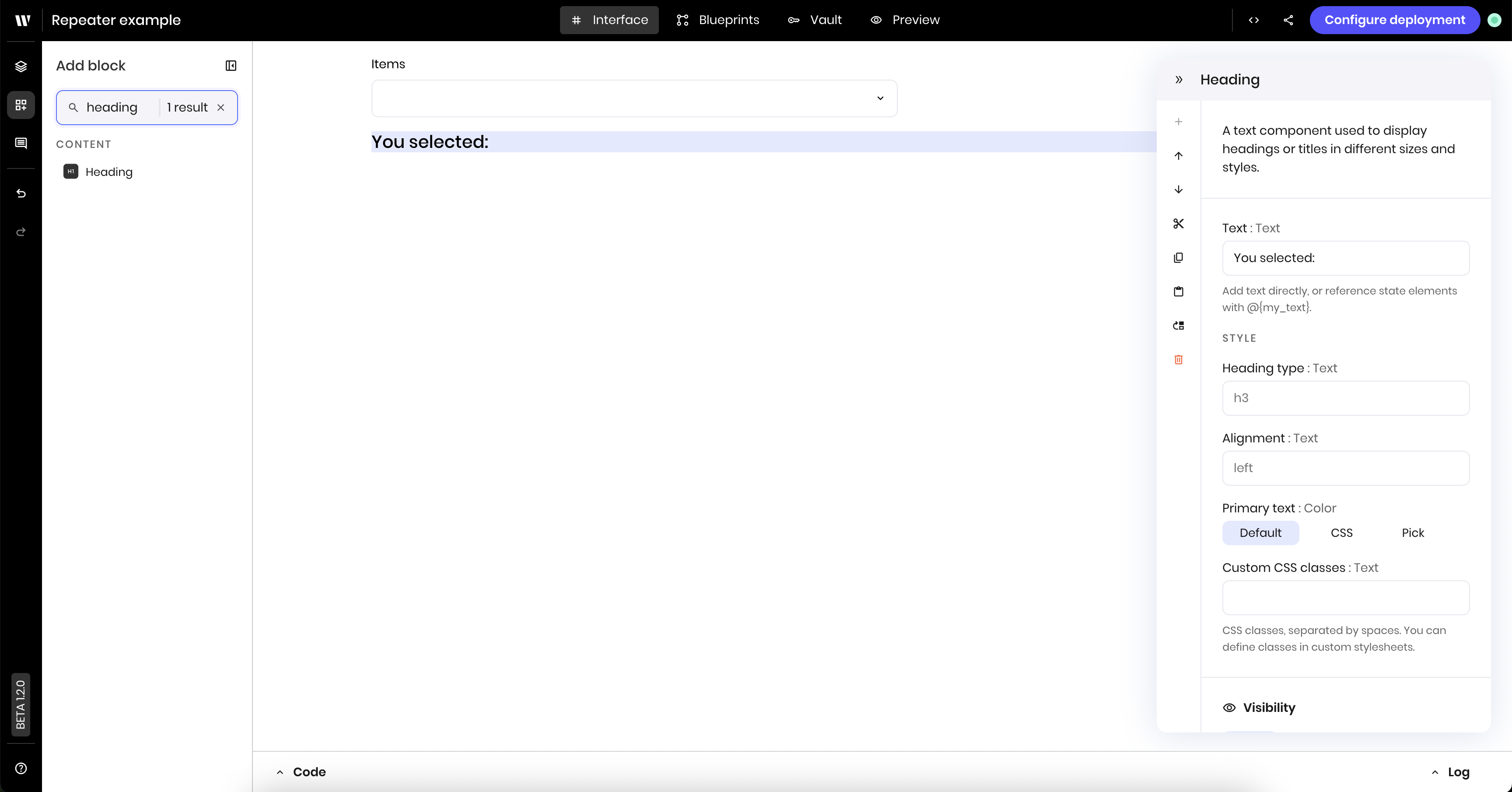
Add a **Heading** component to the agent's interface. This separates the select input from the Repeater.
Under **Text**, update the text to `You selected:`. Next, you'll add the Repeater below this heading.
 ### Add the Repeater
The Repeater displays a list of items dynamically. You'll use it to display the items selected from the select input.
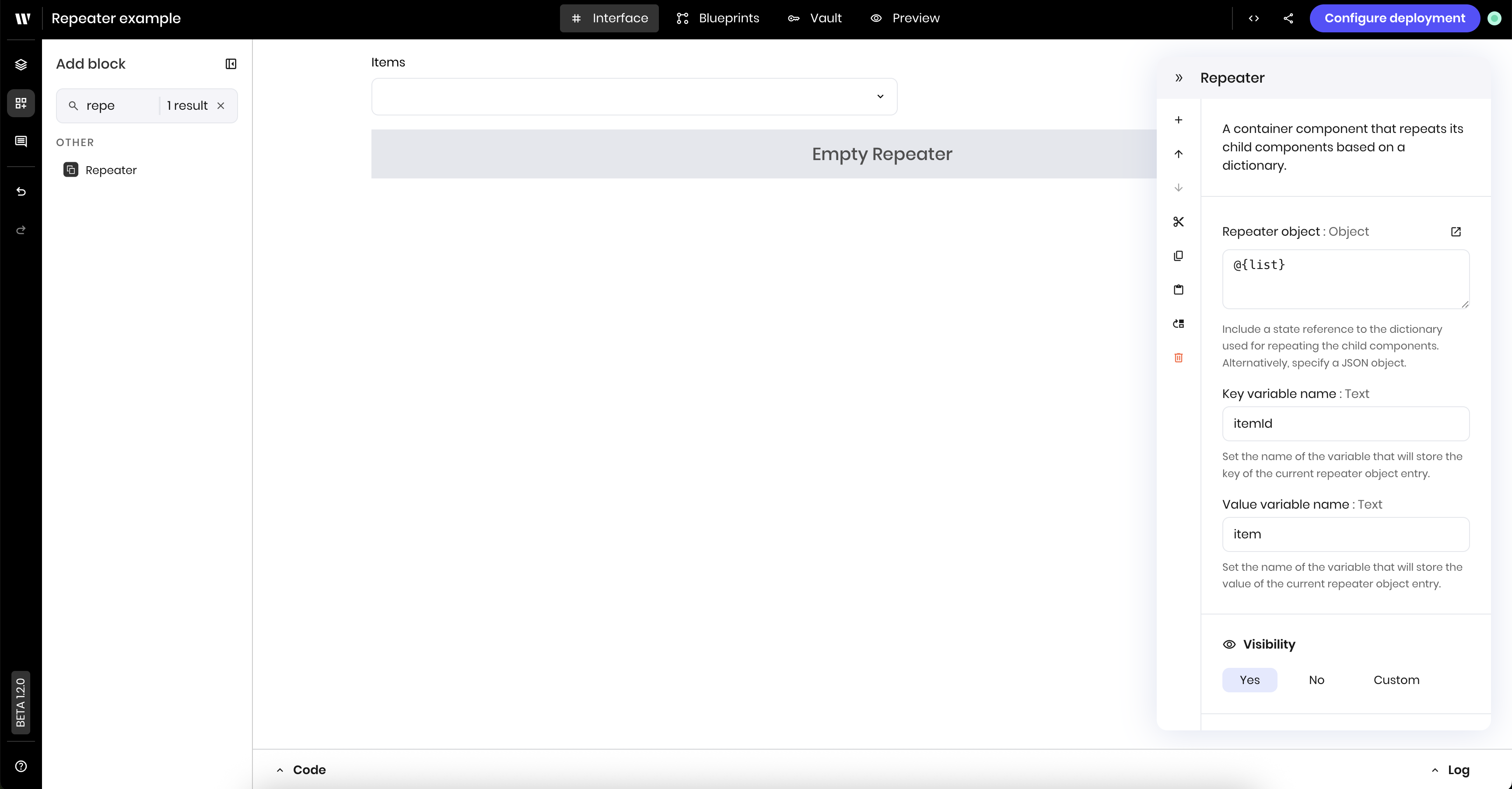
Add a **Repeater** component to your page. Update the following settings:
* **Repeater object**: `@{list}`. This is the list of items to display in the Repeater.
The **Key variable name** and the **Value variable name** default to `itemId` and `item`. These are the variable names you use to access the current item's index and value within the Repeater. You can change them to anything you want. In this example, you'll use the default names.
### Add the Repeater
The Repeater displays a list of items dynamically. You'll use it to display the items selected from the select input.
Add a **Repeater** component to your page. Update the following settings:
* **Repeater object**: `@{list}`. This is the list of items to display in the Repeater.
The **Key variable name** and the **Value variable name** default to `itemId` and `item`. These are the variable names you use to access the current item's index and value within the Repeater. You can change them to anything you want. In this example, you'll use the default names.
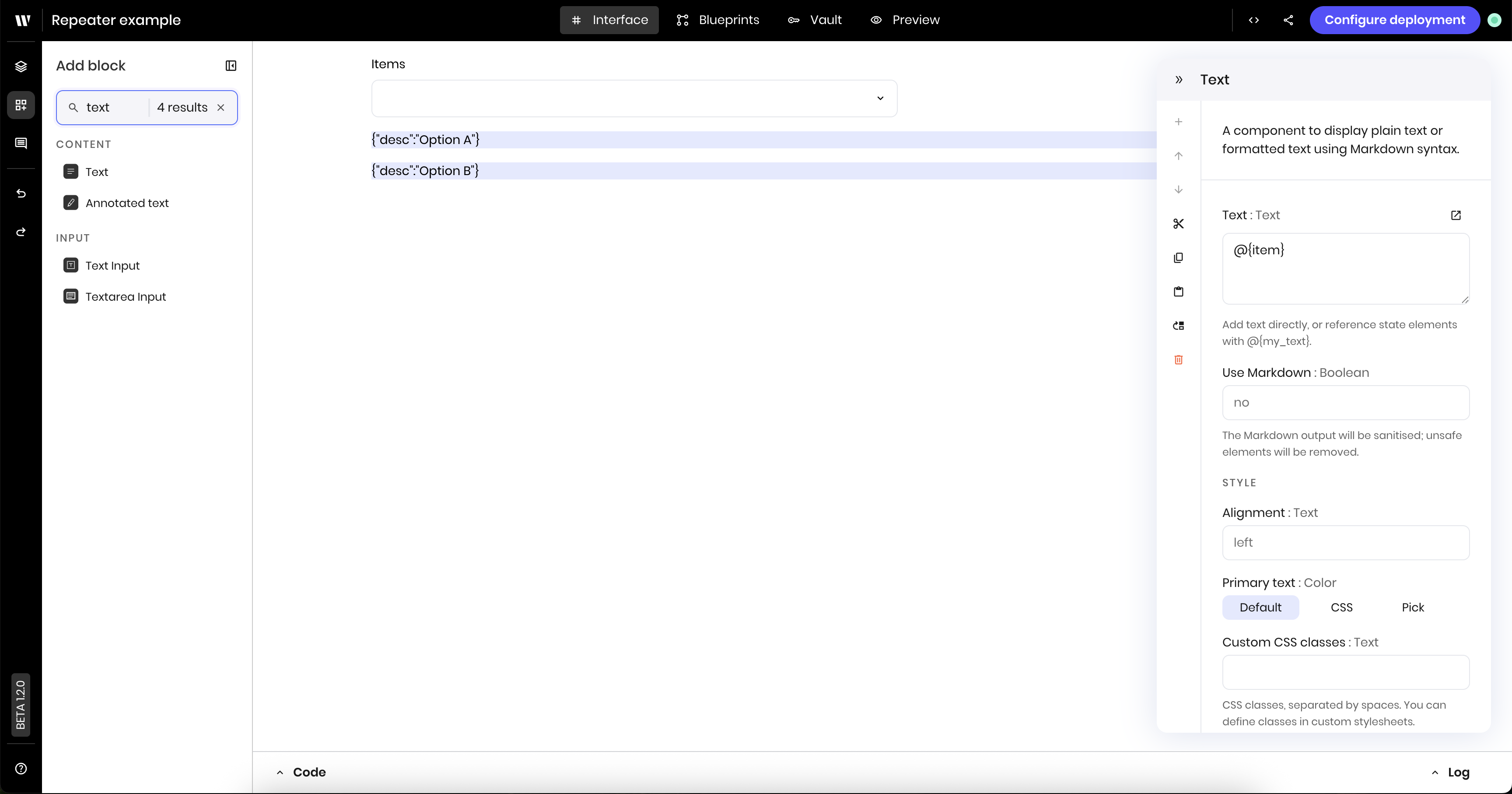
 Drag a **Text** component inside the Repeater.
Inside the text component, set the text to ` @{item}` to display the value of the current item in the Repeater.
When the `list` state variable is empty, the text displays placeholder text. When the user selects items from the multiselect input, the text displays the selected items.
Drag a **Text** component inside the Repeater.
Inside the text component, set the text to ` @{item}` to display the value of the current item in the Repeater.
When the `list` state variable is empty, the text displays placeholder text. When the user selects items from the multiselect input, the text displays the selected items.
 Once you add components to a Repeater, you can no longer see the parent Repeater component in the agent's interface view. You can find and edit the invisible component from the **Interface Layers** tab.
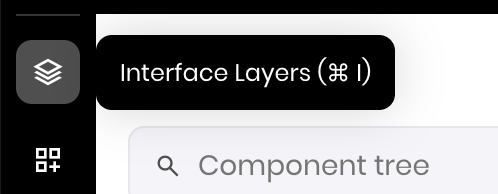 Navigate to the **Interface Layers** sidebar within the agent's **Interface** tab. Then, click the Repeater component to open its configuration menu.
Under **Visibility** in the Repeater's configuration menu, select **Custom**. Set the condition to `list`. This ensures the Repeater is only visible when the user has selected at least one item from the select input and the `list` state variable isn't empty.
Navigate to the **Interface Layers** sidebar within the agent's **Interface** tab. Then, click the Repeater component to open its configuration menu.
Under **Visibility** in the Repeater's configuration menu, select **Custom**. Set the condition to `list`. This ensures the Repeater is only visible when the user has selected at least one item from the select input and the `list` state variable isn't empty.
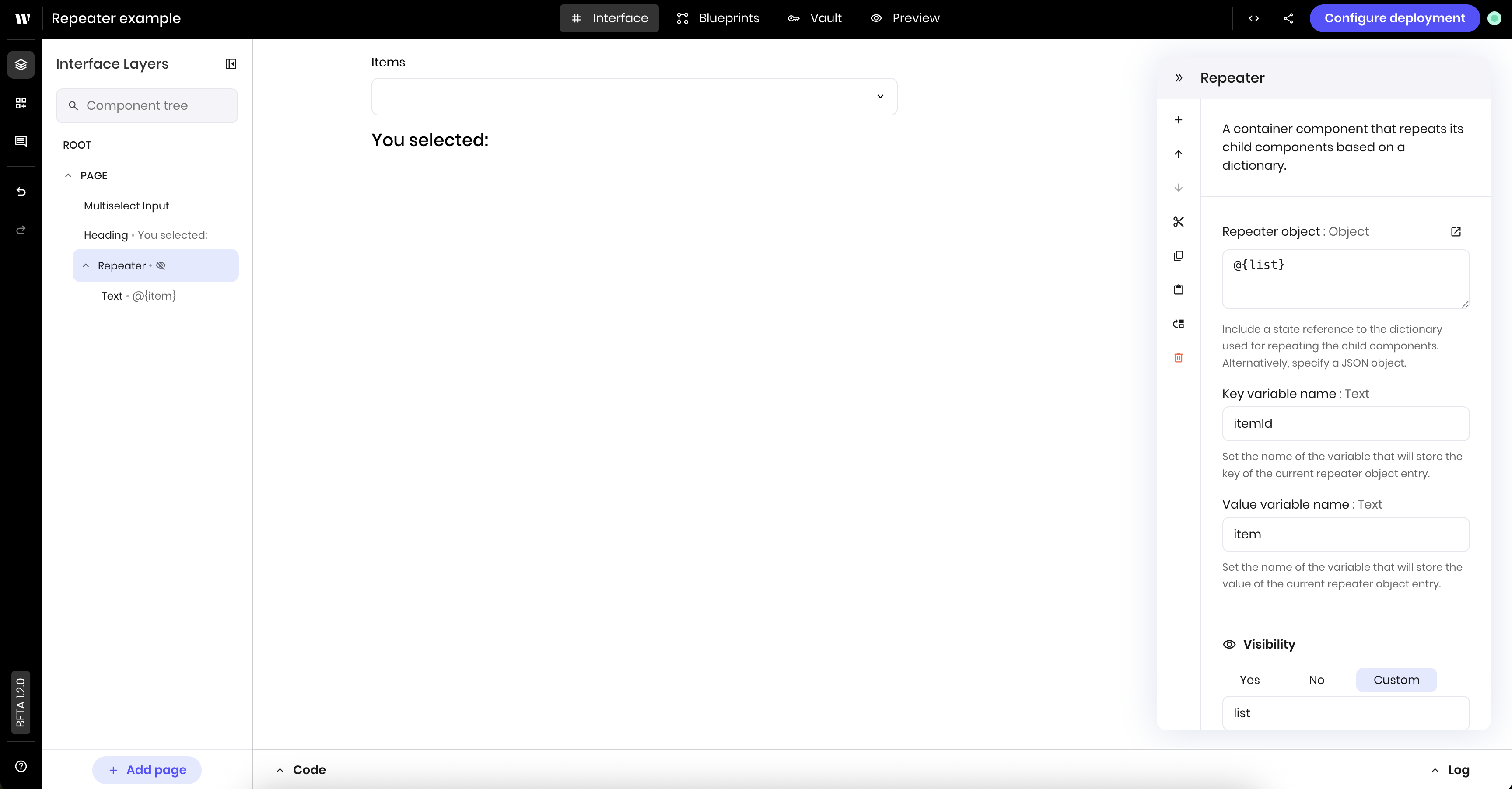 Once you set a component's visibility to become hidden, you can no longer see it or its children within the agent's interface view. You can find and edit the invisible component from the **Interface Layers** tab.
Navigate to the **Preview** tab to see the Repeater in action.
Select a few items from the select input to see the Repeater display the corresponding items.
## Tutorial: Build a recipe generator with Repeaters
This tutorial uses multiple Repeaters to display a list of recipes based on user input.
The recipe generator:
* Accepts a list of dish names from the user
* Generates complete recipes in the blueprint using AI structured output
* Displays each recipe in an organized, tabbed layout using nested Repeaters
### Part 1: Set up a minimal UI and the blueprint
First, you'll set up a minimal UI and the blueprint. This UI won't use any Repeaters yet, but it will be the foundation for the recipe generator.
#### Create the input interface
Add a **Text Input** to your page. Update the following settings:
* **Label**: `Recipes`
* **Placeholder text**: `Enter dish names (e.g., "Pizza, Chocolate Chip Cookies, Tacos")`
* **Link variable** under **Binding**: `request`
Add a **Button** to your page. Update the following settings:
* **Label**: `Get recipes`
Once you set a component's visibility to become hidden, you can no longer see it or its children within the agent's interface view. You can find and edit the invisible component from the **Interface Layers** tab.
Navigate to the **Preview** tab to see the Repeater in action.
Select a few items from the select input to see the Repeater display the corresponding items.
## Tutorial: Build a recipe generator with Repeaters
This tutorial uses multiple Repeaters to display a list of recipes based on user input.
The recipe generator:
* Accepts a list of dish names from the user
* Generates complete recipes in the blueprint using AI structured output
* Displays each recipe in an organized, tabbed layout using nested Repeaters
### Part 1: Set up a minimal UI and the blueprint
First, you'll set up a minimal UI and the blueprint. This UI won't use any Repeaters yet, but it will be the foundation for the recipe generator.
#### Create the input interface
Add a **Text Input** to your page. Update the following settings:
* **Label**: `Recipes`
* **Placeholder text**: `Enter dish names (e.g., "Pizza, Chocolate Chip Cookies, Tacos")`
* **Link variable** under **Binding**: `request`
Add a **Button** to your page. Update the following settings:
* **Label**: `Get recipes`
 #### Build the blueprint
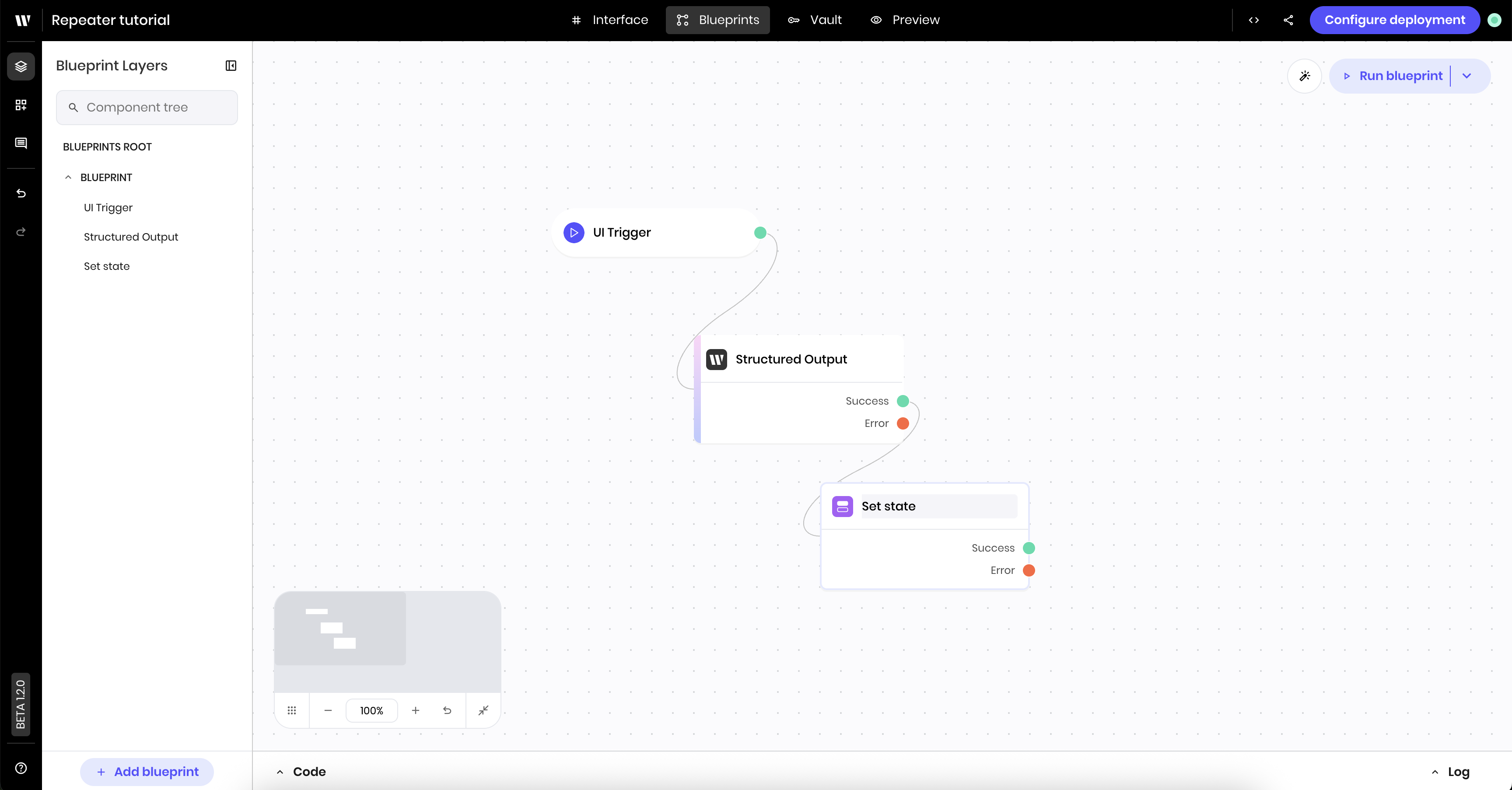
The blueprint contains three blocks:
* **UI Trigger** to trigger the blueprint when a user clicks the **Get recipes** button
* **Structured Output** block to generate the recipes and provide structured output that the Repeaters can use
* **Set State** block to store the recipes in the state variable `recipes`
Add a **UI Trigger** block to your blueprint. Update the following settings:
* **Component Id**: Select the **Get recipes** button
* **Action**: `wf-click`
Add a **Structured Output** block to your blueprint. Update the following settings:
* **Prompt**:
```
You are a helpful cooking assistant. The user will provide you with a list of dish names. For each dish mentioned, create a complete recipe with the name, ingredients list, and step-by-step cooking instructions.
Guidelines:
- Provide practical, easy-to-follow recipes suitable for home cooking
- Include specific measurements for ingredients (cups, tablespoons, etc.)
- Write clear, numbered steps that a beginner could follow
- Keep recipes simple but complete
- If a dish name is vague, choose a popular/classic version of that dish
For each dish in the user's input, generate a separate recipe object with:
- name: The specific recipe name
- ingredients: A detailed list of all ingredients with measurements
- steps: Clear, sequential cooking instructions
Example input: "Pizza, Chocolate Chip Cookies"
This should generate recipes for both pizza and chocolate chip cookies.
Process all dishes mentioned in the user's input and provide complete recipes for each one.
User input: @{request}
```
* **JSON Schema**: The JSON schema below defines the structure of the recipes as a list of recipe objects. Each recipe object has a name, ingredients, and steps. The Repeaters will use this schema to display the recipes.
```json theme={null}
{
"type": "array",
"description": "Array of recipe objects",
"items": {
"type": "object",
"properties": {
"name": {
"type": "string",
"description": "The name of the recipe"
},
"ingredients": {
"type": "array",
"description": "List of ingredients needed for the recipe",
"items": {
"type": "string"
}
},
"steps": {
"type": "array",
"description": "Step-by-step cooking instructions",
"items": {
"type": "string"
}
}
},
"required": ["name", "ingredients", "steps"]
}
}
```
Add a **Set State** block to your blueprint. Update the following settings:
* **State variable**: `recipes`
* **Value**: `@{result}`
The complete blueprint should look like this:
#### Build the blueprint
The blueprint contains three blocks:
* **UI Trigger** to trigger the blueprint when a user clicks the **Get recipes** button
* **Structured Output** block to generate the recipes and provide structured output that the Repeaters can use
* **Set State** block to store the recipes in the state variable `recipes`
Add a **UI Trigger** block to your blueprint. Update the following settings:
* **Component Id**: Select the **Get recipes** button
* **Action**: `wf-click`
Add a **Structured Output** block to your blueprint. Update the following settings:
* **Prompt**:
```
You are a helpful cooking assistant. The user will provide you with a list of dish names. For each dish mentioned, create a complete recipe with the name, ingredients list, and step-by-step cooking instructions.
Guidelines:
- Provide practical, easy-to-follow recipes suitable for home cooking
- Include specific measurements for ingredients (cups, tablespoons, etc.)
- Write clear, numbered steps that a beginner could follow
- Keep recipes simple but complete
- If a dish name is vague, choose a popular/classic version of that dish
For each dish in the user's input, generate a separate recipe object with:
- name: The specific recipe name
- ingredients: A detailed list of all ingredients with measurements
- steps: Clear, sequential cooking instructions
Example input: "Pizza, Chocolate Chip Cookies"
This should generate recipes for both pizza and chocolate chip cookies.
Process all dishes mentioned in the user's input and provide complete recipes for each one.
User input: @{request}
```
* **JSON Schema**: The JSON schema below defines the structure of the recipes as a list of recipe objects. Each recipe object has a name, ingredients, and steps. The Repeaters will use this schema to display the recipes.
```json theme={null}
{
"type": "array",
"description": "Array of recipe objects",
"items": {
"type": "object",
"properties": {
"name": {
"type": "string",
"description": "The name of the recipe"
},
"ingredients": {
"type": "array",
"description": "List of ingredients needed for the recipe",
"items": {
"type": "string"
}
},
"steps": {
"type": "array",
"description": "Step-by-step cooking instructions",
"items": {
"type": "string"
}
}
},
"required": ["name", "ingredients", "steps"]
}
}
```
Add a **Set State** block to your blueprint. Update the following settings:
* **State variable**: `recipes`
* **Value**: `@{result}`
The complete blueprint should look like this:
 #### Test the blueprint
Now you can test that the blueprint works before you add the Repeaters.
Navigate to the **Preview** tab to test the blueprint.
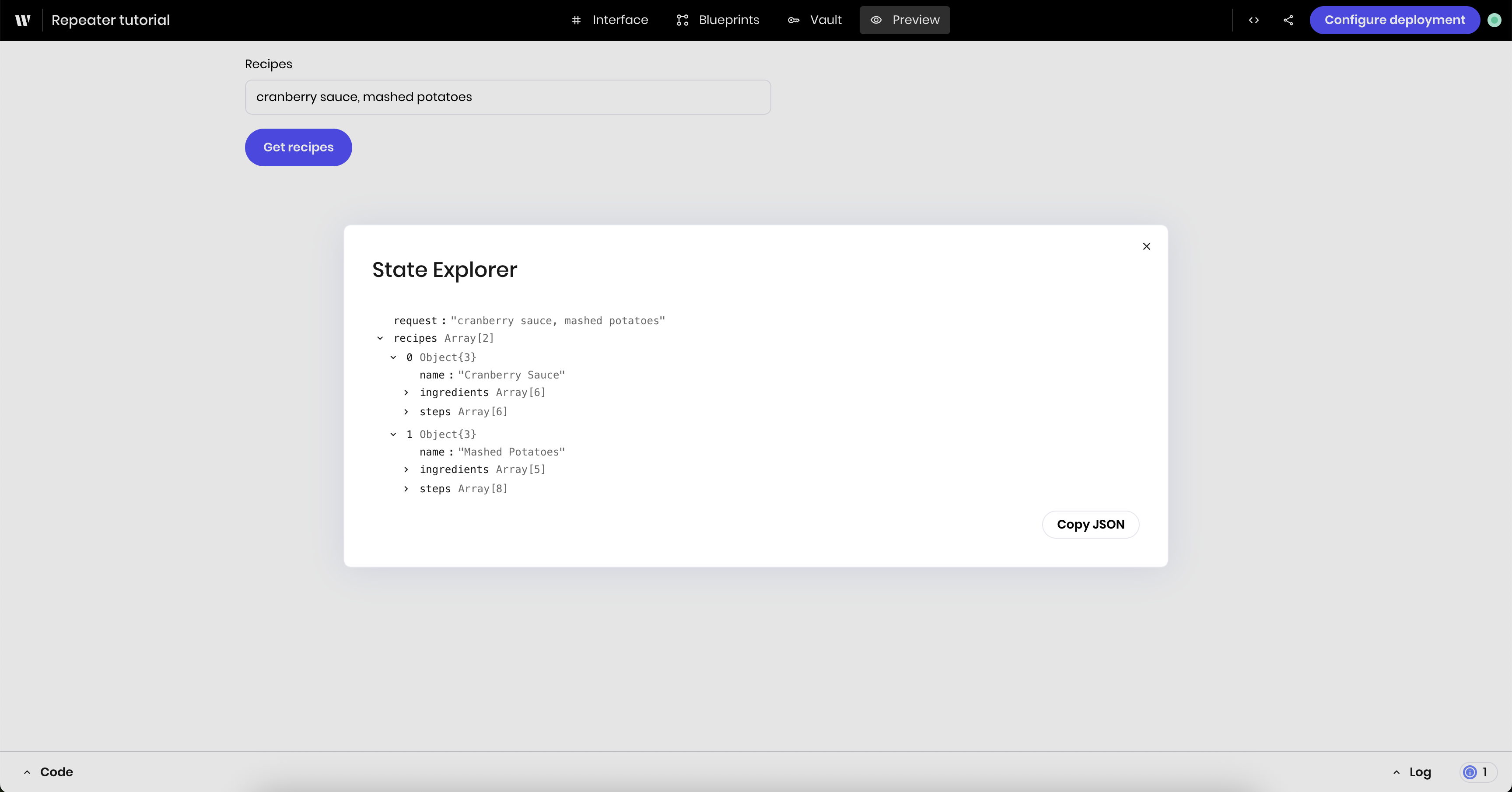
Enter something like "Pizza, Chocolate Chip Cookies" in the text input and click the **Get recipes** button.
You should see the `request` and the structured output in the `result` state variables in your state before moving to the next step.
#### Test the blueprint
Now you can test that the blueprint works before you add the Repeaters.
Navigate to the **Preview** tab to test the blueprint.
Enter something like "Pizza, Chocolate Chip Cookies" in the text input and click the **Get recipes** button.
You should see the `request` and the structured output in the `result` state variables in your state before moving to the next step.
 ### Part 2: Add the main recipe Repeater
Navigate back to the **Interface** tab to continue building the recipe generator's UI.
Add a **Repeater** component to your page. Update the following settings:
* **Repeater object**: `@{recipes}`. This is the list of recipes you stored in the `recipes` state variable.
Add a **Heading** component inside the Repeater. Update the following settings:
* **Text**: `@{item.name}`
This displays the name of each recipe as a heading.
If you preview the agent now, you should see a heading for each recipe name.
### Part 2: Add the main recipe Repeater
Navigate back to the **Interface** tab to continue building the recipe generator's UI.
Add a **Repeater** component to your page. Update the following settings:
* **Repeater object**: `@{recipes}`. This is the list of recipes you stored in the `recipes` state variable.
Add a **Heading** component inside the Repeater. Update the following settings:
* **Text**: `@{item.name}`
This displays the name of each recipe as a heading.
If you preview the agent now, you should see a heading for each recipe name.
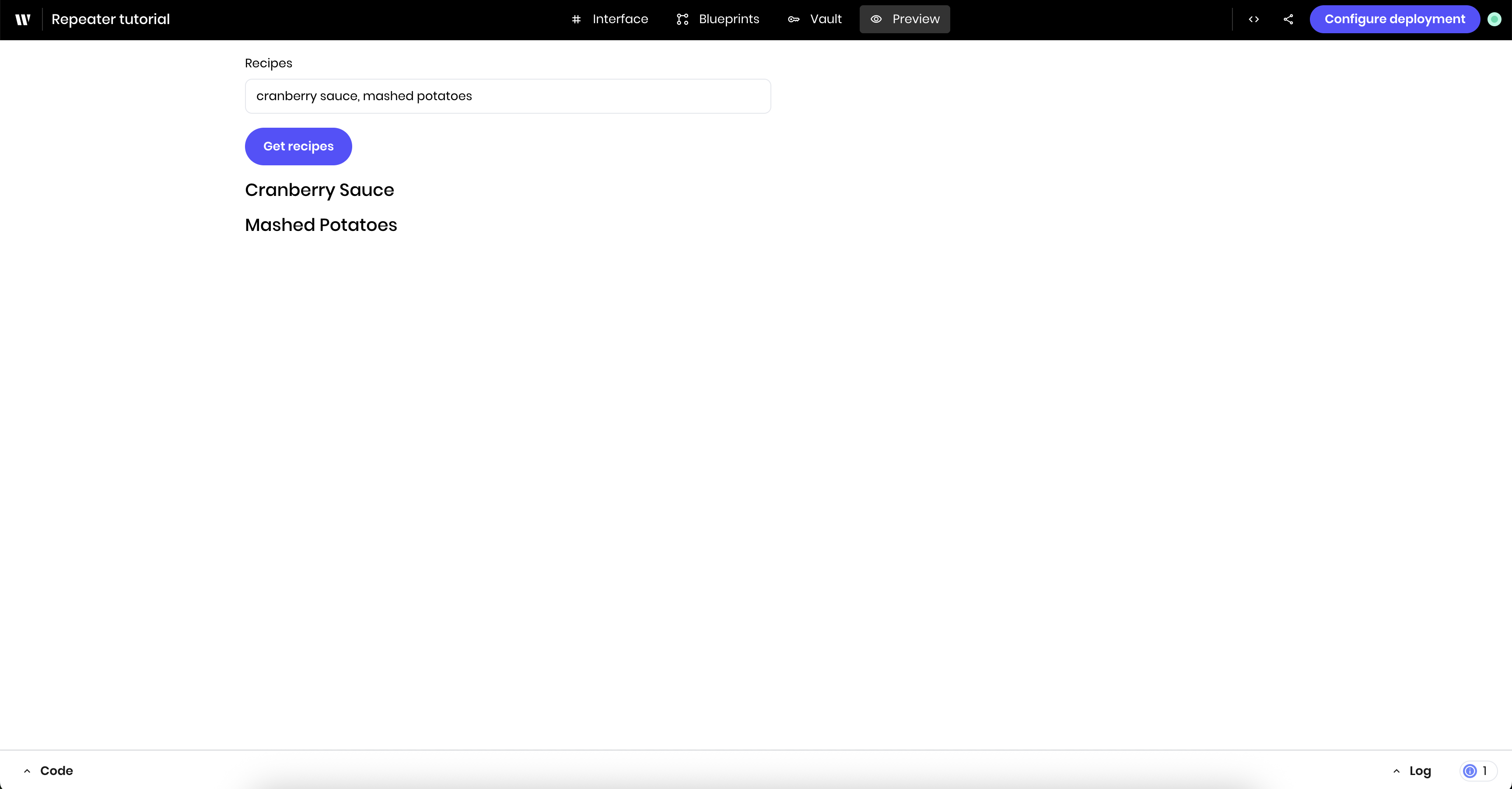 At this point, when there are no recipes, the Repeater still displays placeholder text. At the end of the tutorial you'll update the Repeater to be invisible when there are no recipes.
### Part 3: Add nested Repeaters for ingredients and steps
Now you'll add nested Repeaters for ingredients and steps. You'll use a **Tab Container** to display the ingredients and steps in separate tabs.
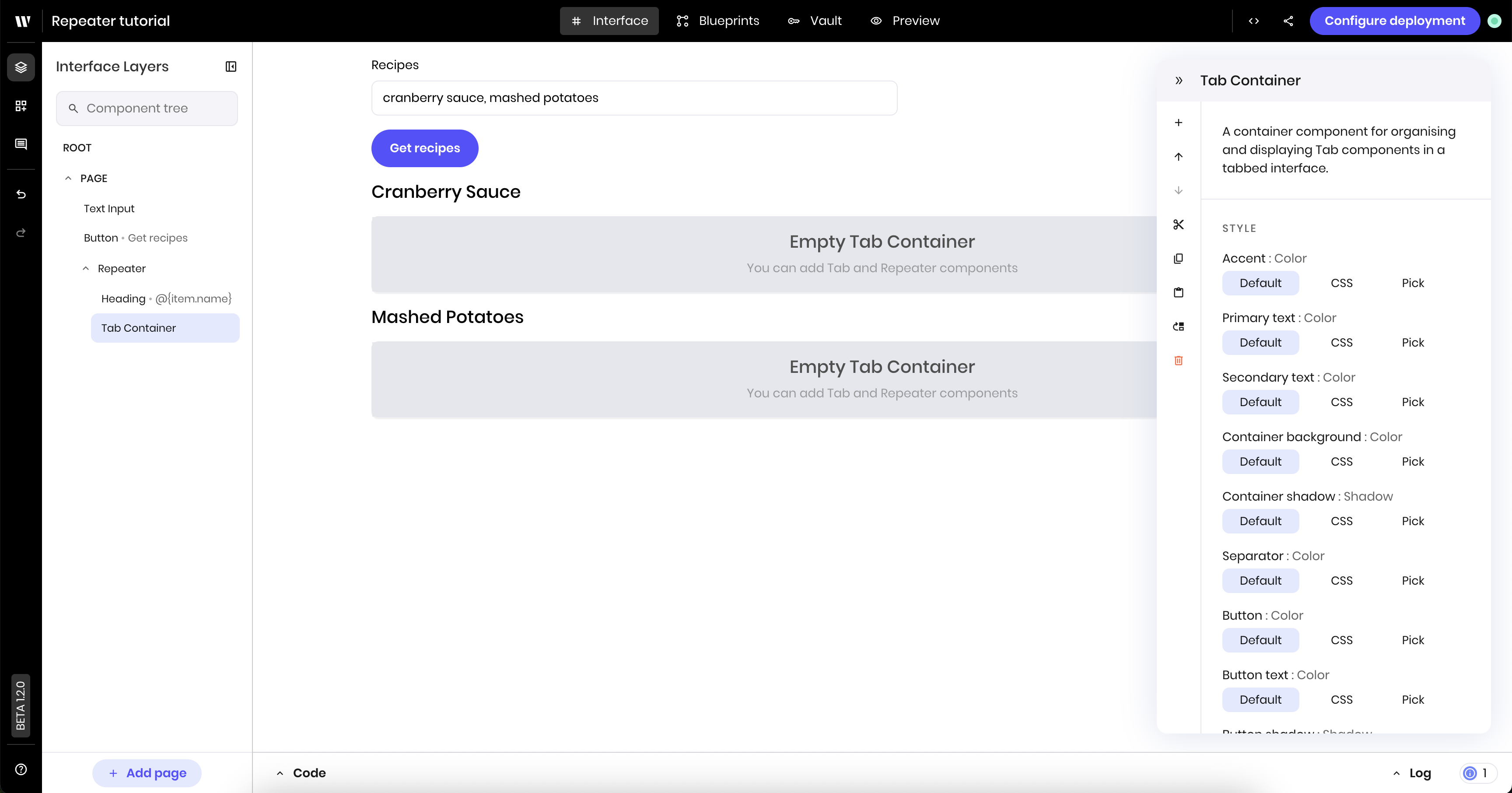
Add a **Tab Container** inside the Repeater by dragging it into the space that contains the heading. You can verify that the tab container is inside the Repeater by checking the **Interface Layers** sidebar.
At this point, when there are no recipes, the Repeater still displays placeholder text. At the end of the tutorial you'll update the Repeater to be invisible when there are no recipes.
### Part 3: Add nested Repeaters for ingredients and steps
Now you'll add nested Repeaters for ingredients and steps. You'll use a **Tab Container** to display the ingredients and steps in separate tabs.
Add a **Tab Container** inside the Repeater by dragging it into the space that contains the heading. You can verify that the tab container is inside the Repeater by checking the **Interface Layers** sidebar.
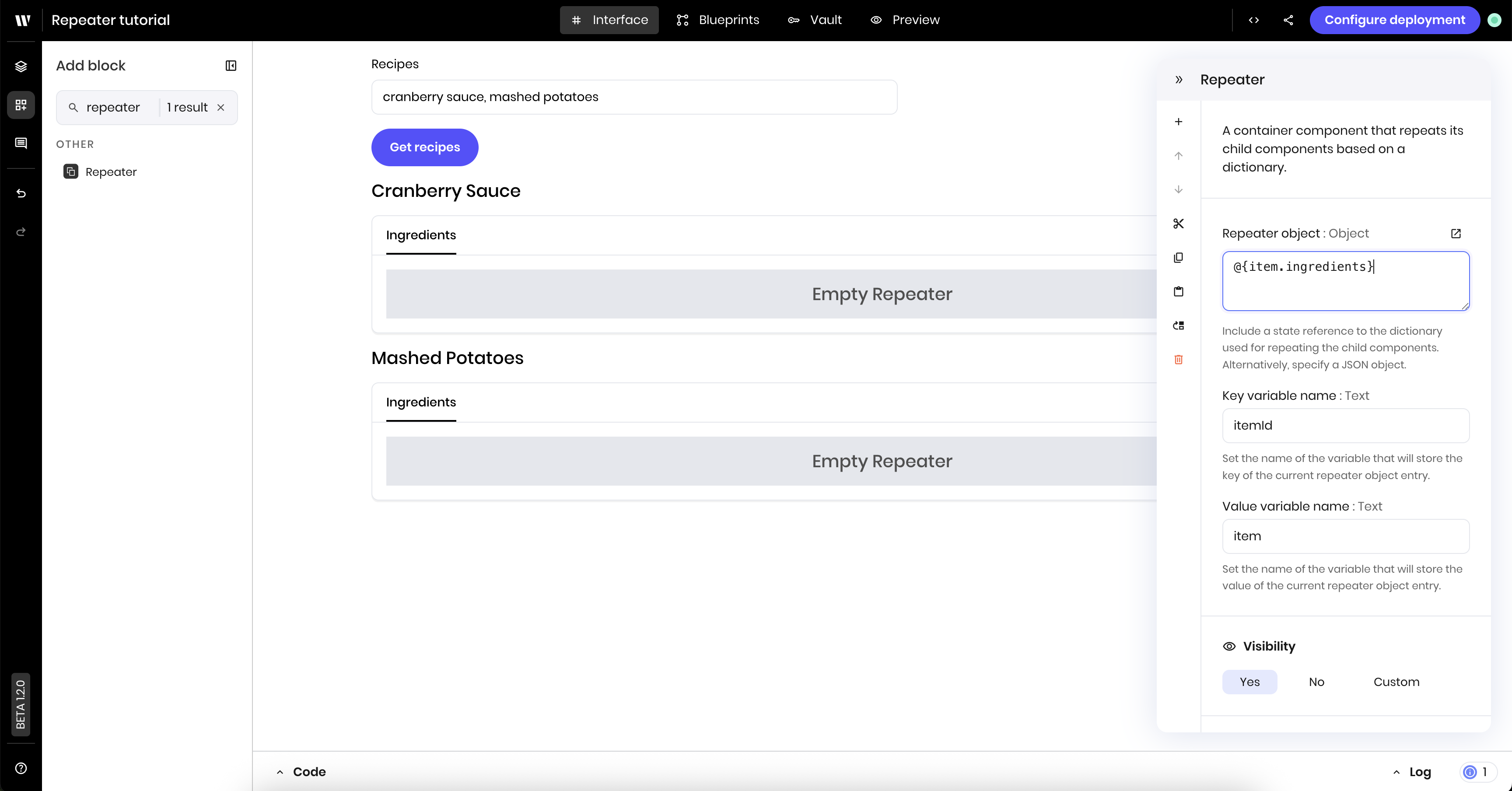
 Add a **Tab** component to the tab container. Update the following settings:
* **Tab name**: "Ingredients"
Then drag a **Repeater** inside the tab. Update the following settings:
* **Repeater object**: `@{item.ingredients}`
Add a **Tab** component to the tab container. Update the following settings:
* **Tab name**: "Ingredients"
Then drag a **Repeater** inside the tab. Update the following settings:
* **Repeater object**: `@{item.ingredients}`
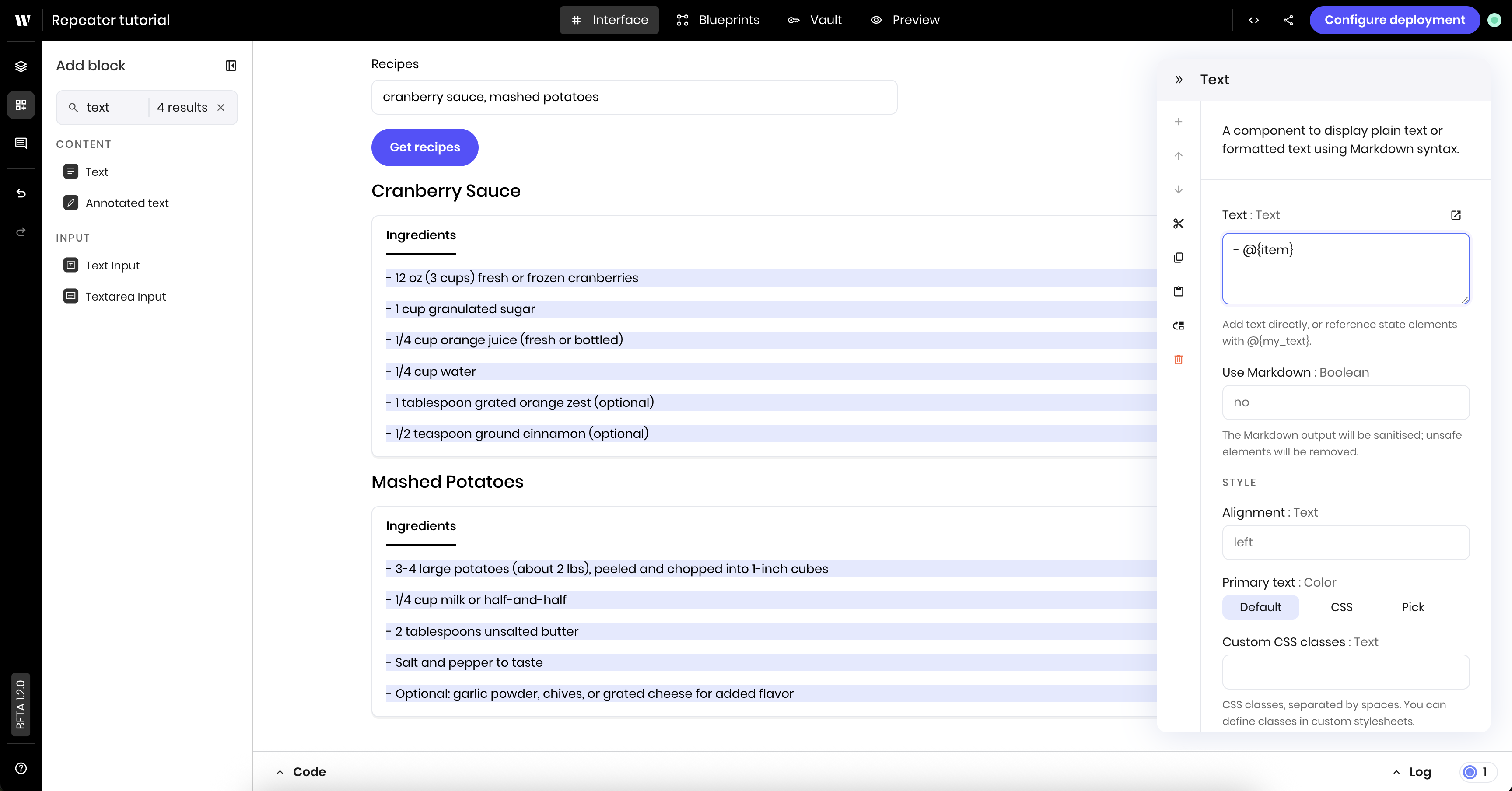
 Add a **Text** component inside the first tab's Repeater. Update the following settings:
* **Text**: `- @{item}`
Add a **Text** component inside the first tab's Repeater. Update the following settings:
* **Text**: `- @{item}`
 Add a second **Tab** component to the tab container. Update the following settings:
* **Tab name**: "Instructions"
Then drag a **Repeater** inside the tab. Update the following settings:
* **Repeater object**: `@{item.steps}`
Add a second **Tab** component to the tab container. Update the following settings:
* **Tab name**: "Instructions"
Then drag a **Repeater** inside the tab. Update the following settings:
* **Repeater object**: `@{item.steps}`
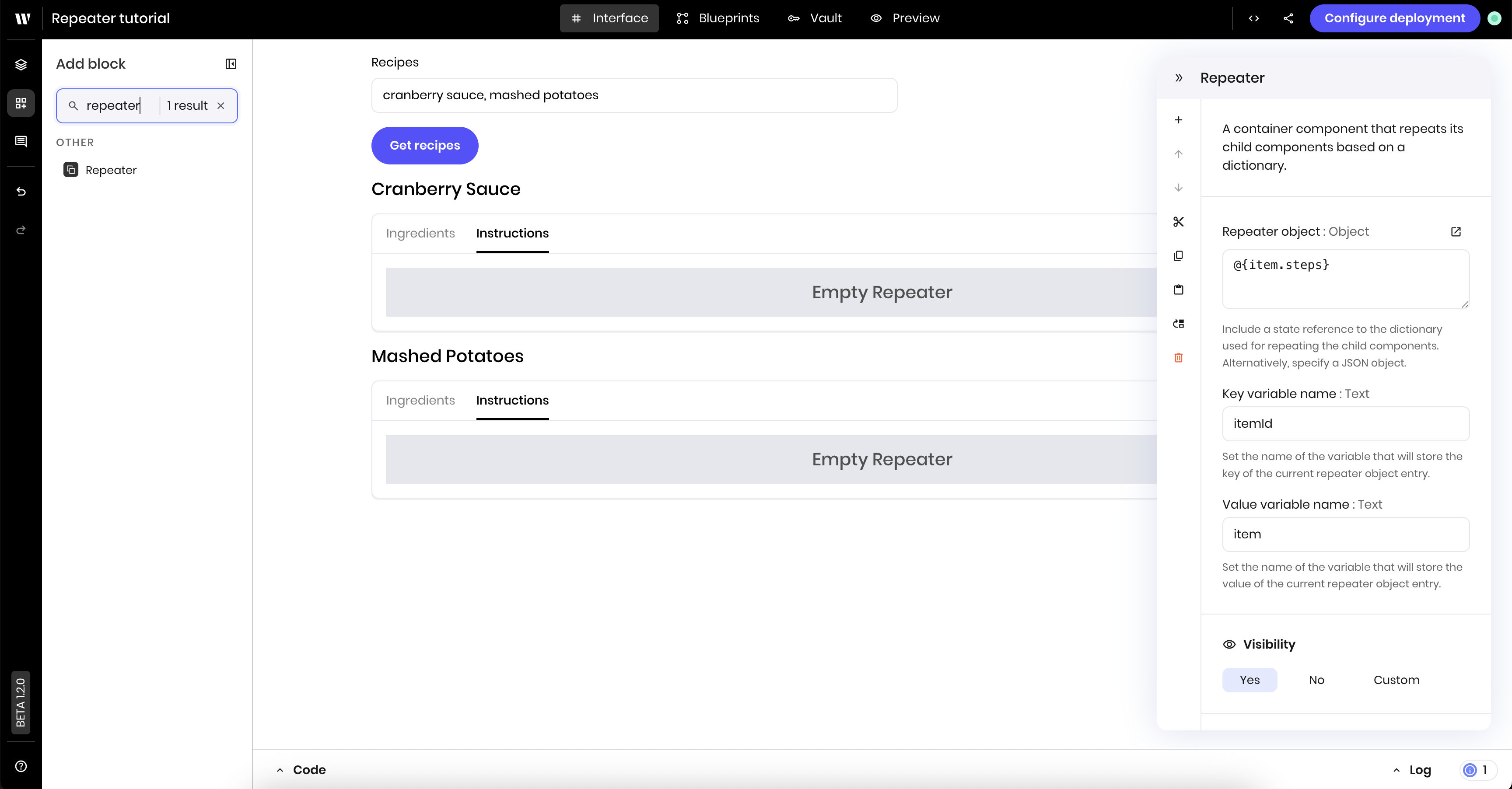 Add a **Text** component inside the second tab's Repeater. Update the following settings:
* **Text**: `- @{item}`
Add a **Text** component inside the second tab's Repeater. Update the following settings:
* **Text**: `- @{item}`
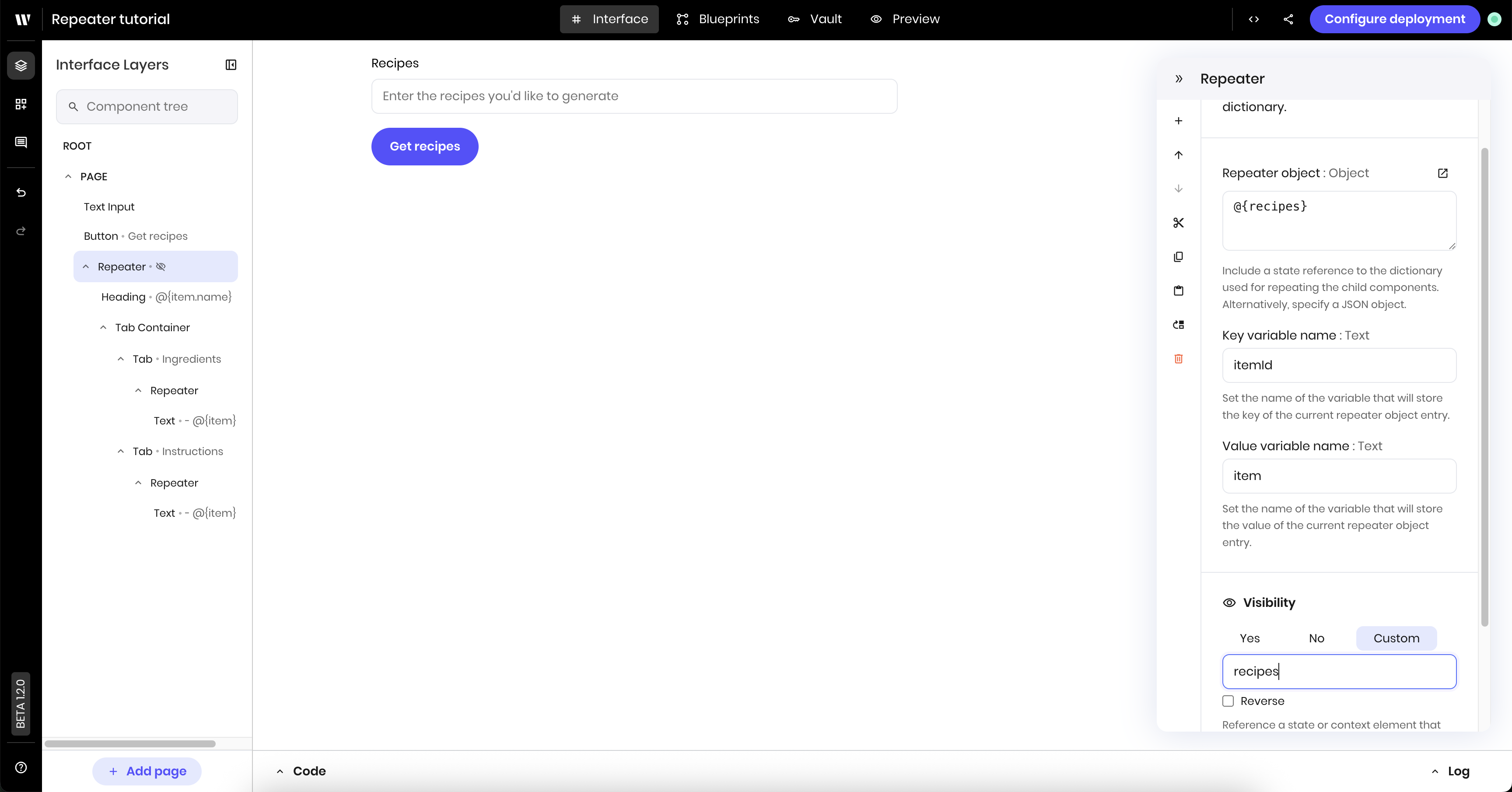
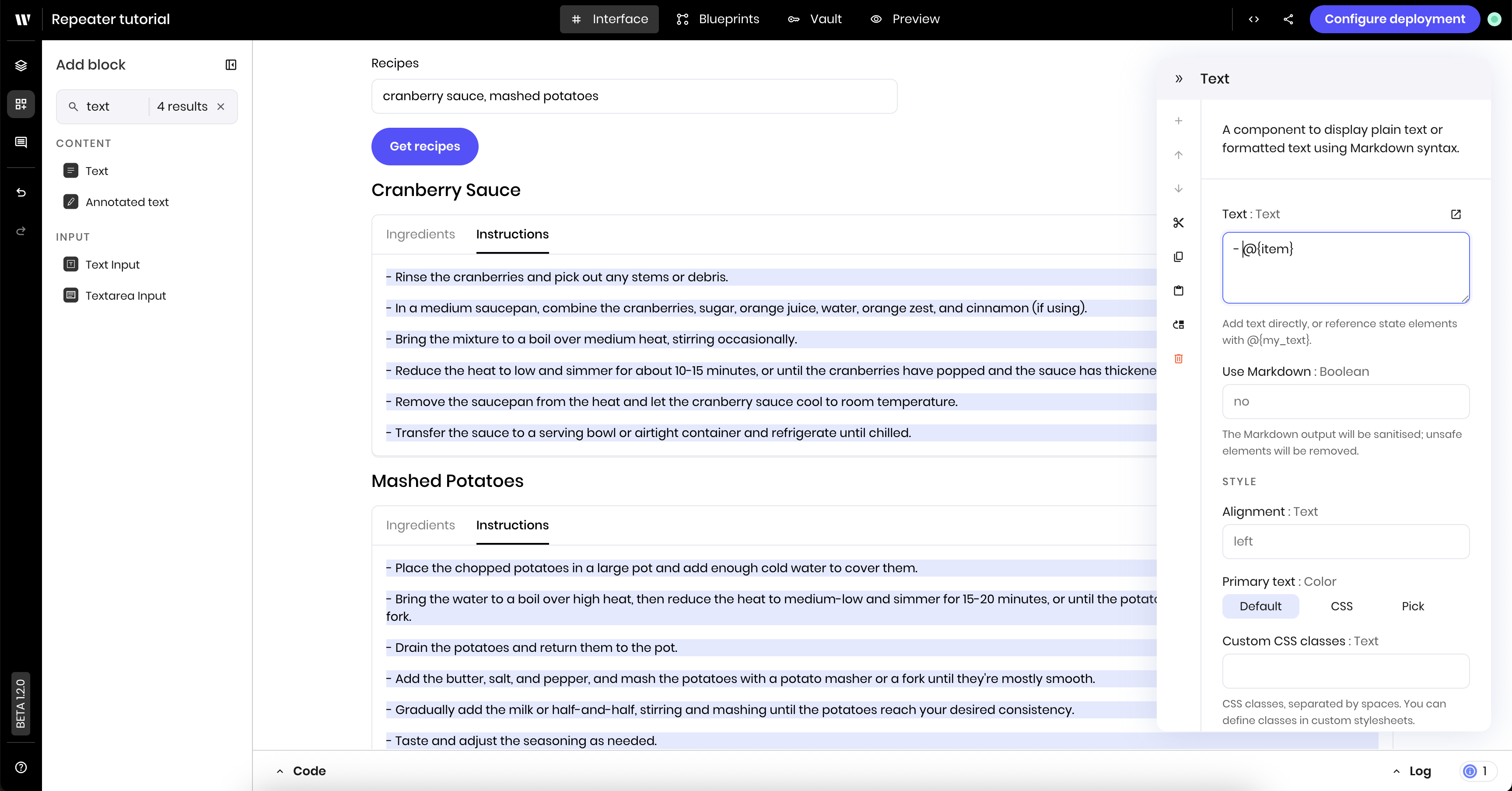 From the **Interface Layers** sidebar, click the first Repeater component, which contains the headings and tab components. Under **Visibility** in the main Repeater's configuration menu, select **Custom**. Set the condition to `recipes`. This ensures the Repeater is only visible when the user has selected at least one recipe.
 If you preview the agent now, you should see the ingredients and steps for each recipe in separate tabs. You also shouldn't see the Repeater if there are no recipes.
### Understanding nested Repeaters
In this tutorial, you used three different Repeaters:
1. **Main Repeater**: iterates over the recipes array (`@{recipes}`)
2. **Ingredients Repeater**: iterates over each recipe's ingredients array (`@{item.ingredients}`). This Repeater is nested inside the main Repeater.
3. **Steps Repeater**: iterates over each recipe's steps array (`@{item.steps}`)
Each Repeater creates its own `@{item}` context, so the inner Repeaters access individual ingredients and steps as `@{item}`, while the outer Repeater's `@{item}` refers to the entire recipe object.
### Next steps
Try extending this tutorial by:
* Adding cooking time and difficulty level to the recipe schema
* Styling the recipe cards with colors and spacing
* Adding images or icons to make the recipes more visual
* Creating filters to show only certain types of recipes
If you preview the agent now, you should see the ingredients and steps for each recipe in separate tabs. You also shouldn't see the Repeater if there are no recipes.
### Understanding nested Repeaters
In this tutorial, you used three different Repeaters:
1. **Main Repeater**: iterates over the recipes array (`@{recipes}`)
2. **Ingredients Repeater**: iterates over each recipe's ingredients array (`@{item.ingredients}`). This Repeater is nested inside the main Repeater.
3. **Steps Repeater**: iterates over each recipe's steps array (`@{item.steps}`)
Each Repeater creates its own `@{item}` context, so the inner Repeaters access individual ingredients and steps as `@{item}`, while the outer Repeater's `@{item}` refers to the entire recipe object.
### Next steps
Try extending this tutorial by:
* Adding cooking time and difficulty level to the recipe schema
* Styling the recipe cards with colors and spacing
* Adding images or icons to make the recipes more visual
* Creating filters to show only certain types of recipes