> ## Documentation Index
> Fetch the complete documentation index at: https://dev.writer.com/llms.txt
> Use this file to discover all available pages before exploring further.
# Add custom Python code
Agent Builder provides two ways to add custom Python code to your agents: using **Python code** blocks in your blueprint for inline logic, and using the code editor to create reusable functions and manage files.
## When to use custom Python code
Custom Python code is ideal for:
* **Complex data processing** that goes beyond built-in blocks
* **API integrations** with external services
* **Custom business logic** specific to your use case
* **File processing** and data transformation
* **Mathematical calculations** and statistical analysis
* **Reusable functions** across multiple blocks
## Variables available in Python code and blocks
The following variables and libraries are available in Python code blocks and other Python files. You can reference them in your code directly.
* **State variables**: Access your [agent's state](/agent-builder/state) using `state["variable_name"]`.
* **Execution environment**: Access [environment variables](/agent-builder/execution-environment) like `result`, `payload`, `session`.
* **Pre-installed libraries**: Use any of the [pre-installed Python libraries](/agent-builder/python-libraries) like `pandas`, `requests`, or `numpy`.
* **Custom functions**: Call functions you've defined in your `main.py` file from Python code blocks.
* **Secrets**: Access sensitive data from [Vault](/agent-builder/secrets) using `vault["SECRET_NAME"]`.
You can't install additional Python packages in the Agent Builder code editor. Use the [pre-installed libraries](/agent-builder/python-libraries) that are already available. Request new packages in the [feature request form](https://writerai.atlassian.net/jira/software/form/a2dfaf0b-fcbf-4fdc-94af-8e24ed0c4fe1).
## Python blocks in blueprints
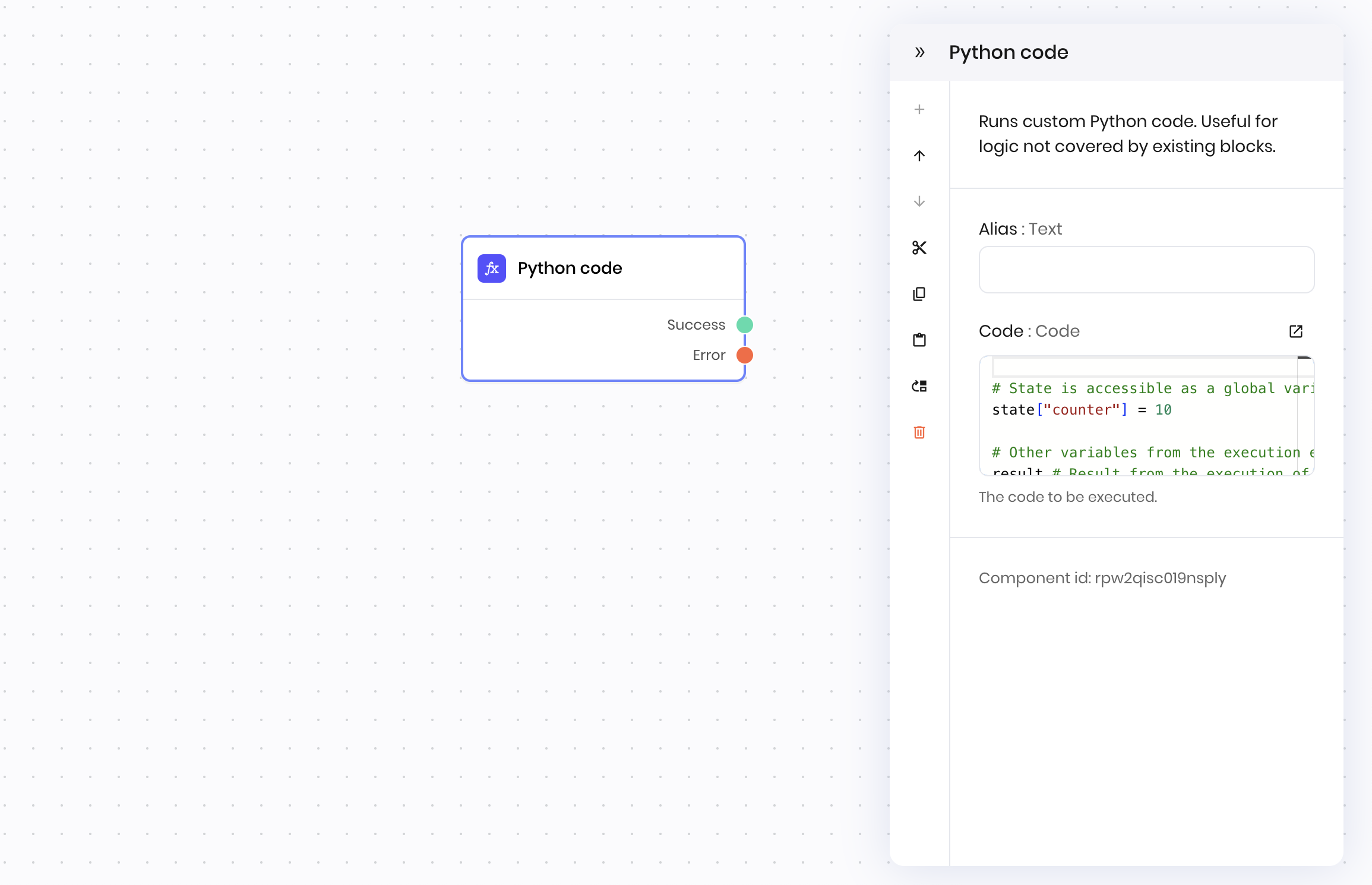
[**Python code** blocks](/blueprints/pythoncode) allow you to run custom code directly within your blueprint workflow. They're useful for one-off operations or processing steps that need to happen at specific points in your agent's logic.
 ### How to use Python code blocks
1. **Add a Python block** to your blueprint from the blocks library
2. **Write your code** in the Code field
3. **Access variables** directly from the [execution environment](/agent-builder/execution-environment), [state](/agent-builder/state), and [secrets](/agent-builder/secrets)
4. **Return results** using the `set_output()` function
### Returning values
Use `set_output(value)` to pass data to the next block:
```python theme={null}
# Calculate something
total = sum(state["numbers"])
# Pass it to the next block
set_output(total)
```
The value becomes available as `@{result}` in subsequent blocks.
## Code editor for custom functions
The **code editor** lets you create reusable Python functions and manage files for your agent. This is where you build the foundation that your Python blocks can use. Any functions you define in the code editor are available to use in Python code blocks.
### How to use Python code blocks
1. **Add a Python block** to your blueprint from the blocks library
2. **Write your code** in the Code field
3. **Access variables** directly from the [execution environment](/agent-builder/execution-environment), [state](/agent-builder/state), and [secrets](/agent-builder/secrets)
4. **Return results** using the `set_output()` function
### Returning values
Use `set_output(value)` to pass data to the next block:
```python theme={null}
# Calculate something
total = sum(state["numbers"])
# Pass it to the next block
set_output(total)
```
The value becomes available as `@{result}` in subsequent blocks.
## Code editor for custom functions
The **code editor** lets you create reusable Python functions and manage files for your agent. This is where you build the foundation that your Python blocks can use. Any functions you define in the code editor are available to use in Python code blocks.
 ### Accessing the code editor
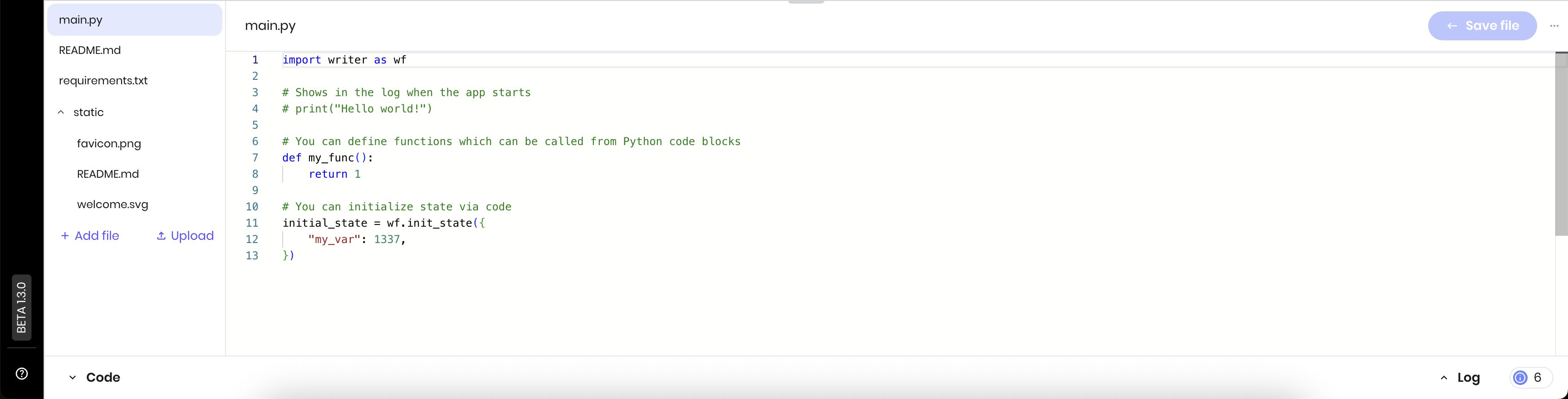
1. **Open your agent** in Agent Builder
2. **Look for the code editor** at the bottom of the interface
3. **Click to expand** and start editing your `main.py` file
### File structure
Your agent starts with these files:
* **`main.py`**: your main Python code file.
* **`requirements.txt`**: shows the version of the `writer` package that your agent is using.
* **`README.md`**: documentation for your agent.
* **`static/`**: folder for static assets like images.
### Managing files
**Add new files**: click **+ Add file** to create Python modules, data files, or configuration files.
**Upload files**: click **Upload** to add external files like CSV data, images, or documents.
#### Creating folders and moving files
To move a file into a folder, click **+ Add file** and rename the file to `/.`. If the folder doesn't exist yet, it will be created automatically.
For example, given the following file structure:
```
main.py
README.md
email_validator.py
pricing_calculator.py
```
To move `email_validator.py` to a new folder called `utils`, rename the file to `utils/email_validator.py` and click **Save file**. The new file structure will look like this:
```
main.py
README.md
pricing_calculator.py
utils/
└── email_validator.py
```
To move a file into an existing folder, follow the same process as creating a new folder. For example, to move `pricing_calculator.py` to the `utils` folder, rename the file to `utils/pricing_calculator.py` and click **Save file**. The new file structure will look like this:
```
main.py
README.md
utils/
├── email_validator.py
└── pricing_calculator.py
```
## Common patterns
### Initialize state variables
```python theme={null}
import writer as wf
initial_state = wf.init_state(
user_id="123456",
user_name="John Doe",
user_email="john.doe@example.com"
)
```
### Data validation and cleaning
```python theme={null}
def clean_user_input(raw_data):
cleaned = {}
for key, value in raw_data.items():
if isinstance(value, str):
cleaned[key] = value.strip().lower()
else:
cleaned[key] = value
return cleaned
```
### Using secrets in custom functions
```python theme={null}
import requests
def fetch_user_profile(user_id):
"""Fetch user profile from external API using stored credentials"""
try:
api_key = vault["USER_API_KEY"]
headers = {"Authorization": f"Bearer {api_key}"}
response = requests.get(
f"https://api.example.com/users/{state['user_id']}",
headers=headers
)
response.raise_for_status()
return {"success": True, "profile": response.json()}
except requests.RequestException as e:
return {"success": False, "error": str(e)}
```
### File processing
```python theme={null}
import io
import pandas as pd
def process_uploaded_csv(file_data):
try:
file_buffer = io.BytesIO(file_data)
df = pd.read_csv(file_buffer)
summary = {
"row_count": len(df),
"columns": list(df.columns),
"summary_stats": df.describe().to_dict()
}
return {"success": True, "summary": summary}
except Exception as e:
return {"success": False, "error": str(e)}
```
## Debugging
Use print or logger statements to debug your code. The [`logger` object](https://docs.python.org/3/library/logging.html) is globally available in Python blocks.
```python theme={null}
logger.info(f"Processing user: {state['user_id']}")
logger.info(f"Input data: {payload}")
# Your logic here
result = process_data()
print(f"Result: {result}")
set_output(result)
```
See more general troubleshooting tips in [Troubleshooting](/agent-builder/troubleshooting).
## Next steps
* Review [pre-installed Python libraries](/agent-builder/python-libraries) to see what's available
* Learn about [storing secrets](/agent-builder/secrets) for secure API key management
* Check out the [Python block reference](/blueprints/pythoncode) for detailed field information
* Learn about [state management](/agent-builder/state) for better data handling
* Review [execution environment variables](/agent-builder/execution-environment) for accessing block results
### Accessing the code editor
1. **Open your agent** in Agent Builder
2. **Look for the code editor** at the bottom of the interface
3. **Click to expand** and start editing your `main.py` file
### File structure
Your agent starts with these files:
* **`main.py`**: your main Python code file.
* **`requirements.txt`**: shows the version of the `writer` package that your agent is using.
* **`README.md`**: documentation for your agent.
* **`static/`**: folder for static assets like images.
### Managing files
**Add new files**: click **+ Add file** to create Python modules, data files, or configuration files.
**Upload files**: click **Upload** to add external files like CSV data, images, or documents.
#### Creating folders and moving files
To move a file into a folder, click **+ Add file** and rename the file to `/.`. If the folder doesn't exist yet, it will be created automatically.
For example, given the following file structure:
```
main.py
README.md
email_validator.py
pricing_calculator.py
```
To move `email_validator.py` to a new folder called `utils`, rename the file to `utils/email_validator.py` and click **Save file**. The new file structure will look like this:
```
main.py
README.md
pricing_calculator.py
utils/
└── email_validator.py
```
To move a file into an existing folder, follow the same process as creating a new folder. For example, to move `pricing_calculator.py` to the `utils` folder, rename the file to `utils/pricing_calculator.py` and click **Save file**. The new file structure will look like this:
```
main.py
README.md
utils/
├── email_validator.py
└── pricing_calculator.py
```
## Common patterns
### Initialize state variables
```python theme={null}
import writer as wf
initial_state = wf.init_state(
user_id="123456",
user_name="John Doe",
user_email="john.doe@example.com"
)
```
### Data validation and cleaning
```python theme={null}
def clean_user_input(raw_data):
cleaned = {}
for key, value in raw_data.items():
if isinstance(value, str):
cleaned[key] = value.strip().lower()
else:
cleaned[key] = value
return cleaned
```
### Using secrets in custom functions
```python theme={null}
import requests
def fetch_user_profile(user_id):
"""Fetch user profile from external API using stored credentials"""
try:
api_key = vault["USER_API_KEY"]
headers = {"Authorization": f"Bearer {api_key}"}
response = requests.get(
f"https://api.example.com/users/{state['user_id']}",
headers=headers
)
response.raise_for_status()
return {"success": True, "profile": response.json()}
except requests.RequestException as e:
return {"success": False, "error": str(e)}
```
### File processing
```python theme={null}
import io
import pandas as pd
def process_uploaded_csv(file_data):
try:
file_buffer = io.BytesIO(file_data)
df = pd.read_csv(file_buffer)
summary = {
"row_count": len(df),
"columns": list(df.columns),
"summary_stats": df.describe().to_dict()
}
return {"success": True, "summary": summary}
except Exception as e:
return {"success": False, "error": str(e)}
```
## Debugging
Use print or logger statements to debug your code. The [`logger` object](https://docs.python.org/3/library/logging.html) is globally available in Python blocks.
```python theme={null}
logger.info(f"Processing user: {state['user_id']}")
logger.info(f"Input data: {payload}")
# Your logic here
result = process_data()
print(f"Result: {result}")
set_output(result)
```
See more general troubleshooting tips in [Troubleshooting](/agent-builder/troubleshooting).
## Next steps
* Review [pre-installed Python libraries](/agent-builder/python-libraries) to see what's available
* Learn about [storing secrets](/agent-builder/secrets) for secure API key management
* Check out the [Python block reference](/blueprints/pythoncode) for detailed field information
* Learn about [state management](/agent-builder/state) for better data handling
* Review [execution environment variables](/agent-builder/execution-environment) for accessing block results