> ## Documentation Index
> Fetch the complete documentation index at: https://dev.writer.com/llms.txt
> Use this file to discover all available pages before exploring further.
# Process invoices and send to Slack
This tutorial walks through building an agent that processes PDF invoices, extracts structured data, and sends the results to Slack. The agent takes an uploaded invoice PDF, extracts key information like vendor details and line items, and posts a formatted summary to a Slack channel.
 This pattern is useful for automating accounts payable workflows, expense processing, and any scenario where you need to extract structured data from documents and route it to business systems. Once you complete this tutorial, you can continue enhancing the agent by adding [tool calling](/agent-builder/tool-calling-tutorial) with behaviors like validating invoices, flagging potential issues, and comparing invoices against historical data.
## Prerequisites
Before building this agent, you need to set up a Slack webhook to send the invoice data to a Slack channel.
Follow the instructions in the [Slack documentation](https://api.slack.com/messaging/webhooks) to set up a webhook. The general steps are:
1. Go to [Slack API](https://api.slack.com/apps) and create a new app
2. Select "From scratch" and provide a name for your app
3. Choose the Slack workspace where you want to build the agent
4. Navigate to "Incoming Webhooks" in the left sidebar of the new app and activate webhooks
5. Click "Add New Webhook to Workspace" and select the channel where invoices should be posted. You might need administrator permissions to add a webhook to a channel, depending on your Slack workspace settings.
6. Copy the webhook URL - you'll need this for the HTTP request block. The webhook URL will look like: `https://hooks.slack.com/services/T00000000/B00000000/XXXXXXXXXXXXXXXXXXXXXXXX`
## Agent overview
This agent processes invoices through the following steps:
1. User uploads a PDF invoice file
2. File is uploaded to Writer Cloud storage
3. PDF content is extracted and parsed
4. AI extracts structured invoice data such as vendor, amounts, line items.
5. Formatted invoice summary is sent to Slack
## Build the UI
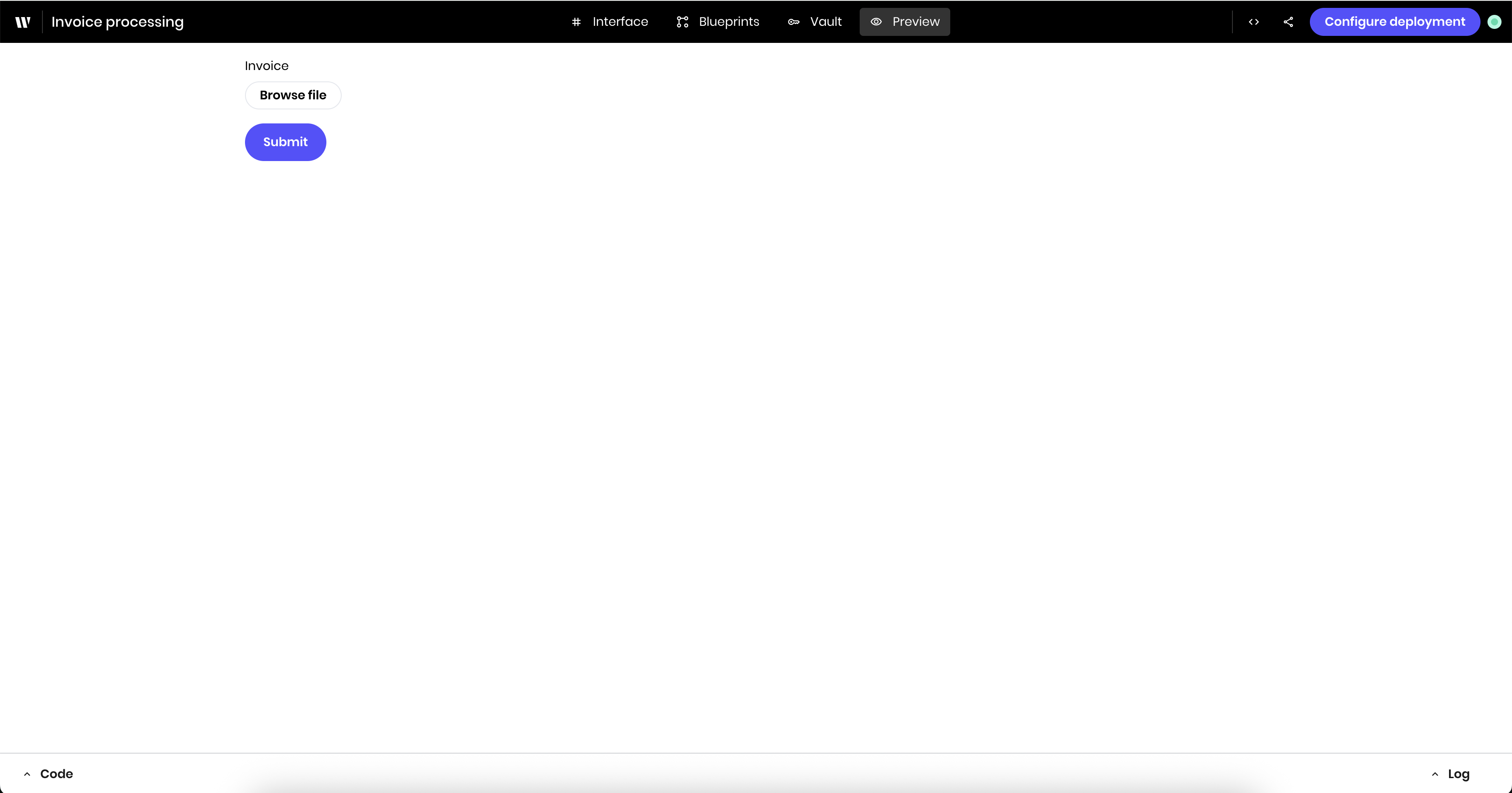
The agent's UI contains a file input for uploading invoices and a submit button.
Drag a **File Input** block to the canvas. In the block's configuration menu, update the following:
* **Label**: `Invoice`
* **Allowed file types**: `.pdf`
* **Link variable** under **Binding**: `invoice`
This allows users to upload PDF files and stores the file in the `invoice` state variable.
Drag a **Button** block to the canvas. In the block's configuration menu, update the following:
* **Label**: `Submit`
## Build the blueprint
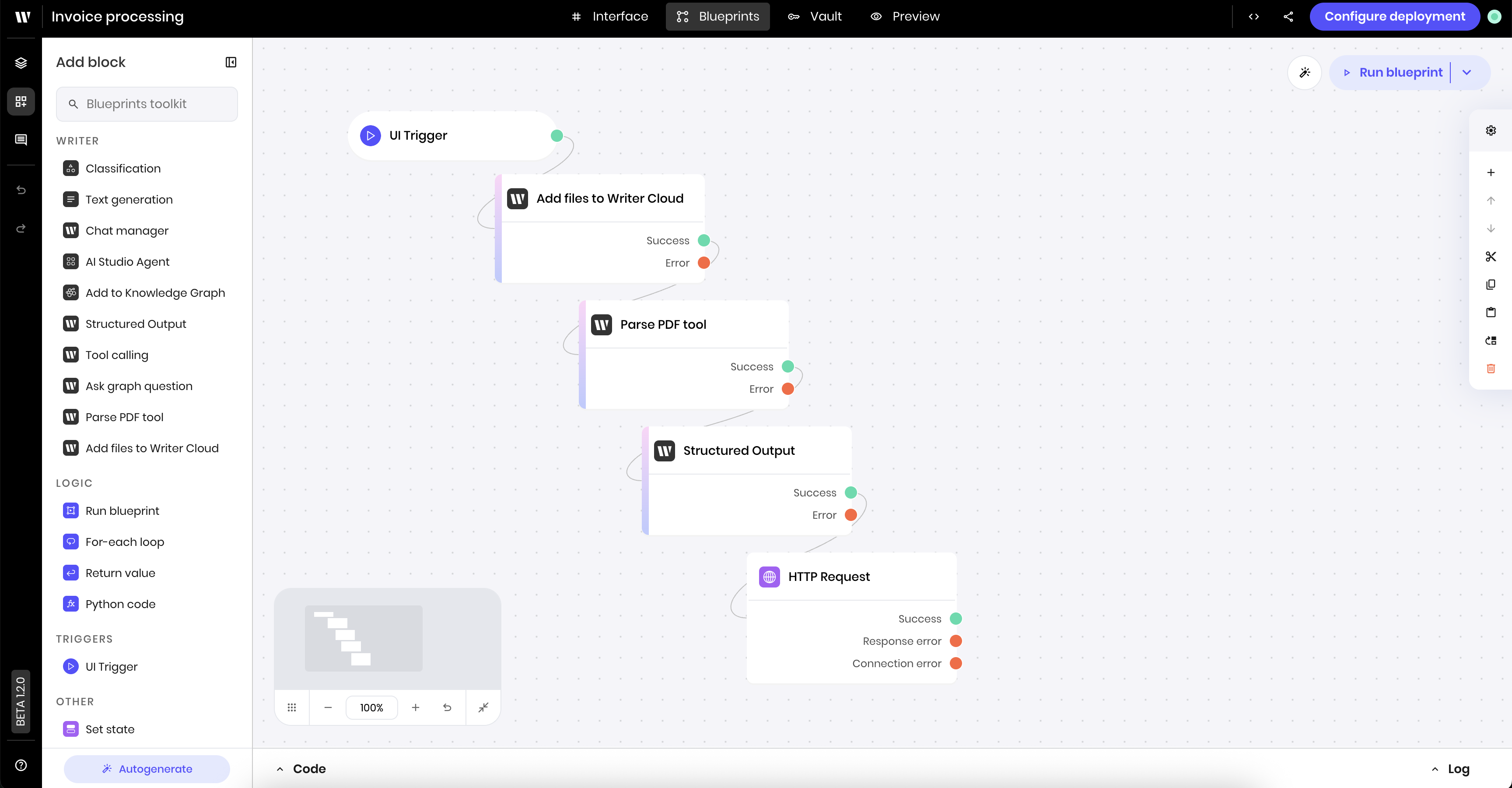
The logic of the blueprint is as follows:
1. The **UI Trigger** block starts the agent when the user clicks the submit button
2. The **Add files to Writer Cloud** block uploads the invoice file to cloud storage
3. The **Parse PDF** block extracts text content from the uploaded file
4. The **Structured Output** block processes the PDF text and extracts invoice data as JSON
5. The **HTTP Request** block sends the structured data to Slack
The finished blueprint contains the following blocks:
Drag a **UI Trigger** block to the canvas. In the block's configuration menu, update the following:
* **Component Id**: select the **Submit** button from the dropdown
* **Trigger**: `wf-click`
This triggers the blueprint when the user clicks the Process Invoice button.
Drag an **Add files to Writer Cloud** block to the canvas. In the block's configuration menu, update the following:
* **Files**: `@{invoice}`
This uploads the invoice file from the `invoice` state variable to Writer Cloud storage.
Drag a **Parse PDF tool** block to the canvas. In the block's configuration menu, update the following:
* **File**: `@{result.0.id}`
This extracts the text content from the uploaded PDF file using the file information returned from the Add files to Writer Cloud block.
Drag a **Structured Output** block to the canvas. In the block's configuration menu, update the following:
* **Prompt**:
```
Extract the following information from this invoice:
- Invoice number
- Vendor name and address
- Invoice date and due date
- Bill-to company and address
- Total amount, subtotal, and tax amount
- Currency
- All line items with descriptions, quantities, unit prices, and totals
- Payment terms
- Purchase order number (if present)
If any information is not clearly stated in the invoice, use null for that field.
```
* **Input**: `@{result}`
* **Model**: `Palmyra X5`
* **JSON Schema**: The following is an example JSON schema for the structured output. You can use this as a starting point, or create your own schema based on the invoice format you'd like to extract.
```json theme={null}
{
"$schema": "http://json-schema.org/draft-07/schema#",
"type": "object",
"title": "Invoice Processing Data",
"description": "Schema for structured invoice data extracted from PDF documents",
"properties": {
"invoiceNumber": {
"type": "string",
"description": "Unique invoice identifier"
},
"vendorName": {
"type": "string",
"description": "Name of the company or vendor issuing the invoice"
},
"vendorAddress": {
"type": "string",
"description": "Full address of the vendor"
},
"invoiceDate": {
"type": "string",
"format": "date",
"description": "Date the invoice was issued (YYYY-MM-DD format)"
},
"dueDate": {
"type": "string",
"format": "date",
"description": "Payment due date (YYYY-MM-DD format)"
},
"billToCompany": {
"type": "string",
"description": "Company name being billed"
},
"billToAddress": {
"type": "string",
"description": "Billing address"
},
"totalAmount": {
"type": "number",
"description": "Total invoice amount including tax",
"minimum": 0
},
"subtotal": {
"type": "number",
"description": "Subtotal before tax",
"minimum": 0
},
"taxAmount": {
"type": "number",
"description": "Total tax amount",
"minimum": 0
},
"currency": {
"type": "string",
"description": "Currency code (e.g., USD, EUR, GBP)",
"default": "USD"
},
"lineItems": {
"type": "array",
"description": "Individual items or services on the invoice",
"items": {
"type": "object",
"properties": {
"description": {
"type": "string",
"description": "Description of the product or service"
},
"quantity": {
"type": "number",
"description": "Quantity of items",
"minimum": 0
},
"unitPrice": {
"type": "number",
"description": "Price per unit",
"minimum": 0
},
"totalPrice": {
"type": "number",
"description": "Total price for this line item",
"minimum": 0
}
},
"required": ["description", "totalPrice"],
"additionalProperties": false
}
},
"paymentTerms": {
"type": "string",
"description": "Payment terms (e.g., 'Net 30', 'Due on receipt')"
},
"purchaseOrderNumber": {
"type": "string",
"description": "Purchase order number if referenced on invoice"
}
},
"required": [
"invoiceNumber",
"vendorName",
"invoiceDate",
"totalAmount",
"currency",
"lineItems"
],
"additionalProperties": false
}
```
This processes the PDF text and extracts structured invoice data according to the JSON schema. The AI will identify and extract the relevant information from the invoice text.
Drag an **HTTP Request** block to the canvas. In the block's configuration menu, update the following:
* **Method**: `POST`
* **URL**: Your [Slack webhook URL](/agent-builder/invoice-processing#prerequisites)
* **Body**:
```json theme={null}
{
"text": "New Invoice Processed",
"blocks": [
{
"type": "header",
"text": {
"type": "plain_text",
"text": "📄 Invoice Processed"
}
},
{
"type": "section",
"fields": [
{
"type": "mrkdwn",
"text": "*Invoice #:* @{result.invoiceNumber}"
},
{
"type": "mrkdwn",
"text": "*Vendor:* @{result.vendorName}"
},
{
"type": "mrkdwn",
"text": "*Date:* @{result.invoiceDate}"
},
{
"type": "mrkdwn",
"text": "*Due Date:* @{result.dueDate}"
},
{
"type": "mrkdwn",
"text": "*Amount:* @{result.currency} @{result.totalAmount}"
},
{
"type": "mrkdwn",
"text": "*Bill To:* @{result.billToCompany}"
}
]
}
]
}
```
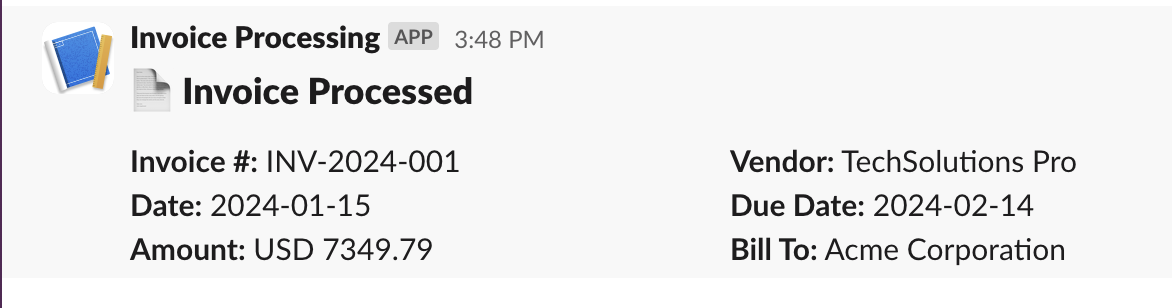
This sends a formatted message to Slack with the key invoice details. The message uses Slack's block kit format to create a structured, readable invoice summary.
## Preview the agent
Navigate to the **Preview** tab to test the agent.
Upload a PDF invoice and click the Process Invoice button. The agent will upload the file, extract the invoice data, and send a summary to your configured Slack channel.
You can see the agent's progress in the **Logs** tab, including the extracted JSON data and the Slack API response.
You should see a message in the Slack channel with the invoice data.
## Add tool calling for invoice validation
You can enhance this agent by adding [tool calling](/agent-builder/tool-calling) to validate invoices and flag potential issues. Here are some ways to extend the functionality:
* Check for missing required fields like tax ID or payment terms
* Compare against previous invoices from the same vendor to detect price discrepancies
* Validate amounts against purchase orders and company spending policies
* Flag duplicate invoice numbers or unusual payment terms
* Verify vendor details against your approved vendor list
To add these capabilities:
1. Add a tool calling block after the structured output to analyze the extracted data
2. Configure validation rules and checks in your custom Python code
3. Update the Slack message to include any validation warnings or approvals
4. Optionally trigger different workflows based on the validation results
Check out the [tool calling tutorial](/agent-builder/tool-calling-tutorial) to learn how to add these validation capabilities to your invoice processing agent.
This pattern is useful for automating accounts payable workflows, expense processing, and any scenario where you need to extract structured data from documents and route it to business systems. Once you complete this tutorial, you can continue enhancing the agent by adding [tool calling](/agent-builder/tool-calling-tutorial) with behaviors like validating invoices, flagging potential issues, and comparing invoices against historical data.
## Prerequisites
Before building this agent, you need to set up a Slack webhook to send the invoice data to a Slack channel.
Follow the instructions in the [Slack documentation](https://api.slack.com/messaging/webhooks) to set up a webhook. The general steps are:
1. Go to [Slack API](https://api.slack.com/apps) and create a new app
2. Select "From scratch" and provide a name for your app
3. Choose the Slack workspace where you want to build the agent
4. Navigate to "Incoming Webhooks" in the left sidebar of the new app and activate webhooks
5. Click "Add New Webhook to Workspace" and select the channel where invoices should be posted. You might need administrator permissions to add a webhook to a channel, depending on your Slack workspace settings.
6. Copy the webhook URL - you'll need this for the HTTP request block. The webhook URL will look like: `https://hooks.slack.com/services/T00000000/B00000000/XXXXXXXXXXXXXXXXXXXXXXXX`
## Agent overview
This agent processes invoices through the following steps:
1. User uploads a PDF invoice file
2. File is uploaded to Writer Cloud storage
3. PDF content is extracted and parsed
4. AI extracts structured invoice data such as vendor, amounts, line items.
5. Formatted invoice summary is sent to Slack
## Build the UI
The agent's UI contains a file input for uploading invoices and a submit button.
Drag a **File Input** block to the canvas. In the block's configuration menu, update the following:
* **Label**: `Invoice`
* **Allowed file types**: `.pdf`
* **Link variable** under **Binding**: `invoice`
This allows users to upload PDF files and stores the file in the `invoice` state variable.
Drag a **Button** block to the canvas. In the block's configuration menu, update the following:
* **Label**: `Submit`
## Build the blueprint
The logic of the blueprint is as follows:
1. The **UI Trigger** block starts the agent when the user clicks the submit button
2. The **Add files to Writer Cloud** block uploads the invoice file to cloud storage
3. The **Parse PDF** block extracts text content from the uploaded file
4. The **Structured Output** block processes the PDF text and extracts invoice data as JSON
5. The **HTTP Request** block sends the structured data to Slack
The finished blueprint contains the following blocks:
Drag a **UI Trigger** block to the canvas. In the block's configuration menu, update the following:
* **Component Id**: select the **Submit** button from the dropdown
* **Trigger**: `wf-click`
This triggers the blueprint when the user clicks the Process Invoice button.
Drag an **Add files to Writer Cloud** block to the canvas. In the block's configuration menu, update the following:
* **Files**: `@{invoice}`
This uploads the invoice file from the `invoice` state variable to Writer Cloud storage.
Drag a **Parse PDF tool** block to the canvas. In the block's configuration menu, update the following:
* **File**: `@{result.0.id}`
This extracts the text content from the uploaded PDF file using the file information returned from the Add files to Writer Cloud block.
Drag a **Structured Output** block to the canvas. In the block's configuration menu, update the following:
* **Prompt**:
```
Extract the following information from this invoice:
- Invoice number
- Vendor name and address
- Invoice date and due date
- Bill-to company and address
- Total amount, subtotal, and tax amount
- Currency
- All line items with descriptions, quantities, unit prices, and totals
- Payment terms
- Purchase order number (if present)
If any information is not clearly stated in the invoice, use null for that field.
```
* **Input**: `@{result}`
* **Model**: `Palmyra X5`
* **JSON Schema**: The following is an example JSON schema for the structured output. You can use this as a starting point, or create your own schema based on the invoice format you'd like to extract.
```json theme={null}
{
"$schema": "http://json-schema.org/draft-07/schema#",
"type": "object",
"title": "Invoice Processing Data",
"description": "Schema for structured invoice data extracted from PDF documents",
"properties": {
"invoiceNumber": {
"type": "string",
"description": "Unique invoice identifier"
},
"vendorName": {
"type": "string",
"description": "Name of the company or vendor issuing the invoice"
},
"vendorAddress": {
"type": "string",
"description": "Full address of the vendor"
},
"invoiceDate": {
"type": "string",
"format": "date",
"description": "Date the invoice was issued (YYYY-MM-DD format)"
},
"dueDate": {
"type": "string",
"format": "date",
"description": "Payment due date (YYYY-MM-DD format)"
},
"billToCompany": {
"type": "string",
"description": "Company name being billed"
},
"billToAddress": {
"type": "string",
"description": "Billing address"
},
"totalAmount": {
"type": "number",
"description": "Total invoice amount including tax",
"minimum": 0
},
"subtotal": {
"type": "number",
"description": "Subtotal before tax",
"minimum": 0
},
"taxAmount": {
"type": "number",
"description": "Total tax amount",
"minimum": 0
},
"currency": {
"type": "string",
"description": "Currency code (e.g., USD, EUR, GBP)",
"default": "USD"
},
"lineItems": {
"type": "array",
"description": "Individual items or services on the invoice",
"items": {
"type": "object",
"properties": {
"description": {
"type": "string",
"description": "Description of the product or service"
},
"quantity": {
"type": "number",
"description": "Quantity of items",
"minimum": 0
},
"unitPrice": {
"type": "number",
"description": "Price per unit",
"minimum": 0
},
"totalPrice": {
"type": "number",
"description": "Total price for this line item",
"minimum": 0
}
},
"required": ["description", "totalPrice"],
"additionalProperties": false
}
},
"paymentTerms": {
"type": "string",
"description": "Payment terms (e.g., 'Net 30', 'Due on receipt')"
},
"purchaseOrderNumber": {
"type": "string",
"description": "Purchase order number if referenced on invoice"
}
},
"required": [
"invoiceNumber",
"vendorName",
"invoiceDate",
"totalAmount",
"currency",
"lineItems"
],
"additionalProperties": false
}
```
This processes the PDF text and extracts structured invoice data according to the JSON schema. The AI will identify and extract the relevant information from the invoice text.
Drag an **HTTP Request** block to the canvas. In the block's configuration menu, update the following:
* **Method**: `POST`
* **URL**: Your [Slack webhook URL](/agent-builder/invoice-processing#prerequisites)
* **Body**:
```json theme={null}
{
"text": "New Invoice Processed",
"blocks": [
{
"type": "header",
"text": {
"type": "plain_text",
"text": "📄 Invoice Processed"
}
},
{
"type": "section",
"fields": [
{
"type": "mrkdwn",
"text": "*Invoice #:* @{result.invoiceNumber}"
},
{
"type": "mrkdwn",
"text": "*Vendor:* @{result.vendorName}"
},
{
"type": "mrkdwn",
"text": "*Date:* @{result.invoiceDate}"
},
{
"type": "mrkdwn",
"text": "*Due Date:* @{result.dueDate}"
},
{
"type": "mrkdwn",
"text": "*Amount:* @{result.currency} @{result.totalAmount}"
},
{
"type": "mrkdwn",
"text": "*Bill To:* @{result.billToCompany}"
}
]
}
]
}
```
This sends a formatted message to Slack with the key invoice details. The message uses Slack's block kit format to create a structured, readable invoice summary.
## Preview the agent
Navigate to the **Preview** tab to test the agent.
Upload a PDF invoice and click the Process Invoice button. The agent will upload the file, extract the invoice data, and send a summary to your configured Slack channel.
You can see the agent's progress in the **Logs** tab, including the extracted JSON data and the Slack API response.
You should see a message in the Slack channel with the invoice data.
## Add tool calling for invoice validation
You can enhance this agent by adding [tool calling](/agent-builder/tool-calling) to validate invoices and flag potential issues. Here are some ways to extend the functionality:
* Check for missing required fields like tax ID or payment terms
* Compare against previous invoices from the same vendor to detect price discrepancies
* Validate amounts against purchase orders and company spending policies
* Flag duplicate invoice numbers or unusual payment terms
* Verify vendor details against your approved vendor list
To add these capabilities:
1. Add a tool calling block after the structured output to analyze the extracted data
2. Configure validation rules and checks in your custom Python code
3. Update the Slack message to include any validation warnings or approvals
4. Optionally trigger different workflows based on the validation results
Check out the [tool calling tutorial](/agent-builder/tool-calling-tutorial) to learn how to add these validation capabilities to your invoice processing agent.