> ## Documentation Index
> Fetch the complete documentation index at: https://dev.writer.com/llms.txt
> Use this file to discover all available pages before exploring further.
# Agent Builder Demo Application
> Explore the Agent Builder demo agent that analyzes customer reviews and drafts responses. Learn how UI, blueprints, and state variables work together.
Agent Builder is in beta. Some features are still in development and are subject to change.
When you create a new agent with Agent Builder, it comes with a demo agent that analyzes customer reviews and drafts personalized responses. This walkthrough shows you how the demo agent works and how to modify it to understand Agent Builder's core concepts.
 This walkthrough covers the following topics:
* How to navigate the Agent Builder interface
* How the UI and blueprint work together through state variables
* How to use the **Classification** block to route workflows
* How to connect blocks using `@{result}`
* How to modify an existing agent to add new behavior
If you are unfamiliar with Agent Builder, review the [Agent Builder Overview](/agent-builder/overview) to learn more about the different components of an agent.
## Start an Agent Builder project
To create an agent with Agent Builder, log in to [AI Studio](https://app.writer.com/aistudio) and follow these steps:
Click the **Build an agent** button in the top right corner of the page.
This walkthrough covers the following topics:
* How to navigate the Agent Builder interface
* How the UI and blueprint work together through state variables
* How to use the **Classification** block to route workflows
* How to connect blocks using `@{result}`
* How to modify an existing agent to add new behavior
If you are unfamiliar with Agent Builder, review the [Agent Builder Overview](/agent-builder/overview) to learn more about the different components of an agent.
## Start an Agent Builder project
To create an agent with Agent Builder, log in to [AI Studio](https://app.writer.com/aistudio) and follow these steps:
Click the **Build an agent** button in the top right corner of the page.
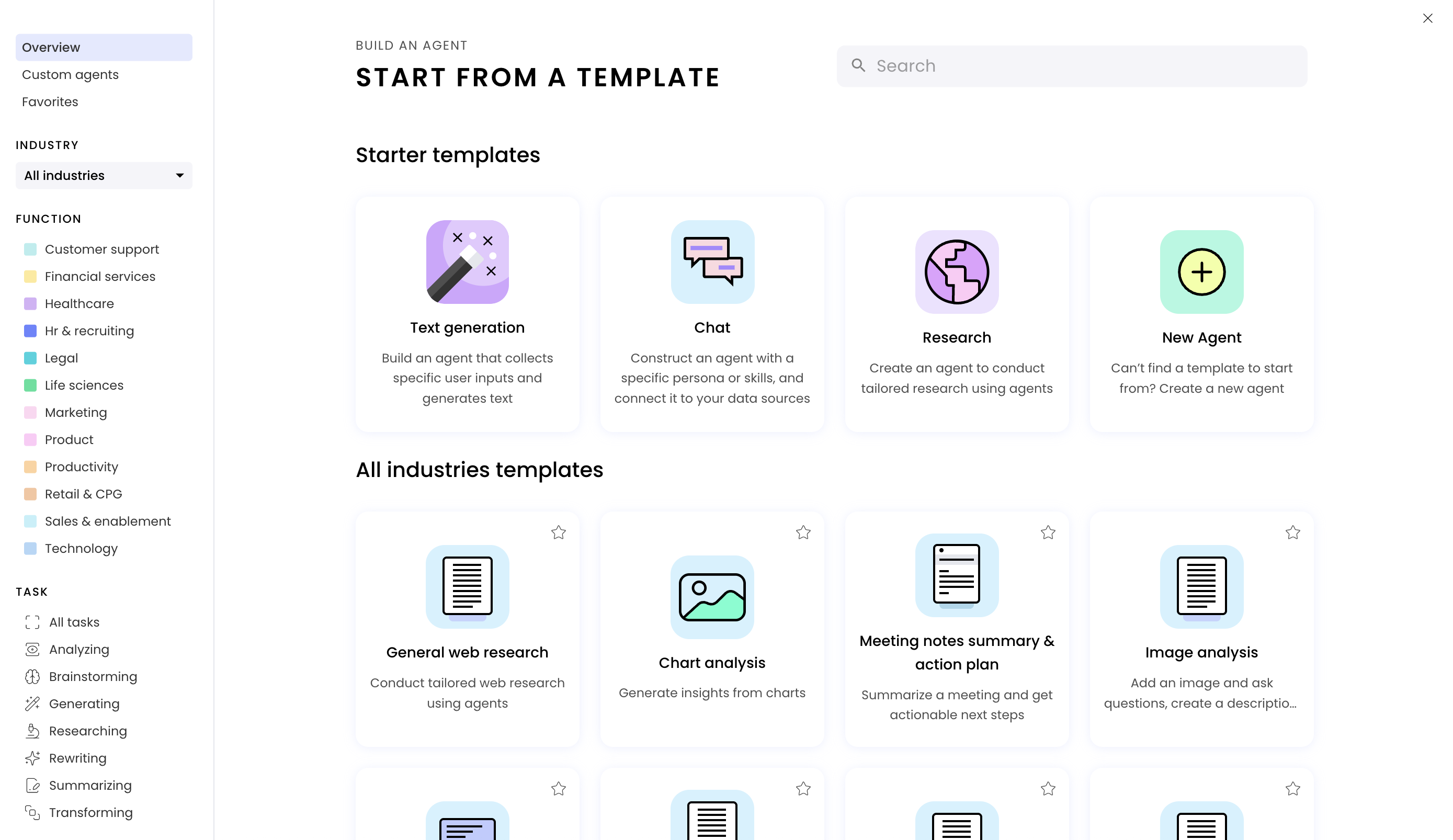
 In the modal that appears, select **New Agent** to create a new agent from scratch.
For common use cases, prebuilt agent templates are available. These include both general-purpose and industry-specific options, all customizable to your specific requirements.
In the modal that appears, select **New Agent** to create a new agent from scratch.
For common use cases, prebuilt agent templates are available. These include both general-purpose and industry-specific options, all customizable to your specific requirements.
 Once the agent is created, a new tab will open in your browser with the Agent Builder interface.
You can get to the Agent Builder interface any time by going to the [AI Studio homepage](https://app.writer.com/aistudio) and selecting the agent you created.
You'll see the Configure Deployment page when you select the agent. To get to the edit interface, click the **Edit** button in the top right corner.
Once the agent is created, a new tab will open in your browser with the Agent Builder interface.
You can get to the Agent Builder interface any time by going to the [AI Studio homepage](https://app.writer.com/aistudio) and selecting the agent you created.
You'll see the Configure Deployment page when you select the agent. To get to the edit interface, click the **Edit** button in the top right corner.
 ## Preview the demo agent
Writer initializes the new agent with a demo workflow that you can use to get started. The demo agent takes a customer review and uses a series of tools to analyze the review and draft a response to the customer.
### Agent Builder views
The Agent Builder interface contains four views:
## Preview the demo agent
Writer initializes the new agent with a demo workflow that you can use to get started. The demo agent takes a customer review and uses a series of tools to analyze the review and draft a response to the customer.
### Agent Builder views
The Agent Builder interface contains four views:
 * **Interface**: The agent's UI, where you can edit the agent's appearance.
* **Blueprints**: The agent's blueprint, where you can edit the agent's behavior.
* **Vault**: The agent's secrets, where you can add secrets like API keys or passwords.
* **Preview**: Test the agent's behavior and preview what the user sees.
You can switch between views by clicking the tabs at the top of the page.
### Preview the agent's behavior
Before you start editing, preview the agent to see how it works:
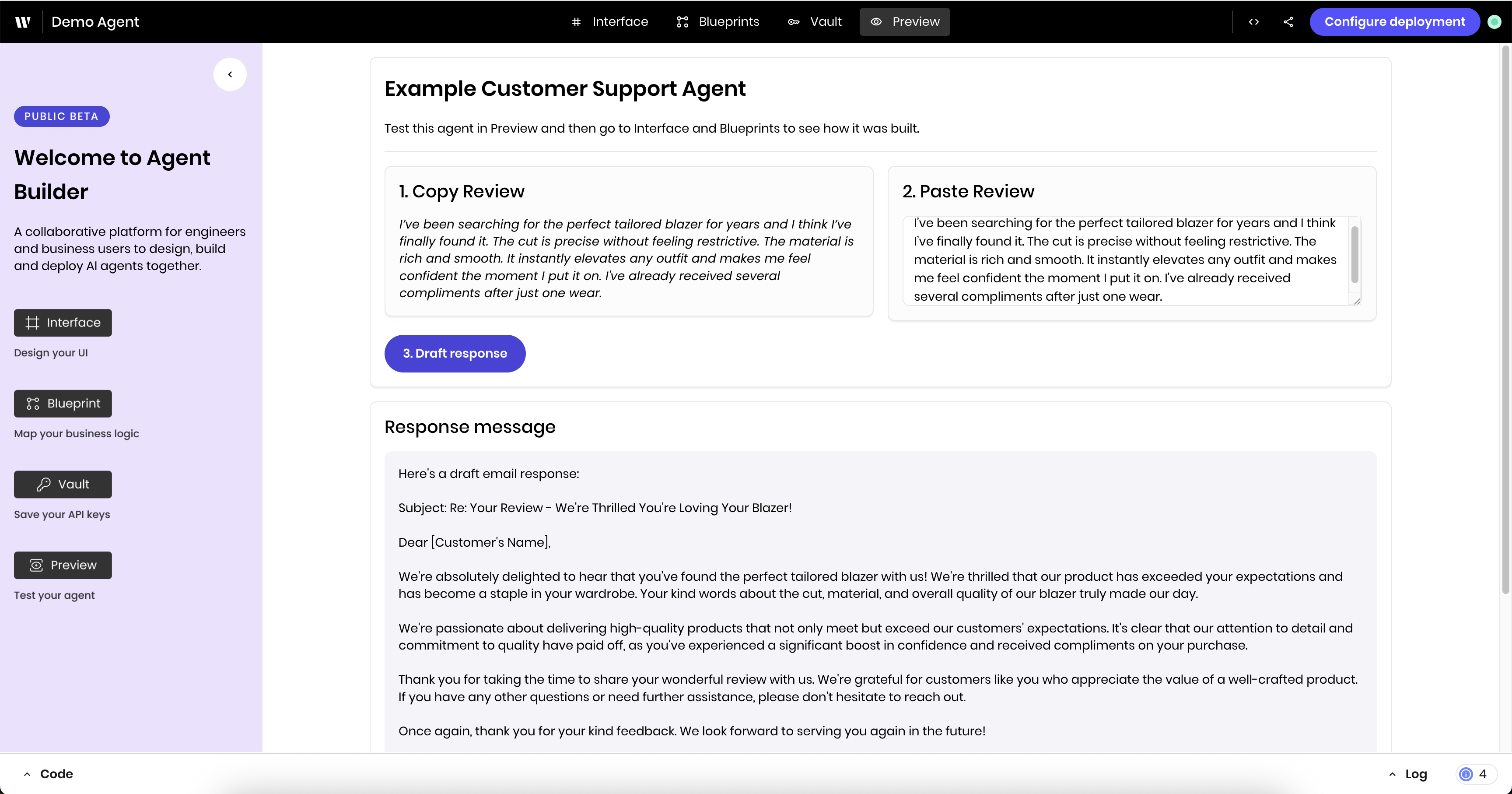
Click the **Preview** tab to see the agent in action.
* **Interface**: The agent's UI, where you can edit the agent's appearance.
* **Blueprints**: The agent's blueprint, where you can edit the agent's behavior.
* **Vault**: The agent's secrets, where you can add secrets like API keys or passwords.
* **Preview**: Test the agent's behavior and preview what the user sees.
You can switch between views by clicking the tabs at the top of the page.
### Preview the agent's behavior
Before you start editing, preview the agent to see how it works:
Click the **Preview** tab to see the agent in action.
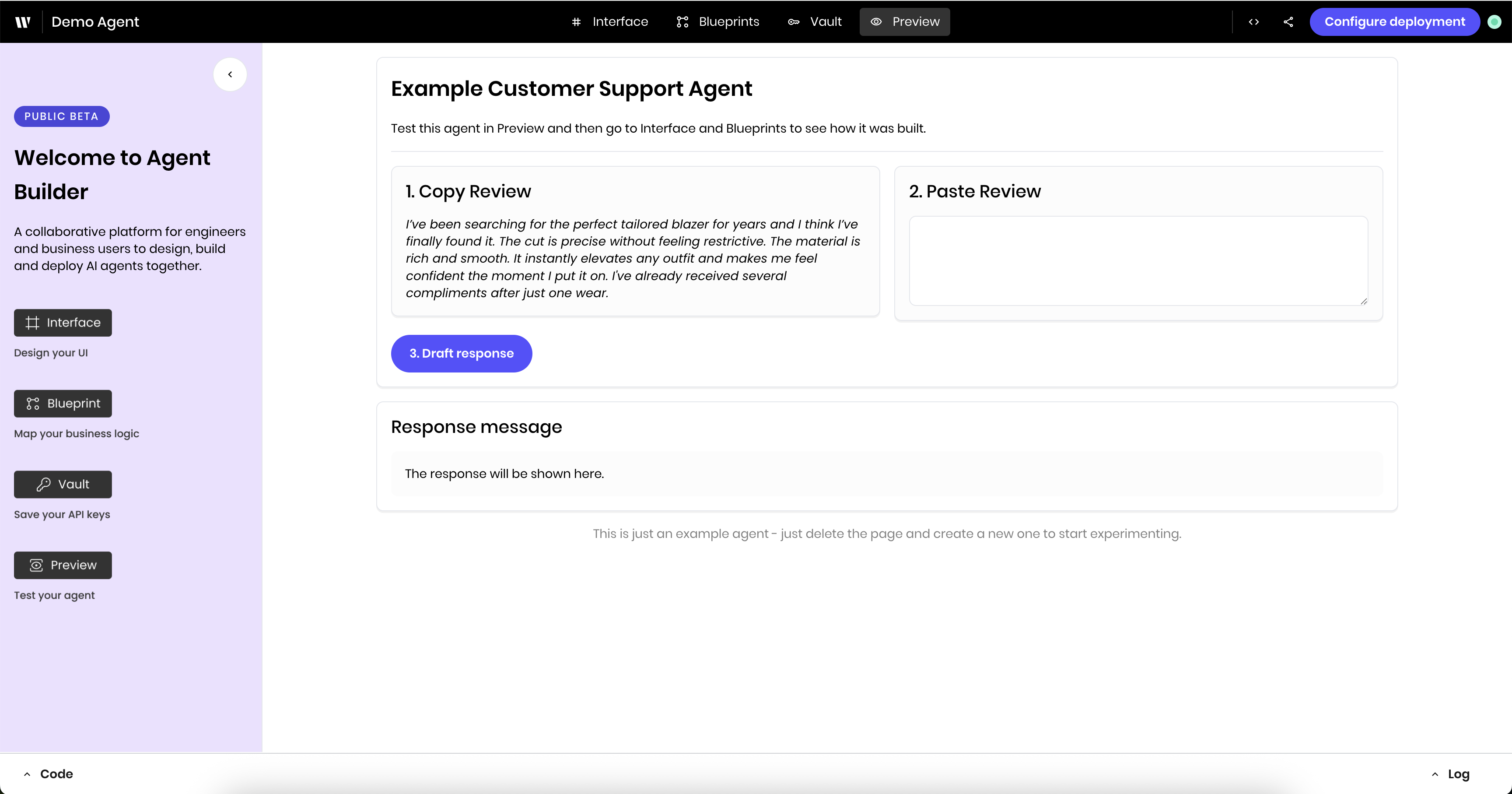 Copy the example customer review under **1. Copy Review** and paste it into the **2.Paste Review** text input.
Click **Draft response**. You'll see a status message in the UI that the agent is generating a response. Once the agent has finished, you'll see the response in the UI.
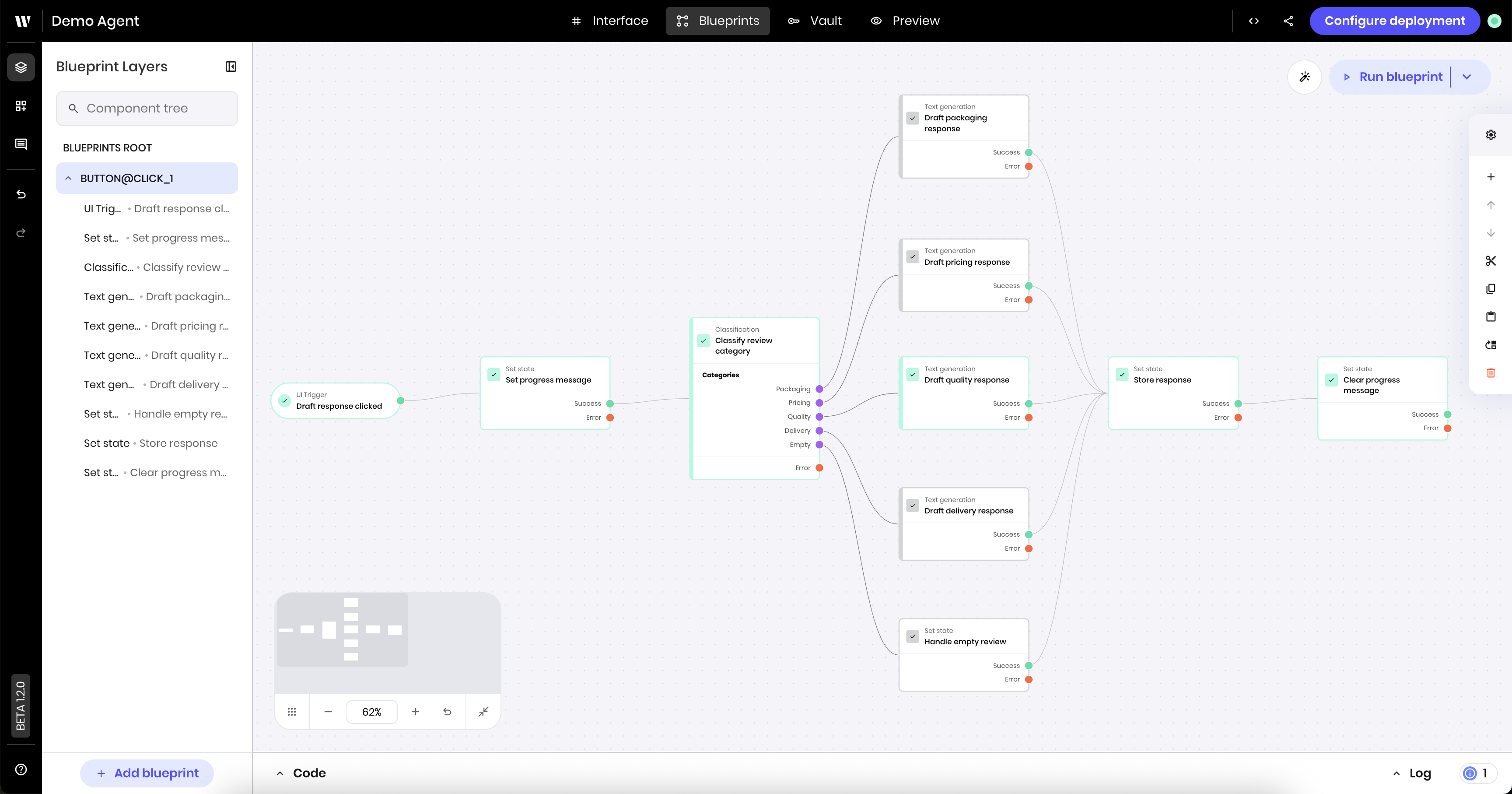
Click the **Blueprints** tab to see the agent's blueprint. You'll see green boxes highlighting the path that the agent took through the blueprint. You'll learn more about the blueprint in the next section.
Copy the example customer review under **1. Copy Review** and paste it into the **2.Paste Review** text input.
Click **Draft response**. You'll see a status message in the UI that the agent is generating a response. Once the agent has finished, you'll see the response in the UI.
Click the **Blueprints** tab to see the agent's blueprint. You'll see green boxes highlighting the path that the agent took through the blueprint. You'll learn more about the blueprint in the next section.
 ## Tour of the demo agent architecture
The demo agent consists of an interface and a blueprint. The interface and blueprint are connected through the agent's state and UI triggers.
## Tour of the demo agent architecture
The demo agent consists of an interface and a blueprint. The interface and blueprint are connected through the agent's state and UI triggers.
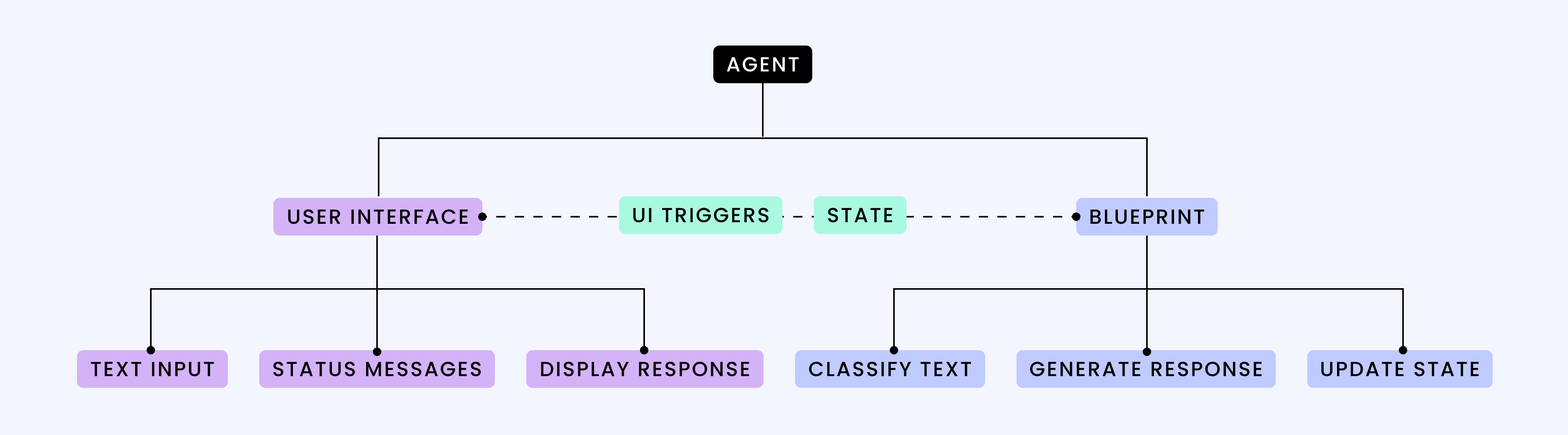 * [**Interface**](#interface-view): What the user sees and interacts with.
* [**Blueprint**](#blueprints-view): A flowchart-like interface where you connect blocks of logic.
* [**Agent state**](#agent-state): A set of values that's shared between the UI and the blueprint. Both the UI and the blueprint can reference and update the state.
* **UI trigger**: A trigger from the UI that starts the agent's blueprint. In this case, the UI trigger is attached to click events on the **Draft response** button.
### Agent state
The [agent's state](/agent-builder/state) is a core component of the agent's behavior. It contains values that the UI and blueprint can access and update.
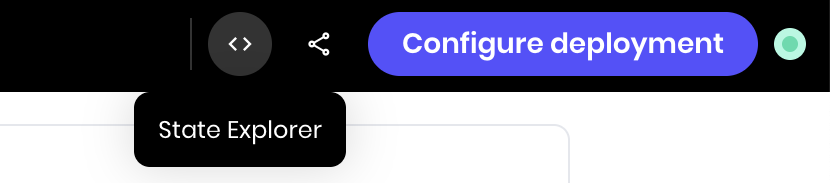
You can view the agent's state from any view by clicking the **State explorer** icon in the top right of the page.
* [**Interface**](#interface-view): What the user sees and interacts with.
* [**Blueprint**](#blueprints-view): A flowchart-like interface where you connect blocks of logic.
* [**Agent state**](#agent-state): A set of values that's shared between the UI and the blueprint. Both the UI and the blueprint can reference and update the state.
* **UI trigger**: A trigger from the UI that starts the agent's blueprint. In this case, the UI trigger is attached to click events on the **Draft response** button.
### Agent state
The [agent's state](/agent-builder/state) is a core component of the agent's behavior. It contains values that the UI and blueprint can access and update.
You can view the agent's state from any view by clicking the **State explorer** icon in the top right of the page.
 The section [Connecting the UI and the blueprint](#connecting-the-ui-and-the-blueprint) describes how the UI and blueprint interact with the state to perform the agent's tasks.
### Blueprints view
The Blueprints view is where you define the agent's logic and behavior. It's a flowchart-like interface where you connect blocks of logic.
If you previewed the agent, you'll see green boxes highlighting the path that the agent took through the blueprint. For the sample review, the agent takes the following steps:
The blueprint started with the **UI Trigger** element. In this case, the UI Trigger is configured to run when the user clicks the **Draft response** button in the UI.
The agent used the **Set state** block to set the `progress_message` value for the agent state to show that it is generating a response.
The agent uses the **Classification** block to analyze the review to determine the primary focus of the review, from the following: `Packaging`, `Pricing`, `Quality`, `Delivery`, or `Empty`.
The agent determined the review fit into the `Quality` category. Classification blocks are built-in blocks that use a Palmyra model to classify the input based on a set of user-defined categories.
The agent used the **Text generation** block to have a Palmyra model draft a response to the customer specifically focused on quality.
The agent stored the drafted response using the `@{result}` environment variable so it could use it in the UI.
The agent cleared the `progress_message` value in the state to remove the loading message from the UI.
#### View another path through the blueprint
To view another path through the blueprint, go back to the **Preview** view and paste the following:
`I like the style but it's a lot more expensive than other brands without any difference in quality.`
Click **Draft response**, and navigate back to the **Blueprint** view. You'll see that the agent took a different path through the blueprint, this time selecting the `Pricing` category and drafting a response using a pricing-related prompt.
### Interface view
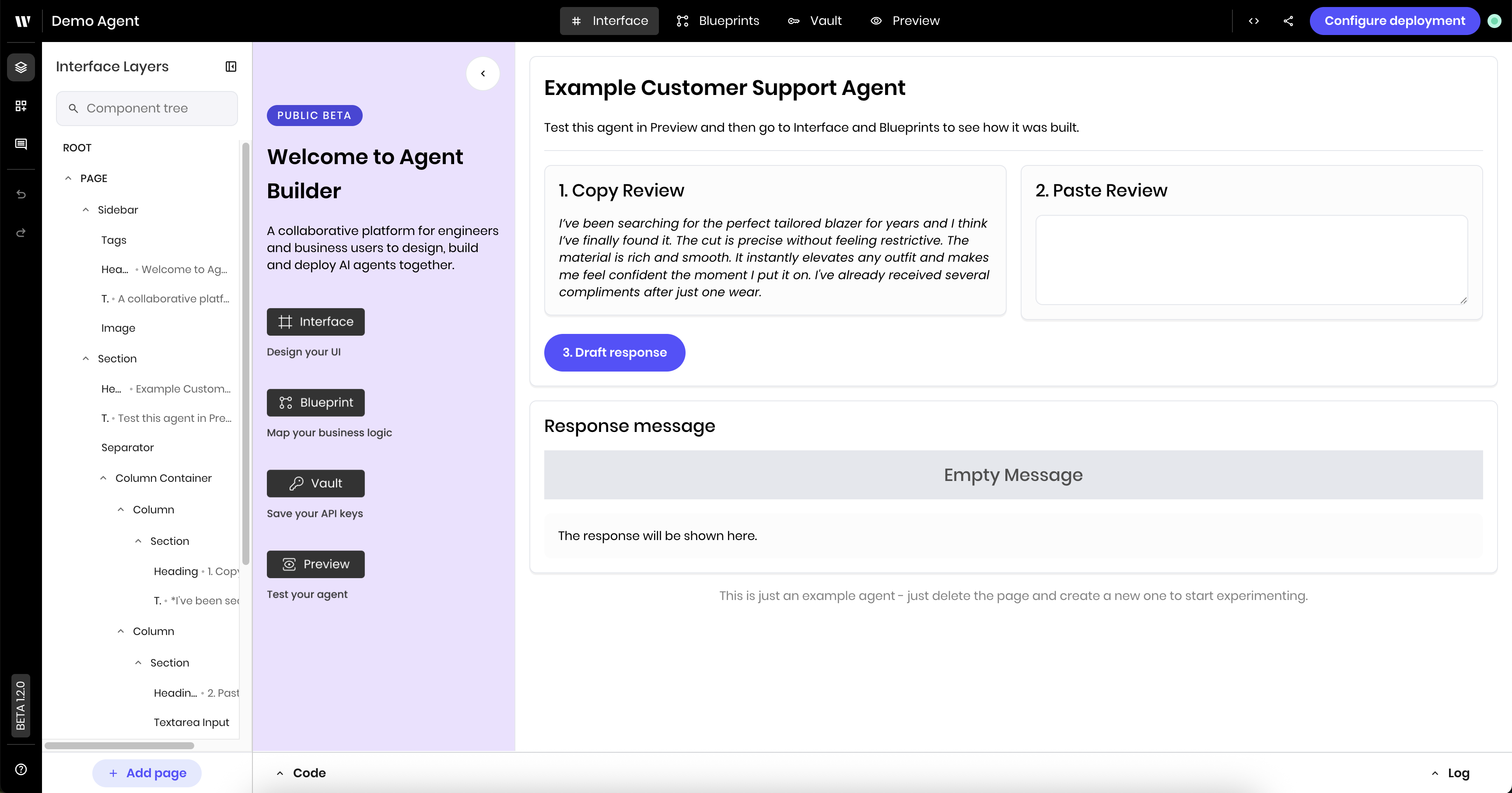
The Interface view is where you define the agent's appearance. You build the interface with components that you can customize and reference in the blueprint.
This agent's UI has the following components:
* A welcome image in a sidebar
* A section for the review:
* A **Text area Input** for the customer review
* A button to **Draft response**
* A section for the response:
* A **Message** component to display the in progress status message
* A section with **Text** components to display the response
The Interface uses **Column container** components to layout the Review section in a two-column format.
The section [Connecting the UI and the blueprint](#connecting-the-ui-and-the-blueprint) describes how the UI and blueprint interact with the state to perform the agent's tasks.
### Blueprints view
The Blueprints view is where you define the agent's logic and behavior. It's a flowchart-like interface where you connect blocks of logic.
If you previewed the agent, you'll see green boxes highlighting the path that the agent took through the blueprint. For the sample review, the agent takes the following steps:
The blueprint started with the **UI Trigger** element. In this case, the UI Trigger is configured to run when the user clicks the **Draft response** button in the UI.
The agent used the **Set state** block to set the `progress_message` value for the agent state to show that it is generating a response.
The agent uses the **Classification** block to analyze the review to determine the primary focus of the review, from the following: `Packaging`, `Pricing`, `Quality`, `Delivery`, or `Empty`.
The agent determined the review fit into the `Quality` category. Classification blocks are built-in blocks that use a Palmyra model to classify the input based on a set of user-defined categories.
The agent used the **Text generation** block to have a Palmyra model draft a response to the customer specifically focused on quality.
The agent stored the drafted response using the `@{result}` environment variable so it could use it in the UI.
The agent cleared the `progress_message` value in the state to remove the loading message from the UI.
#### View another path through the blueprint
To view another path through the blueprint, go back to the **Preview** view and paste the following:
`I like the style but it's a lot more expensive than other brands without any difference in quality.`
Click **Draft response**, and navigate back to the **Blueprint** view. You'll see that the agent took a different path through the blueprint, this time selecting the `Pricing` category and drafting a response using a pricing-related prompt.
### Interface view
The Interface view is where you define the agent's appearance. You build the interface with components that you can customize and reference in the blueprint.
This agent's UI has the following components:
* A welcome image in a sidebar
* A section for the review:
* A **Text area Input** for the customer review
* A button to **Draft response**
* A section for the response:
* A **Message** component to display the in progress status message
* A section with **Text** components to display the response
The Interface uses **Column container** components to layout the Review section in a two-column format.
 #### Hidden sections
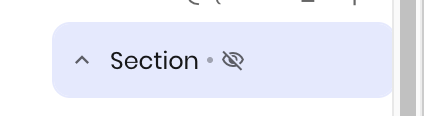
You won't see the hidden section for the results in the UI when you first load the agent. You can see that the section is in the UI from the **Interface Layers** view, which shows all the components in the UI. The hidden section has an icon next to it indicating that it's not visible.
#### Hidden sections
You won't see the hidden section for the results in the UI when you first load the agent. You can see that the section is in the UI from the **Interface Layers** view, which shows all the components in the UI. The hidden section has an icon next to it indicating that it's not visible.
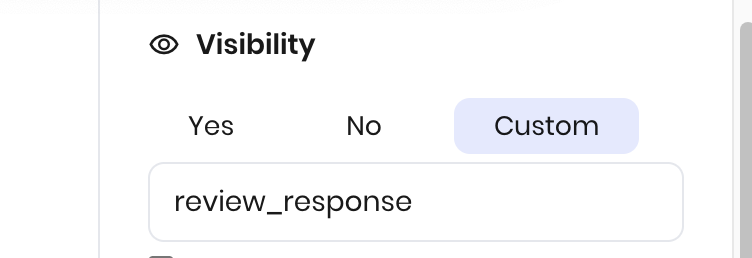
 Click that element in the Component tree to see its settings. Under **Visibility**, it's set to only show up once there is a value in the `review_response` state variable.
 ### Connecting the UI and the blueprint with state variables
To build full-featured agents, you must be able to connect the UI to the blueprint.
The agent's state is the main way to pass data between the UI and the blueprint. The state contains a set of values that the UI and blueprint can both reference and set. You can also use triggers to connect the UI to the blueprint.
Here are the places where the demo agent connects the UI to the blueprint and passes data between them:
The **Draft response** button in the UI is connected to the **UI Trigger** element in the blueprint. Click events trigger the blueprint to run.
The **Text area Input** component in the UI binds the user's input to the `customer_review` state variable. The blueprint uses this value in the **Classification** block.
The **Message** component in the UI displays the value of the `progress_message` state variable to the user. The blueprint sets this value after the user clicks **Generate response**.
The two sections in the response with **Text** components in the UI depend on the value of the `review_response` state variable.
1. The blueprint sets this value after the **Text generation** block runs.
2. Once `review_response` contains a value, the section that had the message "The response will be shown here" disappears.
3. The section that displays the response appears. The text area in that section contains the value of `review_response`.
See [Hidden sections](#hidden-sections) for more information about the review response sections and conditionally showing and hiding them.
Once the review response is generated, the final **Set state** block in the blueprint sets the `progress_message` state variable to an empty string to clear the loading message from the UI.
### Passing data between blocks
The demo agent also shows how to pass data between blocks with the `@{result}` variable. Once the text generation block has finished, it passes its result to the next block in the blueprint, which is the **Set state** block. The **Set state** block sets the `review_response` state variable with the `@{result}` from the text generation block.
Learn more about all available variables in [Using Data from Previous Blocks](/agent-builder/execution-environment).
## Modify the demo agent
Now that you've toured the Agent Builder interface, try editing the agent's behavior.
### Add a new category to the classification block
This example shows how to add a new category to the classification block to look for and respond to reviews that focus on sizing issues.
First, add another category to the **Classification** block in the blueprint so that the agent can also classify reviews that are about sizing.
Navigate to the **Blueprints** view and click the **Classification** block in the blueprint to open the block settings.
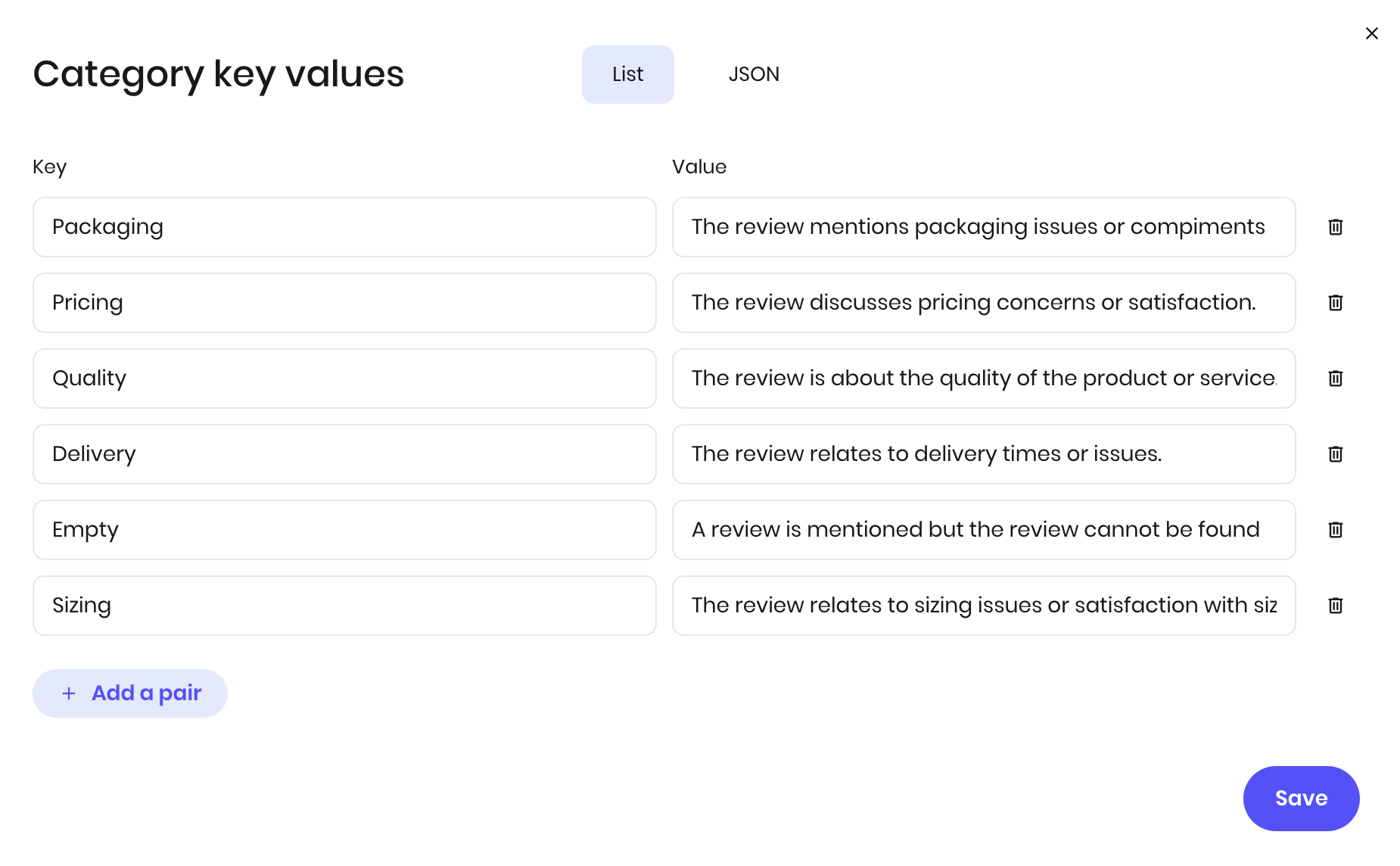
In the **Categories** section, add a new category called `Sizing` with the value:
```
The review relates to sizing issues or satisfaction with sizing.
```
### Connecting the UI and the blueprint with state variables
To build full-featured agents, you must be able to connect the UI to the blueprint.
The agent's state is the main way to pass data between the UI and the blueprint. The state contains a set of values that the UI and blueprint can both reference and set. You can also use triggers to connect the UI to the blueprint.
Here are the places where the demo agent connects the UI to the blueprint and passes data between them:
The **Draft response** button in the UI is connected to the **UI Trigger** element in the blueprint. Click events trigger the blueprint to run.
The **Text area Input** component in the UI binds the user's input to the `customer_review` state variable. The blueprint uses this value in the **Classification** block.
The **Message** component in the UI displays the value of the `progress_message` state variable to the user. The blueprint sets this value after the user clicks **Generate response**.
The two sections in the response with **Text** components in the UI depend on the value of the `review_response` state variable.
1. The blueprint sets this value after the **Text generation** block runs.
2. Once `review_response` contains a value, the section that had the message "The response will be shown here" disappears.
3. The section that displays the response appears. The text area in that section contains the value of `review_response`.
See [Hidden sections](#hidden-sections) for more information about the review response sections and conditionally showing and hiding them.
Once the review response is generated, the final **Set state** block in the blueprint sets the `progress_message` state variable to an empty string to clear the loading message from the UI.
### Passing data between blocks
The demo agent also shows how to pass data between blocks with the `@{result}` variable. Once the text generation block has finished, it passes its result to the next block in the blueprint, which is the **Set state** block. The **Set state** block sets the `review_response` state variable with the `@{result}` from the text generation block.
Learn more about all available variables in [Using Data from Previous Blocks](/agent-builder/execution-environment).
## Modify the demo agent
Now that you've toured the Agent Builder interface, try editing the agent's behavior.
### Add a new category to the classification block
This example shows how to add a new category to the classification block to look for and respond to reviews that focus on sizing issues.
First, add another category to the **Classification** block in the blueprint so that the agent can also classify reviews that are about sizing.
Navigate to the **Blueprints** view and click the **Classification** block in the blueprint to open the block settings.
In the **Categories** section, add a new category called `Sizing` with the value:
```
The review relates to sizing issues or satisfaction with sizing.
```
 Add a new **Text generation** block to the blueprint to generate a response to sizing-related reviews:
1. Click one of the existing **Text generation** blocks in the blueprint.
2. Type `Command + c` (on Mac) or `Ctrl + c` (on Windows) to copy the block.
3. Click onto the blueprint canvas and type `Command + v` (on Mac) or `Ctrl + v` (on Windows) to paste the block.
Click on the new text generation block you pasted to edit it. Update the following settings:
* **Alias**: `Draft sizing response`
* **Prompt**: update the prompt to focus on sizing issues:
```
Take the role of a customer success rep and draft an email response to the customer review below that mentions sizing: @{customer_review}
Address the customer's sizing experience. Thank them if the sizing was accurate, or address their concerns if there were problems with sizing.
```
Connect the new text generation block to the rest of the blueprint:
* Drag a line from the purple dot next to **Sizing** on the **Classification** block to connect it to the new **Text generation** block.
* Drag a line from the **Success** connection point on the **Text generation** block to the **Set state** block.
Add a new **Text generation** block to the blueprint to generate a response to sizing-related reviews:
1. Click one of the existing **Text generation** blocks in the blueprint.
2. Type `Command + c` (on Mac) or `Ctrl + c` (on Windows) to copy the block.
3. Click onto the blueprint canvas and type `Command + v` (on Mac) or `Ctrl + v` (on Windows) to paste the block.
Click on the new text generation block you pasted to edit it. Update the following settings:
* **Alias**: `Draft sizing response`
* **Prompt**: update the prompt to focus on sizing issues:
```
Take the role of a customer success rep and draft an email response to the customer review below that mentions sizing: @{customer_review}
Address the customer's sizing experience. Thank them if the sizing was accurate, or address their concerns if there were problems with sizing.
```
Connect the new text generation block to the rest of the blueprint:
* Drag a line from the purple dot next to **Sizing** on the **Classification** block to connect it to the new **Text generation** block.
* Drag a line from the **Success** connection point on the **Text generation** block to the **Set state** block.
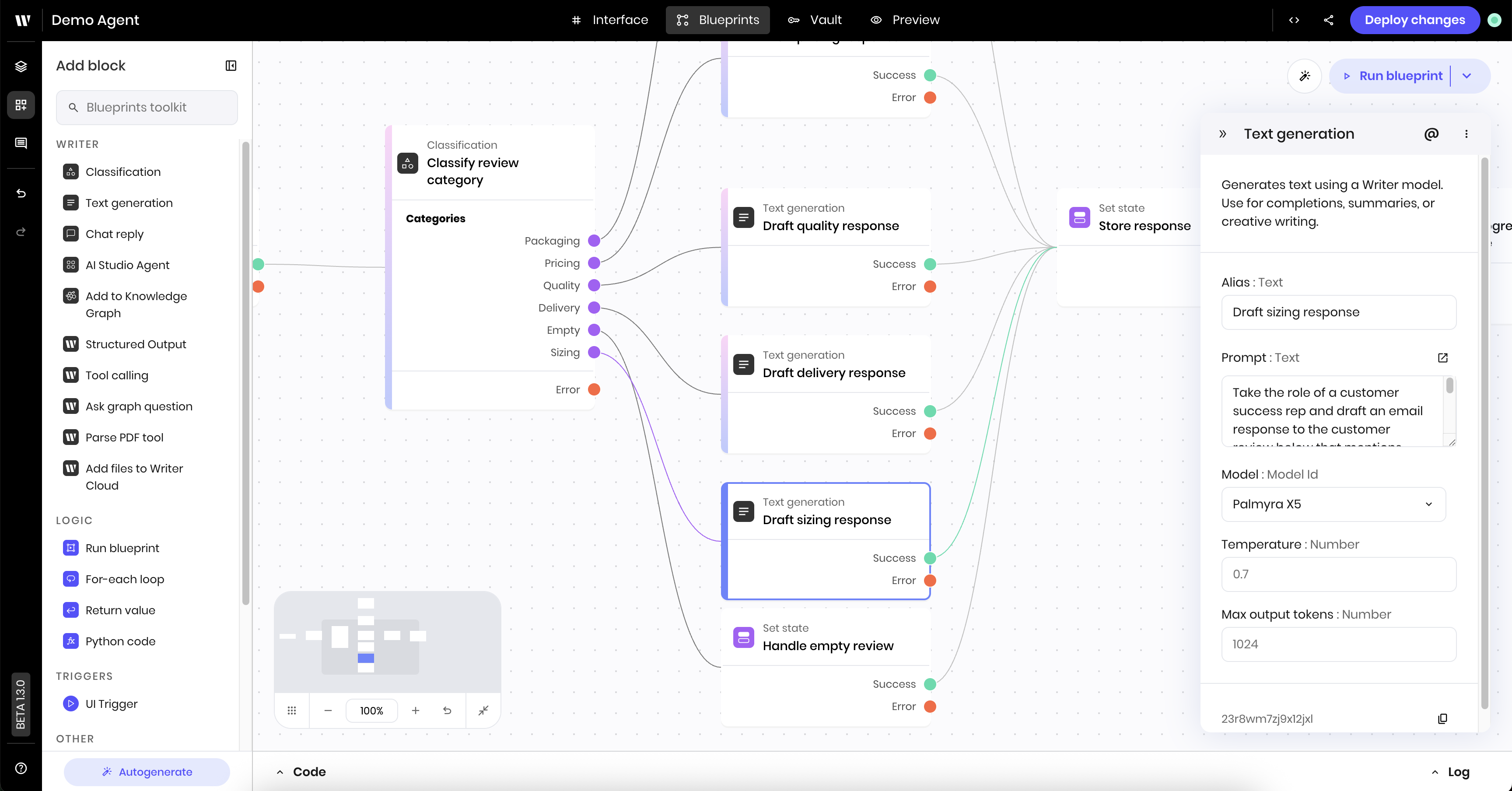 Now, preview the agent to see the new behavior. Paste the following review into the input field and click **Draft response**:
```
The sizing felt off, I'm normally a small and even the XS was too big.
```
You should see the agent take a different path through the blueprint and generate a sizing-related response.
### Add a new UI component
This next example shows how to add a new UI component that you can incorporate into the agent's blueprint.
The steps show how to prompt the agent to add a discount of a certain percentage when generating a response to the customer review. You will:
* Add a **Select input** component to the UI that lists different discount percentages
* Edit the prompt for one of the **Text generation** blocks to add the selected discount percentage to the response if there is one
**From the UI view:**
Add a new **Select input** component to the UI. Drag it into the section that contains the area for pasting the review text and the **Draft response** button.
Update the following settings in the Select input component's settings:
* **Label**: `Discount %`
* **Options**: `0`, `5`, `10`, `15` (the keys and values should be the same)
* **Link variable** under **Binding**: `discount`
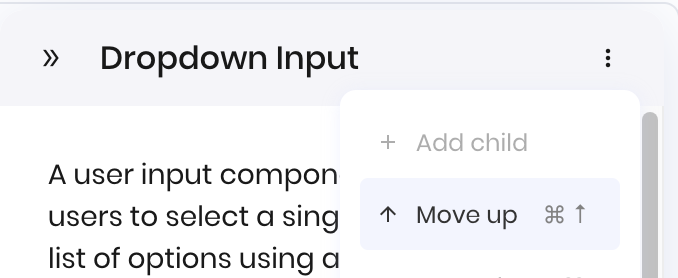
Move the component above the **Draft response** button by clicking the three vertical dots on the component's settings menu and selecting **Move up**. You can also drag the component up in the UI.
Now, preview the agent to see the new behavior. Paste the following review into the input field and click **Draft response**:
```
The sizing felt off, I'm normally a small and even the XS was too big.
```
You should see the agent take a different path through the blueprint and generate a sizing-related response.
### Add a new UI component
This next example shows how to add a new UI component that you can incorporate into the agent's blueprint.
The steps show how to prompt the agent to add a discount of a certain percentage when generating a response to the customer review. You will:
* Add a **Select input** component to the UI that lists different discount percentages
* Edit the prompt for one of the **Text generation** blocks to add the selected discount percentage to the response if there is one
**From the UI view:**
Add a new **Select input** component to the UI. Drag it into the section that contains the area for pasting the review text and the **Draft response** button.
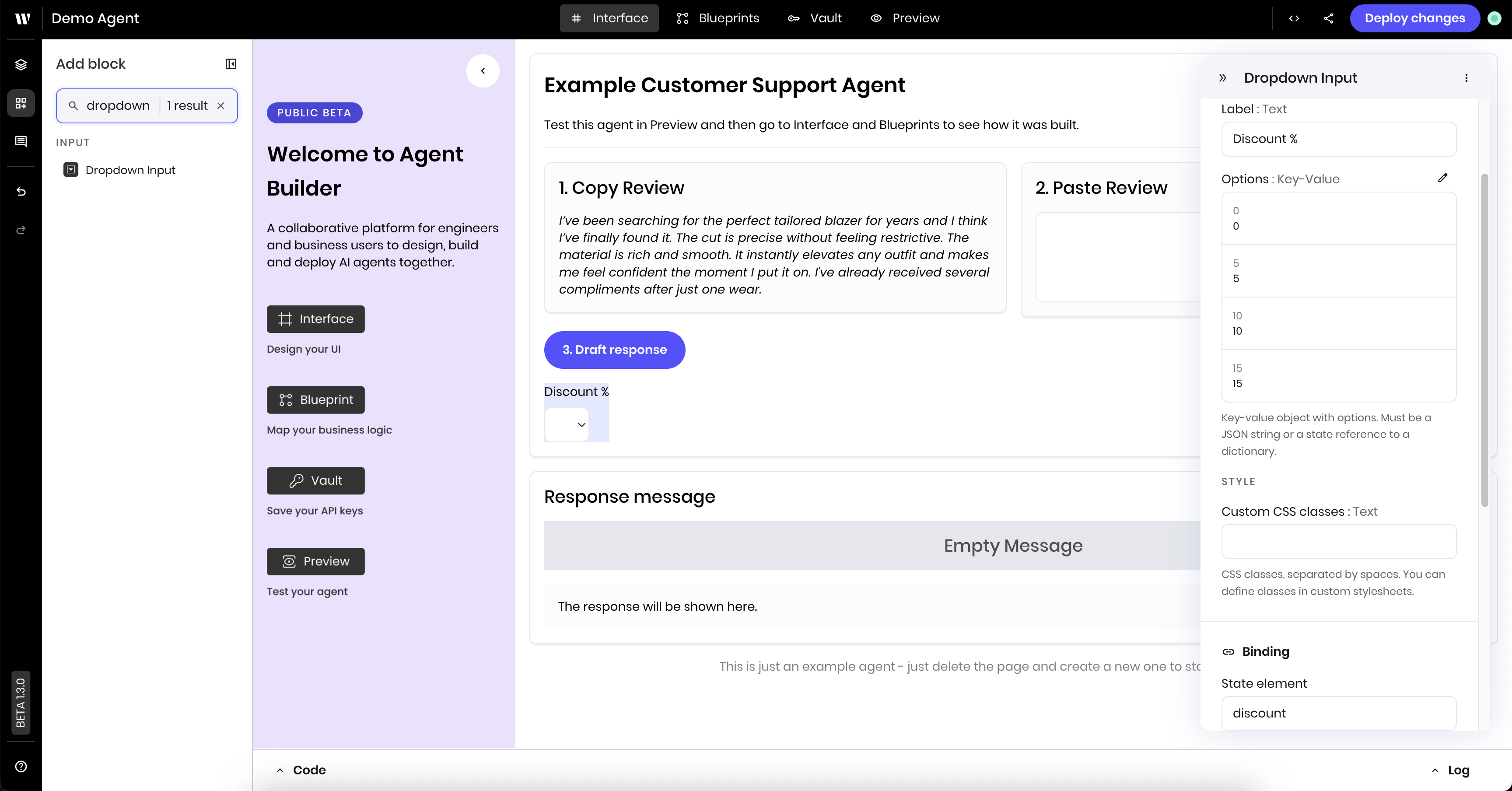
Update the following settings in the Select input component's settings:
* **Label**: `Discount %`
* **Options**: `0`, `5`, `10`, `15` (the keys and values should be the same)
* **Link variable** under **Binding**: `discount`
Move the component above the **Draft response** button by clicking the three vertical dots on the component's settings menu and selecting **Move up**. You can also drag the component up in the UI.
 The UI should now look like this:
 **From the blueprint view:**
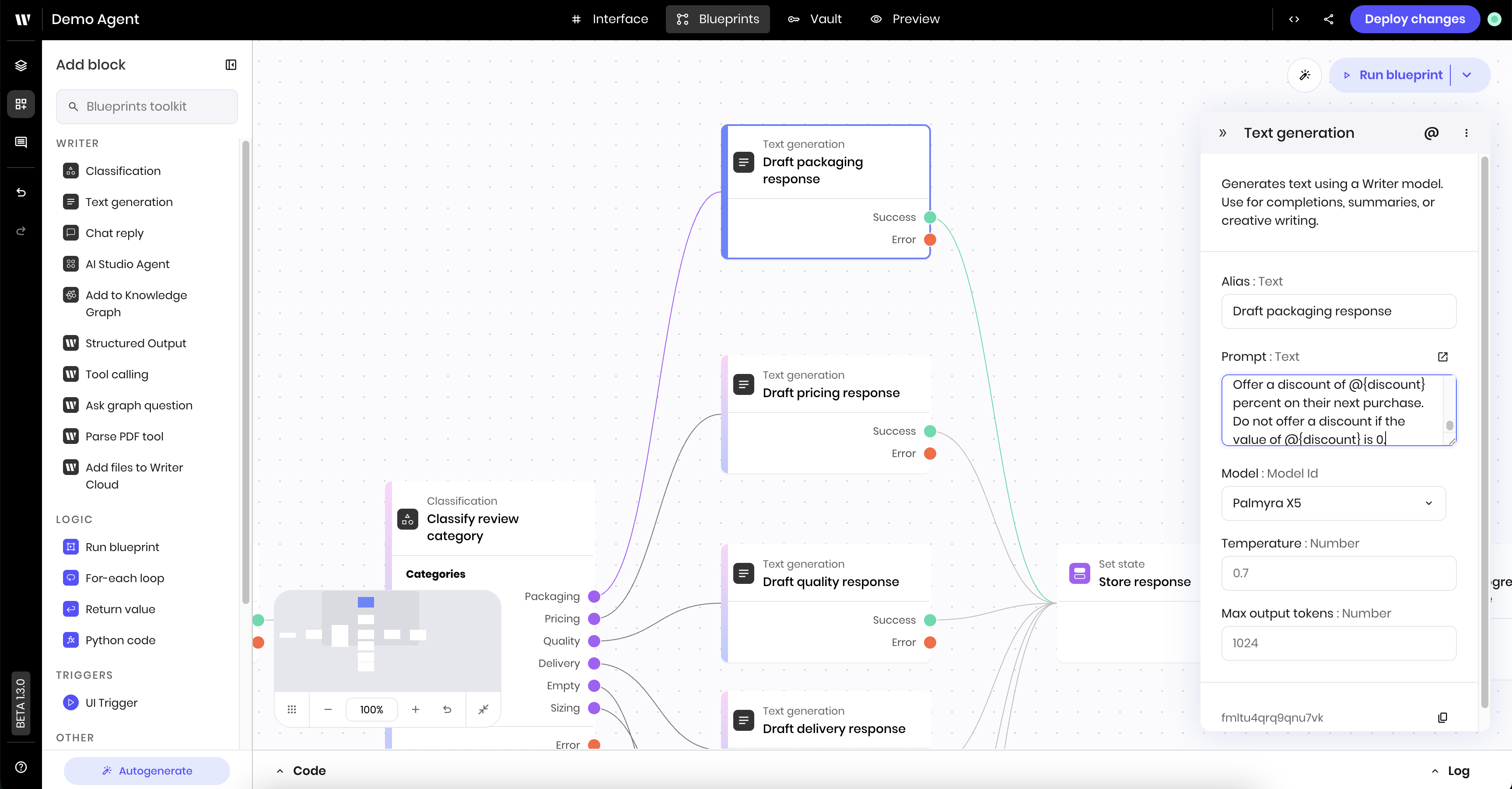
Click the **Draft packaging response** text generation block to open its settings.
Edit the block's prompt to read the `discount` state variable and add a discount to the response if there is one. For example, add the following to the prompt:
```
Offer a discount of @{discount} percent on their next purchase.
Do not offer a discount if the value of @{discount} is 0.
```
**From the blueprint view:**
Click the **Draft packaging response** text generation block to open its settings.
Edit the block's prompt to read the `discount` state variable and add a discount to the response if there is one. For example, add the following to the prompt:
```
Offer a discount of @{discount} percent on their next purchase.
Do not offer a discount if the value of @{discount} is 0.
```
 Now, preview the agent to see the new behavior. Paste the following review into the input field:
```
The packaging was awful.
```
Then, choose a discount amount from the select input and click **Draft response**.
You should see the agent take a different path through the blueprint and generate a response that offers a discount if you set it above 0.
You can update the prompts for the other text generation blocks to have the agent offer a discount for the other categories.
## Next steps
Now that you've interacted with and modified an agent in Agent Builder, you can build your own. Check out the [Agent Builder Quickstart](/agent-builder/quickstart) to learn how to build a new agent from scratch.
Now, preview the agent to see the new behavior. Paste the following review into the input field:
```
The packaging was awful.
```
Then, choose a discount amount from the select input and click **Draft response**.
You should see the agent take a different path through the blueprint and generate a response that offers a discount if you set it above 0.
You can update the prompts for the other text generation blocks to have the agent offer a discount for the other categories.
## Next steps
Now that you've interacted with and modified an agent in Agent Builder, you can build your own. Check out the [Agent Builder Quickstart](/agent-builder/quickstart) to learn how to build a new agent from scratch.