> ## Documentation Index
> Fetch the complete documentation index at: https://dev.writer.com/llms.txt
> Use this file to discover all available pages before exploring further.
# Build a chatbot connected to a Knowledge Graph
Agent Builder contains prebuilt UI and blueprint blocks that you can combine to build a full-featured chatbot.
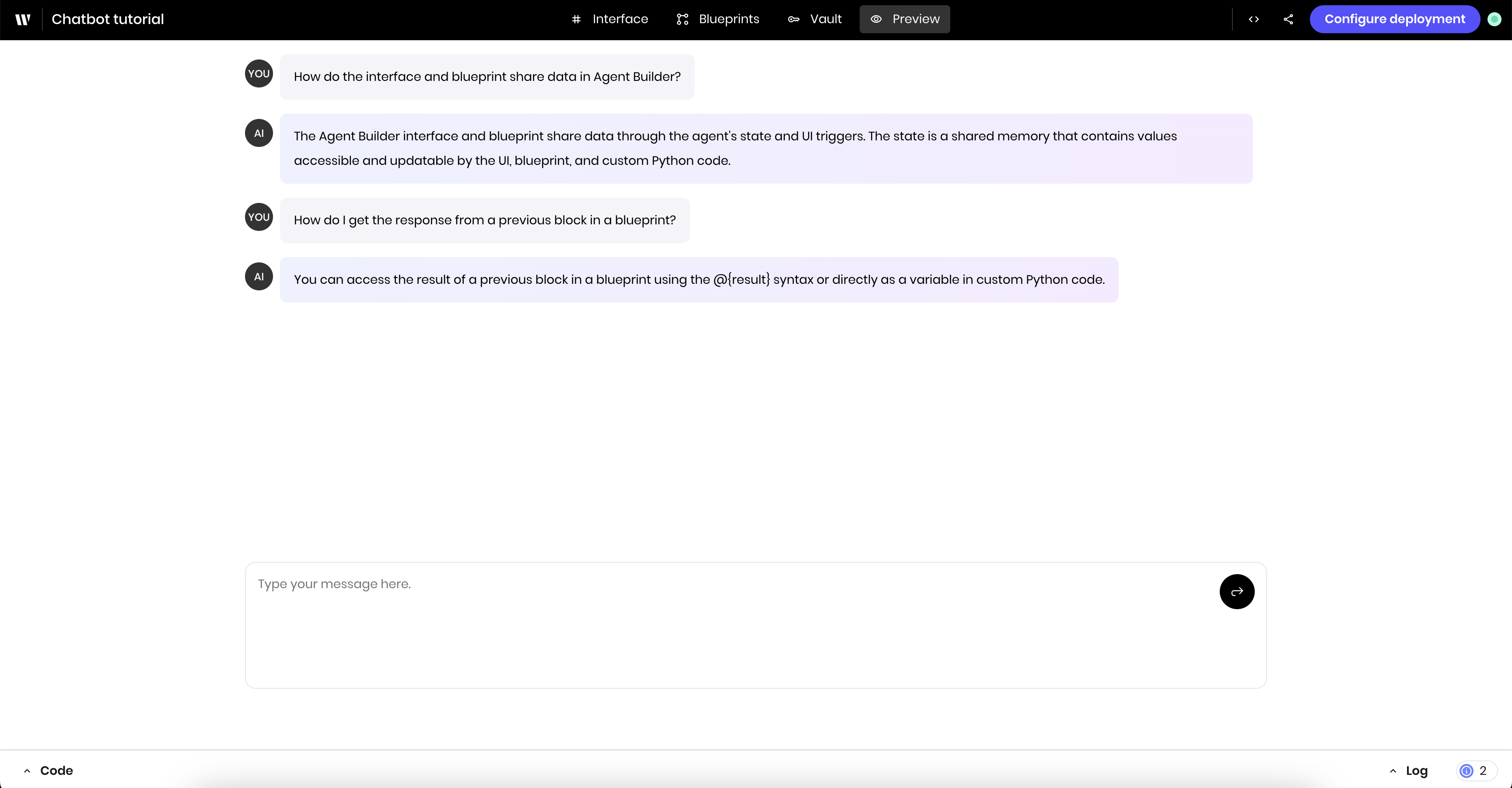 This tutorial demonstrates how to build a chatbot that's connected to the Palmyra X5 model and integrates with a Knowledge Graph for domain-specific knowledge. It covers the following steps:
1. Adding a [**Chatbot** block](/components/chatbot) to the UI
2. Adding a [**Chat reply** block](/blueprints/chatreply) to the blueprint
3. Connecting a Knowledge Graph to the chatbot
If you are unfamiliar with Agent Builder interface, check out the [Agent Builder Quickstart](/agent-builder/quickstart).
## Build the UI
The UI for the agent contains a single **Chatbot** block. This block handles the full UI for the chatbot, including the chat interface and the chat messages.
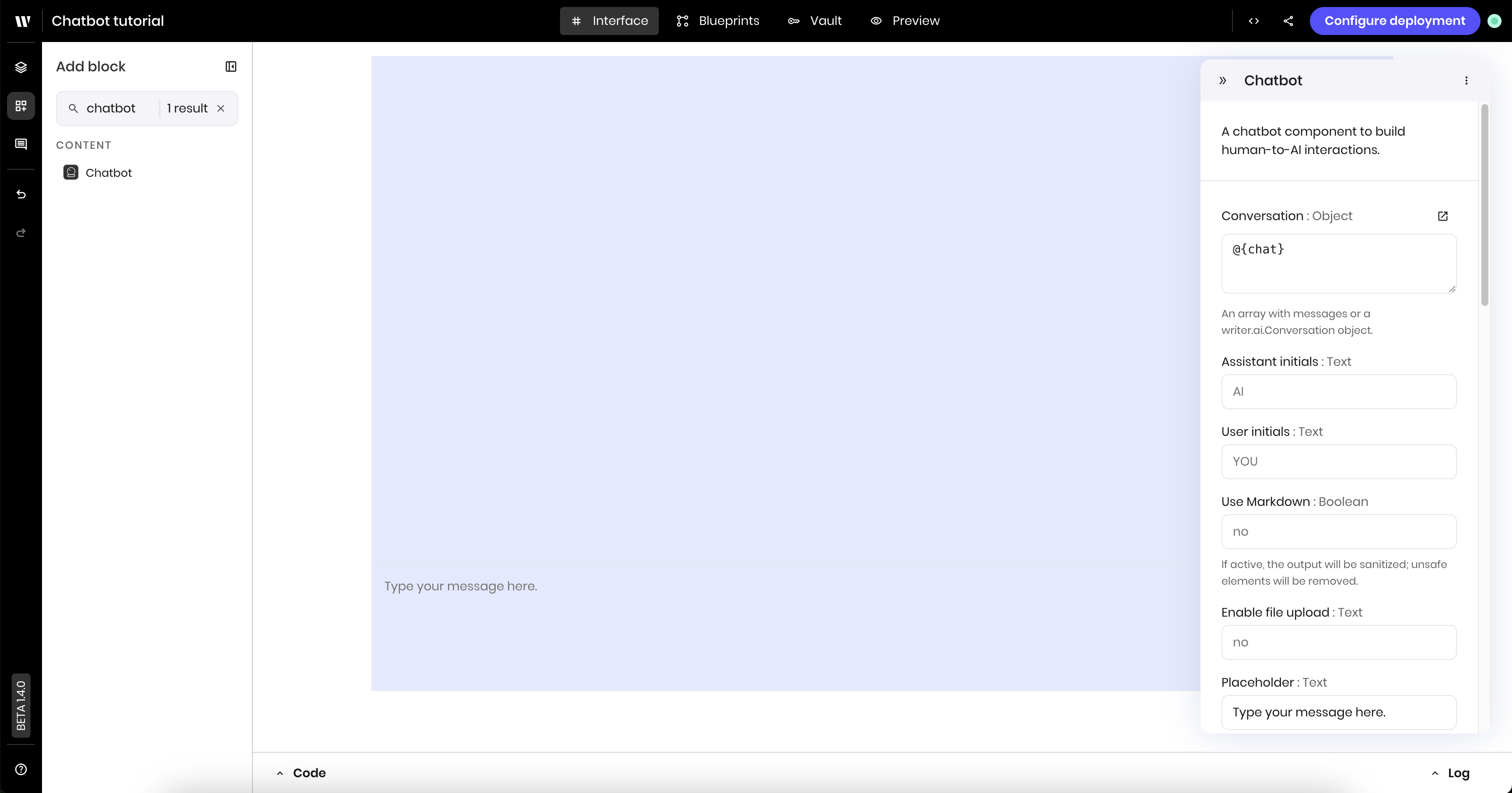
Drag and drop a [**Chatbot** component](/components/chatbot) onto the Interface.
In the block's configuration panel, set the following fields:
* **Conversation**: `@{chat}`. This is the state variable that stores the chat conversation.
* **Assistant initials**: `AI`. This is the text that appears next to the assistant's messages in the chat.
* **User initials**: `YOU`. This is the text that appears next to the user's messages in the chat.
* **Use markdown**: `no`. You can change this to `yes` if you want to parse Markdown formatting in messages.
* **Enable file upload**: `no`. This disables the file uploads in the chatbot.
* **Placeholder**: `Type your message here.`. This is the text that appears in the input field when it's empty.
This tutorial demonstrates how to build a chatbot that's connected to the Palmyra X5 model and integrates with a Knowledge Graph for domain-specific knowledge. It covers the following steps:
1. Adding a [**Chatbot** block](/components/chatbot) to the UI
2. Adding a [**Chat reply** block](/blueprints/chatreply) to the blueprint
3. Connecting a Knowledge Graph to the chatbot
If you are unfamiliar with Agent Builder interface, check out the [Agent Builder Quickstart](/agent-builder/quickstart).
## Build the UI
The UI for the agent contains a single **Chatbot** block. This block handles the full UI for the chatbot, including the chat interface and the chat messages.
Drag and drop a [**Chatbot** component](/components/chatbot) onto the Interface.
In the block's configuration panel, set the following fields:
* **Conversation**: `@{chat}`. This is the state variable that stores the chat conversation.
* **Assistant initials**: `AI`. This is the text that appears next to the assistant's messages in the chat.
* **User initials**: `YOU`. This is the text that appears next to the user's messages in the chat.
* **Use markdown**: `no`. You can change this to `yes` if you want to parse Markdown formatting in messages.
* **Enable file upload**: `no`. This disables the file uploads in the chatbot.
* **Placeholder**: `Type your message here.`. This is the text that appears in the input field when it's empty.
 ## Build the blueprint
The blueprint for the agent contains the following blocks:
* **UI trigger** block to run the blueprint when a user enters a chat message
* **Chat reply** block to manage the conversation and generate a response to the user's message
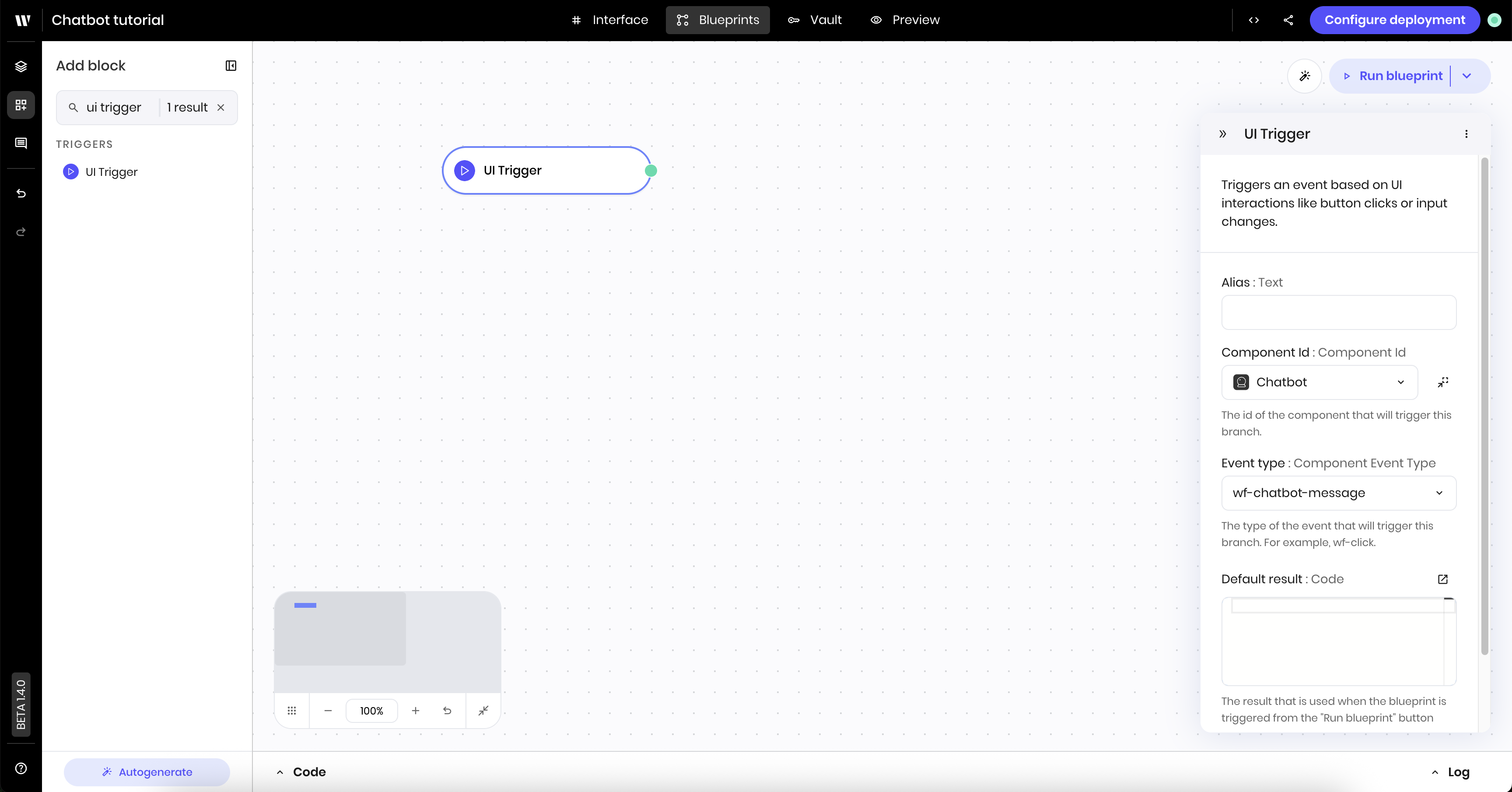
To run the blueprint when a user enters a chat message, add a [**UI trigger** block](/blueprints/uitrigger) to the canvas. In the block's configuration panel, update the following fields:
* **Component Id**: select the `Chatbot` component from the dropdown of UI blocks
* **Event type**: `wf-chatbot-message`
## Build the blueprint
The blueprint for the agent contains the following blocks:
* **UI trigger** block to run the blueprint when a user enters a chat message
* **Chat reply** block to manage the conversation and generate a response to the user's message
To run the blueprint when a user enters a chat message, add a [**UI trigger** block](/blueprints/uitrigger) to the canvas. In the block's configuration panel, update the following fields:
* **Component Id**: select the `Chatbot` component from the dropdown of UI blocks
* **Event type**: `wf-chatbot-message`
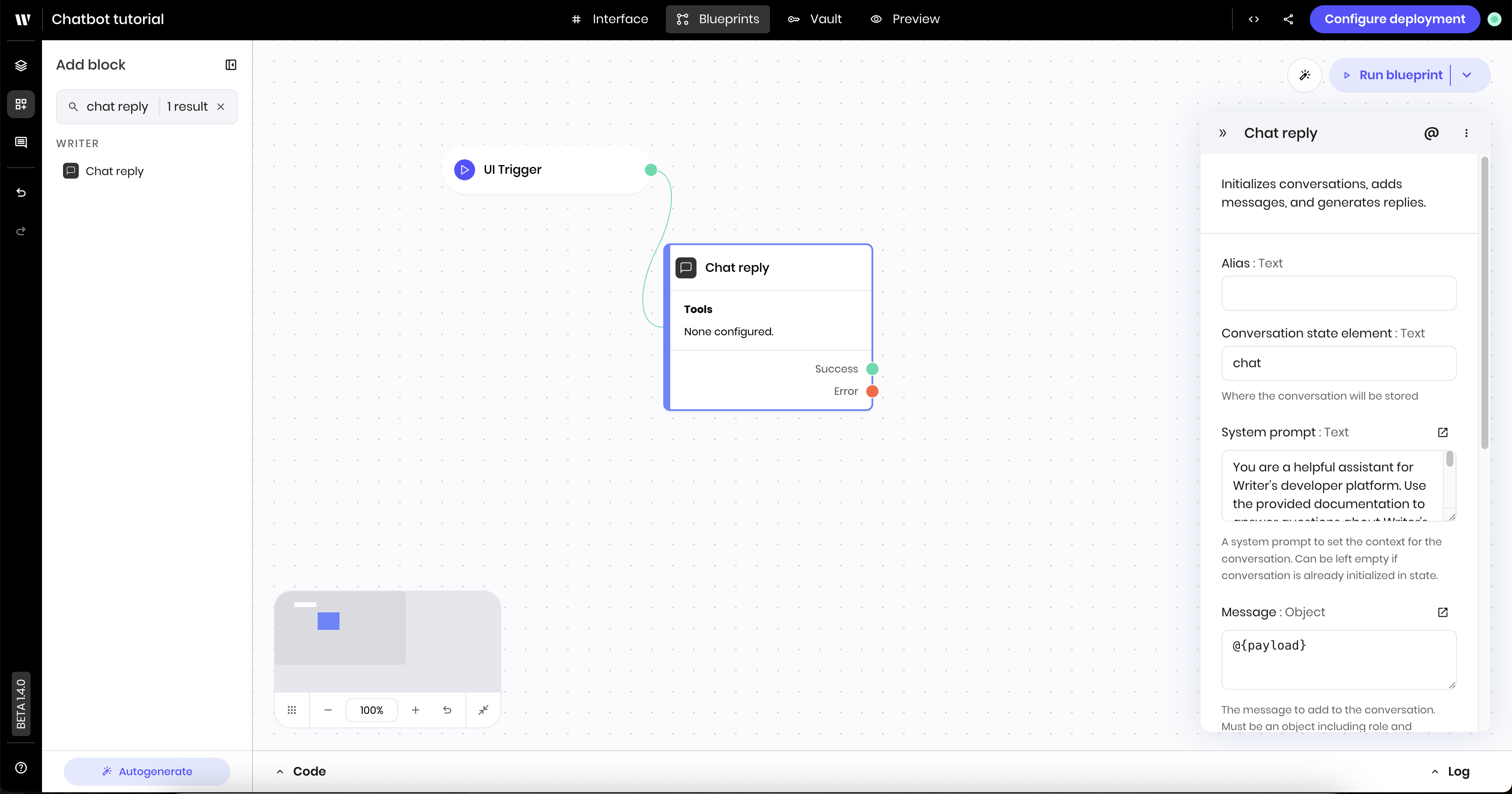
 Add a **Chat reply** block to the canvas, which runs after the UI trigger block. This block manages the chat conversation, including the chat messages and the chat history.
Connect the **UI trigger** block to the **Chat reply** block by dragging a line from the green dot on the **UI trigger** block to the **Chat reply** block.
In the **Chat reply** block's configuration panel, set the following fields:
* **Conversation object**: `chat`
* **System prompt**: This provides the context for the chat conversation and gives instructions to the model about how to act or respond. The example below uses a system prompt that instructs the model to act as a helpful assistant regarding Writer's developer platform. System prompts help the model understand the context of the chat conversation and the goals of the chatbot. Learn more in [Prompting strategies](/home/prompting).
```
You are a helpful assistant for Writer's developer platform. Use the provided documentation to answer questions about Writer's APIs, SDKs, and Agent Builder.
Be clear and concise, include code examples when helpful, and reference specific docs when appropriate. If you're unsure about something, say so and suggest checking the documentation directly.
```
* **Message**: `@{payload}`. This is the message that the user sends to the chatbot that triggers the blueprint to run.
Add a **Chat reply** block to the canvas, which runs after the UI trigger block. This block manages the chat conversation, including the chat messages and the chat history.
Connect the **UI trigger** block to the **Chat reply** block by dragging a line from the green dot on the **UI trigger** block to the **Chat reply** block.
In the **Chat reply** block's configuration panel, set the following fields:
* **Conversation object**: `chat`
* **System prompt**: This provides the context for the chat conversation and gives instructions to the model about how to act or respond. The example below uses a system prompt that instructs the model to act as a helpful assistant regarding Writer's developer platform. System prompts help the model understand the context of the chat conversation and the goals of the chatbot. Learn more in [Prompting strategies](/home/prompting).
```
You are a helpful assistant for Writer's developer platform. Use the provided documentation to answer questions about Writer's APIs, SDKs, and Agent Builder.
Be clear and concise, include code examples when helpful, and reference specific docs when appropriate. If you're unsure about something, say so and suggest checking the documentation directly.
```
* **Message**: `@{payload}`. This is the message that the user sends to the chatbot that triggers the blueprint to run.
 At this point, the chatbot isn't connected to a Knowledge Graph, but it's configured to respond to messages from the user. You can preview the agent to see how it works and then [connect a Knowledge Graph to the chatbot](#connect-a-knowledge-graph-to-the-chatbot) to enable the chatbot to answer domain-specific questions.
## Preview the agent
To preview the agent, navigate to the **Preview** tab. Type a message in the chatbot and see the response from the model.
## Connect a Knowledge Graph to the chatbot
You can connect one or more [Knowledge Graphs](/home/knowledge-graph) to the chatbot to answer questions about data related to your business or a specific dataset.
To connect a Knowledge Graph to the chatbot, update the **Chat reply** block.
* Click the **Chat reply** block to open its configuration panel
* Click the **+ Add tool** button under **Tools**
* Select "Knowledge graph" under **Tool type**
* Under **Graph id(s)**, select one or more Knowledge Graphs you want to connect to the chatbot. The example below connects the chatbot to a Knowledge Graph that contains developer docs and a Knowledge Graph connected to the support center.
* Click **Save** to save the changes.
At this point, the chatbot isn't connected to a Knowledge Graph, but it's configured to respond to messages from the user. You can preview the agent to see how it works and then [connect a Knowledge Graph to the chatbot](#connect-a-knowledge-graph-to-the-chatbot) to enable the chatbot to answer domain-specific questions.
## Preview the agent
To preview the agent, navigate to the **Preview** tab. Type a message in the chatbot and see the response from the model.
## Connect a Knowledge Graph to the chatbot
You can connect one or more [Knowledge Graphs](/home/knowledge-graph) to the chatbot to answer questions about data related to your business or a specific dataset.
To connect a Knowledge Graph to the chatbot, update the **Chat reply** block.
* Click the **Chat reply** block to open its configuration panel
* Click the **+ Add tool** button under **Tools**
* Select "Knowledge graph" under **Tool type**
* Under **Graph id(s)**, select one or more Knowledge Graphs you want to connect to the chatbot. The example below connects the chatbot to a Knowledge Graph that contains developer docs and a Knowledge Graph connected to the support center.
* Click **Save** to save the changes.
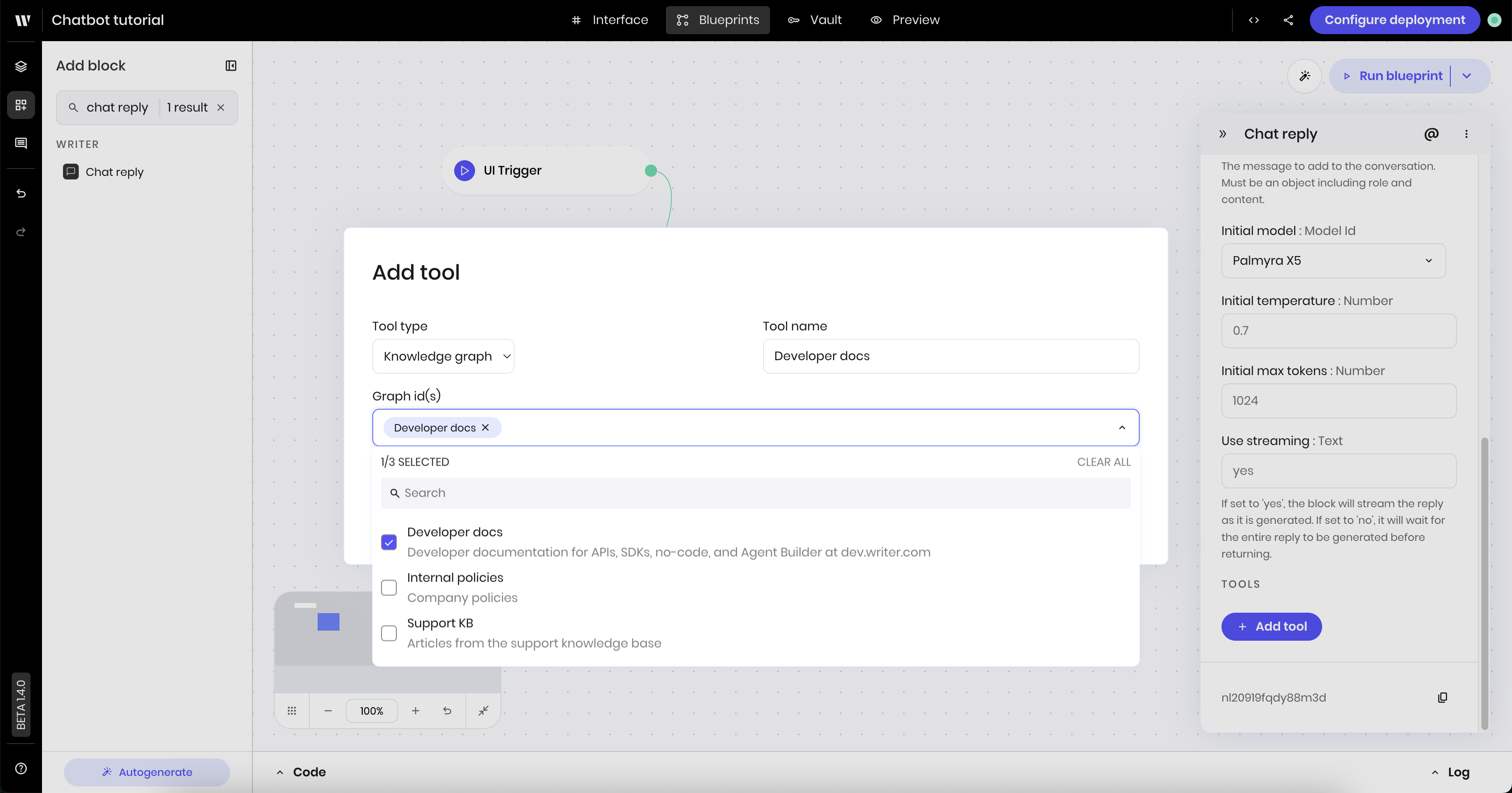 Now when the user asks questions related to data in the connected Knowledge Graphs, the chatbot can reference the data in the Knowledge Graphs to answer the question.
If you encounter any issues, refer to the [Troubleshooting](/agent-builder/troubleshooting) guide for debugging information.
Now when the user asks questions related to data in the connected Knowledge Graphs, the chatbot can reference the data in the Knowledge Graphs to answer the question.
If you encounter any issues, refer to the [Troubleshooting](/agent-builder/troubleshooting) guide for debugging information.